1. Kupu Whakataki
Thank you for choosing the EvoFox Ronin Wired Mechanical Gaming Keyboard. This manual provides detailed instructions for setting up, operating, and maintaining your keyboard to ensure optimal performance and longevity. The EvoFox Ronin is designed for a superior typing and gaming experience, featuring advanced sound dampening, customizable switches, and dynamic RGB lighting.

Image 1.1: EvoFox Ronin Wired Mechanical Gaming Keyboard (Black)
Āhuatanga matua:
- 9-Layer Gasket Structure: Advanced design for reduced noise, improved stability, and enhanced tactile feedback.
- Hot-Swappable Outemu Red Silent Switches: Customizable, durable, and smooth typing experience with included switch puller.
- Rama Whakamuri RGB Mō Ia Kī: 21 effects and Audio Sync Mode for personalized and immersive lighting.
- Dedicated Volume Knob: Convenient control over audio levels.
- Powerful Windows Software: Program keys, create macros, control backlighting, and manage profiles with onboard memory.
- Hototahi-whakawhitiwhiti: Easily switch between Windows and Mac modes.
- Detachable Braided USB-C Cable: Robust 1.5m cable with EMI ring for reliable connection and portability.
2. Ihirangi mokete
Tena koa tirohia kei roto katoa nga taonga kei roto i to kete:
- 1 x EvoFox Ronin Mechanical Gaming Keyboard
- 1 x Kaipupuri Kapene Matua
- 4 x Outemu Red Switches (Spare)
- 1 x Pukapuka Kaiwhakamahi
3. Hua Neke Atuview
3.1 Hanganga Pakitara
The EvoFox Ronin features an advanced 9-layer gasket structure. This design incorporates silicone gaskets, a mounting plate, and multiple layers of vibration and sound dampening materials to provide a stable, quiet, and comfortable typing experience by minimizing unwanted noise and resonance.
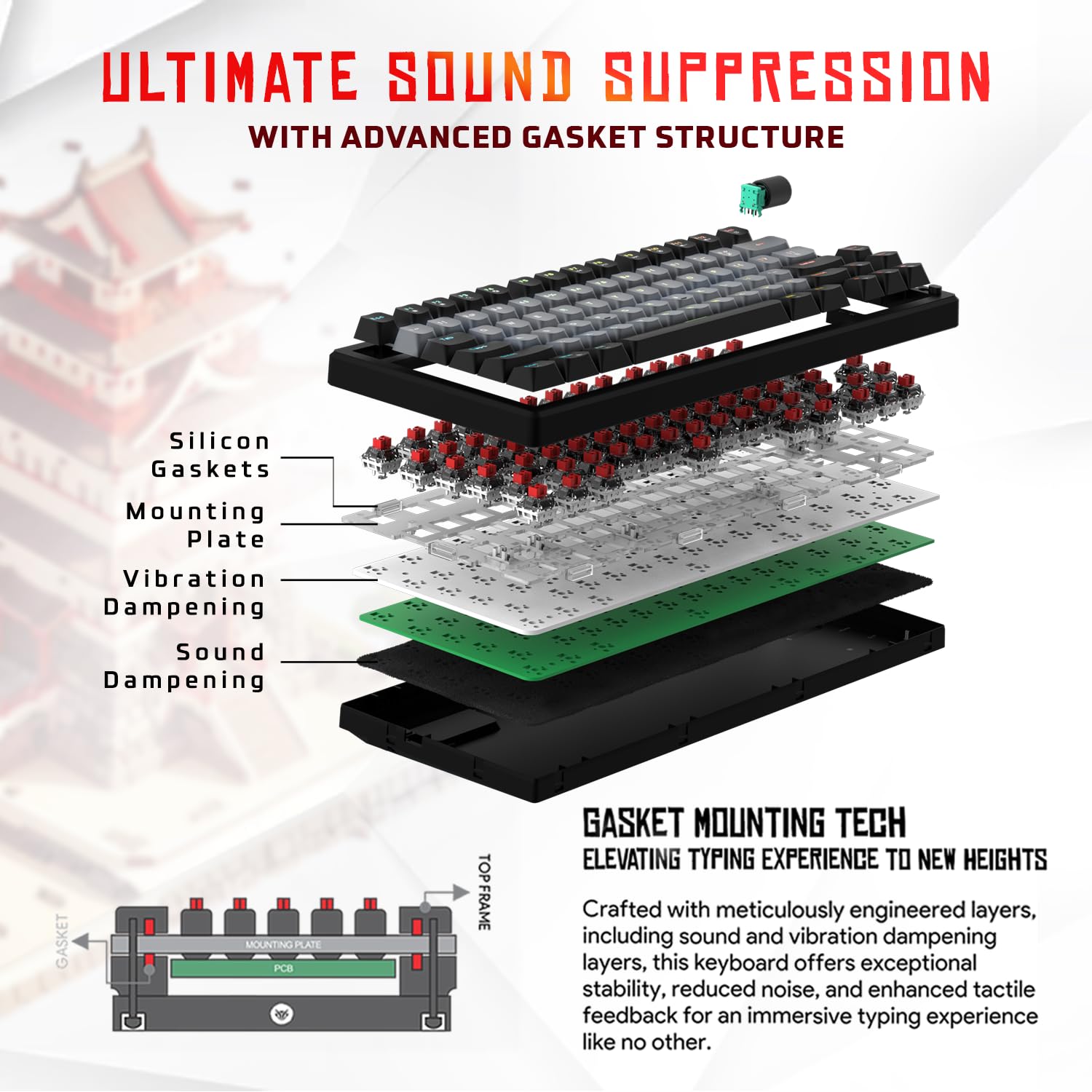
Whakaahua 3.1: Pahū view of the 9-layer gasket structure, showing silicone gaskets, mounting plate, and dampngā paparanga ening.
3.2 Outemu Red Silent Switches
The keyboard is equipped with Outemu Red Dust Proof Switches, known for their linear and silent operation. These switches are hot-swappable, allowing users to easily replace them with other compatible 3-pin mechanical switches without soldering, enabling full customization of the typing feel.
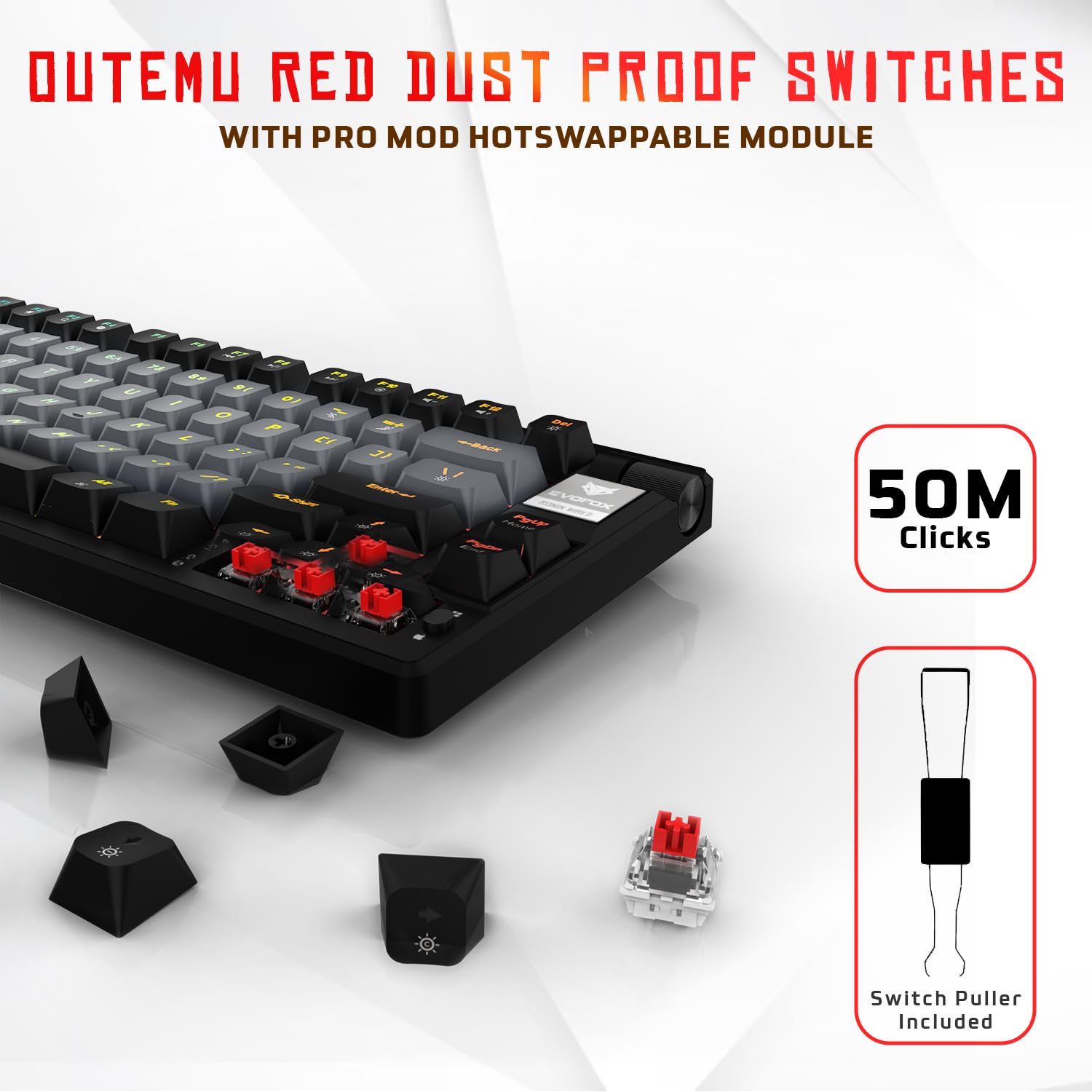
Image 3.2: Close-up of Outemu Red switches and the included switch puller, demonstrating hot-swappable functionality.
3.3 Rama Whakamuri RGB Mō Ia Kī
Each key on the EvoFox Ronin features individual RGB backlighting, offering 16 million colors and 21 pre-set lighting effects. The lighting can be customized directly on the keyboard or through the dedicated software, including an Audio Sync Mode that reacts to sound.

Image 3.3: The EvoFox Ronin keyboard showcasing its customizable per-key RGB backlighting.
3.4 Dedicated Volume Knob
A metal volume knob is integrated into the keyboard for quick and precise audio adjustments. Rotate to change volume, and press to mute/unmute.
3.5 Detachable USB-C Cable
The keyboard connects via a robust 1.5-meter braided USB-C cable, which is detachable for easy portability and storage. The cable includes an EMI ring to minimize signal interference.

Image 3.4: Features of the EvoFox Ronin, including the volume knob, detachable USB-C cable, and double-height adjustable legs.
4. Tohutohu Tatūnga
Follow these steps to set up your EvoFox Ronin keyboard:
- Wewetehia te Papapātuhi: Tangohia marietia te papapātuhi me ngā taputapu katoa i roto i te takai.
- Honoa te Taura USB-C: Insert the USB-C end of the provided cable into the port on the back of the keyboard.
- Hono ki Rorohiko: Plug the USB-A end of the cable into an available USB port on your computer (PC or Mac).
- Tāuta Atekōkiri: Ko te papapātuhi he mono-me-takaro. Ko to punaha whakahaere ka kitea aunoa me te whakauru i nga taraiwa e tika ana.
- Tāutanga Pūmanawa Kōwhiringa: For advanced customization, download the dedicated Windows software from the official EvoFox webpae.
5. Nga Tohutohu Whakahaere
5.1 Nga Mahi Matua Matua
The EvoFox Ronin functions as a standard TKL (Tenkeyless) keyboard. All keys perform their labeled functions. The keyboard supports N-Key Rollover, ensuring every key press is registered accurately, even during rapid input.
5.2 Ngā Pātuhi Pāpāho me ngā Pātuhi Mahi
Access multimedia and additional functions by pressing the Fn key in combination with the designated F-keys or other keys. Refer to the keycap legends for specific functions (e.g., Fn + F1 for media player, Fn + F2 for volume down).
5.3 Mana Rarama RGB
You can control the RGB lighting directly from the keyboard:
- Huri Pānga: Whakamahi Fn + \| to cycle through 21 different lighting effects.
- Whakaritea te Tirohanga: Whakamahi Fn + Pere Runga ki te whakanui i te kanapa me te Fn + Pere Raro ki te whakaiti i te kanapa.
- Whakarite Tere: Whakamahi Fn + Pere Mauī to decrease effect speed and Fn + Pere Matau to increase effect speed.
- Audio Sync Mode: Activate specific modes that react to audio input.
5.4 Whakaritenga Pūmanawa
The dedicated Windows software allows for comprehensive customization:
- Papatono Matua: Remap any key to a different function.
- Waihanga Tonotono: Record and assign complex key sequences to a single key.
- Backlighting Effects: Fine-tune RGB colors, effects, brightness, and speed.
- Profile Whakahaere: Waihangahia me te penapena pro mahafilemō ngā taupānga, ngā kēmu rānei rerekē.
- Reeti Pooti: Adjust the polling rate up to 1000Hz.

Image 5.1: Screenshot of the EvoFox Ronin's dedicated software, showing options for light settings, button settings, and macro management.
5.5 Cross-Platform Compatibility
The keyboard supports both Windows and Mac operating systems. Use the designated key combination (typically Fn+Wiki or similar, refer to keycap legends) to switch between modes, ensuring correct key mapping for your OS.
6. Tiaki
6.1 Te horoi i te papapātuhi
To maintain your keyboard's appearance and functionality:
- Momotuhia te papapātuhi mai i to rorohiko i mua i te horoi.
- Whakamahia he kēne hau kōpeke ki te tango i te puehu me te para i waenganui i ngā pūmatua.
- Ūkuia te matapāpātuhi me te mata papapātuhi ki te ngohengohe, paku damp kakahu. A ape i te makuku nui.
- Kaua e whakamahia he matū pakeke he horoi horoi ranei.
6.2 Te Whakakapi i ngā Pana
The EvoFox Ronin features hot-swappable switches, allowing for easy replacement without soldering:
- Momotuhia te papapātuhi mai i to rorohiko.
- Whakamahia te taputapu unu taupoki kī kei roto hei tango mārire i te taupoki kī e hiahiatia ana.
- Whakamahia te tō pana kei roto hei hopu mārire i ngā topenga o runga me o raro o te pana, ka tōia tika ki runga.
- Align the pins of the new switch with the holes on the PCB and gently press it down until it clicks into place. Ensure the pins are not bent.
- Whakakapia te kapene matua.

Image 6.1: A keycap being removed from the keyboard using a keycap puller.
7. Te Raru
If you encounter issues with your EvoFox Ronin keyboard, refer to the following common solutions:
- Papapātuhi Kaore i te whakautu:
- Me whakarite kei te hono pai te taura USB-C ki te papapātuhi me te rorohiko.
- Ngana ki te hono i te papapātuhi ki tetahi tauranga USB rereke i runga i to rorohiko.
- Whakamatautauria te papapātuhi i runga i tetahi atu rorohiko ki te whakakore i tetahi take rorohiko-motuhake.
- Tīmataria anō tō rorohiko.
- Rarama RGB Kaore i te Mahi/Heke:
- Check the on-board lighting controls (Fn key combinations) to ensure brightness is not set to zero or an effect is not disabled.
- Ki te whakamahi koe i te pūmanawa, kia tino mohio kei te rere, ā, ko te pūmanawa tikafile he kaha.
- Reinstall the keyboard software if issues persist.
- Kī Kāore i te Rēhita:
- Ensure no debris is lodged under the keycap or switch.
- If a specific key is not working, try replacing its switch (refer to Section 6.2).
- Check for bent pins on the switch if you recently replaced one.
- Software Issues (e.g., Antivirus Flagging):
- Ensure you download the software from the official EvoFox website to avoid unofficial versions.
- If your antivirus flags the software, you may need to add an exception for the software's executable file. Proceed with caution and only if you trust the source.
- Contact EvoFox support for the latest software version or assistance.
8. Whakatakotoranga
| Āhuahira | Taipitopito |
|---|---|
| Waitohu | EvoFox |
| Ingoa Tauira | EvoFox Ronin TKL Wired |
| Whakaahuatanga Papapātuhi | Hangaia |
| Hangarau Hononga | USB-C (Waea) |
| Whakawhiti | Outemu Red Silent Dust Proof Switches (Hot-Swappable) |
| Whakamuri | Per-Key RGB (16 Million Colors, 21 Effects, Audio Sync Mode) |
| Reiti Pooti | Tae atu ki te 1000Hz |
| Hurihuri Kī | N-Key Rollover (All Anti-Ghosting Keys) |
| Nga waahanga motuhake | Advanced Gasket Structure, Compact TKL Design, Multimedia Keys, Pro Mod Hotswap Module, Powerful Windows Software, Dedicated Volume Controller |
| Pūrere Hototahi | Pona, PC |
| Pūmārō Pūmārō | PC/Mac/Linux/Unix |
| Te roa o te taura | 1.5m Detachable Braided Type-C with EMI Ring |
| Rauemi | Kirihou |
| Hunga Hua | 32 x 13.5 x 2.6 cm |
| Taumaha Tūemi | 640 g |
| Whenua Taketake | Haina |
9. Pūtāhui me te Tautoko
The EvoFox Ronin Mechanical Gaming Keyboard comes with a standard manufacturer's warranty. Please refer to the warranty card included in your package for specific terms and conditions, including warranty period and coverage details.
For technical support, troubleshooting assistance, or warranty claims, please contact EvoFox customer support. You can find contact information on the official EvoFox website or through the manufacturer, Allied Electronics & Magnetics Private Limited.
Kaihanga: Allied Electronics & Magnetics Private Limited
Wāhi noho: C-64/4, Okhla Phase - 2, New Delhi - 110020


