1. Kupu Whakataki me Nekeview
The Bower Universal Battery Charger is designed for versatile charging of various battery types, including those found in DSLRs, digital cameras, camcorders, action cameras, and rechargeable NiMH AA/AAA batteries. Its adjustable design accommodates both 3.7V and 7.4V lithium-ion batteries, providing a convenient and efficient charging solution with a 5.04W power output. Additionally, it features a USB output for charging other compatible devices.
2. Nga korero haumaru
- Use this charger indoors only. Do not expose to rain or moisture.
- Ensure the correct battery type and voltage are used. Refer to your battery's specifications.
- Avoid short-circuiting the charger terminals.
- Kaua e ngana ki te utu pākahiko kore-rechargeable.
- Keep the charger away from excessive heat sources and direct sunlight.
- Wewetehia te rihi mai i te putanga hiko ina kore e whakamahia, i mua ranei i te horoi.
- Kaua e taea e nga tamariki.
3. Ihirangi mokete
- Bower Universal Battery Charger Unit
- Waea hiko AC
4. Nga waahanga hua me nga waahanga

Whakaahua 4.1: Mua view of the Bower Universal Battery Charger.

Whakaahua 4.2: Taipitopito view of charger components including power cord input, LED indicator, USB output, sliding tabs, adjustable clamp, and battery compartment.

Whakaahua 4.3: The charger's universal compatibility with DSLR/Mirrorless, Digital Camera, Camcorder, and Action Camera batteries, along with rechargeable NiMH AA/AAA batteries. Features over-voltage and over-charge protection.
- Cl taea te whakariteamp and Sliding Tabs: These features allow the charger to securely hold various sizes of lithium-ion battery packs and cylindrical AA/AAA batteries.
- Tohu LED: Displays the charging status of the inserted battery. Green lights indicate charging progress, and a full green bar indicates a complete charge.
- Putanga USB: A standard USB port is integrated, allowing you to charge any device that uses a USB connection (e.g., smartphones, tablets) directly from the charger.
- Whakauru Hiko AC: Connects the charger to a standard wall outlet using the provided AC power cord.
5. Tatūnga
- Unpack the Bower Universal Battery Charger and its accessories.
- Connect the provided AC power cord to the charger's AC input port.
- Plug the other end of the AC power cord into a standard wall outlet. The LED indicator lights may briefly illuminate.
6. Nga Tohutohu Whakahaere
6.1. Charging Lithium-Ion Battery Packs (3.7V/7.4V)
- Identify the positive (+) and negative (-) contact points on your battery pack.
- Press the gray button on the side of the charger to release the adjustable clamp and sliding tabs.
- Align the charger's metal pins with the corresponding contact points on your battery pack. Adjust the sliding tabs as needed to ensure a secure connection.
- Release the gray button to lock the battery pack firmly in place.
- The LED indicator will show the charging status. Green segments will light up sequentially as the battery charges. All segments illuminated green indicate a full charge.
- Once fully charged, press the gray button to release the battery and carefully remove it.

Whakaahua 6.1: Charger with a DSLR/Mirrorless camera battery inserted.

Whakaahua 6.2: Charger with a camcorder, digital, or action camera battery inserted.
6.2. Charging Rechargeable AA/AAA Batteries
- Ensure your AA/AAA batteries are rechargeable NiMH type. Do not attempt to charge standard alkaline batteries.
- Insert the AA/AAA batteries into the designated cylindrical slots, ensuring correct polarity (+ and - ends).
- Gently push the battery upwards until it clicks into place, securing it within the compartment.
- The LED indicator will show the charging status. Green segments will light up sequentially as the battery charges. All segments illuminated green indicate a full charge.
- Once fully charged, gently pull the battery downwards to release and remove it.
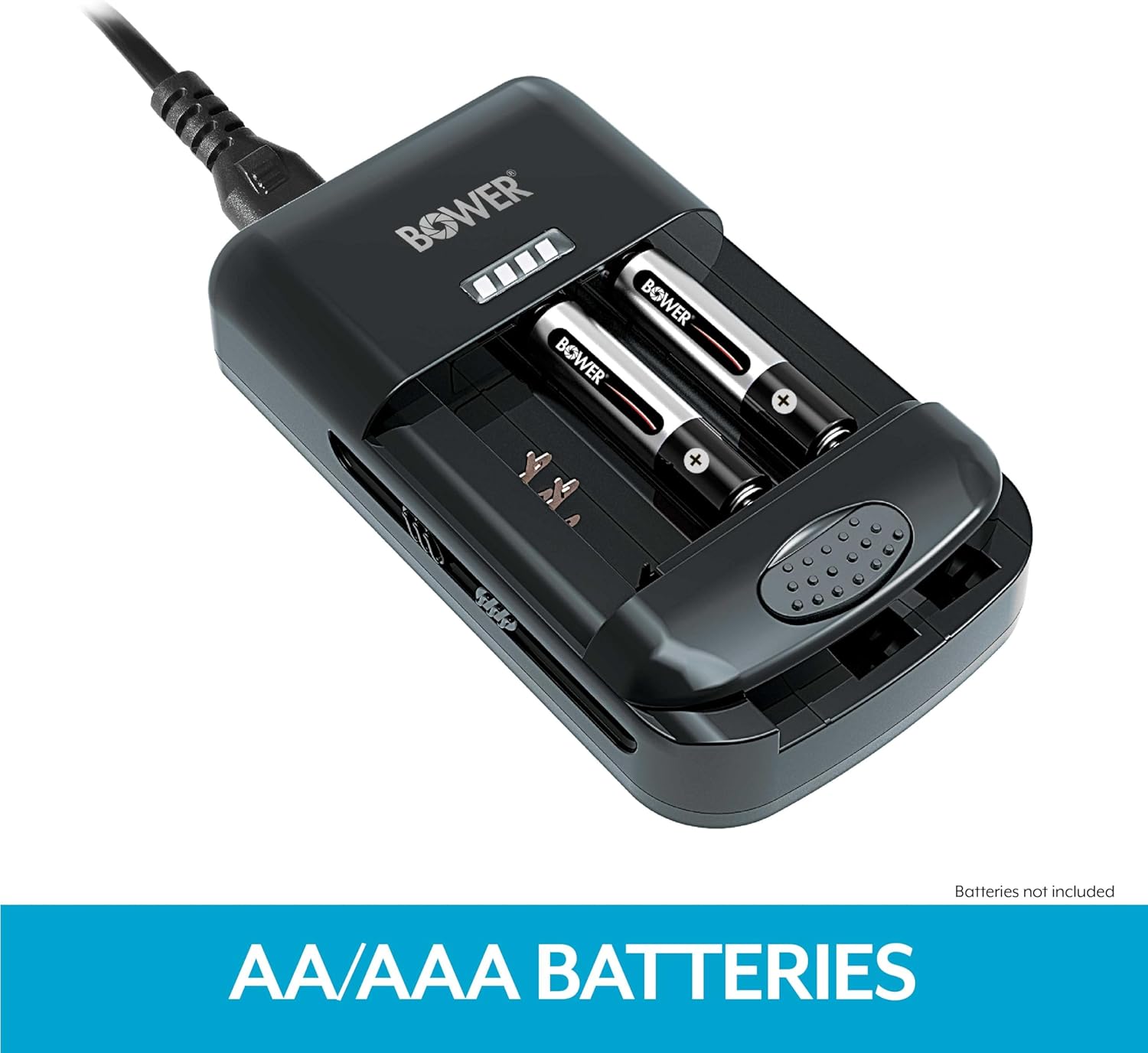
Whakaahua 6.3: Charger with rechargeable AA/AAA batteries inserted.
6.3. Using the USB Output
- Connect your USB charging cable (not included) to the USB output port on the side of the charger.
- Connect the other end of the USB cable to your device (e.g., smartphone, tablet).
- Ensure the charger is plugged into a power source. The charger will provide power to your USB device.
7. Tiaki
- Horoia te rihi ki te kakahu ngohengohe, maroke. Kaua e whakamahi i ngā wai horoi, i ngā whakarewa rānei.
- Ensure the charger's contact pins are free from dust and debris for optimal performance.
- Whakaorangia te rihi ki te waahi makariri, maroke ki te kore e whakamahia.
8. Te Raru
- Karekau te hikoi i te hiko: Ensure the AC power cord is securely connected to both the charger and a working wall outlet.
- Battery not charging / LED not illuminating:
- For Li-ion battery packs, ensure the charger's pins are correctly aligned with the battery contacts and the battery is securely clamped.
- For AA/AAA batteries, ensure correct polarity and that the batteries are fully seated.
- Verify that the battery is rechargeable and not damaged.
- USB device not charging: Ensure the charger is connected to a power source and that the USB cable is functioning correctly and securely connected to both the charger and the device.
9. Whakatakotoranga
| Hunga Hua | 3 x 2 x 1 inihi (7.62 x 5.08 x 2.54 cm) |
| Taumaha Tūemi | 8.8 hekere (249.48 karamu) |
| Putanga Voltage | 3.7 Volts (for Li-ion batteries) |
| Whakauru Voltage | 0.26 Volts (AC) |
| Putanga Mana | 5.04 Watts |
| Tae | Pango |
| Hototahi | 3.7V/7.4V Li-ion Batteries, NiMH AA/AAA Batteries |
10. Pūtāhui me te Tautoko
Bower products are manufactured to high-quality standards. For warranty information, technical support, or customer service inquiries, please refer to the contact information provided on the product packaging or visit the official Bower webpae. Tena koa pupurihia to tohu mo te hoko mo etahi kereme whakamana.


