1. Kupu Whakataki
Thank you for choosing the Edifier X1 Lite True Wireless Earbuds. This manual provides detailed instructions for setting up, operating, and maintaining your new earbuds to ensure optimal performance and longevity. Please read this manual thoroughly before use.

Image: Edifier X1 Lite True Wireless Earbuds in their open charging case.
2. He aha kei roto i te Pouaka
The Edifier X1 Lite package includes the following components:
- Edifier X1 Lite True Wireless Earbuds (Left and Right)
- Puhi utu
- Tauira Whakatau USB
- Pukapuka Kaiwhakamahi (tenei tuhinga)
3. Tatūnga
3.1 Whakataki Tuatahi
I mua i te whakamahi tuatahi, whakakiia katoatia nga pukoro taringa me te putea utu.
- Whakanohia nga taringa taringa e rua ki roto i te keehi ka utua.
- Honoa te taura utu USB ki te tauranga utu i runga i te take me te puna hiko (hei tauira, urutau taiepa USB, tauranga USB rorohiko).
- The indicator light on the charging case will show charging status. Refer to the LED indicator section for details.
- A full charge typically takes approximately 1.5 hours for the case and earbuds.
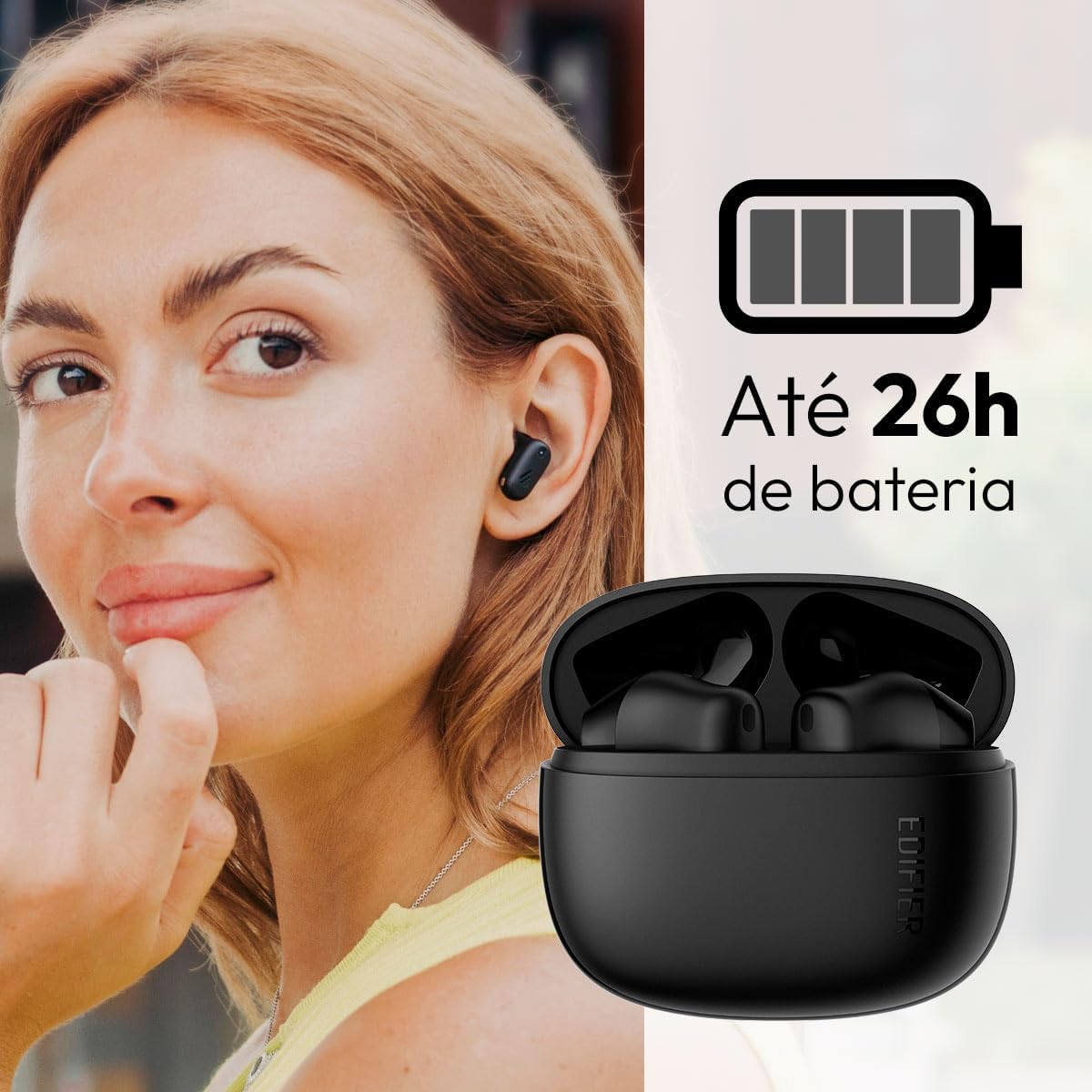
Image: Woman wearing an earbud, with the charging case and a battery icon indicating charging.
Fast Charging Feature:
A 15-minute quick charge can provide approximately 1.5 hours of playtime for the earbuds.

Pikitia: He whakaaturanga ā-kanohi o te roa o te pākahiko me ngā āheinga utu tere.
3.2 Takirua Nihokikorangi
Follow these steps to pair your Edifier X1 Lite earbuds with your device:
- Takirua tuatahi: Open the charging case. The earbuds will automatically power on and enter pairing mode. The indicator light on the earbuds will flash rapidly.
- I runga i to taputapu (waea atamai, papa, pona), whakaahei i te Nihokikorangi.
- Rapua "EDIFIER X1 Lite" in the list of available Bluetooth devices.
- Select "EDIFIER X1 Lite" to connect. Once connected, the indicator lights on the earbuds will turn off, and you will hear a confirmation tone.
- Re-pairing/Connecting to a New Device: If the earbuds are already connected to another device, disconnect them first. Alternatively, with the earbuds in the case and the lid open, press and hold the button on the charging case for 3 seconds to enter pairing mode.

Image: Man using earbuds, highlighting Bluetooth 5.4 connectivity.
3.3 Tāutanga Taupānga Edifier ConneX
For enhanced features and customization, download the EDIFIER ConneX app:
- Scan the QR code provided in the image below or visit the official Edifier app download page.
- Whakauruhia te taupānga ki to waea atamai papa ranei.
- Open the app and follow the on-screen instructions to connect your X1 Lite earbuds.
- The app allows for sound effect customization, game mode activation, and touch control settings.

Image: EDIFIER ConneX app interface with QR code. Download the Edifier ConneX App
4. Nga Tohutohu Whakahaere
4.1 Te Whakamaunga i nga Paoro
Proper fit ensures optimal sound quality and comfort:
- Tautuhia te maui (L) me te matau (R) pukoro.
- Whakauruhia mārire ia taringa ki roto i te awa taringa e tika ana.
- Hurihia mārire te taringa kia mau, kia whakamarie hoki.

Image: Man demonstrating proper earbud placement.
4.2 Hiko / Whakaweto
- Whakahiko: Ka hiko aunoa nga pukoro taringa ina tangohia mai i te pukoro utu.
- Weto Whakakore: Ka weto aunoa nga taringa ka timata ki te utu ina whakahokia ana ki roto ki te pukoro ka kati te taupoki.
4.3 Mana Pa
The Edifier X1 Lite earbuds feature touch-sensitive controls on each earbud. These controls can be customized via the EDIFIER ConneX app.
| Mahi | Pukarongo Mauī (L) | Puoro Whakamatau (R) |
|---|---|---|
| Whakautu/Whakamutua te Waea | Paoa Ruarua | Paoa Ruarua |
| Whakakahoretia te Waea | Tapatoru | Tapatoru |
| Purei/Tatari Waiata | Paoa Ruarua | Paoa Ruarua |
| Riro Panuku | N/A (Customize via App) | Tapatoru |
| Tuhinga o mua | Tapatoru | N/A (Customize via App) |
| Aratau Keemu Ki/Weto | Tapawhā-tārua | Tapawhā-tārua |
Note: These are default settings. Functions can be reconfigured using the EDIFIER ConneX app.

Image: Visual guide to earbud touch controls.
5. Tiaki
5.1 Te horoi
- Me horoi i nga wa katoa nga pukoro me te pukoro utu ki te kakahu ngohengohe, maroke, kore-puru.
- Kaua e whakamahia nga kai horoi, te waipiro, te whakarewa matū ranei.
- Me whakarite kia ma, kia kore he paru i ngā hononga utu o ngā pane taringa me te pouaka, kia tika ai te utunga.
5.2 Ātete Wai (IP54)
The Edifier X1 Lite earbuds are IP54 rated, meaning they are protected against dust ingress and splashing water from any direction. This makes them suitable for workouts and light rain.
- Kaua e rukuhia nga taringa ki te wai.
- Ko te putea utu kaore i te wai-atete. Kia maroke.
- If earbuds get wet, wipe them dry completely before placing them back in the charging case to prevent damage.

Image: Demonstrating IP54 sweat resistance during exercise.
5.3 Tiaki Pūhiko
- Kaua e whakaatu i ngā pane taringa me te putea ki ngā pāmahana tino wera (wera, makariri rānei).
- Whakaorangia te taputapu ki te waahi makariri, maroke ina kore e whakamahia.
- Whakautua te pūrere i ia wā, ahakoa kāore e whakamahia pinepinetia, hei pupuri i te hauora o te pākahiko.
6. Te Raru
If you encounter issues with your Edifier X1 Lite earbuds, refer to the following common problems and solutions:
6.1 Kāore he Oro, he Hononga Wātea rānei
- Takina Pūhiko: Ensure both earbuds and the charging case are sufficiently charged.
- Takirua ano: Disconnect the earbuds from your device's Bluetooth settings and then re-pair them.
- Tawhiti: Ensure the earbuds are within the Bluetooth range (typically 10 meters) of your device.
- pokanoa: Move away from strong Wi-Fi signals or other Bluetooth devices that might cause interference.
- Tautuhi: Place both earbuds in the charging case, close the lid, wait a few seconds, then open the lid and try pairing again.
6.2 Kāore e Utuhia ana ngā Taringa
- Taki Waea: Ensure the USB charging cable is securely connected to both the case and the power source.
- Puna Hiko: Whakamātauria tētahi atu tauranga USB, tētahi atu urutau pakitara rānei.
- Whakapaipai i nga Hoapā: Clean the charging contacts on the earbuds and inside the charging case with a dry cotton swab.
- Turanga Tika: Me whakarite kia tika te noho o nga taringa ki roto i te pukoro utu.
6.3 Kounga Waea Pai
- Te Ārai i te Hopuoro: Ensure the microphone on the earbuds is not covered.
- Taiao: Move to a quieter environment if possible. The AI algorithm helps, but extreme noise can still affect clarity.
- Tūhononga Pūmautanga: Whakaritea he hononga Nihokikorangi pumau.

Image: Man using earbuds for a clear call, highlighting AI voice pick-up technology.
6.4 Ngā Take Hononga Taupānga
- Nihokikorangi Ki: Ensure Bluetooth is enabled on your device and the earbuds are connected.
- Whakaaetanga Taupānga: Check if the EDIFIER ConneX app has necessary Bluetooth and location permissions.
- Restart App/Device: Katia ka whakatuwherahia te taupānga, ka whakaara ano ranei i to waea atamai.
- Whakahōu Taupānga: Me whakarite kei te whakahouhia te taupānga ki te putanga hou.
7. Whakatakotoranga
| Āhuahira | Taipitopito |
|---|---|
| Ingoa Tauira | X1 Lite |
| Hangarau Hononga | Ahokore (Nihokikorangi) |
| Putanga Nihokikorangi | 5.4 |
| Momo Atekōkiri Ororongo | Dynamic Driver (Φ13mm) |
| Awhe Auautanga | 20Hz-20kHz |
| Ora Pūhiko | Tae atu ki te 7 haora (puoro taringa), tae atu ki te 26 haora (me te putea utu) |
| Whakatau Tere | 15 meneti te utu mo te 1.5 haora te wa takaro |
| Rooputanga Iti | 60ms |
| Ātete wai | IP54 (Ngā taringa anake) |
| hopuoro | Single Mic AI algorithm voice pick-up |
| Tikanga Mana | Touch Control, App (EDIFIER ConneX) |
| Rauemi | Kirihou |
| Taumaha Earbud | Tata ki te 4g mō ia taringa |
| Tae | Pango |
8. Pūtāhui me te Tautoko
Edifier products are designed with quality and reliability in mind. For warranty information and customer support, please refer to the official Edifier webpaetukutuku, whakapā atu ranei ki ta raatau ratonga kaihoko.
- Whaimana Webpae: Haerenga www.edifier.com mō te rēhitatanga hua, ngā FAQ, me ngā rauemi tautoko.
- Ratonga Kiritaki: Contact Edifier customer support for technical assistance or warranty claims. Contact details can typically be found on the official webte waahi kei roto ranei i te kohinga hua.
Tena koa pupurihia to tohu hoko mo nga kaupapa whakamana.


