Kupu Whakataki
The RadioShack Tempo Pro Smartwatch is designed to seamlessly integrate into your daily life, offering a blend of style, advanced functionality, and robust technology. This manual provides essential information for setting up, operating, maintaining, and troubleshooting your device to ensure optimal performance and longevity.

Whakaahua 1: Mua view of the RadioShack Tempo Pro Smartwatch, showcasing its 2.4-inch AMOLED display with current time, step count, and heart rate monitoring. The watch features a sleek black design with a comfortable strap.
Tatūnga
1. Te Wetewete me te Tirotiro Tuatahi
I te whakatuwheratanga o te kete, kia tino mohio kei te wātea ngā wāhanga katoa, ā, kāore he pakaru. Kei roto i te kete paerewa:
- RadioShack Tempo Pro Smartwatch
- Uera Whakatau
- Pukapuka Kaiwhakamahi (tenei tuhinga)

Whakaahua 2: The contents of the RadioShack Tempo Pro Smartwatch retail box, including the smartwatch itself and its dedicated charging cable, neatly packaged.
2. Ka tohatohahia te Pūrere
Before first use, fully charge your smartwatch. Connect the provided charging cable to the charging contacts on the back of the watch and plug the USB end into a compatible USB power adapter (not included) or a computer's USB port. A full charge typically takes approximately 2 hours.

Whakaahua 3: Whakamuri view of the RadioShack Tempo Pro Smartwatch, highlighting the magnetic charging contacts and the optical sensors used for health monitoring, such as heart rate.
3. Whakakaha me te Weto
- Hei Whakahiko: Press and hold the side button until the RadioShack logo appears on the screen.
- Hei Whakaweto: Navigate to the 'Settings' menu on the watch, select 'System', then 'Power Off', and confirm.
4. Whakahoahoa ki to Waea atamai
To unlock the full potential of your Tempo Pro Smartwatch, pair it with your smartphone via Bluetooth. This allows for notifications, data synchronization, and advanced features.
- Download the official RadioShack Smartwatch app from your smartphone's app store (iOS App Store or Google Play Store).
- Me mohio kei te whakahohea te Nihokikorangi i runga i to waea atamai.
- Whakatuwheratia te taupānga ka whai i nga tohutohu i runga-mata hei hanga i tetahi kaute, takiuru ranei.
- Tīpakohia 'Tāpiri Pūrere' ranei 'Tauhoa Pūrere Hou' i roto i te taupānga.
- The app will search for available devices. Select 'Tempo Pro' from the list.
- Whakaūhia te tono takirua i runga i to waea atamai me te maataki atamai.
Nga Tohutohu Whakahaere
1. Te whakatere i te Atanga
The Tempo Pro Smartwatch features a responsive 2.4-inch AMOLED touchscreen. Navigation is primarily gesture-based:
- Swipe Runga/Whakararo: Panuku i roto i nga tahua me nga whakamohiotanga.
- Swipe Mauī/Matau: Uru ki nga widget rereke, ki nga tautuhinga tere ranei.
- Tap: Tīpakohia tētahi tūemi, whakaū rānei i tētahi mahi.
- Pēhi Pātene Taha: Hoki ki te mata o te kainga, whakaohohia ranei te taputapu.

Whakaahua 4: He roa tonu view of the RadioShack Tempo Pro Smartwatch, showcasing its sleek design and adjustable strap, suitable for various wrist sizes.
2. Core Functions
- Wā me te Rā: Ka tukutahi aunoa me tō waea atamai kua takiruahia.
- Whakamōhiotanga: Whiwhi matohi mo nga waea, karere, me nga whakamohiotanga taupānga tika ki to ringaringa. Whakahaerehia nga tautuhinga whakamohiotanga ma te taupānga atamai.
- Aroturuki Mahi: Ka aroturuki i ngā hikoinga, te tawhiti, ngā kaora i tahuna, me ngā meneti hohe puta noa i te rā.
- Te Arotake i te Ngakau: Provides continuous or on-demand heart rate readings.
- Aroturuki Moe: Tracks sleep patterns, including deep, light, and REM sleep, and provides insights into sleep quality.
3. Multi-Sport Tracking
The Tempo Pro Smartwatch supports various sports modes to accurately track your workouts. Select your desired activity from the 'Workout' or 'Sports' menu on the watch. Supported activities may include running, walking, cycling, swimming, and more. The watch will record relevant metrics such as duration, distance, pace, and heart rate during your exercise.
4. Mana Whakahoki Waiata
Control music playing on your paired smartphone directly from your smartwatch. Access the music control widget to play, pause, skip tracks, and adjust volume without needing to take out your phone.
5. Special Features: Snore Detection
The Tempo Pro Smartwatch includes a unique snore detection feature. When enabled, the watch can monitor for snoring sounds during your sleep, providing data that can help you understand your sleep patterns better. This feature is typically managed and viewed within the companion smartphone application.
Te tiaki
1. Te horoi i to Waati Mataara
Regular cleaning helps maintain the appearance and functionality of your device. Use a soft, lint-free cloth to wipe the screen and body. For stubborn smudges, slightly dampen te kakahu ki te wai. A ape i te whakamahi i nga matū kino, i nga taonga abrasive ranei.
2. Ātete ki te Wai me te Puehu (IP68)
The Tempo Pro Smartwatch is IP68 certified, meaning it is resistant to dust and can withstand immersion in water up to 1.5 meters for up to 30 minutes. While it is suitable for daily use, hand washing, and light rain, it is not recommended for diving, high-pressure water activities, or prolonged submersion. Always dry the watch thoroughly after exposure to water, especially the charging contacts.
3. Tiaki Pūhiko
Hei whakanui ake i te roa me te roa o te ora o te pākahiko:
- A ape i te wera nui.
- Me utu te taputapu i nga wa katoa, engari kaua e waiho kia matara katoa mo te wa roa.
- Whakamahia anake te taura utu e whakaratohia ana.
Raparongoā
| Raruraru | Take pea | Rongoā |
|---|---|---|
| E kore te taputapu e whakaka | He iti te pākahiko; kua tio te taputapu. | Charge the device for at least 30 minutes. If still unresponsive, perform a forced restart by holding the side button for 10-15 seconds. |
| Kaore e taea te hono ki te waea atamai | Bluetooth off; app issue; device not discoverable. | Ensure Bluetooth is on for both devices. Restart both the watch and phone. Clear app cache or reinstall the app. Ensure the watch is in pairing mode. |
| Kaore i tae mai nga panui | Bluetooth disconnected; app permissions; notification settings. | Check Bluetooth connection. Verify app permissions for notifications on your phone. Ensure notification settings are enabled in the smartwatch app. |
| Kore tika te aroturuki mahi | Improper fit; software glitch. | Ensure the watch is worn snugly on your wrist, about one finger's width above the wrist bone. Restart the device. Update firmware if available. |
Whakatakotoranga
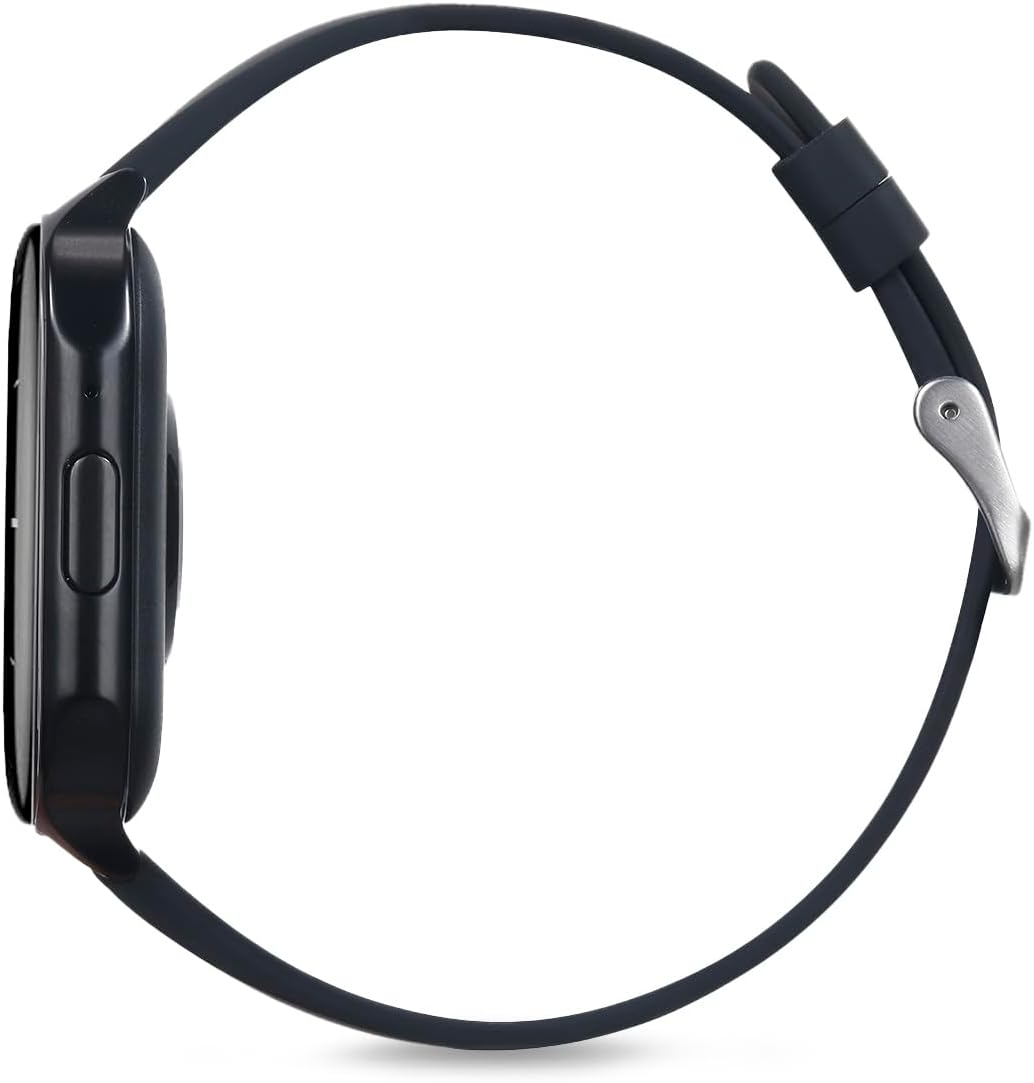
Whakaahua 5: Te taha profile of the RadioShack Tempo Pro Smartwatch, illustrating its slim design and the single physical button for navigation and control.
| Āhuahira | Taipitopito |
|---|---|
| Waitohu | RadioShack |
| Tauira | 207 ID207 |
| Rahi Whakaatu | 2.4 Inihi |
| Momo Whakaatu | AMOLED |
| Whakaatu Whakatau | 368 x 448 pika |
| Pūhiko Raukaha | 260 mah |
| Toharite Pūhiko Ora | 24 Hours (typical usage) |
| Hononga | Nihokikorangi |
| Ātete wai | IP68 (Atete Puehu me te Wai) |
| Nga waahanga motuhake | Multi-sport tracking, Music control, Snore Detection |
| Ahu | 19.1 x 11 x 2.4 cm |
| Taumaha | 170 g |
Pūtāhui me te Tautoko
Nga korero Whakaputanga
RadioShack products are manufactured to high-quality standards. For specific warranty terms and conditions, please refer to the warranty card included with your product or visit the official RadioShack webpae. Puritia to riirii hoko hei tohu mo te hoko mo nga kereme whakamana.
Tautoko Kiritaki
If you encounter any issues not covered in this manual or require further assistance, please contact RadioShack customer support. Contact details can typically be found on the product packaging, the official RadioShack website, or through the companion smartphone application.


