1. Kupu Whakataki
This manual provides detailed instructions for the installation, operation, and maintenance of your Sharkoon MK6 RGB Micro ATX PC Case. Please read this manual thoroughly before beginning assembly to ensure proper setup and optimal performance.
The Sharkoon MK6 RGB is a compact Micro ATX PC case designed with a modern glass aesthetic, featuring tempered glass panels on the front and side. It includes three pre-installed addressable RGB PWM fans for efficient cooling and customizable lighting. The case supports BTF motherboards and offers ample space for various components, including large graphics cards and extensive cooling solutions.
2. Tatūnga me te Tāuta Wae
Before starting, ensure you have all necessary tools, including a screwdriver set and anti-static wrist strap.
2.1 Te whakatuwhera i te keehi
Carefully remove the tempered glass side panel by unscrewing the retaining thumbscrews, typically located at the rear of the case. Gently slide the panel off and set it aside on a soft, flat surface to prevent scratches.
2.2 Whakaaturanga Papa Pouaka
- Install the I/O shield into the designated opening at the rear of the case.
- Align your Micro ATX or BTF motherboard with the standoffs inside the case. Ensure all standoffs match the motherboard's mounting holes.
- Whakamaua te papahoahoa mā te whakamahi i ngā tīwiri kua whakaratohia. Kaua e whakakī rawa.
2.3 Whakaaturanga Whakaaturanga Hiko (PSU) Whakauru
The MK6 RGB supports bottom-mount power supplies up to 23.5 cm in length.
- Slide the PSU into its designated compartment at the bottom rear of the case.
- Secure the PSU to the case using screws from the rear panel.
2.4 Te Whakanoho Puku Rokiroki
The case accommodates up to two 3.5" HDDs or three 2.5" SSDs.
- Ngā HDD 3.5": Locate the drive cage, typically near the PSU shroud. Mount the HDDs using the provided trays or screws.
- Ngā SSD 2.5": SSDs can be mounted on dedicated brackets behind the motherboard tray or within the drive cage.
2.5 Tāutanga Kāri Whakairoiro (GPU)
The MK6 RGB supports graphics cards up to 41 cm in length and includes a rubberized graphics card holder for support.
- Tangohia nga uhi mokamoka PCIe e tika ana mai i muri o te keehi.
- Whakauruhia tō kāri whakairoiro ki te mokamoka PCIe e tika ana i runga i te papahoahoa.
- Secure the graphics card with screws. Adjust the graphics card holder to provide additional support if needed.
2.6 Te Tāutanga o te Pūnaha Whakamatao
The case comes with three pre-installed 120mm addressable RGB PWM fans. Two fans are inverted on the side for intake, and one is at the rear for exhaust. The case supports up to eight fans in total.
- Additional Fans: Install additional 120mm or 140mm fans in available mounting positions (top, bottom, side) as required for optimal airflow.
- Liquid Cooling Radiators: The case supports a 360mm radiator and an additional 240mm radiator. Mount radiators to the designated areas (e.g., top, side) using appropriate screws.
2.7 Whakahaere taura
Whakamahia nga tapahi ararere taura me nga tohu here ki muri i te paepae papahoa hei whakahaere i nga taura. Ma tenei ka pai ake te rere o te hau me te rerehua.

Whakaahua 1: Roto view of the Sharkoon MK6 RGB PC case, highlighting the pre-installed fans and drive bay locations.

Whakaahua 2: Roto view showing the motherboard tray and various cutouts for efficient cable management.

Whakaahua 3: Roto view illustrating the available mounting points for liquid cooling radiators.

Whakaahua 4: Roto view displaying the adjustable graphics card holder for enhanced GPU support.
3. Nga Tohutohu Whakahaere
3.1 Te Whakakaha
After all components are installed and cables are connected, close the side panel. Connect your monitor, keyboard, mouse, and power cable to the PC. Press the power button on the front panel to start your system.
3.2 Mana Rarama RGB
The MK6 RGB includes an RGB controller that provides connections for up to four LED elements and up to four PWM fans. The pre-installed fans are connected to this controller.
- Default Modes: The RGB lighting will typically cycle through default patterns upon startup.
- Mana Pūmanawa: If connected to a compatible motherboard, RGB lighting can be controlled via the motherboard's RGB synchronization software. Refer to your motherboard manual for specific instructions.
- Mana a-ringa: Some cases may feature a dedicated button on the front panel to cycle through RGB modes. Consult the case's quick start guide for this feature.
3.3 Hononga o te Paewhiri o Mua
The front panel features modern TRRS and USB-C ports for broad compatibility with various devices. Connect your peripherals and storage devices as needed.

Whakaahua 5: Mua view of the Sharkoon MK6 RGB PC case, showcasing the tempered glass panel and visible RGB fans.
4. Tiaki
Ko te tiaki i nga wa katoa ka awhina i te mahi tino pai me te roa o nga waahanga PC.
4.1 Puehu Tātari Whakapai
The case features dust filters to prevent dust accumulation. Regularly clean these filters to maintain good airflow.
- Locate and remove the dust filters (e.g., top, bottom, front).
- Clean the filters using compressed air or by rinsing them with water. Ensure they are completely dry before reinstallation.
4.2 Tempered Glass Cleaning
Use a soft, lint-free cloth and a non-abrasive glass cleaner to clean the tempered glass panels. Avoid harsh chemicals that could damage the glass or coatings.
4.3 Fan Cleaning
Over time, dust can accumulate on fan blades, reducing cooling efficiency. Use compressed air to gently clean the fan blades. Ensure the system is powered off before cleaning.
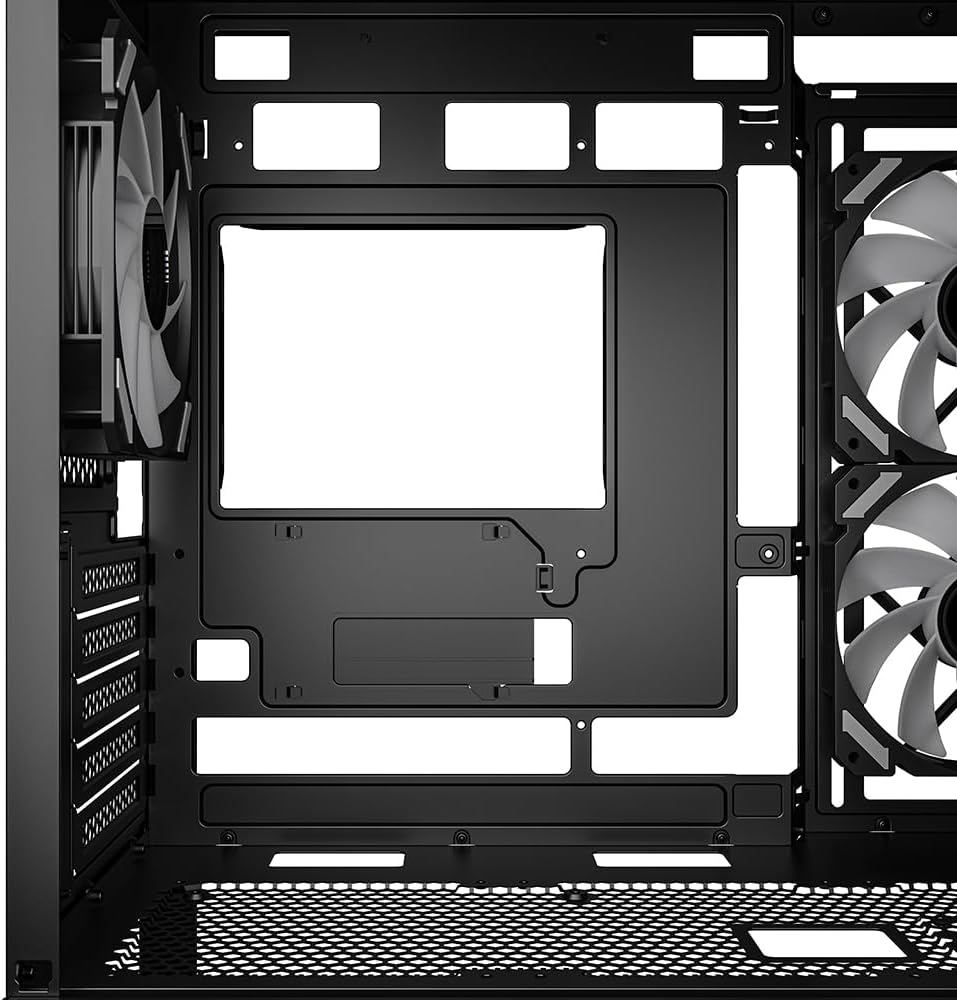
Whakaahua 6: Runga view of the Sharkoon MK6 RGB PC case, illustrating the removable magnetic dust filter for easy cleaning.
5. Te Raru
Ko tenei waahanga e aro ana ki nga take noa ka pa ki a koe.
5.1 Kaore te Pūnaha i te hiko
- Hononga Hiko: Verify that the PSU is properly connected to the wall outlet and the power switch on the PSU is in the 'ON' position.
- Tūhono Paewhiri Mua: Ensure the power button cable from the front panel is correctly connected to the motherboard's front panel header.
- Wae Roto: Check that all major components (motherboard, CPU, GPU, RAM) are securely seated and connected to the PSU.
5.2 Fans Not Spinning or RGB Not Lighting Up
- Ngā Hononga Pā: Confirm that all fan power cables are securely connected to the motherboard or the RGB controller.
- RGB Controller Power: Ensure the RGB controller itself is receiving power, typically via a SATA power connector from the PSU.
- Software/Button: If using software control, check the software settings. If there's a physical RGB button, try cycling through modes.
5.3 Poor Airflow or Overheating
- Tātari Puehu: Clean any clogged dust filters.
- Takotoranga Pahi: Ensure fans are oriented correctly for optimal airflow (intake at front/side, exhaust at rear/top).
- Whakaha Uepu: Whakapai ake i te whakahaere taura hei whakaiti i nga arai ki te rere o te hau.
6. Whakatakotoranga
| Āhuahira | Taipitopito |
|---|---|
| Ingoa Tauira | MK6 RGB |
| Waitohu | Mango |
| Momo Take | Huarahi Maaka |
| Papamatua Hototahi | Micro ATX, BTF |
| Rauemi | Karaehe Tempered |
| Tae | Pango |
| Rahi Hua (LxWxH) | 17.13 x 8.86 x 17.52 inihi (43.5 x 22.5 x 44.5 cm) |
| Taumaha Tūemi | 13.42 pauna (6.1 kg) |
| Teitei o te Whakamātao PTM | Tae atu ki te 17 cm |
| Te Whakawāteatanga o te Roa o te Kāri Whakairoiro | Tae atu ki te 41 cm |
| Te Whakawāteatanga Roa o te PSU | Tae atu ki te 23.5 cm |
| Peia Bays | 2x HDD 3.5" 3x SSD 2.5" rānei |
| Paanui kua whakauruhia i mua | 3x 120mm Addressable RGB PWM Fans |
| Tautoko Tino Pai | Tae atu ki te 8 ngā pā |
| Tautoko Radiator | 1x 360mm, 1x 240mm |
| Tuhinga o mua | TRRS, USB-C, USB 3.0 (1 port listed in specs) |
| Tikanga whakamatao | Te hau |
| Momo Whakaeke Hiko Hiko | Maunga Raro |
7. Nga Korero Whakaputanga
For detailed warranty information regarding your Sharkoon MK6 RGB PC Case, please refer to the official Sharkoon website or contact your local retailer. Warranty terms and conditions may vary by region and purchase location.
8. Tautoko Hangarau
If you encounter any issues or require technical assistance beyond the scope of this manual, please visit the official Sharkoon support website for FAQs, driver downloads, and contact information. You may also reach out to your point of purchase for support.


