1. Kupu Whakataki
This manual provides detailed instructions for the setup, operation, maintenance, and troubleshooting of your Gustard X26III DAC Network Bridge and Streaming device. Please read this manual thoroughly before using the product to ensure optimal performance and longevity.
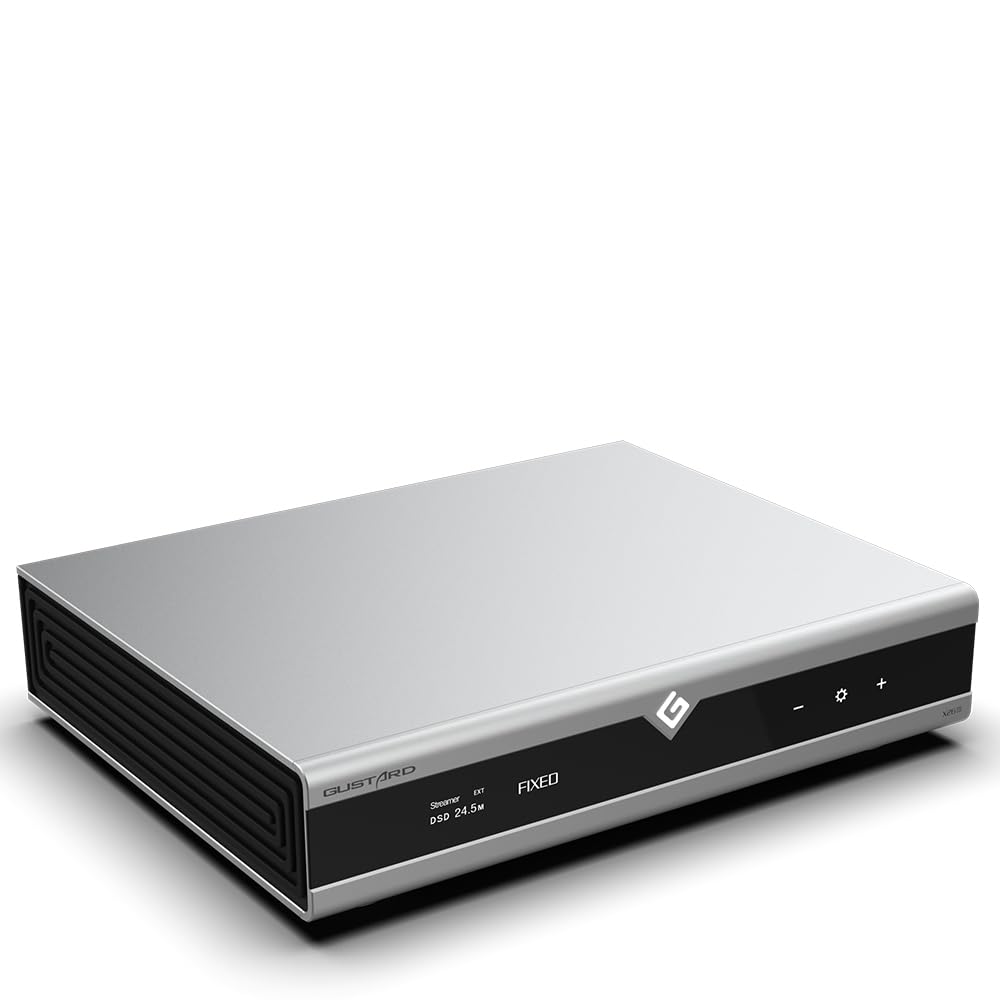
Whakaahua 1.1: Mua view of the Gustard X26III DAC Network Bridge and Streaming device, showcasing its sleek silver design and front panel display.
2. Nga waahanga matua
- Dual ES9039SPRO DAC Chips: Utilizes two ESS flagship ES9039SPRO chips for Digital-to-Analog Conversion, with one chip dedicated to each left and right channel. Features independent power supply and grounding for enhanced sound performance.
- DSP Digital Filter: Incorporates a high-performance digital filter solution based on the Analog Device SHARC digital audio-specific DSP platform. This filter reduces audio in-band aliasing noise, upscales, and noise shapes the digital audio stream signal using a high-precision floating-point 64-bit operation.
- FPGA Programmable Logic Chip: Features exclusive technologies including self-constructed logic functions, clock management, 2nd PLL digital shaping, DOP demodulation, and PCM/DSD depop switch, contributing to superior sound quality.
- GCLK-02 Clock Module: A high-performance clock frequency synthesizer employing advanced PLL (Phase Locked Loop) technology for stable and accurate clock signals. Supports both local and external 10MHz clock sources, reducing dependence on front-end audio equipment clock performance.
- Hybrid IV Conversion Circuit: Independent parallel circuit design fully meets the high current requirements of the ES9039SPRO chips.
- Network Bridge and Streaming: Supports Roon, Airplay, UPnP, NAA, and Spotify protocols with 100/1000Mbps LAN speed.
- Fully Balanced Design: Features a fully balanced design with complete four outputs.
- Dual High-Capacity Toroidal-Core Power Transformers: Isolated power supplies for digital and analog sections.

Whakaahua 2.1: Kua mutuview of the Gustard X26III's key features, including its dual ES9039SPRO DACs, GCLK-02 clock, and network streaming support.
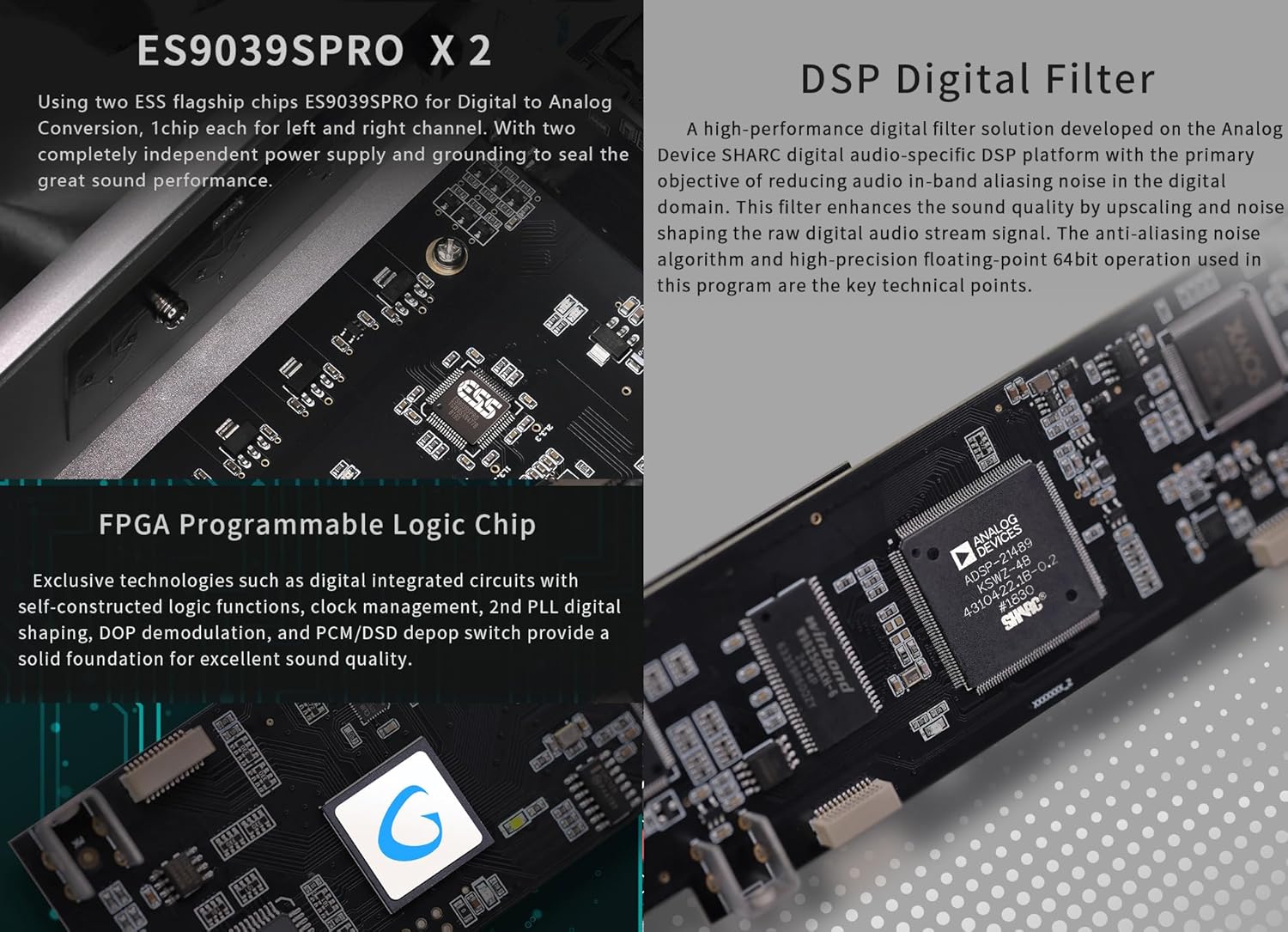
Whakaahua 2.2: Taipitopito view of the internal components, specifically highlighting the dual ES9039SPRO DAC chips and the DSP digital filter implementation.

Image 2.3: A closer look at the GCLK-02 clock module and the hybrid IV conversion circuit, demonstrating the precision engineering.
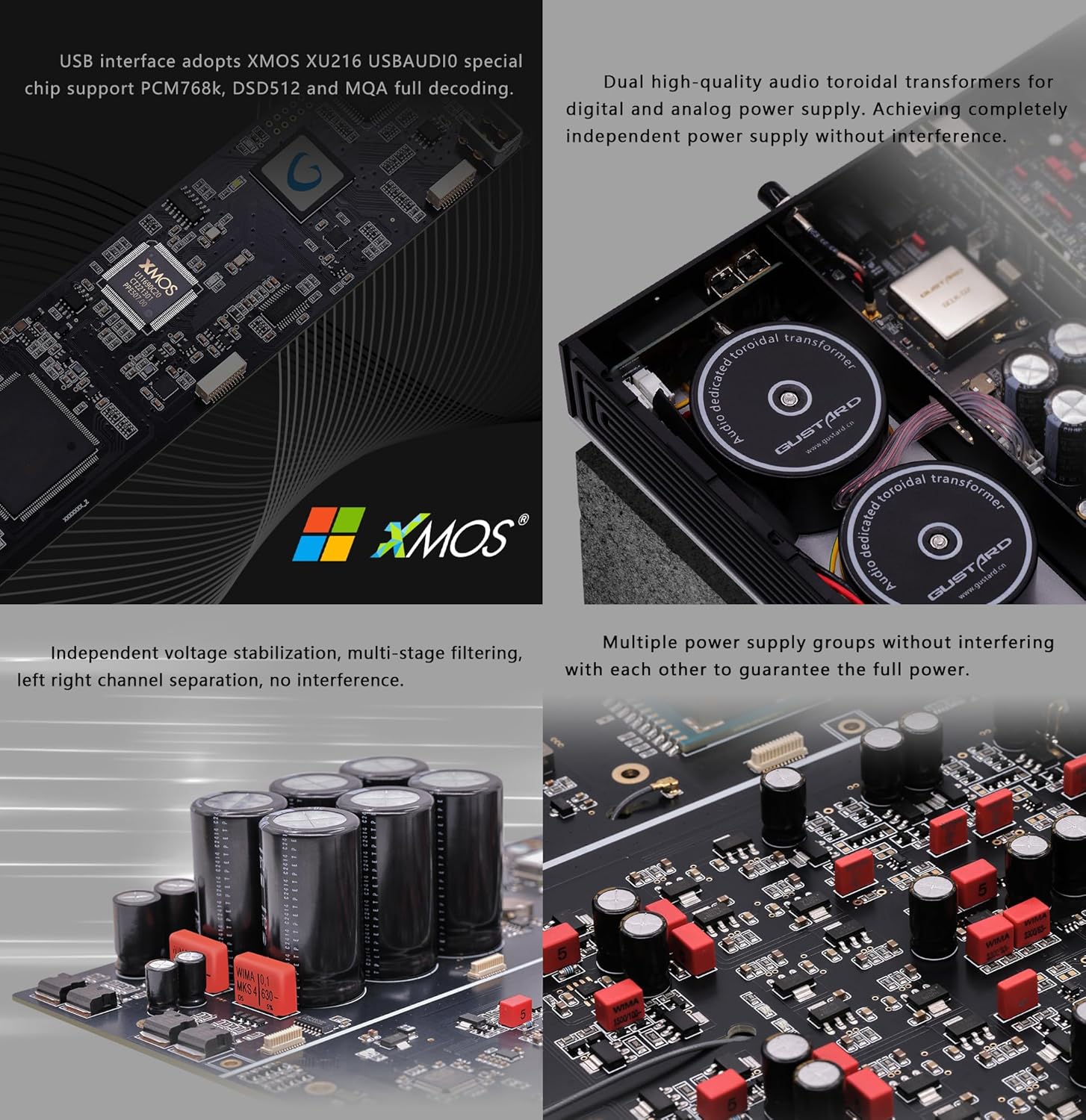
Whakaahua 2.4: Roto view illustrating the USB interface, dual toroidal transformers for isolated power, and multiple power supply groups.
3. Ihirangi mokete
Ina wetewetehia te kete, me whakarite kei roto katoa ngā taonga:
- Gustard X26III DAC Network Bridge and Streaming Unit
- Kaiwhakahaere Mamao
- Waea Hiko
- Tauira USB
- Pukapuka Kaiwhakamahi (tenei tuhinga)
4. Aratohu Tatūnga
Follow these steps to set up your Gustard X26III device:
4.1 Hononga Hiko
- Me whakarite te voltage whakakā i runga i te paewhiri muri kua whakaritea ki te vol tikatage mo to rohe (115V, 230V ranei).
- Connect the provided power cable to the AC power input on the rear panel of the X26III and then to a suitable wall outlet.
4.2 Hononga Ororongo
The X26III offers both RCA and XLR analog outputs.
- Putanga RCA: Connect RCA cables from the 'Line out RCA' ports on the X26III to the analog input of your ampkaiwhakarewa i mua raneiampkaikawe
- Putanga XLR: Connect XLR cables from the 'Line out XLR' ports on the X26III to the balanced analog input of your ampkaiwhakarewa i mua raneiamplifier. Ensure correct pin configuration (American Standard: 1 ground, 2 hot, 3 cold).
4.3 Digital Input Connections
Connect your digital audio sources to the appropriate input ports:
- Whakauru USB: Connect a USB cable from your computer or digital audio player to the 'USB input' port.
- Whakauru AES: Connect an AES/EBU cable to the 'AES input' port.
- Tāuru Coaxial: Connect a coaxial S/PDIF cable to the 'Coaxial input' port.
- Tāuru Optical: Connect an optical TOSLINK cable to the 'Optical input' port.
- I²S Input: Connect an I²S cable to the 'I²S input' port. Refer to section 5.4 for I²S line sequence adjustment.
4.4 Hononga Whatunga
For streaming functionalities, connect an Ethernet cable to the 'LAN' port on the rear panel.
4.5 External Clock Connection
If using an external 10MHz clock, connect it to the '10M clock (BNC)' input on the rear panel.
4.6 Hiko-Whakaahua Tuatahi
After all connections are made, press the power switch on the rear panel to turn on the device. The front display will illuminate.

Whakaahua 4.1: Taipitopito view of the front control panel and the rear panel connections, including power, audio outputs, and digital inputs.

Image 4.2: Diagram illustrating the I²S-H High-Specification Signal Input and its various connection modes for compatibility.
5. Nga Tohutohu Whakahaere
5.1 Paewhiri Mana Ki rungaview
The front panel features a display screen, standby switch, remote control receiver, and touch panel controls for navigation.
- Whakawhiti tūtatari: Toggles the device between active and standby modes.
- Whakaatu Mata: E whakaatu ana i te tāuru o nāianei, sample rate, volume, and filter settings.
- Kaiwhiwhi Mana Mamao: Receives signals from the included remote control.
- Paewhiri Pa Allows direct control of settings and input selection.
5.2 Mahi Taketake
- Hiko Whakaka/Weto: Use the standby switch on the front panel or the remote control to turn the unit on or off.
- Kōwhiringa Tāuru: Use the input selection buttons on the front panel or remote to cycle through available digital inputs (USB, AES, Coaxial, Optical, I²S, LAN).
- Mana Rōrahi: The analog outputs (RCA and XLR) have a fixed output level (2.5Vrms for RCA, 5.1Vrms for XLR). Volume control should be managed by your connected ampkaiwhakarewa i mua raneiampkaikawe
5.3 Whakawhiti Whatunga
The X26III supports various network protocols for streaming audio:
- Kawa Tautoko: Roon, Airplay, UPnP, NAA, Spotify.
- Whirihoranga: Network protocols can be configured via a web interface. Access the configuration web page by entering the device's IP address or "//x26.local" in a web browser on a PC connected to the same network. This interface allows you to enable or disable specific protocols and perform online firmware upgrades.

Image 5.1: Illustration of supported network streaming protocols (Roon, Airplay, UPnP, NAA, Spotify) and a screenshot of the web-atanga mana whakahaere.
5.4 Digital Filter Settings
The X26III offers various digital filter options for PCM and DSD playback, as well as a NOS (Non-Oversampling) mode.
- Tātari PCM: VIVID, GENTLE, COMPOSITE.
- DSD Filters: 47K, 50K, 60K, 70K.
- NOS Mode: ENABLE/DISABLE.
These settings can typically be adjusted via the front panel controls or the remote control. Refer to the on-screen menu for specific navigation.
5.5 I²S Line Sequence Adjustment
The I²S input supports different line sequence modes to ensure compatibility with various devices. Refer to the diagrams in Image 4.2 and the device's menu to select the correct mode (Mode 1, Mode 2, Mode 3, or Mode 4) for your source device.
6. Tiaki
To ensure the longevity and optimal performance of your Gustard X26III, follow these maintenance guidelines:
- Te horoi: Use a soft, dry cloth to clean the exterior of the device. Avoid using abrasive cleaners, solvents, or chemical sprays, as these can damage the finish.
- Whakahau: Ensure the device has adequate ventilation. Do not block the ventilation slots. Avoid placing the unit in enclosed spaces or on soft surfaces that may impede airflow.
- Taiao: Operate the device in a clean, dry environment, away from direct sunlight, heat sources, and excessive moisture.
- Te whakahaere: Kia tupato ki te hapai i te taputapu. A ape i te tuku, te tuku ranei ki nga paanga kaha.
7. Te Raru
If you encounter issues with your Gustard X26III, refer to the following common problems and solutions:
- Kore Mana:
- Check if the power cable is securely connected to both the device and the wall outlet.
- Verify that the rear panel voltage switch is set correctly (115V/230V).
- Me mohio kei te mahi te putanga hiko.
- Check the fuse on the rear panel. If blown, replace with a fuse of the same type and rating.
- Kore Putanga Oro:
- Confirm that the correct input source is selected on the X26III.
- Verify that the audio cables (RCA/XLR) are correctly connected to your ampkaiwhakarewa/mua-ampkaikawe
- Whakaritehia to ampkaiwhakarewa/mua-ampKa whakahikohia, ka tautuhia ki te whakaurunga tika.
- Tirohia te taumata oro i runga i tō ampkaiwhakarewa/mua-ampkaikawe
- If using a USB input, ensure the correct drivers are installed on your computer (if required).
- Network Streaming Issues:
- Ensure the Ethernet cable is securely connected to the LAN port.
- Verify that your network router is functioning correctly.
- Check the network configuration via the web interface (//x26.local) to ensure protocols like Roon, Airplay, UPnP, NAA, or Spotify are enabled.
- Restart the X26III and your network router.
- Whakaatu Kaore i te Mahi:
- If the unit has power but the display is blank, try cycling the power.
- Whakapa atu ki te tautoko a nga kaihoko mena ka mau tonu te take.
Mena kei te haere tonu te raru i muri i te whakamatau i enei otinga, tena koa whakapā atu ki te tautoko a nga kaihoko mo etahi atu awhina.
8. Whakatakotoranga
8.1 Whakauru Mamati
- LAN Support Protocols: Roon, Airplay, UPnP, NAA, Spotify (Configurable via web page, upgradable online)
- Tere LAN: 100/1000Mbps
- 10M Clock (BNC): Input impedance 50 Ohm, 0dBm-20dBm, CMOS square wave 0.2V-3.3V, Sine wave 0.5V-3.3V
- Atanga USB: Supports PCM768K, DSD512, MQA full decoding (via XMOS XU216 USB AUDIO chip)
8.2 Putanga Analog
- Whakautu Auautanga: 20-20kHz / +-0.3dB
- Awhe Hihiko: 128dB
- Tauwehenga Waitohu ki Haruru: >127dB
- Whakawhitiwhiti korero: 132dB @ 10kHz
- THD+N: <=0.0001% @ 1kHz
- IMD: ≈0.001% @ -1dbfs
- Taumata Huaputa RCA: 2.5Vrms (ROPI TUKU)
- RCA Output Impedance: 100Ω
- XLR Output Level: 5.1Vrms (ROPI TUKU)
- Taunga Putanga XLR: 100Ω
- XLR Interface Definition: American Standard (1 ground, 2 hot, 3 cold)
8.3 Ētahi atu Tawhā
- Mahinga Hiko AC: AC115V/230V 50/60Hz (Manual Switch)
- Whakamahi Hiko: <25W
- Dimensions (excluding protrusions): W330mm * D260mm * H65mm
- Ahu mōkihi: L420 * W360 * H175mm
- Weight with Package: 10KG (approx. 22.05 lbs)
- Tauira Tūemi: GUSTARD X26III
- Kaihanga: GUUSTARD
- Hangarau Hononga: Ethernet, XLR, RCA, BNC
- Ngā Pūrere Hototahi: Smartphone, Tablet, Personal Computer, Ampliifier, Kaikorero
- Aratau Putanga Ororongo: Tirooro
- Te maha o nga hongere: 2

Image 8.1: A summary of the technical specifications for the Gustard X26III, including digital input capabilities, analog output performance, and general device parameters.
9. Pūtāhui me te Tautoko
Gustard products are designed for reliability and performance. While specific warranty details may vary by region and retailer, the manufacturer generally provides support for quality restoration for more than one year, covering repair and shipping costs for eligible issues.
For technical assistance, troubleshooting, or warranty inquiries, please contact your authorized dealer or the manufacturer's customer support. Support is typically available 24/7 to answer any questions you may have.
Mo etahi atu korero, ka toro atu koe ki te KGUSS Store.

