1. Kupu Whakataki
This manual provides detailed instructions for the setup, operation, and maintenance of your TUINYO WH-819 Wireless Over-Ear Bluetooth Headphones. Please read this manual thoroughly before using the product to ensure proper function and longevity.
2. Hua Neke Atuview
The TUINYO WH-819 headphones offer high-fidelity stereo sound, comfortable over-ear design, and versatile connectivity options. They are designed for extended listening periods, featuring a long-lasting battery and a foldable structure for portability.
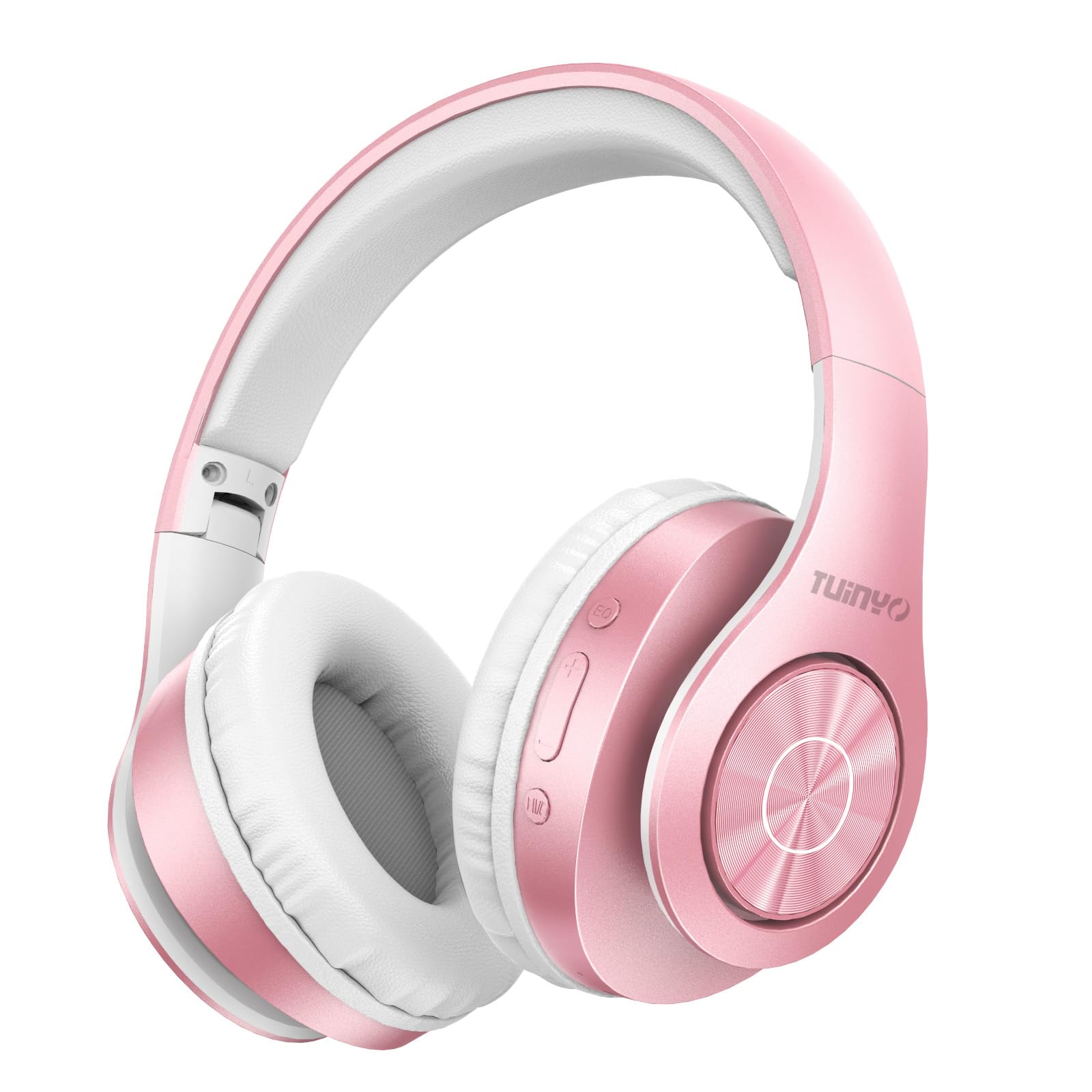
Figure 2.1: TUINYO WH-819 Rose Gold Wireless Over-Ear Bluetooth Headphones.
Ataata 2.1: Kua mutuview of the TUINYO wireless Bluetooth headphones, highlighting their design and features.
3. Ihirangi mokete
Me mohio kei roto katoa nga mea kei roto i te kete:
- TUINYO WH-819 Wireless Over-Ear Bluetooth Headphones
- Tauira Whakatau USB
- 3.5mm Waea Ororongo
- Protective Premium Case
- Pukapuka Kaiwhakamahi

Figure 3.1: Included accessories with the TUINYO WH-819 headphones.
4. Ngā Mana Whakahaere me ngā Tauranga
Familiarize yourself with the headphone controls and ports:
- Pātene Hiko: Long press to power on/off. Short press to play/pause music or answer/end calls.
- Rōrahi Whakarunga/Pātene Riu Panuku: Pihi poto mo te piki ake. Pehi roa mo te riu e whai ake nei.
- Rōrahi Whakararo/Pātene Riro o mua: Perehi poto mo te whakaheke i te reo. Pehi roa mo te riu o mua.
- Pātene EQ: Press to cycle through different equalizer modes (Normal, Rock, Pop, Classic, Jazz, Country).
- 3.5mm Jack Ororongo: Mo te hononga waea.
- Tauranga Kaihoko USB: Mo te utu i nga taringa.
- Miihini Kaari MicroSD: For direct music playback from a MicroSD card.

Whakaatu 4.1: Taipitopito view of headphone controls and features.
Video 4.1: A demonstration of the TUINYO headphones' folding mechanism and button controls.
5. Tatūnga
5.1 Te Whakataki i nga Waea
- Connect the USB charging cable to the headphone's charging port.
- Honoa te pito o te taura USB ki tētahi pūtake hiko USB hototahi (hei tauira, rorohiko, urutau pakitara).
- Ka whakaatu te tohu LED i te mana o te utu (hei tauira, he whero mo te utu, he kikorangi mo te whakakii katoa).
- He 2-2.5 haora te roa o te utu katoa.
5.2 Takirua Nihokikorangi
- Me mohio kei te whakakiia nga taringa.
- Long press the Power button until the LED indicator flashes blue and red, indicating pairing mode.
- I runga i to taputapu (smartphone, tablet, pona), whakaahei i te Nihokikorangi me te rapu mo nga taputapu e waatea ana.
- Tīpakohia "WH-819" mai i te rārangi o ngā taputapu.
- Once connected, the LED indicator will flash blue slowly, and a voice prompt will confirm successful pairing.
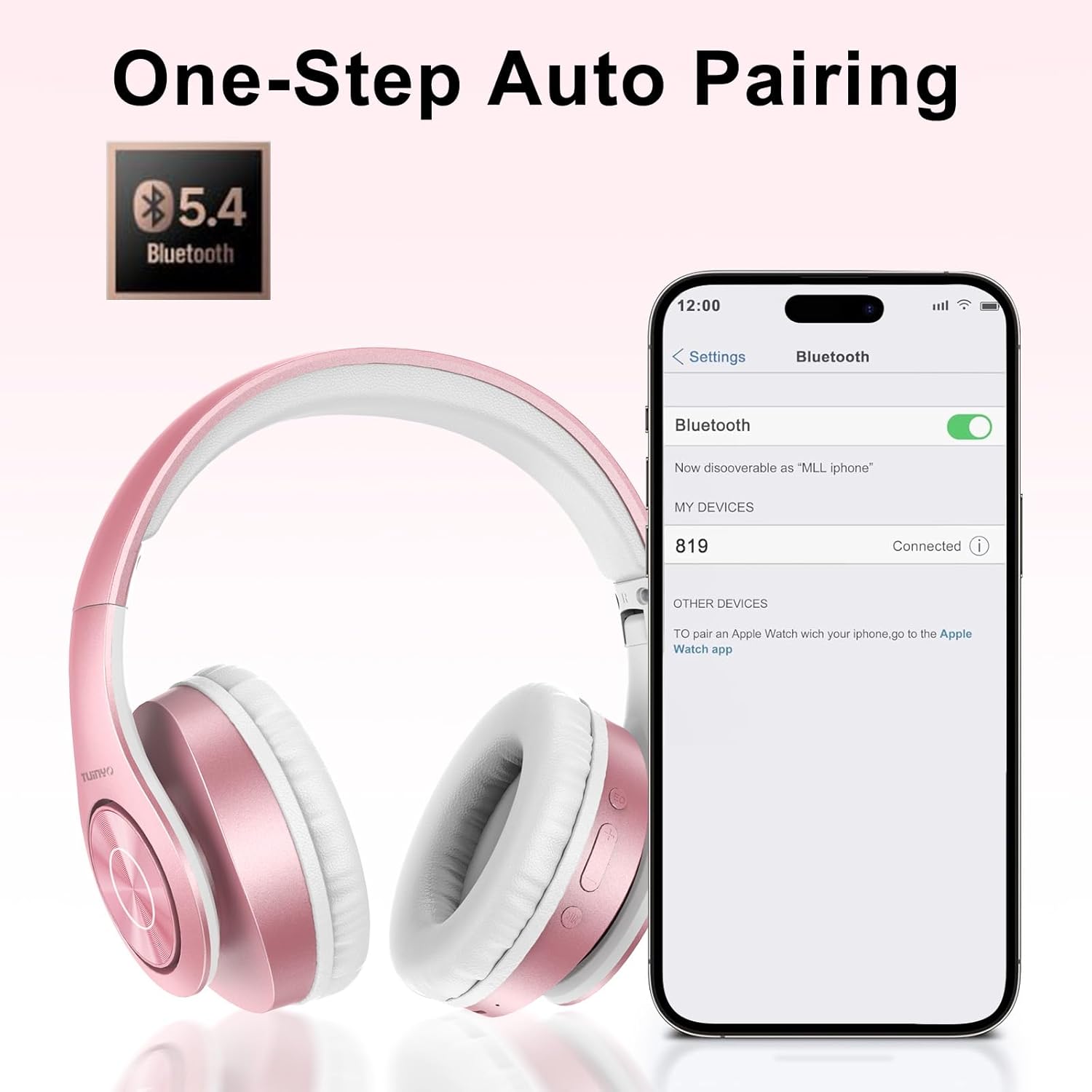
Figure 5.1: Bluetooth pairing process on a smartphone.
6. Nga Tohutohu Whakahaere
6.1 Hiko / Whakaweto
- Whakahiko: Long press the Power button until the LED indicator lights up blue.
- Weto Whakakore: Long press the Power button until the LED indicator turns off.
6.2 Purei Waiata
- Purei/Tatari: Patohia poto te paatene Mana.
- Riu Panuku: Pēhia roa te pātene Volume Up.
- Riu o mua: Pēhia roa te pātene Volume Raro.
- Whakaritenga Rōrahi: Short press the Volume Up or Volume Down buttons.
6.3 Whakahaere Waea
- Whakautu/Whakamutu Waea: Patohia poto te paatene Mana.
- Whakakore Waea: Pēhia roa te pātene Mana.
6.4 EQ Mode
- Press the EQ button to switch between different sound equalizer modes (Normal, Rock, Pop, Classic, Jazz, Country) to optimize your listening experience.
6.5 Aratau Waea
- Insert the 3.5mm audio cable into the headphone's audio jack and the other end into your audio device.
- The headphones will automatically switch to wired mode, and Bluetooth functionality will be disabled.
6.6 Purei Kāri MicroSD
- Insert a MicroSD card with MP3 audio fileki roto i te mokamoka kāri MicroSD.
- Ka kitea aunoatia e ngā pane whakarongo te kāri, ā, ka tīmata te purei waiata.
- Use the music playback controls (Play/Pause, Next/Previous Track, Volume) to manage your audio.
7. Tiaki
- Horoia nga taringa ki te kakahu ngohengohe, maroke.
- A ape i te whakamahi i nga kai horoi, i nga whakarewa ranei.
- Store the headphones in their protective case when not in use to prevent damage.
- Kia matara atu i te tino mahana me te makuku.
8. Te Raru
| Raruraru | Rongoā |
|---|---|
| Karekau e kaha ana nga waea. | Me mohio kei te utu nga taringa. Tūhono ki tētahi puna hiko ka ngana anō. |
| Kaore e taea te hono ma te Nihokikorangi. | Ensure headphones are in pairing mode (LED flashing blue/red). Turn off and on Bluetooth on your device. Move closer to the device. |
| Karekau he oro i te aratau Nihokikorangi. | Check volume levels on both headphones and connected device. Ensure headphones are successfully paired. |
| Karekau he oro i te aratau waea. | Ensure the 3.5mm audio cable is fully inserted into both the headphones and the audio device. Check the audio source. |
| MicroSD card not playing. | Ensure the MicroSD card is inserted correctly and contains compatible MP3 audio files. |
9. Whakatakotoranga
| Āhuahira | Taipitopito |
|---|---|
| Ingoa Tauira | WH-819 |
| Hangarau Hononga | Ahokore (Nihokikorangi), Waea (3.5mm Jack) |
| Hangarau Whakawhitiwhiti Ahokore | Nihokikorangi 4.0 |
| Momo Atekōkiri Ororongo | Dynamic Driver (40mm neodymium) |
| Ora Pūhiko | Up to 40 hours of music time (800mAh battery) |
| Waa Whakatau | 2-2.5 haora |
| Hanga Whakatangitangi | Runga-taringa |
| Rauemi | Plastic, Memory-Protein Earmuffs |
| Taumaha | 13.4 hekere |
| Ahu | 8.5 x 6.22 x 4.25 inihi (Pake) |
| Pūrere Hototahi | Tablets, Laptops, Desktops, Smartphones, Bluetooth-enabled devices |
| Taumata Atete Wai | Ehara i te wai ātete |
10. Pūtāhui me te Tautoko
Your TUINYO WH-819 headphones are covered by a 30-day warranty from the date of purchase. For any product inquiries, technical support, or warranty claims, please refer to the contact information provided with your purchase or visit the official TUINYO webpae.


