1. Kupu Whakataki
Thank you for choosing the FIREBAT Mini PC AK2 PLUS. This manual provides essential information for setting up, operating, maintaining, and troubleshooting your new mini PC. Please read this manual thoroughly before use to ensure optimal performance and longevity of your device.
2. Ihirangi mokete
Carefully unpack your FIREBAT Mini PC and verify that all items listed below are included:
- 1 x FIREBAT AK2 N150 Mini PC
- 1 x 12V/2.5A US Adapter
- 1 x VESA Maunga
- 1 x taura HDMI
- 1 x Manual Kaiwhakamahi (tenei tuhinga)

Image: Contents of the FIREBAT Mini PC AK2 PLUS package, including the mini PC, power adapter, VESA mount, HDMI cable, and user manual.
3. Hua Neke Atuview
The FIREBAT Mini PC AK2 PLUS is a compact and powerful desktop computer designed for various applications, from office work to home entertainment. It features an Intel 13th Gen N150 processor, ample storage, and versatile connectivity options.
3.1 Nga waahanga matua
- Tukatuka: Intel 13th Gen Twin Lake N150 (4 cores/4 threads, up to 3.6GHz)
- Pūmahara: 16GB DDR4 RAM
- Rokiroki: 512GB M.2 2280 SSD (expandable up to 4TB with 2.5" SSD/HDD)
- Whakairoiro: Intel UHD Graphics (1000MHz, 4K support)
- Whakaatu: Supports dual HDMI output for simultaneous 4K display
- Hononga: Dual-band Wi-Fi, Bluetooth 4.2, Gigabit Ethernet
- Tauranga: Multiple USB 2.0 and USB 3.0 ports, HDMI, LAN
- Matao: Ultra-quiet fans with intelligent cooling technology

Whakaahua: Mua me muri view of the FIREBAT Mini PC AK2 PLUS, highlighting its compact design and various ports.
3.2 Ngā Tauranga me ngā Atanga
Familiarize yourself with the available ports on your Mini PC:
- Paewhiri Mua: Power Button, USB 3.2 Type-A ports
- Paewhunga Rear: DC Power Input, 2 x HDMI 2.0 Type-A ports, LAN RJ45 port, USB 2.0 Type-A ports

Image: Detailed diagram of the FIREBAT Mini PC AK2 PLUS interfaces, showing the location of USB, HDMI, LAN, and power ports.
3.3 Internal Components and Expansion
The Mini PC comes with pre-installed RAM and SSD. You can expand the storage capacity:
- RAM: DDR4 SODIMM
- SSD: M.2 2280 SATA SSD
- Roha: Supports adding a 2.5" SSD/HDD (not included) for additional storage up to 2TB.

Image: Illustration of the M.2 2280 SSD and SO-DIMM DDR4 memory modules used in the Mini PC.
4. Aratohu Tatūnga
Follow these steps to set up your FIREBAT Mini PC:
4.1 Hononga Pikitia
- Tuhono Whakaatu: Use the provided HDMI cable to connect the Mini PC to your monitor or TV. The Mini PC supports dual display output via its two HDMI ports.
- Tūhono Papapātuhi me te Kiore: Plug your USB keyboard and mouse into the available USB ports on the Mini PC.
- Hono Whatunga (Kōwhiringa): For a wired connection, connect an Ethernet cable from your router/modem to the LAN RJ45 port on the Mini PC. For wireless, ensure your Wi-Fi network is available.
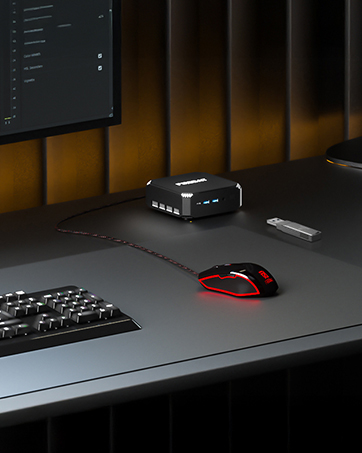
Image: The Mini PC connected to a monitor, keyboard, and mouse on a desk, illustrating a typical setup.
4.2 Te Whakakaha
- Tūhono Pūurutau Hiko: Plug the 12V/2.5A US Adapter into the DC power input port on the Mini PC, then plug the adapter into a power outlet.
- Whakahiko: Pēhia te pātene mana kei mua o te Mini PC. Ka tiaho te rama tohu mana.

Image: The Mini PC connected to its power adapter, demonstrating the correct power connection.

Image: Close-up of the Mini PC's power button, indicating its location for powering on the device.
4.3 Tāutanga Maunga VESA (Whiringa)
The included VESA mount allows you to attach the Mini PC to the back of a compatible monitor or to a wall, saving desk space.
- Attach the VESA bracket to the back of your monitor or desired surface using appropriate screws.
- Slide the Mini PC onto the VESA bracket until it clicks securely into place.

Image: The Mini PC shown with its VESA mount, demonstrating how it can be attached to the back of a monitor for a space-saving setup.
5. Nga Tohutohu Whakahaere
5.1 Te Whakaara Tuatahi me te Tatūnga Pūnaha Whakahaere
Upon first power-on, the Mini PC may guide you through the initial setup of its default operating system. Follow the on-screen prompts to configure language, region, network, and user accounts.
5.2 Tatūnga Whakaaturanga Takirua
To utilize the dual display feature:
- Connect two monitors to the two HDMI ports on the rear of the Mini PC.
- Once both monitors are connected and powered on, the operating system should automatically detect them.
- Adjust display settings (e.g., extend, duplicate, resolution) through your operating system's display configuration panel.

Image: The Mini PC connected to two monitors via HDMI, demonstrating its dual display capability for enhanced productivity.
5.3 Hononga Whatunga
The Mini PC supports both wired and wireless network connections:
- Waea (Ethernet): Connect an Ethernet cable to the RJ45 port. The connection will be established automatically.
- Ahokore (Wi-Fi): Whakauru atu ki ngā tautuhinga whatunga o tō pūnaha whakahaere, tīpakohia tō whatunga Wi-Fi, ka tāuru i te kupuhipa hei hono atu.
- Nihokikorangi: Whakahohehia te Nihokikorangi i roto i ngā tautuhinga o tō pūnaha whakahaere kia hono atu ki ngā taputapu hototahi pēnei i ngā paneoro, ngā papapātuhi, ngā kiore rānei.
6. Tiaki
Mā te tiaki tika ka roa te ora me te mahi tino pai o tō Mini PC.
6.1 Te horoi
- Horoia te taha waho o te Mini PC i ia wā ki te kakahu ngohengohe, maroke.
- Use compressed air to gently clear dust from the ventilation openings to maintain proper airflow and cooling.
- Do not use liquid cleaners or sprays directly on the device.

Image: An illustration showing the internal cooling fan of the Mini PC, emphasizing the importance of keeping ventilation clear for efficient heat dissipation.
6.2 Te Rokiroki me te Taiao
- Store the Mini PC in a cool, dry place away from direct sunlight and extreme temperatures.
- Avoid placing the device in dusty environments or near sources of moisture.
- Ensure adequate ventilation around the Mini PC during operation.
7. Te Raru
If you encounter issues with your FIREBAT Mini PC, refer to the following common problems and solutions:
| Raruraru | Take pea | Rongoā |
|---|---|---|
| Kāore he hiko/Kāore e tahuri | Kāore te urutau hiko i hono, i hapa rānei; he raruraru ki te putanga hiko. | Me whakarite kei te hono pai te urutau hiko ki te Mini PC me te putanga hiko e mahi ana. Whakamātauria tētahi atu putanga. |
| Karekau he whakaaturanga ki te aroturuki | HDMI cable loose or faulty; Monitor input not selected correctly; Monitor not powered on. | Check HDMI cable connections. Ensure monitor is powered on and set to the correct input source (HDMI). Try a different HDMI cable or monitor. |
| Kāore he hononga ipurangi (Wi-Fi) | Incorrect Wi-Fi password; Router issue; Wi-Fi adapter disabled. | Verify Wi-Fi password. Restart your router. Check operating system settings to ensure Wi-Fi is enabled. |
| No internet connection (Wired) | Ethernet cable loose or faulty; Router issue; Network adapter disabled. | Check Ethernet cable connections. Restart your router. Check operating system settings to ensure the wired network adapter is enabled. |
| He puhoi, he kore urupare ranei te punaha | Too many applications running; Low disk space; Overheating. | Close unnecessary applications. Free up disk space. Ensure proper ventilation and clean dust from vents. Restart the Mini PC. |
If the problem persists after trying these solutions, please contact FIREBAT customer support.
8. Whakatakotoranga
Detailed technical specifications for the FIREBAT Mini PC AK2 PLUS:
| Āhuahira | Whakatakotoranga |
|---|---|
| Tau tauira | AK2 PLUS |
| Tukatuka | Intel 13th Gen Twin Lake N150 (4 Cores, 4 Threads, up to 3.6 GHz) |
| RAM | 16GB DDR4 SDRAM |
| Rokiroki | 512GB M.2 2280 SSD (eSATA interface) |
| Kaitukatuka Whakairoiro | Intel UHD Graphics (Integrated, 1000MHz) |
| Taumira Mata Max | 4096 x 2160 Pika (4K) |
| Hononga Ahokore | 802.11a/b/g/n/ac (Dual-band Wi-Fi), Bluetooth 4.2 |
| Tauranga USB | 2x USB 2.0, 2x USB 3.0 |
| Putanga Ataata | 2 x HDMI |
| Hanga Tuku | RJ45 Gigabit Itarangi |
| Pūnaha Mahi | Default (Pre-installed) |
| Taumaha Tūemi | 12.8 hekere (tata ki te 0.36 kg) |
| Hunga Hua | 5.5 x 5.5 x 1.9 inihi (tata ki te 14 x 14 x 4.8 cm) |
| Tae | Kerei |
9. Pūtāhui me te Tautoko
FIREBAT is committed to providing quality products and excellent customer service. Your Mini PC comes with a standard warranty. For specific warranty terms and conditions, please refer to the documentation included with your purchase or visit the official FIREBAT webpae.
9.1 Tautoko Kiritaki
If you require technical assistance, have questions about your product, or need to claim warranty service, please contact FIREBAT customer support:
- Īmēra: support@firebatpc.com
- Webpae: www.firebatpc.com
Please provide your product model (AK2 PLUS) and a detailed description of the issue when contacting support to facilitate a quicker resolution.


