Retro Fighters BattlerGC Pro Series Controller User Manual
Model: BattlerGC Pro

Pukapuka Tohutohu Whaimana
1. Kupu Whakataki
The Retro Fighters BattlerGC Pro Series Controller is a versatile wireless gamepad designed for use with GameCube, Nintendo Switch, and PC systems. It features advanced Hall Effect sensors for precise, drift-free control and dual wireless technology (2.4 GHz and Bluetooth) for broad compatibility. This manual provides essential information for setting up, operating, maintaining, and troubleshooting your controller.
2. Ihirangi mokete
- Retro Fighters BattlerGC Pro Series Controller
- USB-C Uira Whakatau
- 2.4 GHz USB Wireless Dongle
- GameCube Wireless Adapter
- Pukapuka Tohutohu (tenei tuhinga)
3. Tatūnga me te Hononga
3.1 Te Whakataki i te Kaiwhakahaere
Before initial use, fully charge the controller using the provided USB-C cable. Connect the USB-C end to the controller's port and the USB-A end to a compatible power source (e.g., computer USB port, USB wall adapter). The controller features a 10-hour battery life on a full charge.
3.2 Wireless Modes and Pairing
The BattlerGC Pro supports two wireless modes: Bluetooth (BT) and 2.4 GHz (2.4G). A switch on the back of the controller allows you to select the desired mode.

Whakaahua: Rear view of the BattlerGC Pro controller, highlighting the BT/2.4G mode switch and P1/P2 back buttons.
3.2.1 Bluetooth Mode (for Nintendo Switch / PC)
- Set the switch on the back of the controller to 'BT'.
- Press and hold the 'Home' button on the controller for approximately 5 seconds until the LED indicators begin flashing, indicating pairing mode.
- On your Nintendo Switch: Go to 'System Settings' > 'Controllers and Sensors' > 'Change Grip/Order'. The controller should appear and connect.
- On your PC: Go to 'Bluetooth & other devices' settings and add a new Bluetooth device. Select the controller when it appears.
3.2.2 2.4 GHz Wireless Mode (for GameCube / Wii / Wii U / PC)
- Set the switch on the back of the controller to '2.4G'.
- For GameCube / Wii / Wii U: Insert the GameCube Wireless Adapter into a GameCube controller port on your console.
- Mo PC: Insert the 2.4 GHz USB Wireless Dongle into an available USB port on your computer.
- Press the 'Home' button on the controller. The controller will automatically connect to the adapter/dongle. Subsequent pairings should be automatic.
Video: Demonstration of the BattlerGC Pro Series controller's features and connectivity options, including pairing with GameCube and Switch.
4. Whakahaere i te Kaiwhakahaere
4.1 Button Layout and Features
The BattlerGC Pro features a classic GameCube-inspired layout with modern enhancements:
- Rakau Analog: Equipped with Hall Effect sensors for precision and to prevent stick drift. The main analog stick and C-stick feature octagonal gates for consistent directional input.
- Ngā Pātene Kanohi (A, B, X, Y): Rounded and responsive, providing a tactile feel similar to the original GameCube controller.
- Papa-D: Large, slightly rounded, with a good pivot and clicky Kail switches for accurate directional input.
- Ngā Pātene L/R: Standard shoulder buttons.
- ZL/ZR Triggers: Takirua-stage Hall Effect triggers with a similar travel distance to original GameCube triggers. They offer an analog pull with a distinct digital click at the end, utilizing Kail switches.
- P1/P2 Back Buttons: Two programmable back buttons for custom assignments.
- Pātene Kāinga: Used for pairing and system functions.
- Plus/Minus Buttons: Standard input buttons.
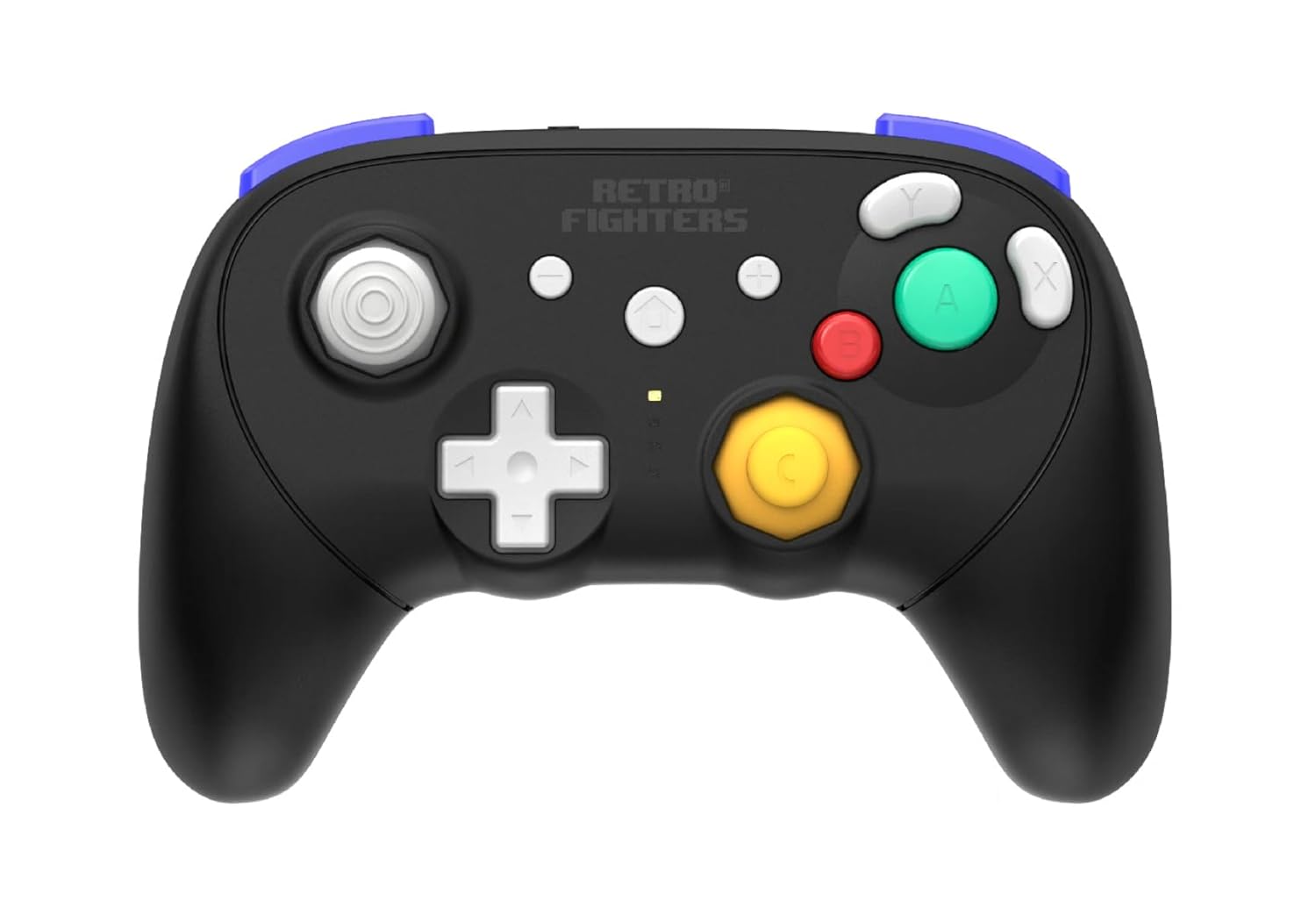
Whakaahua: Mua view of the BattlerGC Pro controller, showcasing the button layout and analog sticks.
4.2 Āhuatanga Arā Atu Anō
- Adjustable Rumble: The controller features an adjustable rumble function. Refer to the quick start guide for specific instructions on increasing whakatau raneiasing rumble strength.
- Xinput to Dinput Mode Swap: The controller supports switching between Xinput and Dinput modes. Once connected to a device, hold the '+' and '-' buttons for 5 seconds to swap modes. The LED indicator will flash to confirm the change.
- Mana Motini: The controller provides accurate motion controls, particularly useful for compatible Nintendo Switch games.
5. Tiaki
- Te horoi: Use a soft, dry cloth to clean the controller's surface. For stubborn dirt, a slightly damp ka taea te whakamahi i te tauera me te hopi ngawari, kia kore ai he wai e uru ki ngā pūaha.
- Tiaki Pūhiko: To prolong battery life, avoid fully discharging the controller frequently. Store the controller in a cool, dry place when not in use for extended periods.
- Rokiroki: Keep the controller away from extreme temperatures, direct sunlight, and high humidity.
6. Te Raru
- Controller Not Pairing: Ensure the mode switch (BT/2.4G) on the back is set correctly for your intended device. Confirm the controller is charged. For Bluetooth, ensure your device's Bluetooth is enabled and in pairing mode. For 2.4 GHz, ensure the dongle/adapter is securely inserted.
- Te Whakaroa o te Whakauru, te Momotu rānei: Ensure the controller is within the 30-foot wireless range of your console/PC. Minimize interference from other wireless devices.
- Stick Drift or Inaccurate Inputs: While Hall Effect sensors are designed to prevent drift, if you experience issues, check the Retro Fighters official website for any available firmware updates or recalibration tools.
- Triggers Not Registering on PC: If triggers are not working as expected on PC, check the Retro Fighters official website for firmware updates that may address PC trigger mapping issues.
- Controller Times Out Quickly: The controller is designed to enter sleep mode after a short period of inactivity to conserve battery. Press the 'Home' button once to reactivate and reconnect.
7. Whakatakotoranga
- Tauira: BattlerGC Pro Series Wireless Gamepad
- Waitohu: Retro Fighters
- Hononga: Nihokikorangi, Ahokore 2.4 GHz
- Hototahi: GameCube, Nintendo Switch, PC, Wii, Wii U
- Rakau Analog: Hall Effect Sensors with Octagonal Gates
- Keu: Takirua-stage Hall Effect with Kail Switches
- Papa-D: Kail Switches
- Back Buttons: 2 Programmable (P1/P2)
- Pūhiko: 1 Lithium Ion (included), 10-hour life (approx.)
- Tauranga Whakatau: USB-C
- Awhe Ahokore: Tae atu ki te 30 putu
- Ahu: 5 x 3 x 1 inihi
- Taumaha: 10 hekere
8. Pūtāhui me te Tautoko
For warranty information, product support, firmware updates, and additional resources, please visit the official Retro Fighters website. Contact information for customer service can typically be found on the brand's webte waahi, te kohinga hua ranei.


