1. Kupu Whakataki
This manual provides detailed instructions for the setup, operation, and maintenance of your ECHTPower Wireless Switch Controller. Please read this manual thoroughly before using the product to ensure proper functionality and to maximize your gaming experience. This controller is designed for use with Nintendo Switch, PC, iOS, and Android devices.

Image 1.1: ECHTPower Wireless Switch Controller in purple. This image displays the front view of the controller, highlighting its ergonomic design and button layout.
2. Hua Neke Atuview
2.1 Ihirangi mokete
- ECHTPower Wireless Switch Controller
- USB-C Uira Whakatau
- Pukapuka Kaiwhakamahi (tenei tuhinga)
2.2 Tahora Kaiwhakahaere
Familiarize yourself with the buttons and features of your controller:

Whakaahua 2.1: Mua view of the ECHTPower Wireless Switch Controller. This image shows the left and right analog sticks, D-pad, A/B/X/Y buttons, Home button, Capture button, Plus/Minus buttons, and shoulder buttons.
- Rakau Analog Mauī: For movement and camera control. Features Hall Effect technology for precision.
- Rakau Analog Matau: For camera control and aiming. Features Hall Effect technology for precision.
- Papa-D: Tāuru aronga.
- Patene A/B/X/Y: Ngā pātene mahi.
- Ngā Pātene L/R: Pātene pakihiwi.
- ZL/ZR Triggers: Whakatairitenga keu.
- Pātene KĀINGA: Returns to the system home screen.
- CAPTURE Button: Ka tango whakaahua mata, ka tuhi rānei i ngā ataata.
- +/- Patene: Start/Select functions.
- Pātene M: Macro/Customization button (refer to advanced settings for programming).
- Tohu LED: Player number and charging status.

Atahanga 2.2: Whakatata view of the Hall Effect joystick. This image highlights the advanced sensor technology used in the analog sticks for enhanced durability and drift-free performance.
The controller features Hall Effect joysticks, which utilize electromagnetic induction for precise, drift-free control and extended lifespan compared to traditional potentiometers.
3. Tatūnga me te Hononga
3.1 Te Whakataki i te Kaiwhakahaere
Before first use, fully charge the controller. Connect the supplied USB-C cable to the controller's charging port and the other end to a USB power source (e.g., console, PC, USB wall adapter). The LED indicators will show charging status and turn off when fully charged.
3.2 Te hono atu ki te Nintendo Switch
- Mai i te Tahua KĀINGA, tīpakohia "Ngā Kaiwhakahaere" > "Hurihia te Pupuri/Te Raupapa".
- On the next screen, press and hold the SYNC button on the top of the ECHTPower controller for a few seconds until the player LEDs begin to flash.
- Ka takirua ana, ko nga LED kaitautoko e hono ana ki te nama kaiwhakahaere ka noho ka marama tonu.
Note: The SYNC button is usually a small, recessed button on the top edge of the controller.
3.3 Te hono atu ki te PC (Windows)
The controller supports both wired and wireless connections to PC.
3.3.1 Hononga Waea
- Connect the controller to your PC using the USB-C cable.
- Me kimi aunoa te rorohiko i ngā taraiwa e tika ana, ā, me tāuta anō hoki.
- The controller will be recognized as an XInput device.
3.3.2 Hononga Ahokore (Nihokikorangi)
- Me mohio kei te whakahohea to PC i te Nihokikorangi.
- Go to "Settings" > "Devices" > "Bluetooth & other devices" and select "Add Bluetooth or other device".
- Kōwhiria "Nihokikorangi".
- Press and hold the SYNC button on the controller until the LEDs flash rapidly.
- Select the "Pro Controller" or similar device name from the list on your PC.
- Once paired, the controller LEDs will stop flashing and remain lit.
3.4 Connecting to iOS/Android Devices

Image 3.1: The ECHTPower Wireless Switch Controller shown alongside various devices, including a tablet, smartphone, and laptop, illustrating its multi-device compatibility.
- Whakahohehia te Nihokikorangi i runga i to taputapu iOS, Android ranei.
- Haere ki nga tautuhinga Nihokikorangi ka rapu mo nga taputapu hou.
- Press and hold the SYNC button on the controller until the LEDs flash rapidly.
- Select the "Pro Controller" or similar device name from the list on your mobile device.
- Once paired, the controller LEDs will stop flashing and remain lit.
Compatibility may vary with specific games and applications on mobile platforms.
4. Nga Tohutohu Whakahaere
4.1 Mana Taketake
The controller functions similarly to standard gaming controllers. Refer to the in-game instructions for specific button mappings.
- Rakau Analog: Used for movement, camera control, and menu navigation.
- Papa-D: Used for directional input, often for menu navigation or specific game actions.
- Patene A/B/X/Y: Primary action buttons, typically for jumping, attacking, interacting, etc.
- L/R/ZL/ZR Buttons: Used for various in-game actions such as aiming, shooting, or special abilities.
- Pātene KĀINGA: Returns to the console's home screen or main menu.
- CAPTURE Button: Captures screenshots or video clips (Nintendo Switch specific).
- +/- Patene: Often used for pausing games, opening menus, or selecting options.
4.2 Advanced Features (Hall Effect Joysticks)
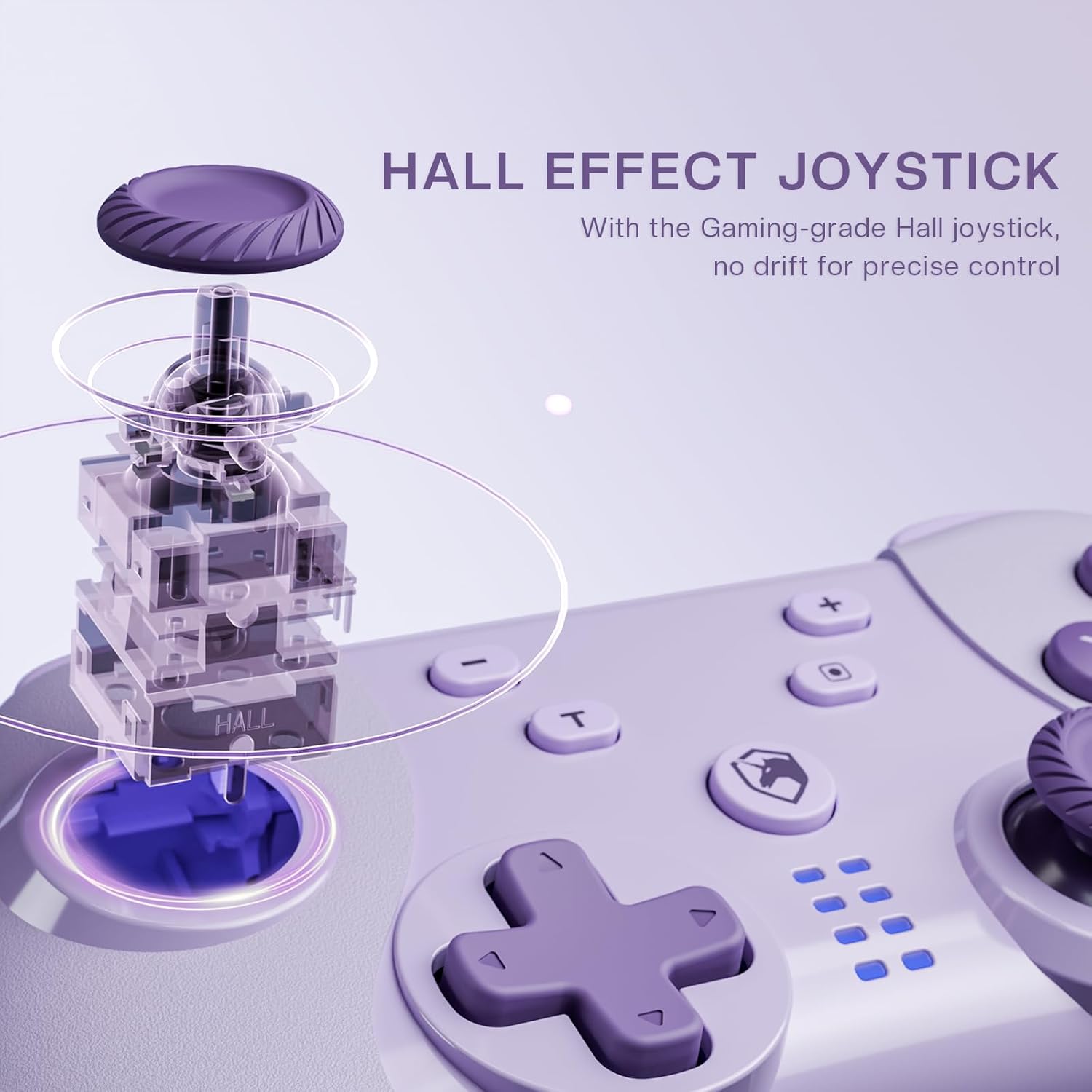
Image 4.1: Diagram illustrating the internal mechanism of a Hall Effect joystick. This image demonstrates how magnetic fields are used for position detection, contributing to drift-free and precise control.
The Hall Effect joysticks provide enhanced precision and durability. This technology uses magnetic fields instead of physical contact, virtually eliminating stick drift and extending the lifespan of the joysticks. No special operation is required; simply enjoy the improved responsiveness and accuracy.
4.3 Macro Function (M Button)
The 'M' button can be programmed for macro functions. Refer to the ECHTPower official website or advanced user guides for detailed instructions on how to program and utilize macro functions for specific gaming scenarios.
5. Tiaki
- Te horoi: Whakamahia he kakahu ngohengohe, maroke hei horoi i te pūmana. Kaua e whakamahi i ngā matū kino, i ngā rauemi whakakoi rānei.
- Rokiroki: Whakaorangia te pūmana ki te wahi matao, maroke atu i te ra tika me te wera nui.
- Tiaki Pūhiko: Hei whakaroa i te ora o te pākahiko, kaua e tukua kia pau katoa te pūmana. Utuhia i ia wā, ahakoa kāore e whakamahia ana mō te wā roa.
- Aukati i nga Whakataka: Āraia te kaiwhakahaere mai i ngā maturuturunga me ngā pānga, ka kino pea ngā wāhanga o roto.
6. Te Raru
| Raruraru | Take pea | Rongoā |
|---|---|---|
| Karekau te Kaiwhakahaere e ka ana. | He iti te pākahiko. | Charge the controller using the USB-C cable. |
| Cannot connect to device. | Not in pairing mode; Bluetooth interference; device's Bluetooth off. | Ensure controller is in pairing mode (flashing LEDs). Check device's Bluetooth settings. Try restarting both controller and device. |
| He takamuri te whakauru, he momotu ranei. | Distance from device; low battery; wireless interference. | Move closer to the device. Charge the controller. Reduce other wireless devices nearby. |
| Joystick drift. | Rare with Hall Effect, but possible calibration issue or extreme wear. | Try recalibrating the joysticks through your device's settings (e.g., Nintendo Switch system settings). If issue persists, contact support. |
7. Whakatakotoranga
- Tauira: Kaiwhakahaere Whakawhiti Ahokore
- Hononga: Nihokikorangi Ahokore, USB-C Waea
- Hototahi: Nintendo Switch, PC (Windows), iOS, Android
- Joystick Technology: Pānga Hall
- Puna Hiko: Hanga-i roto i te Pūhiko Rechargeable
- Tauranga Whakatau: USB-C
- ASIN: B0DNN1BP4F
8. Pūtāhui me te Tautoko
ECHTPower products come with a standard manufacturer's warranty. For specific warranty terms and conditions, please refer to the warranty card included with your product or visit the official ECHTPower webpae.
If you encounter any issues or have questions not covered in this manual, please contact ECHTPower customer support:
- Webpae: ECHTPower Official Store on Amazon
- Īmēra: Tirohia ki te kohinga hua, whai mana ranei webpae mo te imeera whakapā.


