1. Kupu Whakataki
Thank you for choosing the TECPHILE K936 Wireless Keyboard and Mouse Combo. This product is designed to provide versatile and efficient input for multiple devices, featuring both Bluetooth 5.0 and 2.4GHz USB connectivity. This manual will guide you through the setup, operation, and maintenance of your new keyboard and mouse.
2. Ihirangi mokete
- TECPHILE K936 Wireless Keyboard
- TECPHILE Wireless Mouse
- Kaiwhiwhi USB (kua rongoa ki roto i te wahanga pākahiko kiore)
- USB-C Uira Whakatau
- Keyboard Protective Cover
- Pukapuka Kaiwhakamahi
3. Hua Neke Atuview
Familiarize yourself with the components of your TECPHILE K936 Wireless Keyboard and Mouse Combo.

Whakaahua 3.1: The TECPHILE K936 Wireless Keyboard and Mouse Combo in Grey. The keyboard features a full layout with a numeric keypad, and the mouse is a compact, ergonomic design.

Whakaahua 3.2: Diagram showing the dimensions of the keyboard (368mm x 121mm) and mouse (110mm x 63mm x 30mm).
Āhuatanga Papapātuhi:
- Multi-device connectivity: 3 x Bluetooth 5.0, 1 x 2.4GHz USB
- Dedicated function keys (F1-F12) with multimedia controls
- He puhiko lithium 300mAh ka taea te whakahoki
- Momo-C tauranga utu
- Automatic sleep mode for power saving
- Scissor-leg key structure for comfortable typing
- Transparent protective cover included
Nga Matatini Tohu:
- Dual-mode connectivity: 1 x Bluetooth, 1 x 2.4GHz USB
- Optical movement detection technology
- Hoahoa Ambidextrous
- Quiet click buttons
4. Tatūnga
4.1 Whakataki Tuatahi
Before first use, fully charge both the keyboard and mouse. Connect the provided USB-C charging cable to the charging port on the keyboard and mouse, and the other end to a 5V/1A power adapter (not included) or a computer USB port. The charging indicator light will show charging status and turn off when fully charged.
Note: Only use a 5V/1 Amp power adapter for charging to ensure optimal battery life.

Whakaahua 4.1: Illustration of the keyboard's battery specifications: 2-4 hours charging time, 300mAh battery capacity, and up to 180 days standby time.
4.2 Te hono i te Papapātuhi
The keyboard supports up to three Bluetooth connections and one 2.4GHz USB connection.

Whakaahua 4.2: Diagram illustrating the keyboard's ability to connect to multiple devices via Bluetooth (3 channels) and 2.4GHz USB.
2.4GHz USB Connection:
- Locate the USB receiver inside the mouse's battery compartment.
- Monohia te kaiwhiwhi USB ki tetahi tauranga USB e waatea ana i runga i to rorohiko, i to taputapu ranei.
- Turn on the keyboard. The keyboard should automatically connect.
Bluetooth Connection (BT1, BT2, BT3):
- Whakakāhia te papapātuhi.
- Patohia me te pupuri i te Fn kī me tētahi o ngā kī Nihokikorangi (BT1, BT2, ranei BT3) for 3-5 seconds until the corresponding indicator light flashes rapidly. This indicates pairing mode.
- I runga i to taputapu (rorohiko, papa, atamai), haere ki nga tautuhinga Nihokikorangi ka rapu mo nga taputapu hou.
- Select "TECPHILE Keyboard" from the list of available devices to pair.
- Kia honoa, ka mutu te mura o te rama tohu, ka noho pūmau mō ētahi hēkona i mua i te whakaweto.
- Whakahokia tēnei mō ētahi atu hongere Nihokikorangi hei hono atu ki ētahi atu pūrere.
4.3 Te hono i te Kiore
The mouse supports one Bluetooth connection and one 2.4GHz USB connection.
2.4GHz USB Connection:
- Me mohio kei te hono te kaiwhiwhi USB ki to taputapu.
- Switch the mouse to 2.4GHz mode using the switch on the bottom of the mouse.
- Me hono aunoa te kiore.
Hononga Nihokikorangi:
- Switch the mouse to Bluetooth mode using the switch on the bottom of the mouse.
- Press and hold the Bluetooth pairing button on the bottom of the mouse for 3-5 seconds until the indicator light flashes.
- I runga i to taputapu, haere ki nga tautuhinga Nihokikorangi ka rapu mo nga taputapu hou.
- Select "TECPHILE Mouse" from the list to pair.
5. Nga Tohutohu Whakahaere
5.1 Switching Between Devices (Keyboard)
To switch between connected devices on the keyboard, simply press the Fn key along with the corresponding connection key (BT1, BT2, BT3, ranei 2.4G for USB). The keyboard will switch to the selected device instantly.
5.2 Switching Between Devices (Mouse)
To switch between 2.4GHz USB and Bluetooth modes on the mouse, use the toggle switch located on the bottom of the mouse.
5.3 Function Keys (Keyboard)
The keyboard features dedicated function keys (F1-F12) that can be used in conjunction with the Fn key for various multimedia and system controls.
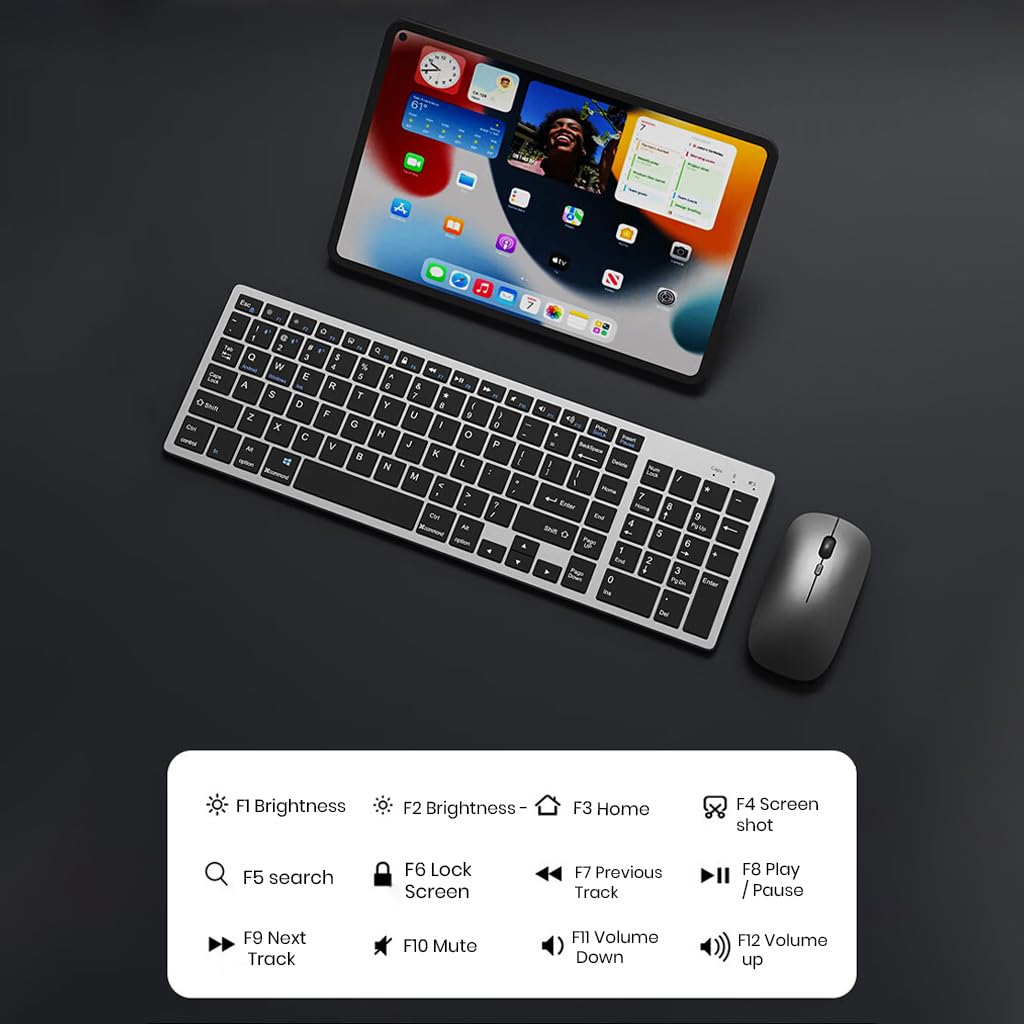
Whakaahua 5.1: The keyboard displaying its function keys and their associated actions, such as brightness control, home, screen shot, search, lock screen, media playback, and volume control.
- Fn+F1: Raro Raro
- Fn+F2: Tiaho Ana
- Fn+F3: Kainga
- Fn+F4: Whakaahuamata
- Fn+F5: Kimihia
- Fn+F6: Mata maukati
- Fn+F7: Tuhinga o mua
- Fn+F8: Purei/Tatari
- Fn+F9: Riro Panuku
- Fn+F10: Wahangu
- Fn+F11: Rōrahi Whakararo
- Fn+F12: Rōrahi Whakarunga
5.4 Aratau Tiaki Hiko
The keyboard and mouse are equipped with an automatic sleep mode to conserve battery life. If inactive for 10 minutes, the devices will enter sleep mode. To wake them up, simply press any key on the keyboard or move/click the mouse.

Whakaahua 5.2: Diagram illustrating the auto-sleep mode and how to reactivate the keyboard and mouse by pressing any key.
6. Tiaki
- Te horoi: Whakamahia he kakahu ngohengohe, maroke hei horoi i te papapātuhi me te kiore. Mō te paru uaua, whakamahia he tauera itiamp Ka taea te whakamahi kakahu, me te whakarite kia kore he wai e uru ki roto i te taputapu.
- Uhi Tiaki: Utilize the included transparent protective cover for the keyboard to guard against dust and accidental spills.
- Rokiroki: Whakaorangia nga taputapu ki te waahi makariri, maroke atu i te ra tika me te wera nui.
- Kei te utu: Always use a 5V/1A power adapter for charging to prevent damage and ensure battery longevity.

Whakaahua 6.1: The keyboard shown with its transparent protective keyskin, designed to prevent dust and spills.
7. Te Raru
| Raruraru | Take pea | Rongoā |
|---|---|---|
| Keyboard/Mouse not connecting via 2.4GHz USB. | USB receiver not properly inserted, low battery, incorrect mode selected. |
|
| Ko te papapātuhi/kiore kaore i te hono ma te Nihokikorangi. | Not in pairing mode, device's Bluetooth is off, already connected to max devices, low battery. |
|
| He hononga takamuri, he hononga mokowhiti ranei. | Te pokanoa, te tawhiti mai i te kaikawe / taputapu, iti te pākahiko. |
|
| Keyboard keys not responding. | Low battery, device in sleep mode, connection issue. |
|
8. Whakatakotoranga
| Āhuahira | Taipitopito |
|---|---|
| Waitohu | TEPIHI |
| Tauira | K936 |
| Hangarau Hononga | Keyboard: 3 x Bluetooth 5.0, 1 x 2.4GHz USB; Mouse: 1 x Bluetooth, 1 x 2.4GHz USB |
| Pūrere Hototahi | Pona, Rorohiko Whaiaro, Waea atamai, Papa |
| Pūnaha Mahi | Android, iOS, Windows, macOS |
| Pūhiko Papapātuhi | 300mAh Rithium Ion (Ka taea te utu anō) |
| Tauranga Whakatau | USB Momo-C |
| Waa Whakatau | 2-4 haora (approx.) |
| Wā tūtatari | Tae atu ki te 180 ra |
| Ahu Papapātuhi (LxWxH) | 36 x 13 x 1.5 cm |
| Rahi Kiore (LxWxH) | 11 x 6.3 x 3 cm (tata) |
| Taumaha Tūemi | 661 g (combo) |
| Hangarau Hangarau Nekehanga | Optical |
| Takotoranga-ringa | Ambidextrous |
9. Pūtāhui me te Tautoko
TECPHILE products come with a standard warranty. For warranty claims, technical support, or any product-related inquiries, please contact TECPHILE customer service through the retailer where the product was purchased or visit the official TECPHILE webpae mo nga korero whakapā.
Tena koa pupurihia to tohu hoko mo nga kaupapa whakamana.
Manufacturer/Importer: TECPHILE, 2nd Floor, A36, Block B, Naraina Industrial Area Phase 2, Naraina, New Delhi, Delhi, 110028


