1. Kupu Whakataki
This manual provides detailed instructions for the installation, operation, and maintenance of your Xigmatek Aqua V AIR Arctic Mid-Tower PC Case. Please read this manual thoroughly before beginning any installation to ensure proper setup and safe operation. Retain this manual for future reference.
2. Nga korero haumaru
Kia mau ki nga whakaritenga haumaru e whai ake nei i te wa e whakauru ana me te mahi:
- Momotuhia i nga wa katoa te hiko mai i te putanga o te pakitara i mua i te whakauru, te tango ranei i etahi waahanga.
- Mauria he whitiki ringaringa ārai-pūmau hei ārai i te kino o te tukunga hiko pūmau (ESD) ki ngā wāhanga tairongo.
- Handle components carefully. Avoid touching pins or circuit boards directly.
- Me whakarite kia tika te hau huri noa i te pouaka PC kia kore ai e wera rawa.
- Tiakina nga waahanga iti me nga taputapu mai i nga tamariki.
- Do not attempt to modify the case or its components, as this may void your warranty and pose safety risks.
3. Ihirangi mokete
Manatokona kei roto katoa nga mea kei roto i te kete:
- Xigmatek Aqua V AIR Arctic Mid-Tower PC Case
- Kete taputapu (ngā tīwiri, ngā whakapūmau, ngā here taura)
- Pukapuka Kaiwhakamahi (tenei tuhinga)
If any items are missing or damaged, contact your retailer or Xigmatek support.
4. Hua Neke Atuview
The Xigmatek Aqua V AIR Arctic is a mid-tower PC case designed for high-performance gaming configurations. It features tempered glass panels for component visibility and optimized airflow with pre-installed ARGB fans.

Whakaahua 4.1: Mua-maui view of the Xigmatek Aqua V AIR Arctic PC case, showcasing the tempered glass front and side panels, and the pre-installed ARGB fans.

Whakaahua 4.2: Whakamuri view of the PC case, showing the I/O shield cutout, expansion slots, and rear fan mount.
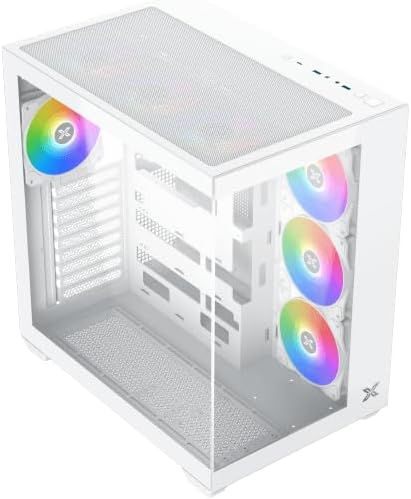
Pikitia 4.3: Koki mai i runga ki raro view, highlighting the top mesh panel for additional cooling and the internal layout.
5. Tatūnga me te Tāuta
Follow these steps to install your PC components into the Xigmatek Aqua V AIR Arctic case.
5.1. Te whakarite i te keehi
- Whakanohoia te keehi ki runga i te mata papatahi, pumau.
- Remove the tempered glass side panel by unscrewing the thumb screws at the rear and carefully sliding it off. Place it on a soft, non-abrasive surface to prevent scratches.
- Remove the opposite steel side panel by unscrewing the thumb screws and sliding it off.
5.2. Whakauranga Papa Matua
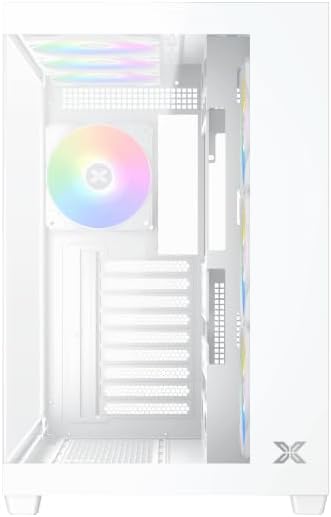
Whakaahua 5.1: Roto view of the case, illustrating the motherboard mounting area and cable routing cutouts.
- Tāutahia te whakangungu I/O ki roto i te kōhao kei muri o te pouaka.
- Align your motherboard with the pre-installed standoffs. Ensure the standoffs match your motherboard's form factor (ATX, Micro ATX).
- Secure the motherboard using the provided screws from the accessory kit. Do not overtighten.
5.3. Te Waenga Whakawhiwhi Hiko (PSU).
- Locate the PSU mounting bracket at the bottom rear of the case.
- Slide your PSU into the designated compartment from the rear of the case.
- Whakamauhia te PSU ki te pouaka mā te whakamahi i ngā tīwiri i whakaratohia me tō pūtake hiko.
5.4. Tāutanga Puku Rokiroki
The case supports multiple storage drives:
- Ngā SSD 2.5": Mount directly to the SSD trays located behind the motherboard tray. Secure with screws.
- Ngā HDD 3.5": Install into the drive cage located beneath the PSU shroud. Slide the drive into the tray and secure with screws.
5.5. Tāutanga Kāri Whakairoiro (GPU) me te Kāri Whakawhanui
- Tangohia nga uhi mokamoka roha e tika ana kei muri o te keehi.
- Whakauruhia tō kāri whakairoiro, ētahi atu kāri whakawhānui rānei ki ngā mokamoka PCIe e tika ana i runga i te papahoahoa.
- Secure the cards with the provided screws.
5.6. Whakahaerenga Taura
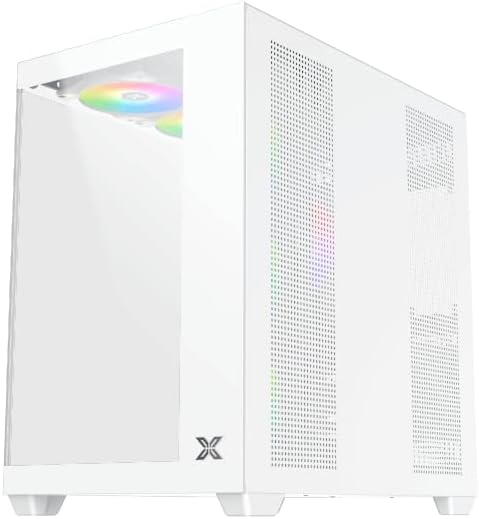
Whakaahua 5.2: View behind the motherboard tray, illustrating the ample space and tie-down points for effective cable management.
Whakamahia nga tapahi ararere taura me nga tohu here ki muri i te paepae papahoahoa hei whakarite taura. Ma tenei ka pai ake te rere o te hau me te rerehua.
- Connect all necessary power cables from the PSU to the motherboard, GPU, and storage drives.
- Connect front panel cables (USB, audio, power/reset switches, LED indicators) to the corresponding headers on your motherboard. Refer to your motherboard manual for specific header locations.
- Connect the ARGB fan cables to the integrated fan controller or directly to your motherboard's ARGB headers if available.
5.7. Tautoko mō te Pā me te Pāreti
The Xigmatek Aqua V AIR Arctic comes with 7 pre-installed 120mm ARGB fans. Additional cooling options are available:
- Mua: Supports up to 3 x 120mm or 2 x 140mm fans / 240mm, 280mm, 360mm radiators.
- Runga: Supports up to 3 x 120mm or 2 x 140mm fans / 240mm, 280mm, 360mm radiators.
- muri: Supports 1 x 120mm fan.
- Raro: Supports up to 3 x 120mm fans.
Ensure proper fan orientation for optimal airflow (intake at front/bottom, exhaust at rear/top).
6. Mahi
Once all components are installed and cables are connected, replace the side panels. Connect your monitor, keyboard, mouse, and power cable. Press the power button on the front panel to start your system.
The pre-installed ARGB fans can be controlled via the integrated controller (if present) or through compatible motherboard software, allowing customization of lighting effects and fan speeds.
7. Tiaki
Ko te tiaki i nga wa katoa ka awhina i te mahi tino pai me te roa o nga waahanga PC.
- Whakapai puehu: Periodically clean dust filters (top, front, bottom) to maintain good airflow. Use compressed air to remove dust from inside the case and components.
- Horoi o waho: Horoia nga mata o waho ki te ngohengohe, damp kakahu. A ape i te kai horoi, te whakarewa ranei.
- Taki Whakahaere Taura: Occasionally check cable routing to ensure no cables are obstructing fans or airflow.
8. Te Raru
Mena ka raru koe, tirohia nga mahi rapurongoā noa e whai ake nei:
- Kāore te pūnaha e whakakā ana:
- Me whakarite kei te tahuri te PSU, ā, kei te hono tika ki te putanga pakitara.
- Verify all power cables (24-pin ATX, 8-pin CPU, PCIe, SATA) are securely connected.
- Check front panel power switch connections to the motherboard.
- Karekau he putanga whakaatu:
- Ensure the monitor cable is connected to the graphics card (not the motherboard I/O if using a dedicated GPU).
- Tautuhi anō i te kāri whakairoiro me ngā kōwae RAM.
- Fans not spinning or ARGB not working:
- Tirohia ngā hononga mana o te pā hau ki te papahoahoa, ki te kaiwhakahaere pā hau rānei.
- Verify ARGB connections to the controller or motherboard headers.
- Ensure any fan control software or BIOS settings are correctly configured.
For more complex issues, consult your component manuals or contact Xigmatek technical support.
9. Whakatakotoranga
| Āhuahira | Taipitopito |
|---|---|
| Ingoa Tauira | Aqua V AIR Arctic |
| Tau tauira | EN45837 |
| Momo Take | Pouwaenganui |
| Papamatua Hototahi | ATX, Micro ATX |
| Rauemi | Steel Alloy, Tempered Glass |
| Tae | Mā |
| Paanui kua whakauruhia i mua | 7 x 120mm ARGB Fans |
| Max GPU Roa | 410 mm |
| Tauranga USB | 3 |
| Taumaha | 8.8 Kirokaramu |
10. Pūtāhui me te Tautoko
Xigmatek products are manufactured to high quality standards. For warranty information, please refer to the warranty card included with your product or visit the official Xigmatek website. For technical support or inquiries, please contact Xigmatek customer service through their official channels.
Whaimana Webpae: www.xigmatek.com


