Kupu Whakataki
The Celly FLIP3WH are compact, wireless in-ear earbuds designed for comfortable use with mobile phones, tablets, and computers. They feature integrated microphones for calls and media control, utilizing Bluetooth 5.2 technology for a stable connection. This manual provides essential instructions for setting up, operating, and maintaining your earbuds.
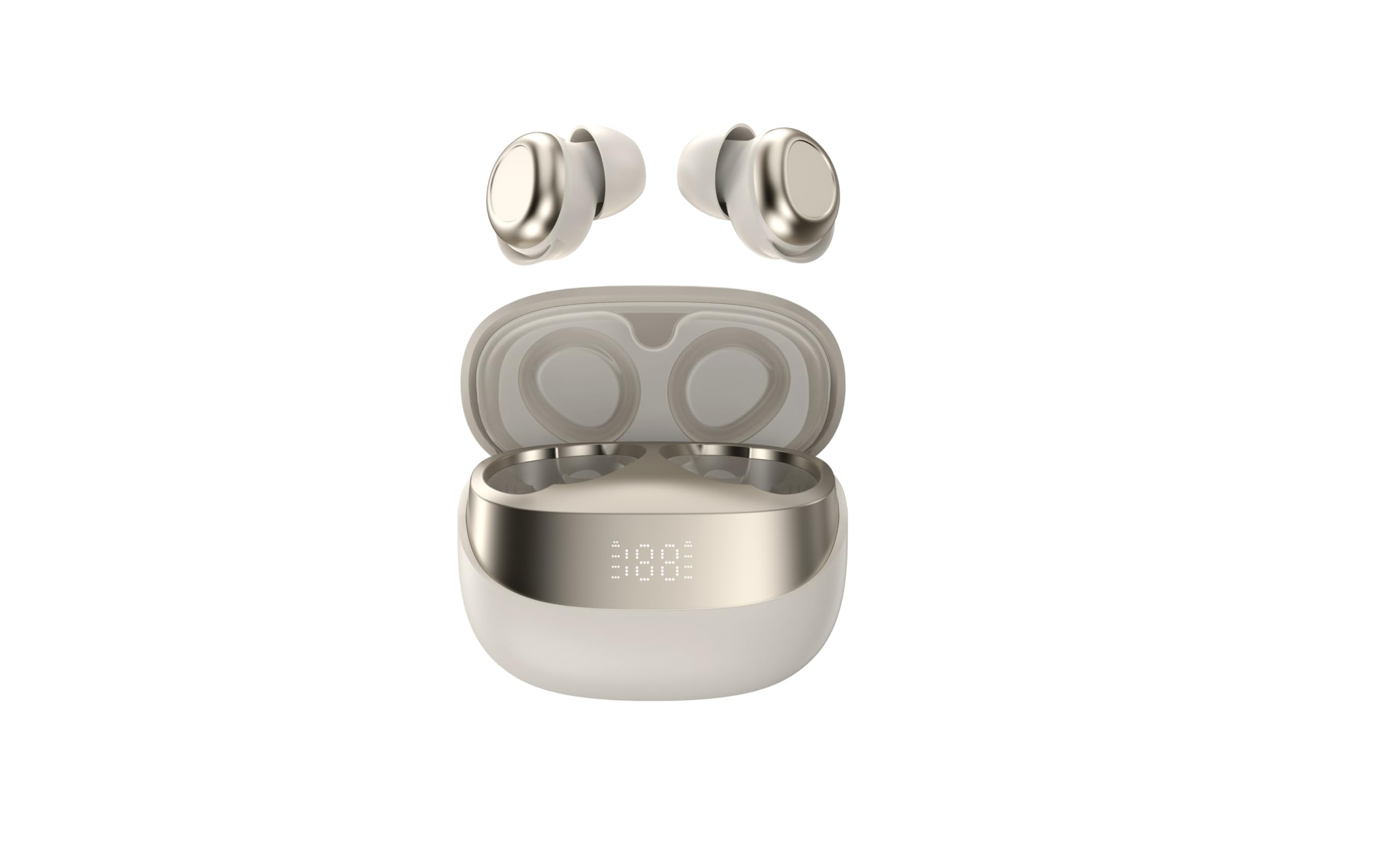
Image showing the Celly FLIP3WH wireless Bluetooth earbuds, highlighting their compact in-ear design and white color.
Ka mutu te huaview
The Celly FLIP3WH earbuds offer a secure in-ear fit and connect wirelessly via Bluetooth 5.2, providing a stable connection up to 12 meters. They include an integrated microphone for hands-free calls and remote controls for volume and music playback. The lightweight design, weighing 33 grams, ensures comfort during extended use.
- In-Ear Design: Secure and comfortable fit.
- Nihokikorangi 5.2: Stable wireless connectivity up to 12 meters.
- Pukuoro Whakauru: Mo nga waea kore-ringa.
- Mana Mamao: For calls, volume, and music playback.
- Māmā: Weighs 33 grams for extended comfort.
Tatūnga
Te Whakataki i nga Paorooro
Before first use, fully charge your Celly FLIP3WH earbuds. Connect the charging cable to the earbuds and a compatible USB power source. The charging indicator will show the charging status. A full charge typically takes approximately 1.5 to 2 hours.
Whakahoahoa ki te Pūrere
To connect your Celly FLIP3WH earbuds to a mobile phone, tablet, or computer:
- Ensure the earbuds are charged and powered on. They should automatically enter pairing mode, indicated by a flashing LED light.
- Activate Bluetooth on your mobile phone, tablet, or computer.
- Rapua available Bluetooth devices in your device's Bluetooth settings.
- Select 'Celly FLIP3WH' from the list of found devices to initiate pairing.
- Once connected, the earbuds will indicate successful pairing with an audible prompt or a solid LED light.
Te whakahaere
Te Hiko / Whakaweto
- Whakahiko: Press and hold the multi-function button for approximately 3 seconds until you hear an audible prompt and the LED indicator lights up.
- Weto Whakakore: Press and hold the multi-function button for approximately 5 seconds until you hear an audible prompt and the LED indicator turns off.
Purei Waiata
- Purei/Tatari: Patohia te paatene maha-mahi kotahi.
- Riu Panuku: Pēhia rua te pātene mahi-maha.
- Riu o mua: Pēhi takitoru te pātene mahi-maha.
Whakahaa Piiraa
- Whakautu/Whakamutu Waea: Patohia te paatene maha-mahi kotahi.
- Whakakore Waea: Patohia me te pupuri i te paatene maha-mahi mo te 2 hēkona.
Mana Rōrahi
Adjust the volume directly from your connected device. Some earbuds may feature dedicated volume buttons; refer to the product diagram for specific controls if available.
Te tiaki
Te horoi
Gently wipe the earbuds with a soft, dry, lint-free cloth. Do not use abrasive cleaners, solvents, or immerse the earbuds in water, as they are not water-resistant. Regularly clean the ear tips to ensure optimal sound quality and hygiene.
Rokiroki
Store the earbuds in a cool, dry place away from direct sunlight, extreme temperatures, and humidity. When not in use for extended periods, charge them periodically (e.g., once every three months) to maintain battery health and prevent deep discharge.
Raparongoā
- Karekau e honoa nga taringa:
- Me whakarite kei te whakahohea te Nihokikorangi i runga i tō pūrere, ā, kei te aratau takirua ngā pane taringa.
- Check if the earbuds are sufficiently charged.
- Ngana ki te whakaara ano i nga purongo me to taputapu.
- Me whakarite kare ano nga purongo e hono ana ki tetahi atu taputapu.
- Karekau he tangi:
- Tirohia te taumata oro i runga i nga purongo me to taputapu hono.
- Ensure the earbuds are properly paired and connected to your device.
- Try playing different audio sources or applications.
- Poor audio quality or disconnections:
- Kia tino mohio kāore he arai tinana i waenganui i ngā pane taringa me tō pūrere.
- Move closer to your device to reduce potential interference.
- Check for other active Bluetooth devices in the vicinity that might cause interference.
Whakatakotoranga
| Waitohu | Celly |
| Tauira | FLIP3WH |
| Hononga | Nihokikorangi 5.2 |
| Mokowoko Korekore | Tae atu ki te 12 mita |
| Te Ora o te Pūhiko (Te Purei Waiata) | Tae atu ki te 6 haora |
| Te ora o te Pūhiko (Tutatari) | Tae atu ki te 30 haora |
| Whakautu auau | 20-20,000 Hz |
| Taumaha | 33 karamu |
| hopuoro | Whakauru |
| Ātete wai | Kao |
| Tae | Mā |
Pūtāhui me te Tautoko
For detailed warranty information, technical support, and customer service, please refer to the documentation provided with your purchase or visit the official Celly webpae. Puritia to tohu hoko mo etahi kereme whakamana.


