1. Kupu Whakataki
Mauruuru koe mo te hokoasing the Sharp 4T-C65FL6EX 65-inch 4K Frameless Smart TV. This manual provides essential information for the safe and efficient use of your new television. Please read these instructions thoroughly before operating the TV and retain them for future reference.
Nga Korero Haumaru Nui
Always follow basic safety precautions when using this product to reduce the risk of fire, electric shock, and injury. Do not expose the TV to rain or moisture. Do not open the cabinet; refer all servicing to qualified personnel. Ensure proper ventilation and avoid placing the TV near heat sources.
2. Hua Neke Atuview
The Sharp 4T-C65FL6EX is a 65-inch 4K UHD Smart LED TV designed to deliver an immersive viewing experience. It features a frameless design, Google TV operating system, and a built-in digital receiver.
Nga waahanga matua
- 65-inch 4K UHD Display: Enjoy stunning visuals with a resolution of 3840 x 2160 pixels.
- Hoahoa Taparekore: Maximizes screen space for an expansive view.
- Google TV Operating System: Access a wide range of apps, movies, and shows.
- Built-in Digital Receiver: Supports DVB-S/S2/T/T2/C broadcast types.
- Dolby Atmos & DTS Studio Sound: Delivers rich, immersive audio.
- Dolby Vision & HDR10: He rerekētanga me te tae kua whakarei ake mō ngā ihirangi hototahi.
- Chromecast whakauru: Maamaa te tuku ihirangi mai i o taputapu pūkoro.
- Far-field Voice Control & Google Assistant: Control your TV with voice commands.
- Hononga: Wi-Fi, Bluetooth v5.1, 3 HDMI 2.0 ports, 2 USB ports, LAN.
Ihirangi mokete
- Sharp 4T-C65FL6EX 65-inch 4K Smart TV
- Mana Mamao
- Waea Hiko
- Pouaka Whakaata (2 nga waahanga)
- Nga Tiu mo te Whakanoho Tu
- Pukapuka Kaiwhakamahi (tenei tuhinga)

Whakaahua 2.1: Mua view of the Sharp 4T-C65FL6EX Smart TV.
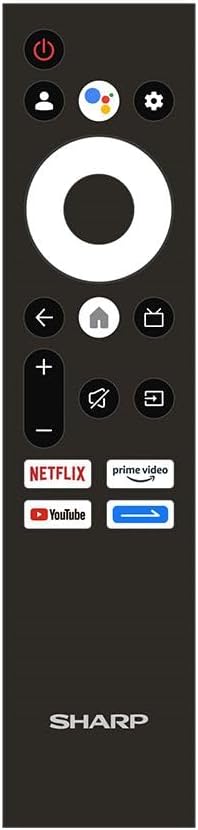
Figure 2.2: The included remote control for the Sharp Smart TV.
3. Tatūnga
3.1 Te Wetewete me te Whakanoho
- Carefully remove the TV from its packaging. It is recommended to have two people for this.
- Place the TV on a stable, flat surface or prepare for wall mounting. Ensure adequate space around the TV for ventilation.
3.2 Whakaturanga Tu
Mena kaore koe i te whakairi i te pouaka whakaata, whakapirihia te turanga whakauru:
- Lay the TV screen-down on a soft, clean cloth to prevent scratches.
- Tiaro ia wahi tu ki nga mokamoka e rite ana ki raro o te pouaka whakaata.
- Whakaorangia nga turanga ma te whakamahi i nga wiri kua whakaratohia. Me whakarite kia mau tonu.
3.3 Whakapuru Taiepa (Kōwhiringa)
This TV is compatible with VESA standard wall mounts. Consult a professional for wall mounting to ensure proper installation and safety. Remove the stand before wall mounting.
3.4 Hononga Pūrere
Honoa o taputapu o waho ki te pouaka whakaata ma te whakamahi i nga tauranga tika:
- HDMI: For Blu-ray players, game consoles, cable/satellite boxes. The TV has 3 HDMI 2.0 ports.
- USB: For USB drives to play media (video, photos, music). The TV has 2 USB ports.
- Antenna/Satellite (RF Input): Connect your antenna or satellite dish cable to the RF input for digital broadcasting.
- LAN: Mo te hononga ipurangi waea.
Whakaahua 3.1: Whakamuri view of the TV illustrating various input/output ports.
3.5 Te Hiko me te Tatūnga Wā Tuatahi
- Honoa te taura hiko ki te pouaka whakaata, katahi ki te putanga hiko.
- Pēhia te pātene Power i runga i te mana mamao, i runga ranei i te TV.
- Follow the on-screen instructions to complete the initial setup, which includes selecting language, connecting to Wi-Fi, and signing in with your Google account.
4. Nga Tohutohu Whakahaere
4.1 Nga Mahi Mana Mamao
The remote control allows you to navigate the TV's features. Key buttons include:
- Pātene Hiko: Ka whakakā, whakaweto rānei i te pouaka whakaata.
- Patene Kaiawhina a Google: Ka whakahohe i te mana reo.
- Papa Whakaterenga (Powhita): Ka neke i roto i nga tahua ka kowhiri i nga mea.
- Pātene Kāinga: Ka hoki ki te mata o te TV Google.
- Pātene Whakamuri: Ka hoki ki te mata o mua.
- Rōrahi Whakarunga/Whakararo: Whakaritea te rōrahi.
- Patene Whakakore: Wahangu, wetewete ranei te oro.
- Pātene Tāuru: Ka whiriwhiri i nga puna whakauru (HDMI, AV, me etahi atu).
- Patene Pokatata Taupānga: Direct access to Netflix, Prime Video, YouTube.
4.2 Google TV Atanga
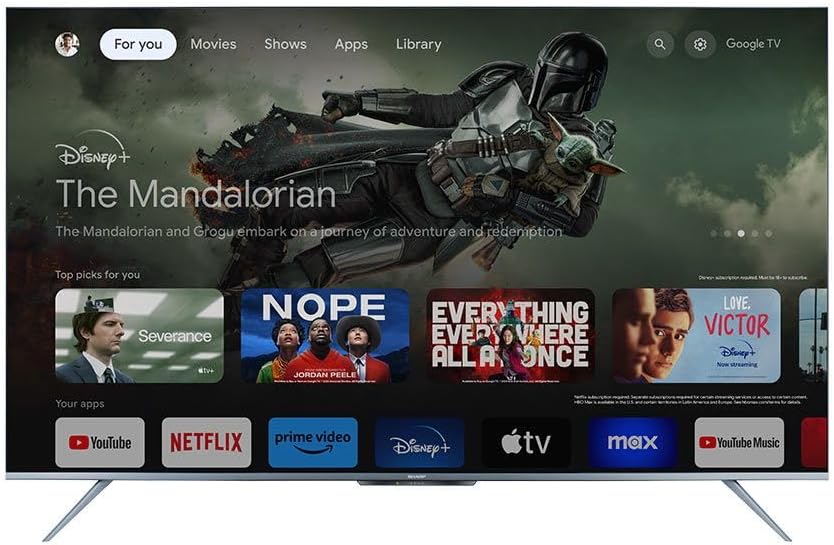
The Google TV interface organizes your content from various streaming services and apps into one personalized screen. You can browse recommendations, access your library, and discover new content.
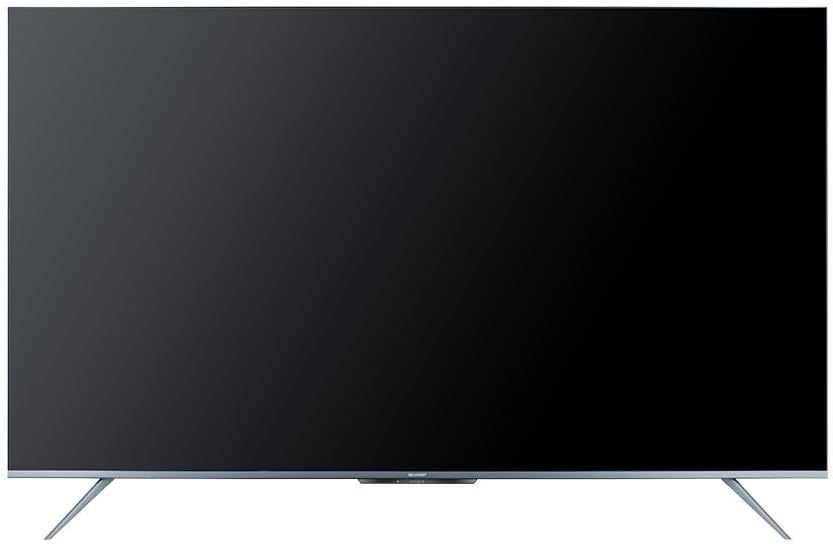
Figure 4.1: The Google TV home screen interface.
4.3 Te whakamahi i nga waahanga atamai
- Taupānga Rererenga: Navigate to the 'Apps' section or use the dedicated remote buttons to launch Netflix, Prime Video, YouTube, and other installed applications.
- Rapu Reo: Press the Google Assistant button on your remote and speak into the microphone to search for content, control playback, or ask questions.
- Chromecast Hanga-i roto: Use the Chromecast feature to cast videos, photos, and music from your compatible smartphone, tablet, or computer directly to the TV.
- Web Pūtirotiro: Access the internet using the built-in web pūtirotiro.
- Toa Play Google: Download and install additional apps and games from the Google Play Store.
4.4 Kōwhiringa Pūtake Tāuru
To switch between connected devices (e.g., HDMI 1, HDMI 2, TV tuner), press the Whakauru patene i runga i to mana mamao ka kowhiri i te puna e hiahiatia ana mai i te tahua-mata.
5. Tiaki
5.1 Te horoi i te pouaka whakaata
- Mata: Me ata horoia te mata ki te kakahu ngohengohe, kore-puru. Mo nga tohu pakeke, whakamahia he otinga horoi-mata i hangaia mo nga pouaka whakaata, ka pa ki te kakahu, kaua ki te mata.
- Te Rūnanga: Horoia te kāpata pouaka whakaata ki te kakahu ngohengohe, maroke. Kaua e whakamahi i ngā kaihoroi whakakoi, ngā ware pi, ngā whakarewa rānei.
- Wewetehia te pouaka whakaata mai i te putanga hiko i mua i te horoi.
5.2 Whakahōu Pūmanawa
Your Sharp Smart TV may receive software updates periodically to improve performance and add new features. Ensure your TV is connected to the internet to receive these updates. You can usually check for updates in the TV's settings menu.
6. Te Raru
I mua i te whakapā atu ki te tautoko a nga kaihoko, ngana ki nga otinga e whai ake nei mo nga take noa:
| Raruraru | Rongoa pea |
|---|---|
| Karekau he kaha | Check if the power cable is securely connected to the TV and the power outlet. Ensure the outlet is working. Try pressing the power button on the TV itself. |
| Karekau he pikitia, engari he oro | Ensure the correct input source is selected. Check HDMI or other video cables for secure connections. |
| Karekau he oro, engari he pikitia kei reira | Check the volume level and ensure the TV is not muted. Verify audio cable connections if using external speakers. Check audio output settings in the TV menu. |
| Ko te mana mamao kaore e mahi | Whakakapihia nga pākahiko i te mana mamao. Me whakarite karekau he arai i waenga i te mamao me te pukoro IR o te pouaka whakaata. |
| Kaore e taea te hono ki Wi-Fi | Ensure your Wi-Fi router is on and working. Re-enter the Wi-Fi password carefully. Try restarting your router and the TV. |
| Smart features are slow or unresponsive | Restart the TV. Ensure a stable internet connection. Close unused applications running in the background. |
7. Whakatakotoranga
| Āhuahira | Taipitopito |
|---|---|
| Tau tauira | 4T-C65FL6EX |
| Rahi Mata | 65 inihi |
| Hangarau Whakaatu | LED |
| Whakatau | 3840 x 2160 (4K UHD) |
| Aspect Ratio | 16:9 |
| Viewing Koki | 178 nga nekehanga |
| Rere tāmata | 60 Hz |
| Pūnaha Mahi | Google TV |
| Mahara o roto | 32 GB |
| Momo Paoho | Digital (DVB-S/S2/T/T2/C) |
| Hangarau Ororongo | Dolby Atmos, DTS Studio Sound |
| Video Technology | HLG, Dolby Vision, HDR10 |
| Hononga | Wi-Fi, Bluetooth v5.1 |
| Tauranga HDMI | 3 (HDMI 2.0) |
| Tauranga USB | 2 |
| Hanga Tuku | 1 |
| Te Mana Putanga Ororongo | 12 Wati x 2 |
| Whakamahi Hiko (Mahi) | 200 Watts |
| Te Whakamahi Hiko (Tiati) | <0.5 Watts |
| Dimensions (W x H x D) without Stand | 1447.7 x 837 x 81.3 mm |
| Ahu (W x H x D) me te Tu | 1447.7 x 922.6 x 280.2 mm |
| Taumaha Kupenga | 17.9 kg |
| Whenua Taketake | Ihipa |
8. Pūtāhui me te Tautoko
8.1 Hua Whakatau
This Sharp 4T-C65FL6EX Smart TV comes with a 3-year full free warranty. Please retain your proof of purchase for warranty claims. The warranty covers manufacturing defects and malfunctions under normal use conditions. It typically does not cover damage caused by misuse, accidents, unauthorized repairs, or natural disasters.
8.2 Tautoko Kiritaki
For technical assistance, service requests, or further inquiries regarding your Sharp TV, please contact Sharp customer support. Refer to the warranty card or Sharp's official webpae mo nga taipitopito whakapā motuhake ki to rohe.


