1. Kupu Whakataki
This manual provides essential information for the safe and efficient operation of your NexiGo PJ40 Ultra Outdoor Netflix Projector. Please read this manual thoroughly before using the projector and retain it for future reference.
2. Nga korero haumaru
Kia mau ki ngā mahi ārai haumaru e whai ake nei hei ārai i te pakaru o te pūwhakaata, hei whakarite hoki i te haumaru o te kaiwhakamahi:
- Kaua e araia nga whakatuwheratanga hau. Me whakarite kia pai te rere o te hau huri noa i te kaupapa.
- Kaua e whakaaturia te pūwhakaata ki te ua, ki te makuku, ki ngā pāmahana tino kino rānei.
- Whakamahia te urutau hiko anake me te pūwhiti.
- A ape i te titiro tika ki roto i te arotahi pūwhiti ina te lamp kei runga.
- Puritia te pūwhakaata kia matara atu i ngā pūtake wera me te rā tika.
- Momotuhia te taura hiko i te wa e uira ana te tupuhi, i te kore ranei e whakamahia mo te wa roa.
3. Ihirangi mokete
Manatokona kei roto katoa nga mea kei roto i te kete:
- NexiGo PJ40 Ultra Projector
- Remote Control (with 2x AAA batteries)
- Pūurutau Hiko
- Tauera HDMI
- AV Pūrere
- Karaka horoi horoi
- Spare Air Filter
- Pukapuka Kaiwhakamahi
4. Hua Neke Atuview
The NexiGo PJ40 Ultra is a high-performance projector designed for versatile entertainment. It features native 1080p resolution, 800 ANSI lumens brightness, and AI image enhancement for clear, vibrant visuals. Integrated 20W speakers provide immersive audio. The projector includes officially licensed streaming apps like Netflix, YouTube, and Prime Video, along with comprehensive connectivity options.

Figure 4.1: NexiGo PJ40 Ultra Projector with projected Netflix screen.
Āhuatanga matua:
- Taumira 1080p Maori: Delivers crisp images with incredible detail.
- 800 ANSI Lumens Te kanapa: Provides clear visuals in various lighting conditions.
- AI Picture Quality Enhancement: Optimizes clarity, detail, and color reproduction with HDR and HLG support.
- Officially Licensed Streaming: Pre-installed Netflix, YouTube, and Prime Video for immediate access to content.
- AI-Enhanced Surround Sound: 20W speakers with DSP decoding for immersive audio.
- Whakatikatika Kohatu Matua Aunoa: Automatically adjusts vertical image distortion.
- Whakaata Mata Ahokore: Supports iOS, Android, and Windows devices via 5 GHz Wi-Fi.
- Kōwhiringa Hononga Maha: Includes 2 USB ports, 2 HDMI inputs, AV port, and 3.5mm audio jack.
5. Tatūnga
5.1 Hiko-Whakaahua Tuatahi
- Honoa te urutau hiko ki te tāuru hiko o te pūwhakaata, kātahi ki te putanga hiko.
- Pēhia te pātene hiko i te pūwhiti, te mana mamao rānei hei whakakā.
- Follow the on-screen instructions for initial language and network setup.
5.2 Placement and Screen Size
Position the projector on a stable, flat surface. The projection distance affects the screen size. Refer to the table below for recommended distances.

Figure 5.1: Recommended Projection Distances.
| Screen Diagonal (in.) | Tawhiti Whakaaturanga (ft) |
|---|---|
| 72 | 7.68 |
| 100 | 10.5 |
| 120 | 12.4 |
| 150 | 15.52 |
| 300 | 30.18 |
Note: Sizing measured by NexiGo Laboratory. Test measurements do not include the screen border size.
5.3 Te Arotahi me te Whakatika Kohatu Matua
- Whakatikatika Arotahi: Rotate the focus wheel on the projector until the image is clear.
- Auto Vertical Keystone: The projector features automatic vertical keystone correction. Ensure this setting is enabled in the menu for automatic adjustment.
- Manual 4D Correction: For horizontal or more precise adjustments, navigate to the manual keystone settings in the menu.
- Mahi Topa: Use the zoom function in the settings to shrink the screen size from 100% down to 60% without moving the projector.
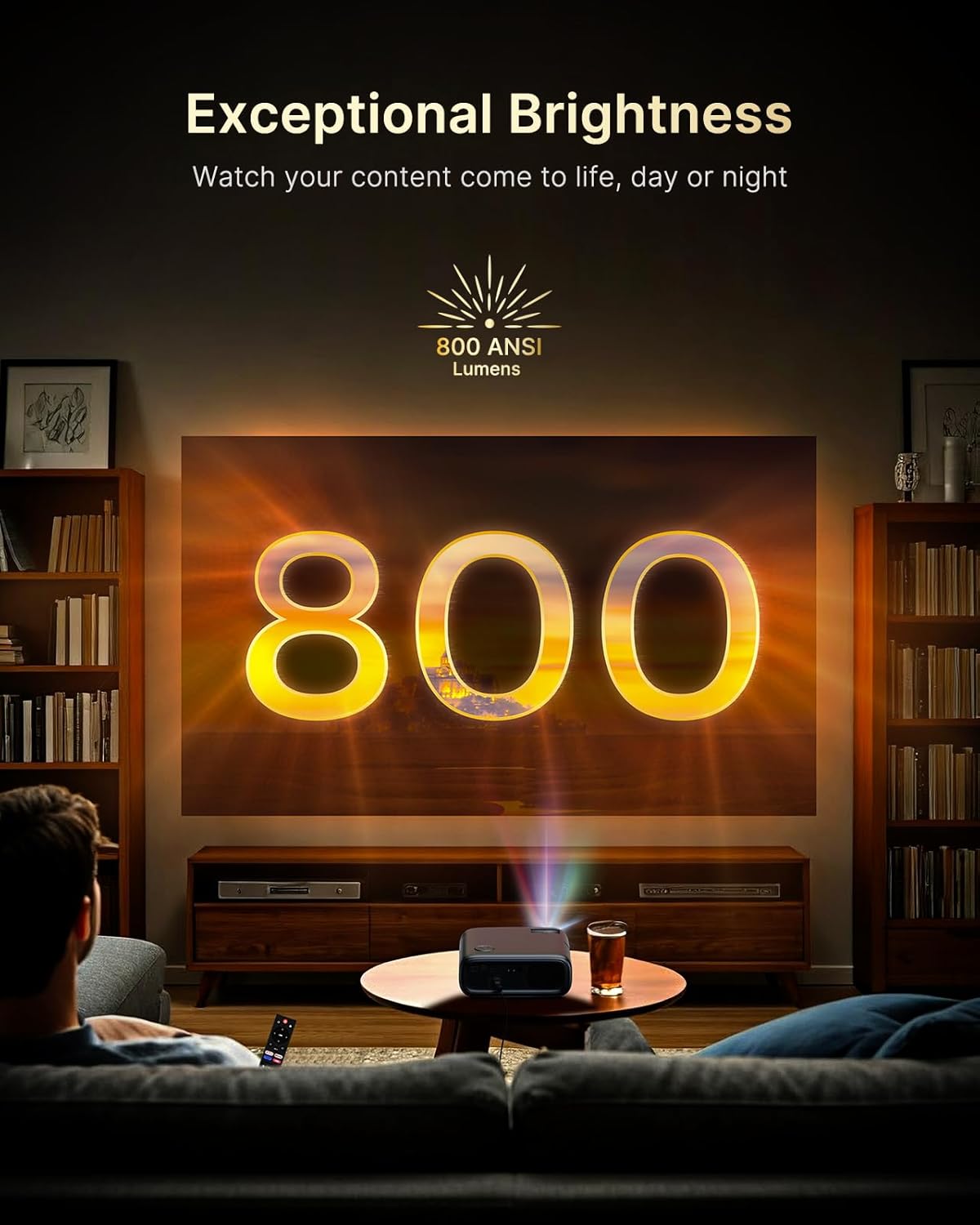
Figure 5.2: Keystone Correction and Zoom Options.
5.4 Hononga Whatunga
To access streaming services and screen mirroring, connect the projector to a Wi-Fi network:
- Navigate to the 'Settings' menu.
- Tīpakohia 'Whatunga' ranei 'Wi-Fi'.
- Choose your desired Wi-Fi network from the list and enter the password.

Figure 5.3: Dual-Band Wi-Fi Connectivity.
5.5 Te hono i nga taputapu o waho
The PJ40 Ultra offers various ports for connecting external devices:
- HDMI Ports (HDMI 1, HDMI 2): Connect gaming consoles (PS5, Nintendo Switch), TV sticks, laptops, or other HDMI-enabled devices. HDMI 1 supports ARC & CEC, HDMI 2 supports CEC.
- Tauranga USB: Connect USB flash drives or hard drives for media playback.
- AV Input Port: Honoa ngā pūrere tawhito mā te whakamahi i te taura AV kua whakaurua.
- 3.5mm Jack Ororongo: Honoa nga taringa o waho me nga kaikorero.

Pikitia 5.4: Ngā Tauranga Hononga.
6. Nga Tohutohu Whakahaere
6.1 Whakatere Mana Mamao
Use the included remote control to navigate the projector's interface. The remote allows you to power on/off, adjust volume, select input sources, and access settings and applications.
6.2 Ngā Taupānga Rerema
The projector comes with pre-installed and officially licensed applications:
- Netflix: Access your Netflix library directly.
- YouTube: Browse and watch videos from YouTube.
- Ataata Pirimia: Stream content from Amazon Prime Video.
To use these apps, ensure the projector is connected to the internet and log in with your respective account credentials.

Figure 6.1: Officially Licensed Streaming Applications.
6.3 Whakaata Mata
The PJ40 Ultra supports wireless screen mirroring for various devices:
- iOS Devices (AirPlay): Connect your iPhone or iPad to the same Wi-Fi network as the projector and use AirPlay to mirror your screen.
- Android Devices (Screen Mirror): Use the Screen Mirroring feature on your Android device to connect wirelessly.
- Windows Devices (Windows Cast): Utilize Windows Cast functionality for screen sharing from compatible Windows computers.
Note: Due to copyright restrictions, some streaming apps (e.g., Netflix, Amazon Prime, Hulu) may not support direct screen mirroring.
6.4 Tautuhinga Ororongo
The projector features built-in 20W speakers with DSP decoding for enhanced audio. You can also connect external audio devices:
- Hononga Nihokikorangi: Pair Bluetooth speakers or headphones for a wireless audio experience.
- 3.5mm Jack Ororongo: Honoa nga waea waea waea me nga kaikorero o waho.

Figure 6.2: AI-Enhanced Surround Sound.
7. Tiaki
7.1 Te horoi i te Arotahi
Use the provided lens cleaning cloth to gently wipe the projector lens. Avoid using abrasive cleaners or materials that could scratch the lens surface.
7.2 Tiaki Taatari Air
The projector includes an air filter to prevent dust accumulation. Periodically check and clean the air filter to maintain optimal performance and cooling. A spare air filter is included for replacement when necessary.
7.3 Tiakitanga Whanui
- Keep the projector in a clean, dry environment.
- When not in use, cover the lens with the protective cap.
- Kaua e tukua te pūwhakaata kia taka, kia tukua rānei kia pāngia e ngā pānga kaha.
8. Te Raru
Nga take me nga otinga noa:
- Kore Mana: Ensure the power adapter is securely connected to both the projector and a working power outlet. Try a different outlet.
- Kore he Atahanga:
- Tirohia mehemea kei te hiko te kaupapa.
- Verify the input source is correctly selected (e.g., HDMI 1, HDMI 2).
- Ensure the connected device is powered on and outputting a signal.
- Atahanga Pouriuri: Adjust the focus wheel on the projector until the image is sharp. Check keystone correction settings.
- Kore Oro:
- Whakanuia te oro o te pūwhakaata me te pūrere pūtake hono.
- Tirohia mēnā kei te hono tika, kei te hono rānei ngā kaikōrero o waho, ngā paneoro rānei mā te Nihokikorangi.
- Ensure the audio output setting on the source device is correct.
- Nga Take Hononga Wi-Fi:
- Me whakarite kia tika te whakaurunga o te kupuhipa Wi-Fi.
- Restart the projector and your Wi-Fi router.
- Move the projector closer to the Wi-Fi router to improve signal strength.
- Projector Randomly Powers On: Some users have reported the projector powering on from standby mode unexpectedly. If this occurs, ensure the projector is fully powered off at the main power switch or unplugged when not in use to prevent unintended operation. Check for any available firmware updates that might address this behavior.
9. Whakatakotoranga
| Āhuahira | Whakatakotoranga |
|---|---|
| Waitohu | NexiGo |
| Tau tauira | PJ40 Ultra |
| Hunga Hua | 11.3 x 10.78 x 4.8 inihi |
| Taumaha Tūemi | 7.99 pauna |
| Whakaatu Whakatau | 1920 x 1080 (Native 1080p) |
| Tirohanga | 800 ANSI Lumens |
| Hangarau Hononga | HDMI, USB, Wi-Fi |
| Nga waahanga motuhake | Official Netflix-Licensed, Built-in 20W Speaker, HDMI CEC Support, Wireless Screen Mirroring, Auto Keystone, 4K Support Input |
| Kaihanga | Nexight INC |
| Te Ra Tuatahi Wātea | Hanuere 2, 2025 |
10. Pūtāhui me te Tautoko
NexiGo is committed to customer satisfaction and provides comprehensive support for its products.
- Tautoko Kiritaki: Kei te wātea te tautoko kiritaki 24-hāora.
- Return/Exchange Policy: Enjoy a 30-day return or exchange period.
- Tautoko Hangarau: Ka whakaratohia te tautoko hangarau mō tō hua mō te wā katoa.

Figure 10.1: NexiGo Customer Support Information.
For further assistance or to contact support, please visit the official NexiGo webpaetukutuku, tirohia ranei nga korero whakapā e whakaratohia ana me to kohinga hua.


