Kupu Whakataki
This manual provides comprehensive instructions for the safe and efficient operation of your FREEZE2TRIM Skyhawk Drone and Ulti Charger Boltz Pro. Please read this manual thoroughly before first use and retain it for future reference.
The Skyhawk Drone is a versatile quadcopter designed for capturing high-definition aerial footage with user-friendly controls. The Ulti Charger Boltz Pro is a multi-port fast charger designed to efficiently power your devices, including the drone's batteries.

Tatūnga
1. Te Wetewete me te Tirotiro Tuatahi
Carefully remove all components from the packaging. Verify that all items listed in the packing list are present and undamaged. The package typically includes the Skyhawk Drone, remote controller, Ulti Charger Boltz Pro, multiple batteries, spare propellers, and a travel carry case.

2. Te Whakataki i nga Pahiko Drone
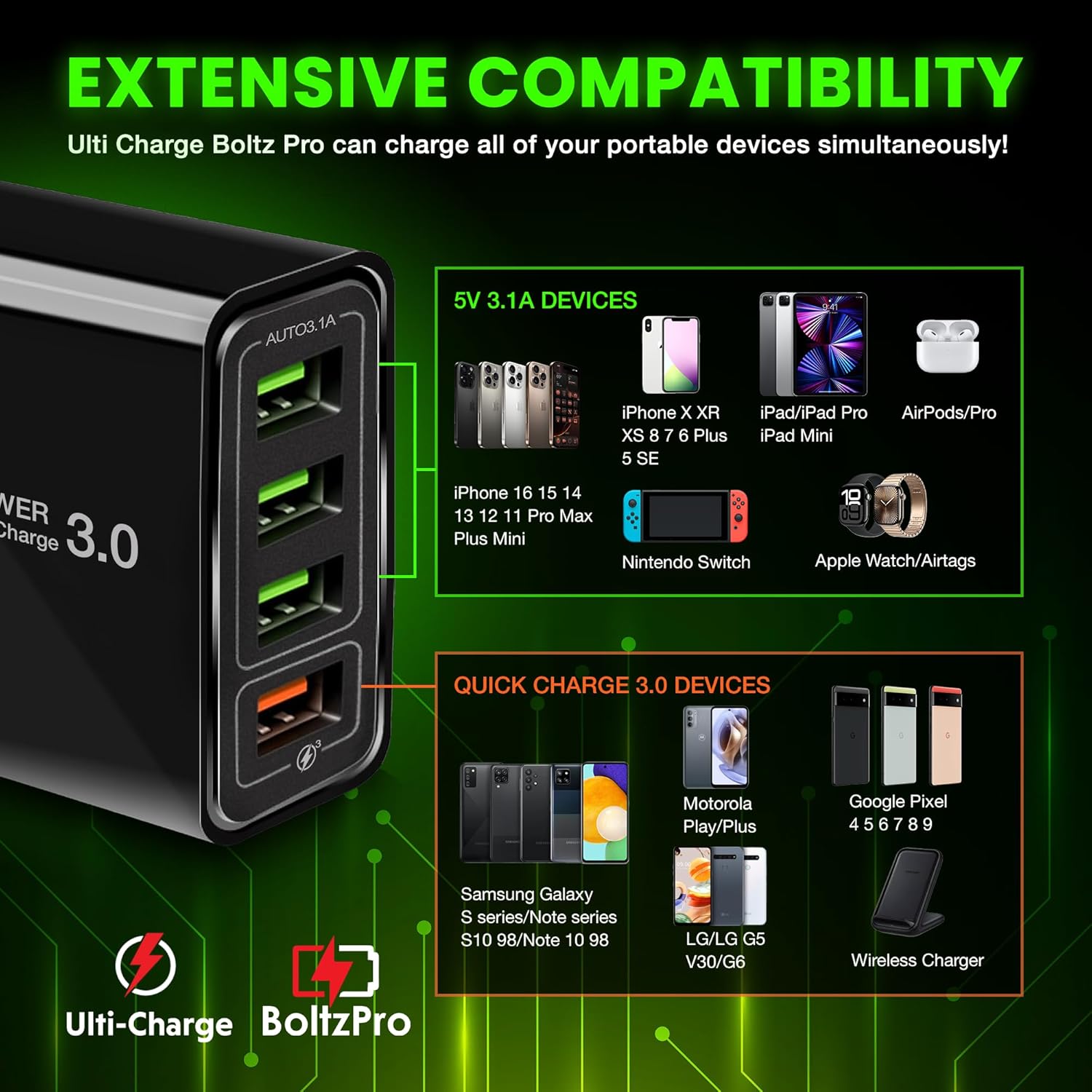
The Skyhawk Drone batteries should be fully charged before first use. Use the provided Ulti Charger Boltz Pro for efficient charging. This charger features Quick Charge 3.0 technology and multiple ports for simultaneous charging.
- Connect the Ulti Charger Boltz Pro to a power outlet.
- Insert the drone batteries into the charger's USB ports.
- Monitor the charging indicators on the batteries or charger.
- Disconnect batteries once fully charged.

3. Remote Controller and App Connection
The remote controller is designed for intuitive operation. It features a pull-out smartphone holder to display the drone's camera feed via a dedicated app.
- Download the official Skyhawk Drone app from your device's app store.
- Insert your smartphone into the remote controller's holder.
- Te hiko i runga i te haruru me te mana mamao.
- Follow the in-app instructions to connect your smartphone to the drone's Wi-Fi network and establish a connection with the remote controller.

Operating the Skyhawk Drone
1. Mana Rererangi Taketake
The Skyhawk Drone offers effortless control for both beginners and experienced pilots.
- Rere/Tau Pātene Kotahi: Press the designated button on the remote for automatic ascent or descent.
- Aratau Upoko: Simplifies flight by eliminating the need to adjust the drone's orientation relative to the pilot.
- Kōwhiringa Tere: Choose from three speed settings to match your flying skill and environmental conditions, with a maximum speed of up to 25 mph.
- Pupuri teitei: In GPS mode, the drone maintains a stable altitude for steady flight and photography.
2. Camera Operation and Features
The drone is equipped with a high-definition camera for capturing stunning aerial visuals.
- Kāmera Whakamārama teitei: Features a 120° wide-angle lens, capable of capturing 360° pictures and videos at 60 frames per second.
- Kāmera Whakaritea: The camera angle can be adjusted during flight via the remote controller.
- Whangai Ora: View the camera's live feed directly on your smartphone through the connected app.
3. Ngā Aratau Rere Atamai
Enhance your flying experience with intelligent flight modes:
- Aratau Whai Mai i ahau: The drone automatically tracks and follows a designated subject.
- Orbit Flight: The drone circles a point of interest, capturing panoramic footage.
- Rererangi Tohu Ara: Program a flight path with multiple waypoints for automated navigation.
- One-Click Return Home: Automatically brings the drone back to its take-off point, especially useful in low power or lost signal situations.
Te tiaki
1. Te Rokiroki me te Kawe
The Skyhawk Drone is designed for portability with foldable propellers and a lightweight body.
- Fold the drone's arms inward for compact storage.
- Secure the propellers with the provided strap if available.
- Store the drone and its accessories in the included travel carry case to protect them during transport.
- The remote controller's joysticks are detachable for easier storage.

2. Tiaki Pourewa
Inspect propellers regularly for any damage (cracks, bends, chips). Replace damaged propellers immediately using the spare parts provided to ensure safe and stable flight.
Raparongoā
- Drone not connecting to remote/app: Ensure the drone is powered on and your smartphone is connected to the drone's Wi-Fi. For GPS-dependent features, ensure you are outdoors with a clear view o te rangi mo te hoko amiorangi.
- Rere kore iu: Check for damaged propellers and replace if necessary. Ensure batteries are fully charged. Perform a compass calibration if the drone drifts or flies erratically.
- Poor camera quality: Ensure the camera lens is clean and free from obstructions. Verify that the app settings are configured for the desired resolution (e.g., 4K).
- Te wā rere poto: Ensure batteries are fully charged before each flight. Extreme temperatures or aggressive flying can reduce battery life.
Whakatakotoranga
- Waitohu: FREEZE2TRIM
- Drone Model: Skyhawk Drone
- Tauira Kaihoko: Ulti Charger Boltz Pro
- Kāmera: 120° wide-angle lens, 360° pictures and videos, 60 frames per second (HD/4K resolution as per product description)
- Tere Max: Up to 25 mph (as per product description)
- Charger Ports: 4-Port QC 3.0 USB Charger Block
- Putanga Kaitohu: 40 Watt (QC3.0 + Three 3.1A ports)
- Hononga: 2.4GHz Remote Control, App-controlled via smartphone
- Nga waahanga motuhake: Foldable design, One-button take-off/landing, Headless mode, Follow Me mode, Orbit Flight, Waypoint Flight, One-Click Return Home, Altitude Hold (GPS Mode)
Pūtāhui me te Tautoko
Specific warranty details are not provided in the product information. Please refer to the product packaging or contact FREEZE2TRIM customer support for warranty information and technical assistance.
Mo etahi atu awhina, tirohia te FREEZE2TRIM Store on Amazon.


