Kupu Whakataki
Thank you for choosing the Bonacell Wireless Controller. This manual provides detailed instructions for setting up, operating, and maintaining your controller. Please read this manual carefully before use to ensure optimal performance and longevity of your device.

Image: The Bonacell Wireless Controller, black with blue illuminated buttons, shown alongside its white USB receiver adapter.
Nga waahanga hua
- Hototahi Whānui: Supports PS4, PS5, PC (Windows), Android, and iOS devices.
- Wiri Motuka Takirua: Enhances gaming immersion with realistic haptic feedback.
- 6-Axis Gyroscope Pūoko: Provides precise motion control for supported games.
- Mahinga Turbo: Enables continuous rapid input for specific buttons.
- 3.5mm Jack Ororongo: Allows connection of headphones for in-game audio.
- Papapa: Integrated touchpad for additional control options.
- RGB Multi-color Buttons: Customizable lighting effects for personalized aesthetics.
- Roa te Ora o te Pūhiko: Built-in 1000mAh battery provides extended usage.

Whakaahua: Kati-ake views highlighting the controller's 360-degree joysticks, 3.5mm headphone jack, and 6-axis gyroscope sensor.
Tatūnga me te Hononga
1. Te Whakataki i te Kaiwhakahaere
The controller is equipped with a 1000mAh battery. Before first use, or when the battery is low, charge the controller using the provided Type-C cable or a compatible charging base.
- Wā Whakataki: Tata ki te 2.5 haora.
- Wā Whakamahi: Tae atu ki te 16 haora i runga i te utu katoa.

Image: Visual representation of the controller's battery specifications, including its 1000mAh capacity, working time, and charging duration.
2. Connecting to PS5 (Wireless Receiver)
To play PS5 games, the controller must be connected via the wireless receiver. Direct Type-C cable connection does not support PS5 games.
- Hipanga 1: Plug the wireless receiver adapter into a USB port on your PS5 console. Briefly press the pairing button on the adapter.
- Hipanga 2: On the Bonacell Wireless Controller, press and hold the WHAKAMAHI ka pupuri i te P button simultaneously for 5 seconds to enter pairing mode.
- Hipanga 3: Once successfully paired, the lights on both the controller and the adapter will remain illuminated.
Note: For the first connection, it is recommended to activate the device with a USB cable before attempting wireless pairing.
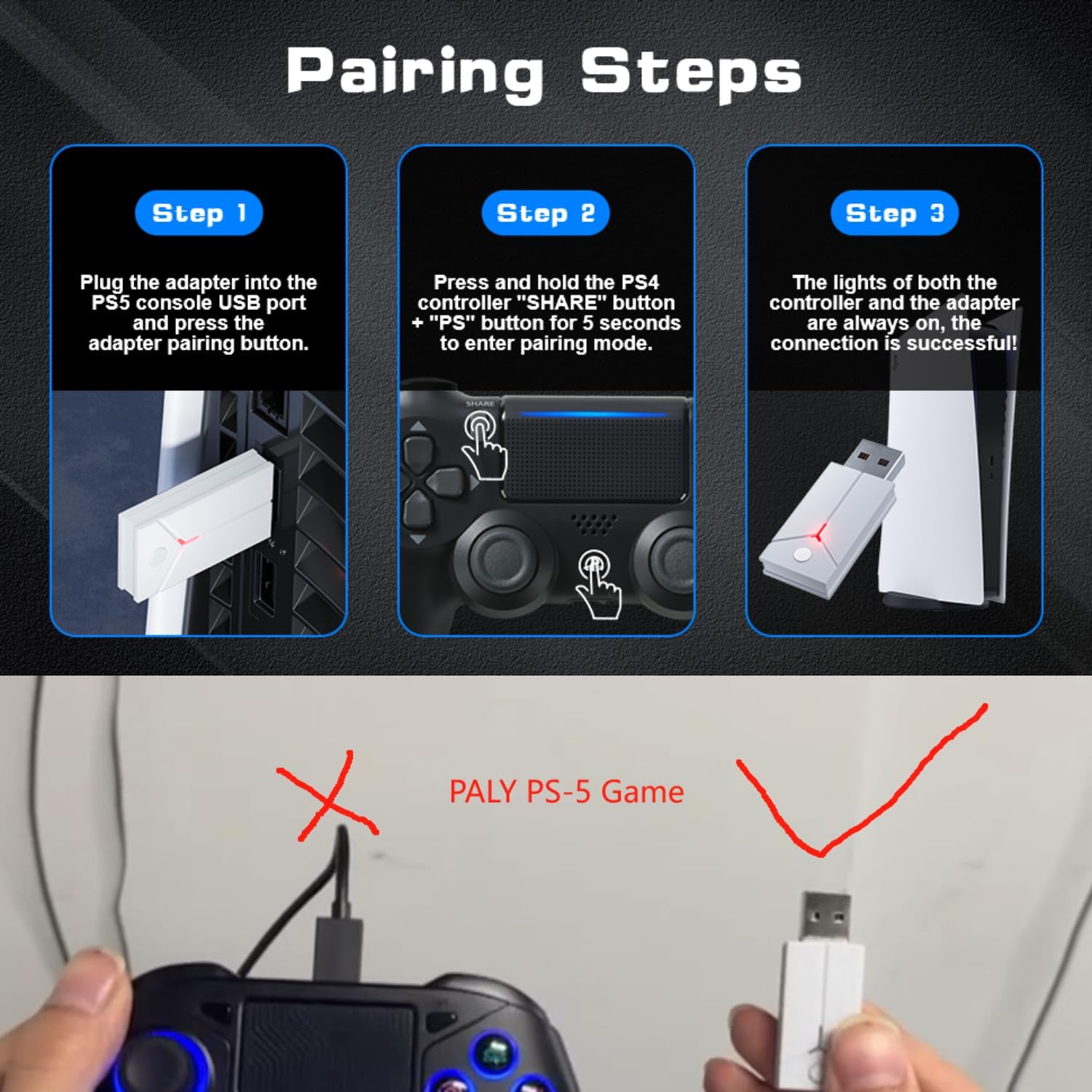
Image: A three-step visual guide demonstrating how to pair the controller with a PS5 console using the USB adapter.
3. Connecting to PC (Wired)
Connect the controller to your PC directly using the Type-C data cable.
4. Connecting to PC (Bluetooth)
- Hipanga 1: Ensure your PC's Bluetooth function is enabled.
- Hipanga 2: On the Bonacell Wireless Controller, press and hold the WHAKAMAHI pātene me te P button simultaneously for 3 seconds to enter pairing mode.
- Hipanga 3: On your PC, search for and select the controller from the list of available Bluetooth devices to complete the pairing.
5. Connecting to Android and iOS (Bluetooth)
Supports iOS 13+ devices.
- Hipanga 1: Activate the Bluetooth function on your mobile phone or tablet.
- Hipanga 2: On the Bonacell Wireless Controller, press and hold the WHAKAMAHI pātene me te P button simultaneously for 3 seconds to enter pairing mode.
- Hipanga 3: On your mobile device, search for and select the controller from the list of available Bluetooth devices to complete the pairing.

Image: An illustration showing the Bonacell Wireless Controller's compatibility with various platforms such as PS5, PS4, PC, Android, and iOS.
Nga Tohutohu Whakahaere
1. RGB Multi-color Button Customization
- To change the light color: Press and hold the L3 pātene me te R3 button simultaneously for 3 seconds. The controller will vibrate for 1 second, indicating that the light color can now be changed.
- To switch light effect modes: Press and hold the SET pātene me te R3 button simultaneously. Cycle through modes: Colorful → Monochrome → Colorful Transformation → Monochrome Breathing.
2. Mahi Turbo
The Turbo function allows for continuous rapid input of a button press. This can be useful in games requiring fast, repeated actions.
Specific instructions for activating and deactivating the Turbo function are typically found in the game's control settings or may involve a combination of the Turbo button (if present) and another action button. Refer to the controller's quick start guide or product packaging for exact button combinations if not detailed here.

Image: An illustration highlighting the dual vibration motors and the Turbo function capability of the controller.
Te tiaki
- Te horoi: Whakamahia he kakahu ngohengohe, maroke hei horoi i te pūmana. Kaua e whakamahi i ngā matū kaha, i ngā rauemi whakakoi rānei.
- Rokiroki: Whakaorangia te pūmana ki te wahi matao, maroke atu i te ra tika me te wera nui.
- Tiaki Pūhiko: Hei whakaroa i te ora o te pākahiko, kaua e tukua kia pau katoa te pūmana. Utuhia i ia wā, ahakoa kāore e whakamahia ana mō te wā roa.
Raparongoā
- Karekau te kaiwhakahaere e hono ana:
- Me mohio kei te utuhia te kaiwhakahaere.
- Verify the correct pairing procedure for your device (PS5, PC, Android/iOS).
- For PS5, ensure you are using the wireless receiver.
- For Bluetooth connections, ensure Bluetooth is enabled on your host device and the controller is in pairing mode.
- Whakamātauria te tīmata anō i te pūmana me te pūrere manaaki.
- Buttons or joysticks not responding:
- Me mohio kei te hono tika te kaiwhakahaere.
- Check for any physical obstructions or debris around the buttons/joysticks.
- If connected via PC, ensure drivers are up to date.
- Kāore te wiri e mahi:
- Me whakarite kei te tautoko te keemu i nga urupare wiri.
- Tirohia nga tautuhinga-a-roto ki te whakarite kia taea te wiri.
Whakatakotoranga
| Āhuahira | Taipitopito |
|---|---|
| Ingoa Hua | Kaiwhakahaere Ahokore |
| Tau tauira | B0DT8G5RST |
| Ahu | 165 x 105 x 45 mm |
| Taumaha | 0.26 kg (Item Package Weight: 300 g) |
| Pūhiko Raukaha | 1000mAh Lithium Ion |
| Wā Whakamahi | Tae atu ki te 16 haora |
| Waa Whakatau | Tata ki te 2.5 haora |
| Tikanga Whakatau | Base or Type-C charging |
| Hononga | 2.4GHz USB Receiver, Bluetooth, USB-C (wired) |
| Hototahi | PS4, PS5, PC (Windows), Android (iOS 13+) |
| Nga waahanga matua | Dual Shock Motor, Six-Axis Gyroscope, Touchpad, 3.5mm Audio Jack, Turbo Function, RGB Buttons |
| Rauemi | ABS |
Pūtāhui me te Tautoko
For warranty information or technical support, please refer to the product packaging or contact Bonacell customer service through the retailer's platform where the product was purchased.
