1. Kupu Whakataki
The HORI Wireless Fighting Commander OCTA Pro is a high-performance fightpad designed for competitive gaming on PlayStation 5 and Windows 11/10. This manual provides detailed instructions for setting up, operating, and maintaining your controller to ensure optimal performance.

Figure 1: HORI Wireless Fighting Commander OCTA Pro Controller Overview.
2. Nga waahanga matua
- Hononga Ahokore me te Waea: Supports both wireless play via USB-C receiver (up to 10m/30ft range) and wired play with the included 3m/9.8ft USB cable.
- 6-Button Microswitch Layout: Designed specifically for fighting games, featuring durable and accurate microswitch buttons.
- Octagonal Gate Analog Stick: Provides precise control for fighting game inputs.
- Swappable D-pad: Includes three different D-pad options for personalized playstyle.
- Ngā Pātene Muri Ka taea te Whakarite: Customize your controller with assignable rear buttons.
- Analog Slider Pad: Facilitates in-game lobby navigation.
- Tactile Switch Shoulder Buttons: Ensures precise input timing.
- LOCK Function: Prevents accidental button inputs during critical gameplay.
- Touchpad and 3.5mm Headset Jack: Essential functions for modern gaming, including a mute button.
- Taupānga Hoa: Access additional customization options via the dedicated companion application.
- Cable Lock Feature: Prevents accidental disconnections during wired play.
- Ora Pūhiko: Approximately 10 hours per charge for wireless use.
3. Aratohu Tatūnga
3.1 Ihirangi mokete
- HORI Wireless Fighting Commander OCTA Pro Controller
- USB-C Wireless Receiver
- 3m/9.8ft USB-C to USB-A Charging/Data Cable
- Additional Swappable D-pads (2 types)
3.2 Whakataki Tuatahi
Before first use, fully charge the controller. Connect the included USB-C cable to the controller's USB-C port and the other end to a powered USB-A port on your console or PC. The charging indicator will illuminate.
3.3 Te hono atu ki te PlayStation 5 (Ahokore)
- Insert the USB-C Wireless Receiver into an available USB-A port on your PlayStation 5 console.
- Turn on the controller by pressing the PlayStation button. The controller will automatically pair with the receiver.
- Ensure the controller is set to wireless mode using the switch on the back of the controller.
3.4 Connecting to Windows 11/10 PC (Wireless)
- Insert the USB-C Wireless Receiver into an available USB-A port on your Windows PC.
- Turn on the controller by pressing the PlayStation button. The controller will automatically pair with the receiver.
- Ensure the controller is set to wireless mode using the switch on the back of the controller.
- Tuhipoka: For optimal performance, download and install the latest firmware from the official HORI webpae.
3.5 Wired Connection (PlayStation 5, PlayStation 4, Windows PC)
- Connect the included 3m/9.8ft USB-C to USB-A cable to the controller's USB-C port and the other end to a USB-A port on your console or PC.
- Ensure the cable lock feature is engaged to prevent accidental disconnection.
- Note for PlayStation 4: The controller is only compatible in wired mode on PlayStation 4 consoles. A USB-C to USB-A data cable is required (included).
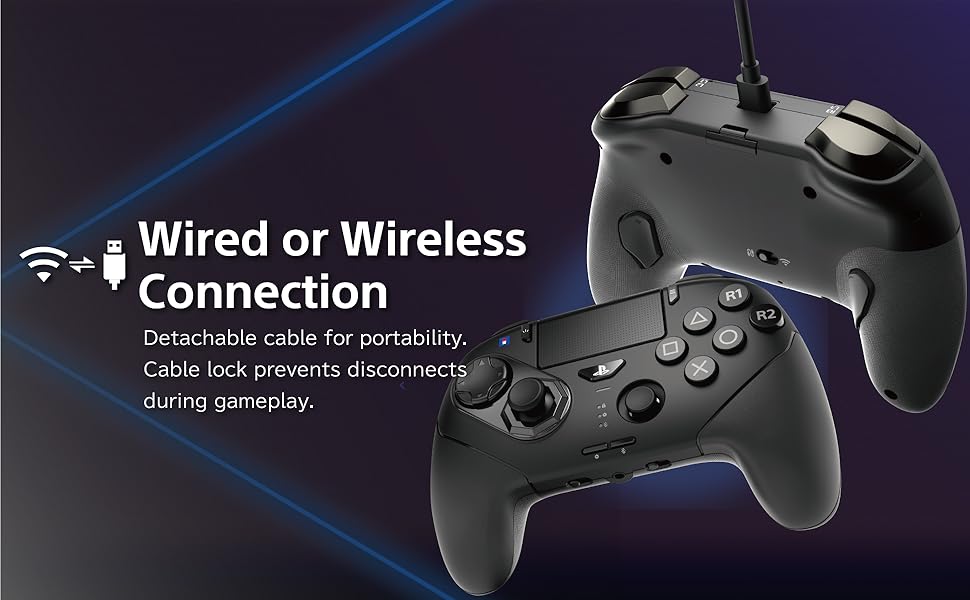
Figure 2: Wired and Wireless Connection Options.
4. Nga Tohutohu Whakahaere
4.1 Patene Tahora
The controller features a 6-button layout on the face, optimized for fighting games, alongside standard PlayStation buttons and an octagonal gate analog stick.

Figure 3: Six-Button Layout for Fighting Games.
4.2 Swapping D-pads
The controller comes with three interchangeable D-pads. To swap, gently pull off the current D-pad and align the desired D-pad with the base, then press firmly until it clicks into place.
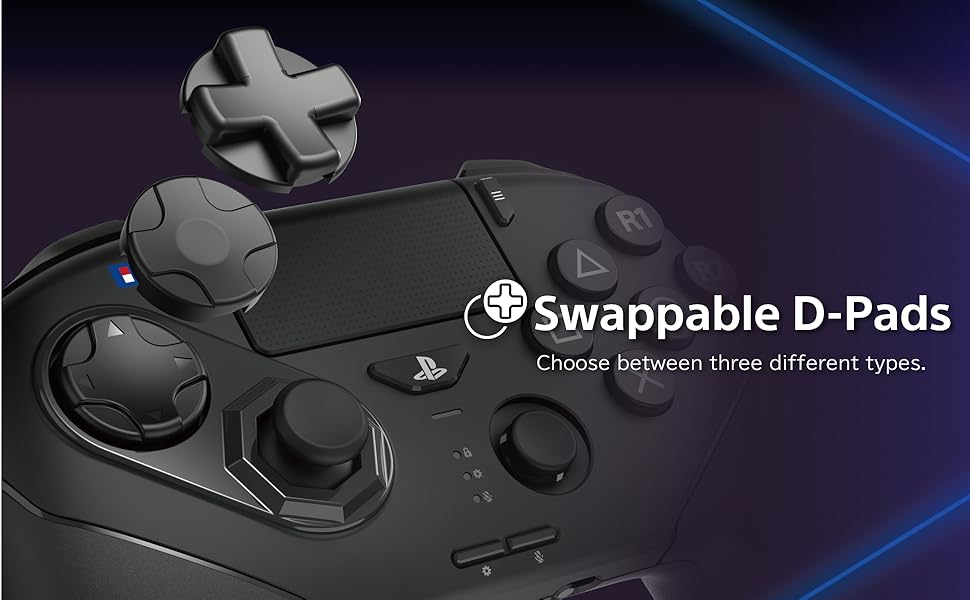
Figure 4: Swappable D-pad Options.
4.3 Programmable Rear Buttons and LOCK Function
The controller features programmable rear buttons for custom assignments. Use the companion app to configure these buttons. The LOCK function, typically activated via a switch on the controller, disables certain buttons to prevent accidental inputs during tournaments.
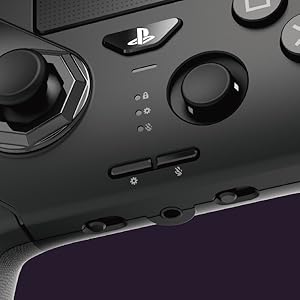
Figure 5: Programmable Buttons and Lock Switch.
4.4 Analog Slider Pad and Octagonal Gate Analog Stick
The analog slider pad is located for easy access during lobby navigation. The main analog stick features an octagonal gate for enhanced precision in fighting game movements.

Figure 6: Analog Slider Pad.
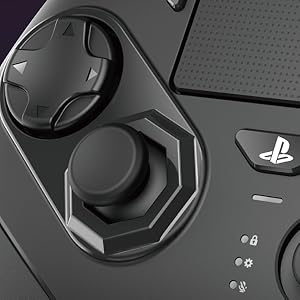
Figure 7: Octagonal Gate Analog Stick.
4.5 Headset Jack and Mute Button
A 3.5mm headset jack is included for audio communication, along with a dedicated mute button for convenience.
5. Tiaki
- Te horoi: Whakamahia he kakahu ngohengohe, maroke hei horoi i te kaiwhakahaere. Āta karohia ngā kaihoroi whakakoi, ngā whakarewa rānei.
- Rokiroki: Whakaorangia te pūmana ki te wahi matao, maroke atu i te ra tika me te wera nui.
- Tiaki Pūhiko: To prolong battery life, avoid fully discharging the controller frequently. Charge regularly.
6. Te Raru
- Kaiwhakahaere Kaore i te Whakautu:
- Me mohio kei te utuhia te kaiwhakahaere.
- Verify the wireless receiver is properly inserted into the console/PC.
- Check if the controller is in the correct mode (wireless/wired).
- Try connecting via wired mode to rule out wireless interference.
- D-pad Input Issues:
- Many input issues can be resolved by updating the controller's firmware. Visit the official HORI website to download and install the latest firmware.
- Ensure the D-pad is correctly seated and not obstructed.
- Disconnections During Wired Play:
- Ensure the cable lock feature is engaged.
- Check the USB-C cable for damage and ensure it is securely connected.
- Companion App Issues:
- Ensure your controller's firmware is up to date.
- Reinstall the companion app if problems persist.
7. Whakatakotoranga
| Āhuahira | Taipitopito |
|---|---|
| Tau tauira | SPF-040U |
| Hototahi | PlayStation 5, Windows 11/10 (Wired mode for PlayStation 4) |
| Hononga | Wireless (USB-C Receiver), Wired (USB-C to USB-A Cable) |
| Mokowoko Korekore | Tae atu ki te 10m / 30ft |
| Te roa o te taura | 3m / 9.8ft |
| Momo Pūhiko | 1 pākahiko Lithium Ion (kei roto) |
| Approx. Ora Pūhiko | 10 haora |
| Taumaha Tūemi | 1.19 pauna |
| Ahu mōkihi | 9.57 x 8.78 x 4.65 inihi |
| Kaihanga | HORI |
| Official Licensing | Officially licensed by Sony |
8. Pūtāhui me te Tautoko
The HORI Wireless Fighting Commander OCTA Pro is an officially licensed product by Sony. For warranty information, technical support, and the latest firmware updates, please visit the official HORI website. Regularly checking for firmware updates is recommended to ensure optimal performance and compatibility.
Tuhipoka: When playing on PlayStation 4 consoles, please use wired mode (requires USB-C to USB-A data cable, sold separately). The controller is not compatible with wireless mode on PlayStation 4 consoles.


