1. Kupu Whakataki
Mauruuru koe mo te hokoasing the JONSBO ZA-120B PC Case Fan. This fan is designed to provide efficient cooling for your computer system while offering customizable ARGB lighting effects. Featuring a 28mm thick design, 4-sides infinity mirror, and PWM control, it ensures both aesthetic appeal and optimal performance. This manual provides detailed instructions for installation, operation, and maintenance to help you get the most out of your product.
2. Nga korero haumaru
Tena panuihia me te whai i enei aratohu haumaru hei aukati i te kino o te hua, i te whara ranei i a koe ano:
- Momotuhia te hiko mai i to rorohiko i mua i te whakauru, te whakahaere ranei i nga waahanga o roto.
- Handle the fan by its frame to avoid touching the blades, which could cause damage or injury.
- Ensure proper grounding to prevent electrostatic discharge (ESD) damage to sensitive components.
- Do not attempt to modify the fan or its cables. Unauthorized modifications may void your warranty and pose safety risks.
- Puritia te pā hau kia matara atu i ngā wai me te makuku nui.
- Whakaorangia te powhiriwhiri ki te waahi makariri, maroke ina kore e whakamahia.
3. Ihirangi mokete
Manatokona kei roto katoa nga mea kei roto i to kete:
- JONSBO ZA-120B PC Case Fan
- Whakaeke Tiu
- Pukapuka Kaiwhakamahi (tenei tuhinga)
4. Hua Neke Atuview
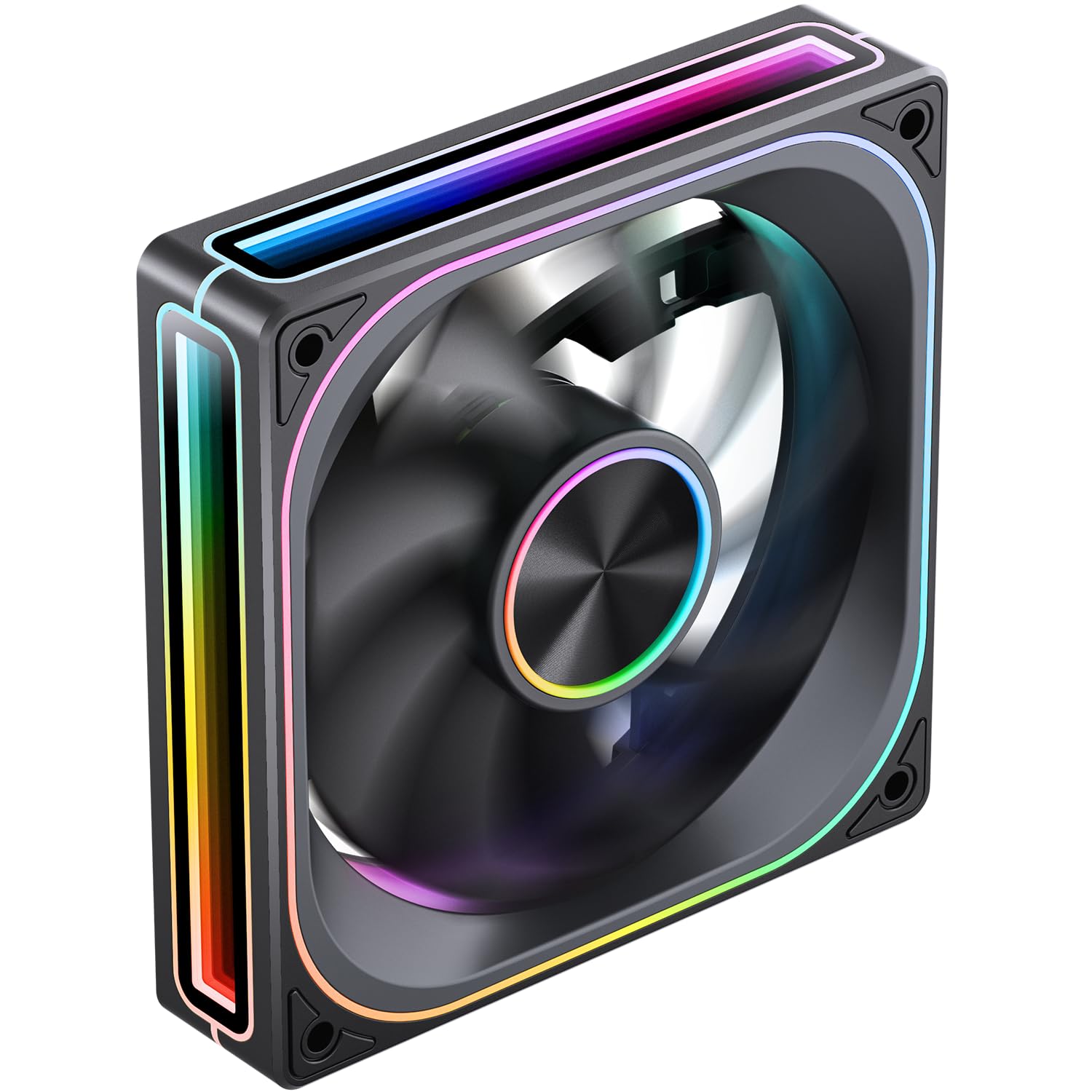
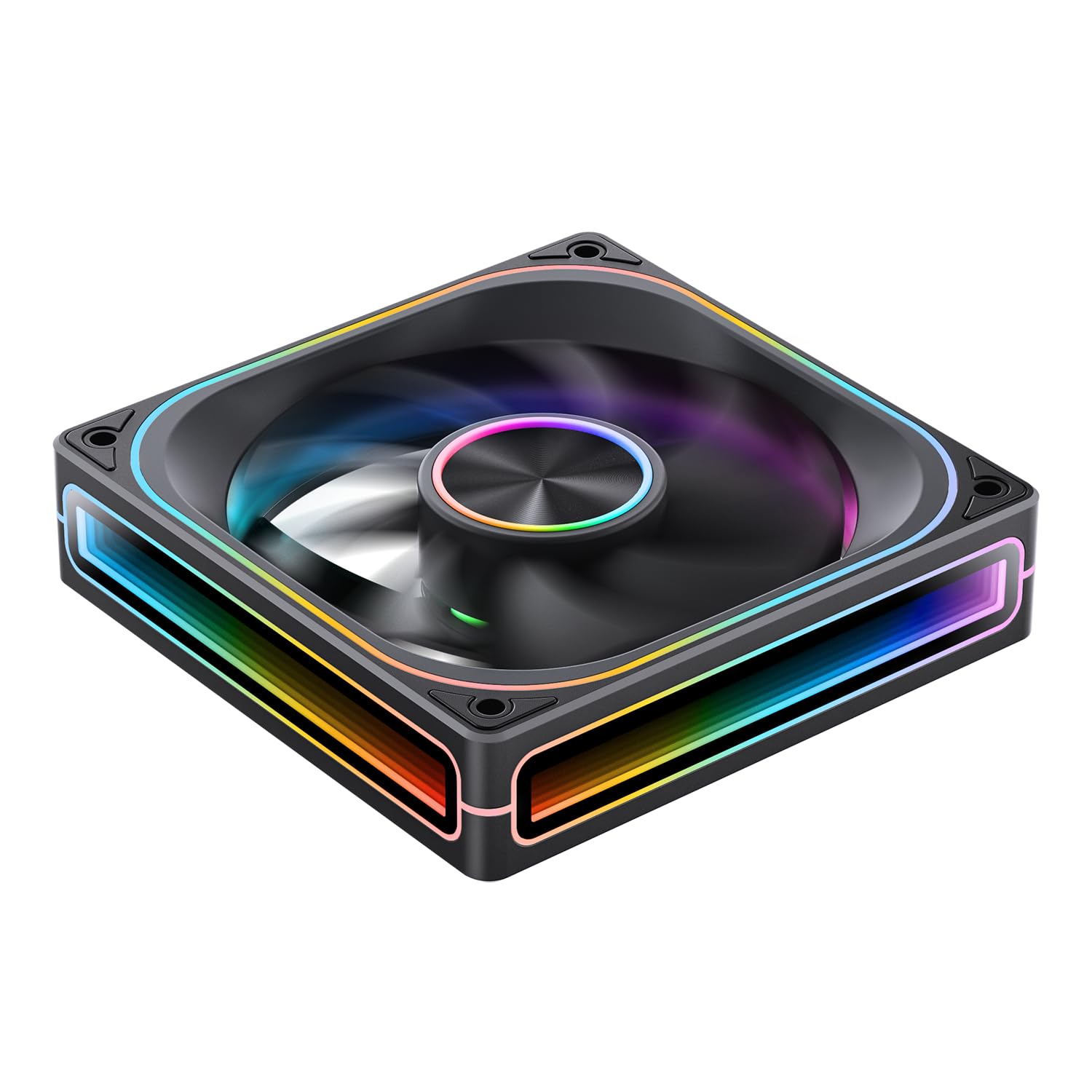
The JONSBO ZA-120B is a high-performance PC case fan designed for optimal airflow and stunning visual effects. Key features include:
- 4-Sides Infinity Mirror: Creates a deep, multi-layered lighting illusion from all angles.
- Mana PWM: Allows for precise fan speed adjustment (700-2400 RPM) to balance cooling performance and noise levels.
- Addressable RGB (ARGB) Sync: Compatible with motherboard ARGB software (3-pin 5V header) for synchronized lighting effects across your system.
- Simplified Cables: Integrated male and female PWM and ARGB headers for easy daisy-chaining and cable management.
- Ingoa Konumohe: Features a durable aluminum CD pattern nameplate for a premium finish.
- 28mm Thick Design: Enhanced thickness for improved airflow and static pressure.



5. Tatūnga me te Tāuta
Follow these steps to properly install your JONSBO ZA-120B PC Case Fan:
- Whakaritehia to Pūnaha:
- Turn off your computer and disconnect it from the power outlet.
- Open your computer case to access the fan mounting locations.
- Maungahia te Poho:
- Position the fan in your desired mounting location (e.g., front, top, rear, bottom of the case). Ensure the airflow direction is correct for your cooling setup (typically intake for front/bottom, exhaust for rear/top).
- Secure the fan to the case using the provided mounting screws. Tighten them evenly to prevent vibration.
- Connect Power (PWM):
- Locate an available 4-pin fan header on your motherboard (labeled 'CPU_FAN', 'SYS_FAN', 'CHA_FAN', etc.).
- Connect the fan's 4-pin PWM cable to the motherboard header. If installing multiple fans, you can daisy-chain them using the integrated male and female PWM heads, then connect the last fan in the chain to a single motherboard header.
- Honoa te rama ARGB:
- Locate an available 3-pin 5V ARGB header on your motherboard (often labeled 'ARGB_HEADER', 'D_LED', 'VDG', etc.). Do not connect to a 4-pin 12V RGB header, as this will damage the LEDs.
- Connect the fan's 3-pin ARGB cable to the motherboard header. Similar to PWM, you can daisy-chain multiple fans using the integrated male and female ARGB heads, connecting the last fan to a single motherboard ARGB header.
- If your motherboard does not have a 3-pin 5V ARGB header, you may need an external ARGB controller (not included) to control the lighting effects.
- Whakaha Uepu:
- Route all cables neatly to ensure proper airflow and a clean build. Use cable ties if necessary.
- Katia te Puka me te Hia:
- Close your computer case and reconnect the power.
- Power on your computer and verify that the fan is spinning and the ARGB lighting is functioning.
6. Mahi
Once installed, the JONSBO ZA-120B fan operates automatically based on your system's settings. Here's how to manage its functions:
- Mana Tere Pā (PWM):
- The fan speed is controlled via the 4-pin PWM connection to your motherboard.
- You can adjust fan curves and speeds through your motherboard's BIOS/UEFI settings or dedicated software provided by your motherboard manufacturer (e.g., ASUS AI Suite, Gigabyte SIV, MSI Dragon Center).
- This allows you to optimize for quiet operation at low loads and increased cooling performance under heavy loads.
- Mana Rama ARGB:
- The ARGB lighting effects are controlled via the 3-pin 5V ARGB connection to your motherboard.
- Use your motherboard's ARGB synchronization software (e.g., ASUS Aura Sync, Gigabyte RGB Fusion, MSI Mystic Light Sync, ASRock Polychrome Sync) to customize colors, patterns, and synchronize lighting with other ARGB components.
- If using an external ARGB controller, refer to the controller's manual for lighting adjustment instructions.
7. Tiaki
Regular maintenance helps ensure optimal performance and longevity of your fan:
- Te horoi:
- Periodically (every 3-6 months, depending on environment) clean dust from the fan blades and frame.
- Use compressed air to blow away dust. Hold the fan blades gently to prevent them from spinning rapidly during cleaning, which can damage the bearings.
- For stubborn dust, use a soft, dry cloth or a cotton swab.
- Tirotiro:
- Check cables for any signs of wear, fraying, or loose connections.
- Ensure mounting screws are still tight.
8. Te Raru
If you encounter issues with your JONSBO ZA-120B fan, refer to the following common problems and solutions:
- Kaiwhaiwhai Kaore e Miro:
- Ensure the 4-pin PWM cable is securely connected to a functional motherboard fan header.
- Check your motherboard's BIOS/UEFI settings to ensure the fan header is enabled and configured correctly (e.g., not set to 0 RPM).
- Test the fan on a different fan header or with a known working fan to rule out a faulty header or fan.
- ARGB Lighting Not Working or Incorrect Colors:
- Verify the 3-pin ARGB cable is correctly connected to a 3-pin 5V ARGB header on your motherboard. Ensure it is not connected to a 4-pin 12V RGB header.
- Check your motherboard's ARGB software to ensure lighting is enabled and configured.
- If daisy-chaining, ensure all connections are secure and the total number of LEDs does not exceed your motherboard/controller's capacity. (Note: This fan has 68+ LEDs, which may exceed some basic controllers).
- Try updating your motherboard's BIOS and ARGB software to the latest versions.
- Haruru nui:
- Ensure the fan is securely mounted and screws are tightened evenly to prevent vibration.
- Horoia he puehu i runga i nga matatahi.
- Adjust the fan speed curve in your motherboard's BIOS/UEFI or software to reduce RPMs at lower temperatures.
- Ensure no cables are obstructing the fan blades.
9. Whakatakotoranga
| Āhuahira | Whakatakotoranga |
|---|---|
| Tau tauira | ZA-120B |
| Ahu | 120 x 120 x 28 mm (tata ki te 5.8 x 5 x 1.18 inihi) |
| Tere Hurihuri | 700-2400 RPM (±10%) |
| Taumata Haruru | 21.3-37.3 dB(A) |
| Momo Hono Hiko | 4-Pin (PWM) |
| Momo Hononga ARGB | 3-Pin (5V Addressable RGB) |
| Puawai Puawaitage | DC 12 Volts |
| LED Voltage | 5 Volts |
| Kai Wattage | 5.16 Watts |
| Wat LEDtage | 5.80 Watts |
| Pūrere Hototahi | Take PC |
| Tikanga whakamatao | Air Cooling (Fan) |
| Te maha o nga mea | 1 |

10. Pūtāhui me te Tautoko
Ko nga hua JONSBO ka hangaia ki nga paerewa kounga teitei. Mo nga korero whakamana me te tautoko hangarau, tirohia te JONSBO whaimana webpaetukutuku, whakapā atu ranei ki to kaihokohoko o to rohe. Puritia to tohu hoko mo nga kereme whakamana.
Mo etahi atu awhina, tirohia te JONSBO Store on Amazon or contact JONSBO customer service.


