1. Kupu Whakataki
Thank you for choosing the MUNBYN RW403B Thermal Label Printer. This device is designed to streamline your labeling tasks with its advanced features, including Bluetooth connectivity, high-precision DAC technology, and quiet operation. This manual will guide you through the installation, operation, and maintenance of your printer to ensure optimal performance.
Ataata: Ka mutuview of the MUNBYN RW403B Thermal Label Printer, demonstrating its features and ease of use for various labeling needs.
2. Ihirangi mokete
Tena koa tirohia kei roto nga taonga katoa kei roto i te kete:
- MUNBYN RW403B Pūreretā Tapanga Weariki
- Pūurutau Hiko
- Tauira USB
- Aratohu Timata Tere
- Sampte Tapanga
3. Kairereta Nekeview
Familiarize yourself with the main components of your printer:
- Pātene Hiko: Ka whakakā/whakaweto i te pūreretā.
- Maama Tohu Tūnga: Displays printer status (e.g., power on, error, printing).
- Label Exit Slot: Te wāhi e puta mai ai ngā tapanga kua tāia.
- Label Roll Compartment: Holds the label roll.
- Tauranga USB: For wired connection to computers.
- Tauranga Hiko: Mo te hono i te urutau hiko.

Image: The MUNBYN RW403B printer in operation, demonstrating its compact design and label output.
4. Tatūnga
4.1 Te Wetewete me te Whakanoho
- Remove the printer and all accessories from the packaging.
- Whakatakotoria te pūreretā ki runga i tētahi mata pūmau, papatahi.
4.2 Hononga Hiko
- Honoa te urutau hiko ki te tauranga hiko o te pūreretā.
- Monohia te urutau hiko ki te putanga pakitara.
- Press the power button to turn on the printer. The status indicator light will illuminate.
4.3 Te Utaina o ngā Tapanga
- Whakatūwherahia te uhi pūreretā.
- Place the label roll into the label compartment, ensuring the labels feed smoothly from the bottom.
- Adjust the label guides to fit the width of your labels snugly.
- Katia te taupoki o te pūreretā. Ka kitea aunoatia e te pūreretā te rahi o te tapanga, ā, ka whakatikatikaina anō hoki.

Image: The printer demonstrating its adjustable label guides, supporting label widths from 1.57 to 4.25 inches.
4.4 Te Tāutanga me te Hononga Pūmanawa
The MUNBYN RW403B supports both Bluetooth and USB connectivity across various operating systems.
- For Mobile Devices (iOS/Android): Download the "Munbyn Print" app from your device's app store. Follow the in-app instructions to connect via Bluetooth.
- For Desktop (Mac/Windows): For Bluetooth connectivity, ensure your computer's Bluetooth is enabled and pair with the printer. For USB connection, simply connect the printer to your computer using the provided USB cable. No driver installation is typically required for major shipping platforms.
- For Chrome OS: Utilize the "Munbyn Editor" web application for label design and printing.

Image: Illustration of the printer's versatile connectivity, supporting both wireless Bluetooth and wired USB connections for various devices.
5. Nga Tohutohu Whakahaere
5.1 Printing Shipping Labels
The RW403B printer is compatible with major shipping platforms such as FedEx, UPS, USPS, Amazon, Shopify, Etsy, and eBay.
- Generate your shipping label from your preferred platform.
- Ensure the label size in your software settings matches the physical labels loaded in the printer (e.g., 4x6 inches).
- Select the MUNBYN RW403B as your printer and initiate the print command.

Image: Demonstrates the one-click wireless printing feature, allowing users to print shipping labels directly from their mobile devices or computers.
5.2 Designing and Printing Custom Labels
Utilize the "Munbyn Print" app (mobile) or "Munbyn Editor" (Chrome web application) to create custom labels.
- Open the Munbyn Print app or Munbyn Editor.
- Choose from over 2,000 templates and 3,500 pre-made design elements, or start from scratch.
- Customize your label with text (over 80 fonts available), images, OCR/voice recognition, and more.
- Preview your design and send it to the printer.
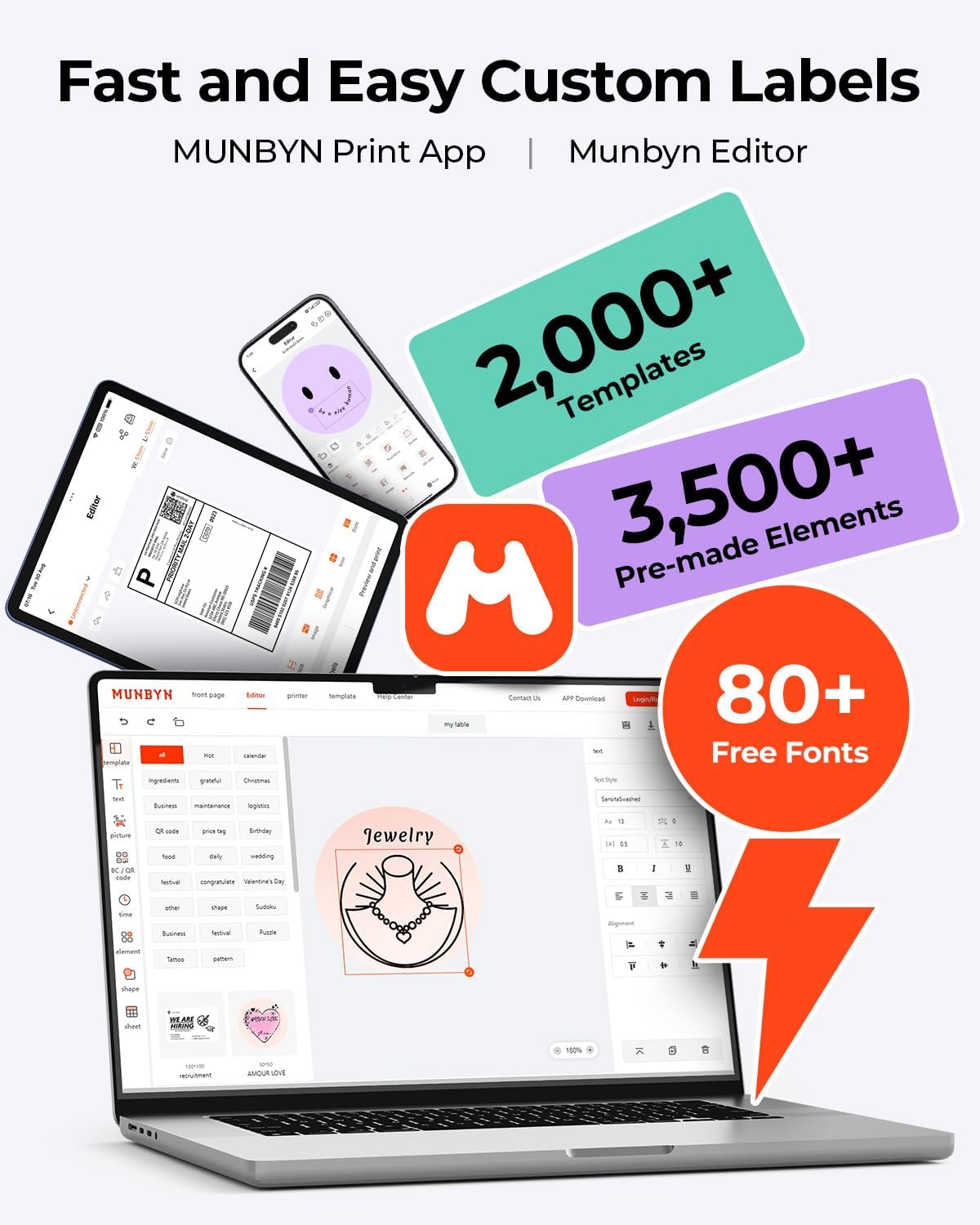
Image: The Munbyn Print App and Editor provide extensive tools for fast and easy custom label design, including templates, elements, and fonts.
6. Nga waahanga matua
- Advanced DAC Technology: The RW403B features a 4-inch DAC chip that automatically calibrates, eliminating 99.8% of label alignment defects and ensuring military-grade precision for flawless labels.
- Enhanced Print Clarity: Designed for professional-grade output, this printer ensures 0.1mm font readability, producing crisp monochrome labels for return slips, inventory, organization, and branding.
- Mahi Ataahua: Operating at only 60 dB, the printer is quieter than typing, allowing for focused work in home offices, libraries, or shared workspaces.
- Te Pūmau Tino Pai: Engineered for longevity, the RW403B can print up to 970,000 labels, significantly outlasting many standard devices. Its professional-grade design minimizes paper jams to less than 0.01%.
- Versatile Label Support: The printer supports a printable width of 1.57 to 4.25 inches, accommodating a wide range of label types and sizes for various applications.
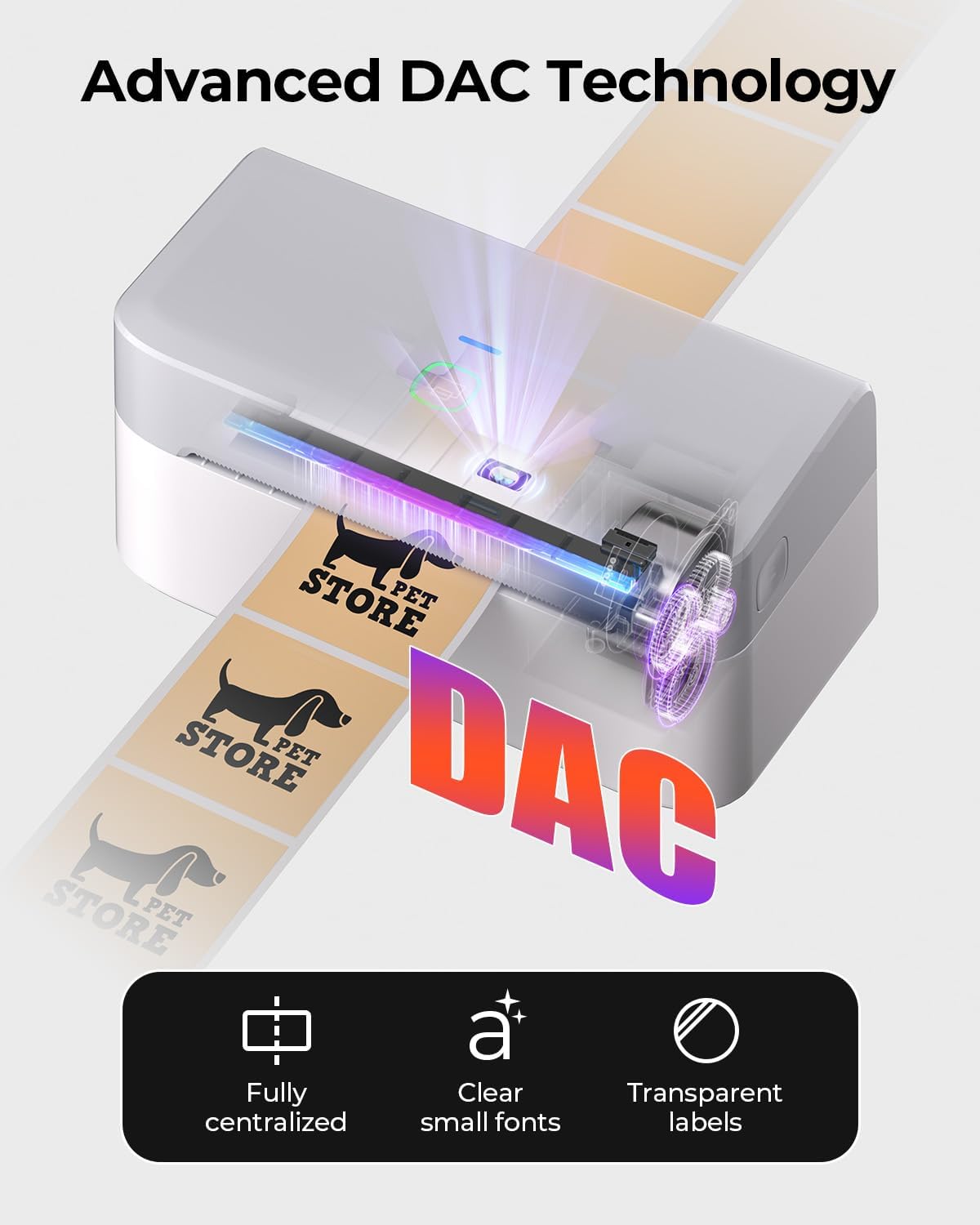
Image: Visual representation of the printer's DAC technology, ensuring precise alignment and clear printing on various label types.
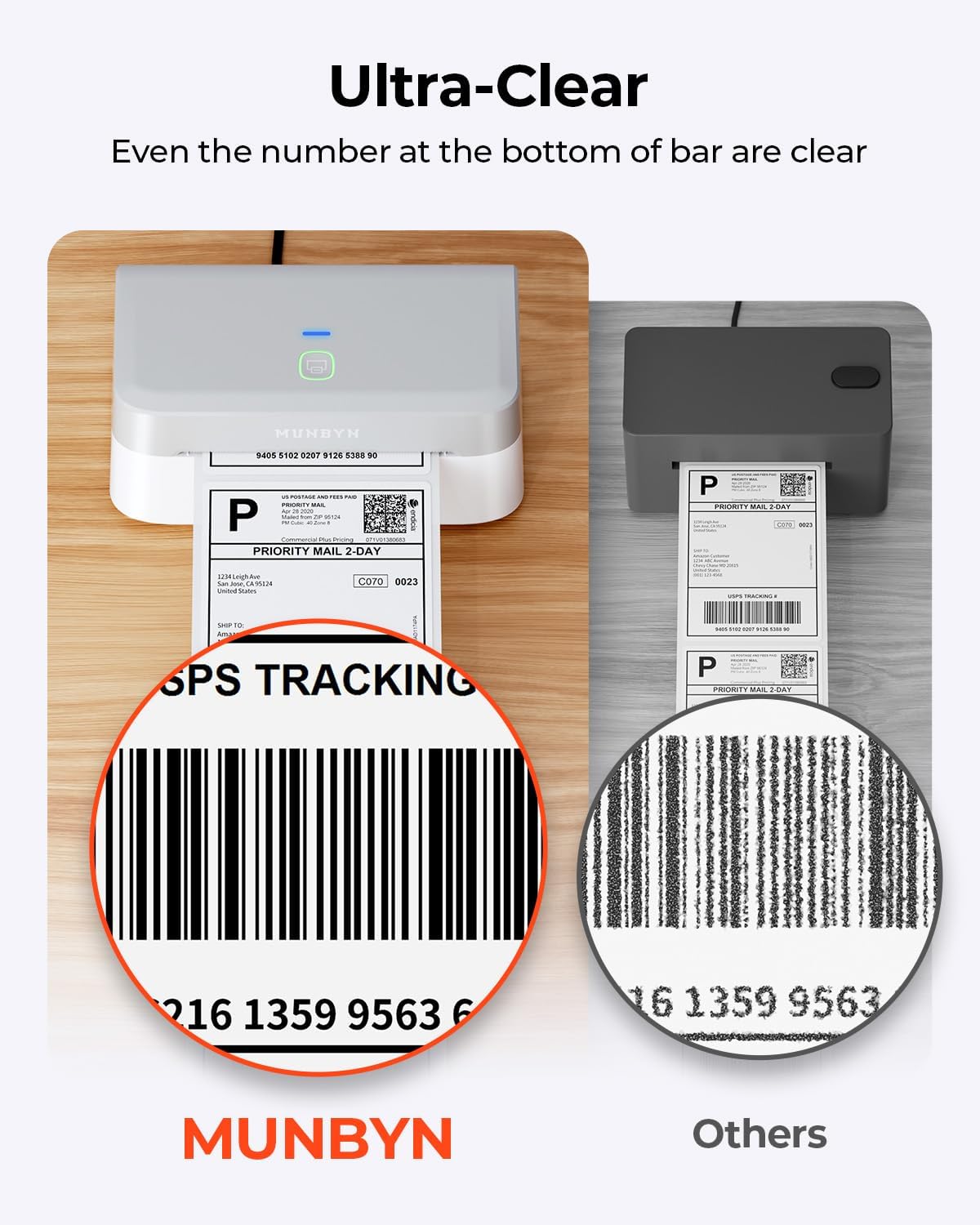
Image: A close-up comparison highlighting the superior clarity of labels printed with the MUNBYN RW403B, even for small details like barcode numbers.

Image: An illustration comparing the impressive lifespan of the MUNBYN RW403B, capable of printing up to 970,000 labels, six times more than typical printers.
7. Tiaki
7.1 Te horoi i te Upoko Ta
To maintain print quality, regularly clean the print head:
- Whakawetohia te pūreretā ka wetekina te taura hiko.
- Whakatūwherahia te uhi pūreretā.
- Gently wipe the print head with an alcohol swab or a soft, lint-free cloth dampka whakakiia ki te waipiro isopropyl.
- Tukua kia maroke rawa te pane tā i mua i te katinga o te taupoki me te tahuri anō i te pūreretā.
7.2 Tiakitanga Whanui
- Keep the printer free from dust and debris.
- Avoid exposing the printer to extreme temperatures or direct sunlight.
- Use only high-quality thermal labels to prevent damage to the print head and ensure optimal print results.
8. Te Raru
If you encounter issues with your MUNBYN RW403B printer, refer to the following common problems and solutions:
| Raruraru | Take pea | Rongoā |
|---|---|---|
| Kāore te pūreretā e whakautu ana | No power, incorrect connection, software issue. | Check power cable, verify USB/Bluetooth connection, restart printer and computer/app. |
| He iti te kounga o te tuhi | Dirty print head, low-quality labels, incorrect print density. | Clean the print head (Section 7.1), use recommended labels, adjust print density in software settings. |
| Kāore ngā tapanga e whāngai tika ana | Improperly loaded labels, label guides not adjusted. | Reload labels correctly, adjust label guides to fit snugly. |
| Nga take hononga Nihokikorangi | Bluetooth not enabled, pairing failed, interference. | Ensure Bluetooth is on for both devices, re-pair the printer, move closer to the printer, avoid other wireless devices. |
9. Whakatakotoranga
Detailed technical specifications for the MUNBYN RW403B Thermal Label Printer:
- Tau tauira: RW403B
- Hangarau Tā: Ngawha
- Hononga: Nihokikorangi, USB
- Rahi Pāpāho Mōrahi: 4 x 6 inihi (10.16 cm)
- Whakataunga Tā: 203 dpi
- Tere Tā mōrahi (Monochrome): 72 pages per minute (labels per minute)
- Ngā Pūrere Hototahi: Android, Mac, PC, iOS
- Taumaha Tūemi: 1.3 Kirokaramu
- Rahi Hua: 31P x 7.5l x 10H henimita
- Nga waahanga motuhake: Automatic Document Feeder, Energy Star, Portable
10. Pūtāhui me te Tautoko
MUNBYN provides comprehensive support for your RW403B Thermal Label Printer:
- Pūtāhui: Limited Warranty (details available upon product registration or contacting support).
- Tautoko Hangarau: Enjoy 24 months of technical assistance. For support, please visit the official MUNBYN webpaetukutuku, whakapā atu ranei ki ta raatau ratonga kaihoko.


