1. Kupu Whakataki
The Cudy AC1200 Gigabit Wireless Access Point AP1300D is designed to extend and enhance your existing wired network with high-speed wireless connectivity. This device supports dual-band Wi-Fi 5 technology, offering speeds up to 867 Mbps on the 5 GHz band and 300 Mbps on the 2.4 GHz band. It features MU-MIMO and Beamforming for efficient data transmission and improved coverage. The AP1300D can be powered via Power over Ethernet (PoE) or a DC adapter, providing flexible deployment options for various environments, including homes and small businesses.

Image: Cudy AC1200 Desktop Wireless Access Point AP1300D, showcasing its design and model number.
2. Ihirangi mokete
Manatokohia kei roto i to kete nga mea e whai ake nei:
- Cudy AC1200 Gigabit Wireless Access Point (AP1300D)
- Pūurutau Hiko
- Tauira Itarangi
- He Aratohu Whakauru Tere (kaore i roto i tenei pukapuka matihiko)
If any item is missing or damaged, please contact Cudy support.
3. Hua Neke Atuview
3.1 Tohu Paewhiri o mua
The front panel of the AP1300D features LED indicators that provide status information:
- Arahina hiko: Ka tohu i te mana mana.
- Wi-Fi LED: Tohu mahi ahokore.
- Ethernet Ethernet: Indicates wired network connection status.
3.2 Tauranga Paewhiri Whakamuri me nga Patene
The rear panel provides connectivity and control options:

Whakaahua: Taipitopito view of the AP1300D's rear panel, highlighting the WPS, Reset, Ethernet (PoE IN), Power On/Off, and 12V DC ports.
- Pātene WPS: Whakamahia mō te Tatūnga Ārai Wi-Fi.
- Patene Tautuhi Anō: Pēhia me te pupuri mo te 5-10 hēkona hei whakaora i ngā tautuhinga taunoa wheketere.
- Ethernet Port (PoE IN): Gigabit RJ45 port for wired network connection and Power over Ethernet (PoE) input.
- Paatene Hiko / Weto: Ka takahurihia te mana o te taputapu.
- 12V DC Tāuru Hiko: Connects to the included power adapter for DC power supply.
4. Aratohu Tatūnga
Follow these steps to set up your Cudy AP1300D Access Point.
4.1 Whakanoho
The AP1300D offers versatile installation options:

Image: Two installation methods for the AP1300D: wall mounting and desktop placement, illustrating its compact design.
- Turanga Papamahi: Whakanohoia te taputapu ki runga i te mata papatahi.
- Whakapiki taiepa: The device can be mounted on a wall using the integrated mounting holes on the back. Ensure the location is central to the desired coverage area and away from obstructions.
4.2 Whakakaha i te Pūrere
The AP1300D supports two power methods:

Image: Close-up of the AP1300D's power options, showing an Ethernet cable connected for PoE and a DC power adapter cable.
- Mana DC: Connect the included power adapter to the 12V DC input port and plug it into a power outlet.
- Te mana ki runga Itarangi (PoE): If you have a PoE-enabled switch or PoE injector, connect an Ethernet cable from the PoE source to the AP1300D's Ethernet (PoE IN) port. This method provides both data and power through a single cable.
4.3 Initial Connection and Configuration
- Connect the AP1300D to your existing router or network switch using the provided Ethernet cable.
- Power on the device using either DC or PoE.
- Wait for the Power and Wi-Fi LEDs to stabilize, indicating the device is ready.
- Te uru atu ki te Web Atanga:
- Connect a computer to the same network as the AP1300D, either wirelessly or via Ethernet.
- Tuwhera a web pūtirotiro me te tomo i te wāhitau IP taunoa (te tikanga
192.168.10.1or check the sticker on the device). - Takiuru mā te whakamahi i te ingoa kaiwhakamahi me te kupuhipa taunoa (i te nuinga o te wā
admin/adminor as specified on the device sticker). - Follow the on-screen wizard to change the default password, configure Wi-Fi settings (SSID, password), and set the operating mode (Access Point, Repeater, etc.).
- Using the Cudy App:
- Download the Cudy App from your mobile device's app store.
- Follow the in-app instructions to discover and configure your AP1300D.
5. Nga Tohutohu Whakahaere
This section details the various features and operational aspects of your AP1300D.
5.1 Wireless Performance
The AP1300D provides high-speed dual-band Wi-Fi with advanced technologies:

Image: Diagram illustrating the AP1300D's dual-band Wi-Fi capabilities, with 867 Mbps on 5 GHz and 300 Mbps on 2.4 GHz, and MU-MIMO technology.
- AC1200 Dual Band: Combines 867 Mbps on 5 GHz and 300 Mbps on 2.4 GHz for a total of 1167 Mbps.
- MU-MIMO: Allows the access point to communicate with multiple devices simultaneously, improving overall network efficiency.
- Te hanga kurupae: Focuses Wi-Fi signals towards connected devices, enhancing signal strength and range.
5.2 Te kaha o te taputapu
The AP1300D is designed to support a significant number of connected devices:
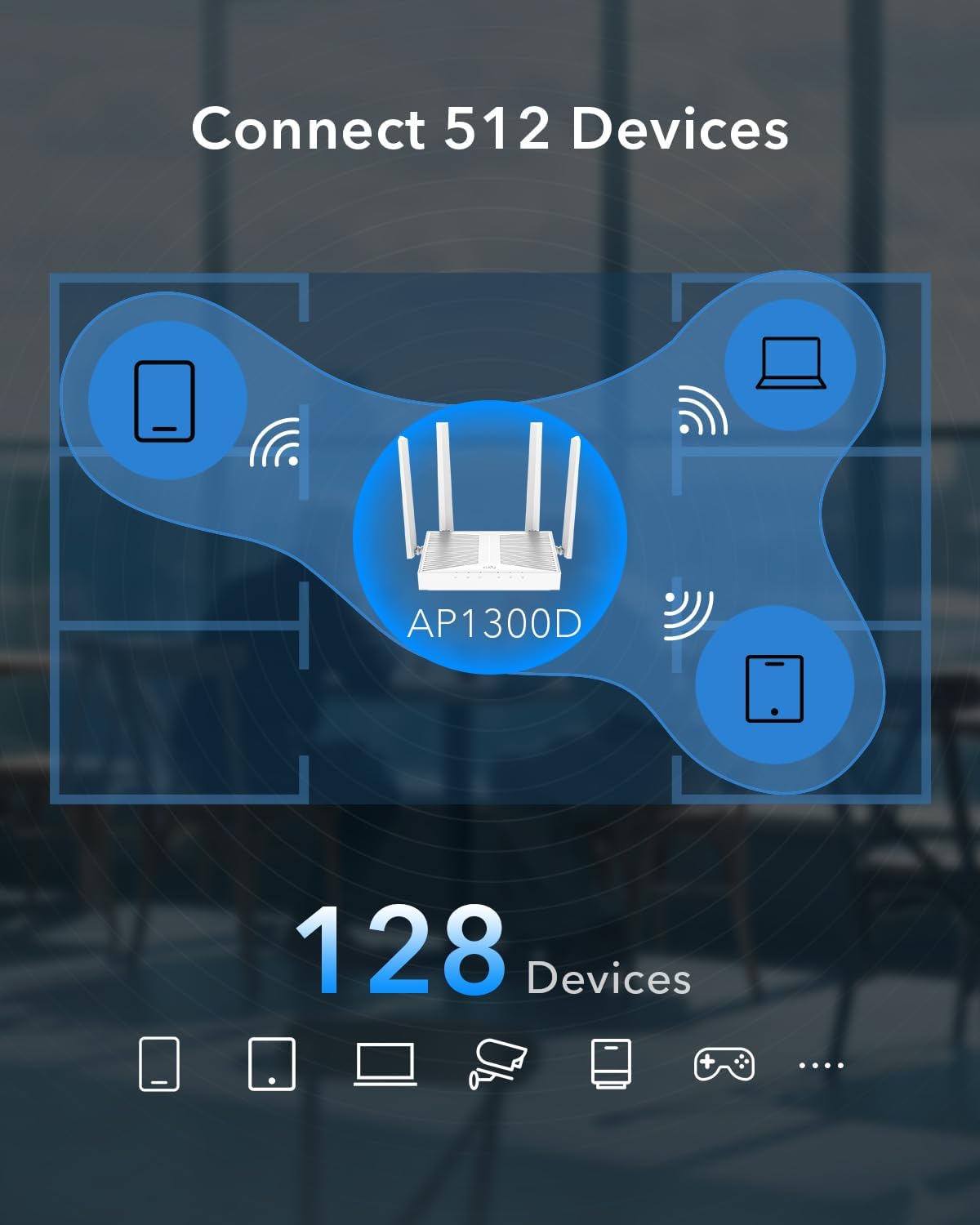
Image: Graphic depicting the AP1300D's ability to connect to numerous devices, indicating support for up to 128 devices.
It can reliably connect up to 128 devices, making it suitable for environments with many wireless clients.
5.3 Mesh Technology and Seamless Roaming
When used with other Cudy Wi-Fi routers or access point controllers (firmware newer than 15.28), the AP1300D supports mesh technology for seamless roaming.

Image: Illustration of a multi-floor office environment demonstrating how Cudy Mesh technology enables devices to seamlessly switch between access points without losing connection.
This feature allows devices to automatically switch to the access point with the strongest signal as you move around, ensuring uninterrupted connectivity.
5.4 Multi-SSID for Enhanced Security
The AP1300D supports multiple SSIDs (Service Set Identifiers), allowing you to create separate wireless networks for different purposes.

Whakaahua: Example of a cafe setting utilizing Multi-SSID to provide separate Wi-Fi networks for guests, staff, and IoT devices, enhancing security and network management.
Mo te example, you can set up a guest network with limited access, a staff network, and a dedicated network for IoT devices, improving security and network management.
5.5 Te Pouaka Mauhere
The captive portal feature allows for customized login authorization, useful in public or business environments like cafes, restaurants, or offices.

Image: Mock-up of captive portal login pages displayed on various devices, customized for different business types such as restaurants, coffee shops, and convenience stores.
Users will be redirected to a custom login page before gaining internet access.
5.6 Management via Cudy App
The Cudy App provides a convenient way to set up and manage your AP1300D from your smartphone.

Image: Screenshot of the Cudy App dashboard on a smartphone, showing connected devices and network settings for streamlined management.
It allows for easy configuration, monitoring, and control of your wireless network.
6. Tiaki
Regular maintenance helps ensure optimal performance and longevity of your AP1300D.
- Whakahōu Firmware: Tirohia te āpiha Cudy i ia wā webpae mō ngā whakahōutanga pūmanawa. Mā te whakahōu i te pūmanawa ka taea te whakapai ake i te mahi, te tāpiri i ngā āhuatanga hou, me te whakatika i ngā ngoikoretanga haumarutanga.
- Te horoi: Puritia te taputapu kia ma, kia kore he puehu. Whakamahia he kakahu ngohengohe, maroke hei muru i waho. Kaua e whakamahia nga kai horoi wai, aerosol ranei.
- Whakahau: Me whakarite kia whakanohoia te taputapu ki tētahi wāhi e pai ana te hau hei ārai i te wera nui. Kaua e ārai i ngā kōhao hau.
- Tīmata anō: If you experience minor performance issues, try restarting the device by unplugging and replugging the power, or using the power button.
7. Te Raru
This section addresses common issues you might encounter with your AP1300D.
- Kore Mana:
- Me whakarite kei te hono tika te urutau hiko ki te pūrere me te putanga hiko e mahi ana.
- If using PoE, verify that the PoE source is active and the Ethernet cable is properly connected.
- Kaore he Urunga Ipurangi:
- Check the Ethernet cable connection between the AP1300D and your router/switch.
- Manatokohia kei te wātea te ipurangi mai i tō pouara matua.
- Ensure the AP1300D is configured correctly (e.g., in Access Point mode).
- Restart both the AP1300D and your main router.
- Waitohu Wi-Fi ngoikore, Tere Tere ranei:
- Relocate the AP1300D to a more central location, away from obstacles and interference sources (e.g., microwaves, cordless phones).
- Ensure the antennas are properly oriented.
- Tirohia mo nga whakahou firmware.
- Reduce the number of connected devices if performance degrades significantly.
- Kaore e taea te uru Web Whārangi Whakahaere:
- Verify your computer is connected to the same network as the AP1300D.
- Ensure you are using the correct IP address and login credentials.
- Whakamātauria te whakawātea i te keteroki o tō pūtirotiro me te whakamahi i tētahi atu pūtirotiro.
- If you forgot the login credentials, perform a factory reset using the Reset button.
8. Whakatakotoranga
| Āhuahira | Taipitopito |
|---|---|
| Ingoa Tauira | AP1300D |
| Paerewa Ahokore | 802.11ac (Wi-Fi 5) |
| Karaehe Band Auautanga | Rōpū-rua (2.4 GHz & 5 GHz) |
| Nga Tere Ahokore | Up to 867 Mbps (5 GHz) + 300 Mbps (2.4 GHz) |
| Tauranga Itarangi | 1x Gigabit RJ45 (PoE IN) |
| Tuku Hiko | 12V DC or PoE (802.3at/af) |
| Antenna | 4 Nga Antenna o waho |
| Nga waahanga motuhake | Access Point Mode, Remote Access, Mesh Support, Beamforming, MU-MIMO, Multi-SSID, Captive Portal |
| Hunga Hua | 7.22 x 4.29 x 1.5 inihi (183.3 x 109 x 38 mm) |
| Taumaha Tūemi | 0.317 hekere |
| Pūrere Hototahi | Smart Phone, PC, Laptop |
9. Pūtāhui me te Tautoko
For warranty information and technical support, please refer to the official Cudy website or contact their customer service directly. Details are typically available in the product packaging or on the manufacturer's support pages.
Cudy Official Webpae: www.cudy.com
For frequently asked questions and troubleshooting tips, you may also visit the Cudy support section online.


