1. Kupu Whakataki
This manual provides comprehensive instructions for the installation, operation, maintenance, and troubleshooting of your NIVIAN Professional WiFi SuperHD Surveillance Camera Kit. This system is designed to provide reliable and efficient security monitoring for your home or business.
Pānuihia tēnei pukapuka ā-ringa i mua i te whakamahinga o te hua kia tika ai te tatūnga me te mahi tino pai. Puritia tēnei pukapuka ā-ringa mō ngā tirohanga ā muri ake nei.
2. Hua Neke Atuview
The NIVIAN CCTV Kit is a professional 2K SuperHD WiFi surveillance system featuring 6 IP cameras and a 10-channel Network Video Recorder (NVR) with a pre-installed 1TB hard drive. Key features include:
- 2K SuperHD Image Resolution: Ka whakarato i te ataata marama me te taipitopito footage (3MP).
- AI Hunga Tangata: Intelligent motion detection to reduce false alarms.
- Ororongo Ara-rua: Ko te hopuoro me te kaikorero mo te whakawhitiwhiti korero mo te waa tuuturu.
- Tirohanga Pō Takirua: Infrared mode for discreet monitoring and white LED mode for full-color night vision activated by motion.
- WiFi-6 Long Range Connectivity: Stable wireless connection up to 250 meters with repeater function.
- Ngā Kāmera Ātete-Huarere IP66: He konganuku pakari casing e tika ana mō te whakamahinga o waho.
- Rekoata Ngaio: Continuous or event-based recording to the included 1TB hard drive.
- Huaputa HDMI: Connect to a monitor or TV for live viewing.
- Taupānga EseeCloud: Remote access and control from mobile devices.
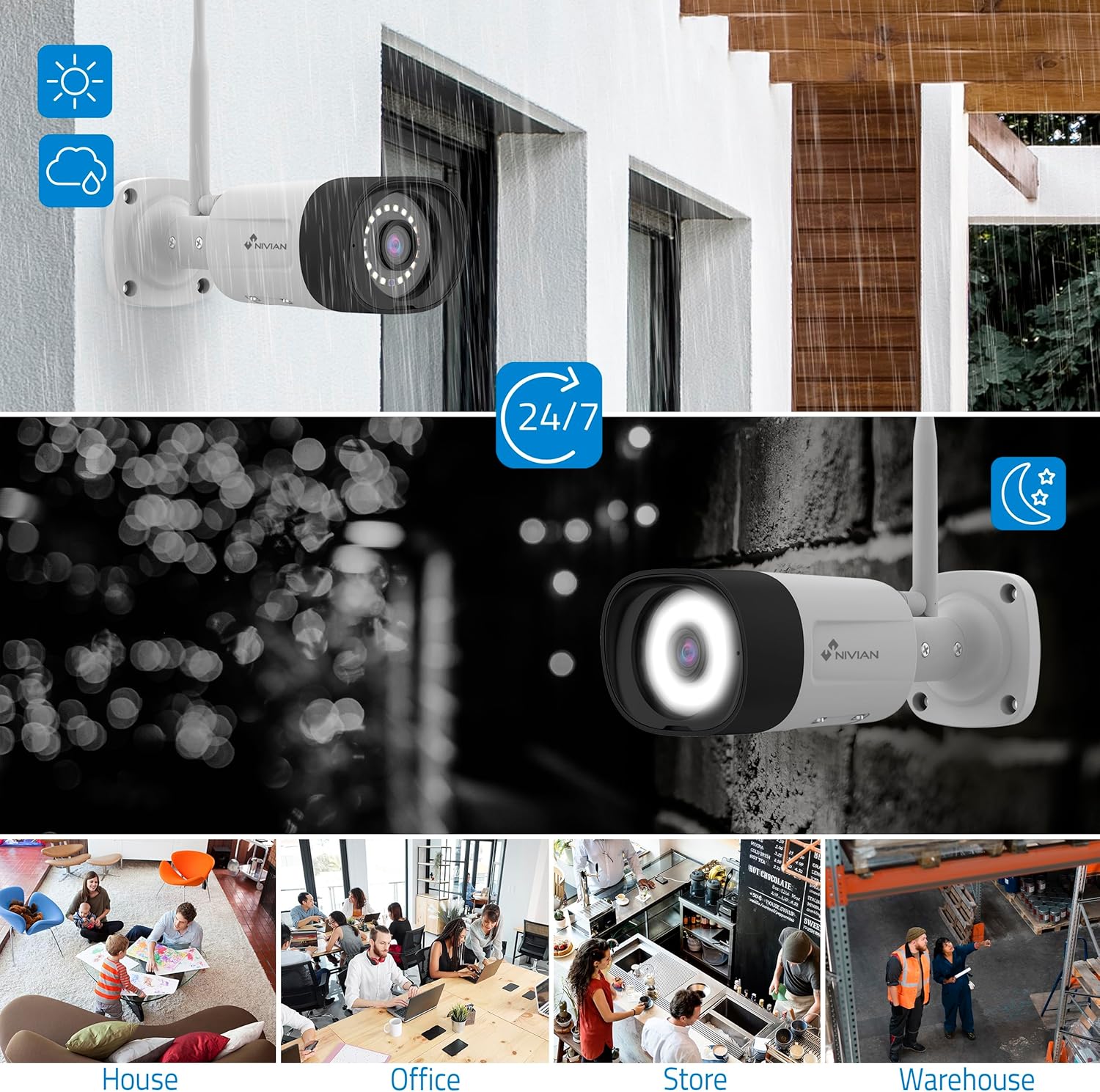
Image: NIVIAN CCTV Camera with day and night vision capabilities, showing weatherproof design and application in various environments like house, office, store, and warehouse.

Image: Comparison of 1080p Full HD video quality versus 2K Super HD video quality, demonstrating enhanced detail with 2K resolution.
3. Ihirangi mokete
Manatokona kei roto katoa nga mea kei roto i to kete:
- 1x 10-Channel NVR (Network Video Recorder) with 1TB Hard Drive
- 6x NIVIAN 2K SuperHD WiFi IP Cameras
- Ngā Urutau Hiko mō te NVR me ngā Kāmera
- Kiore USB
- Tauira Itarangi
- Ngā tīwiri me ngā mono whakamau
- Aratohu Timata Tere (tirohia tenei pukapuka mo nga tohutohu taipitopito)
4. Tatūnga
4.1. Tāutanga NVR
- Honoa te NVR:
- Honoa te NVR ki te putanga hiko ma te whakamahi i te urutau hiko kua whakaratohia.
- Honoa te NVR ki tētahi mata tirotiro, ki tētahi pouaka whakaata rānei mā te tauranga HDMI mō te whatunga ā-rohe viewing.
- Honoa te kiore USB ki te tauranga USB o te NVR.
- For internet access, connect the NVR to your router using the Ethernet cable.
- Whakahiko: Turn on the NVR. Follow the on-screen prompts for initial setup, including language selection and network configuration.
4.2. Whakaurunga Kamera
- Tauwāhi Whakapuru: Choose suitable locations for your cameras, ensuring they have a clear field of view and are within range of the NVR's WiFi signal. The IP66 rating allows for outdoor installation.
- Whakakahangia ngā Kāmera: Connect each camera to a power outlet using its dedicated power adapter.
- Takirua (Aunoa): The cameras are pre-paired with the NVR. Once powered on, they should automatically connect to the NVR's WiFi network. You will see the camera feeds appear on the connected monitor.
- Signal Repetition Function: If a camera is too far from the NVR, you can use another camera as a repeater to extend the WiFi range up to 250m. Refer to the NVR's on-screen menu for configuring this feature.

Image: Diagram illustrating various connection options for the NIVIAN CCTV system, including direct WiFi-6 connection to NVR, HDMI output to a monitor, and NVR connection to a router via LAN for remote access via Eseecloud app. Also shows signal repetition function.
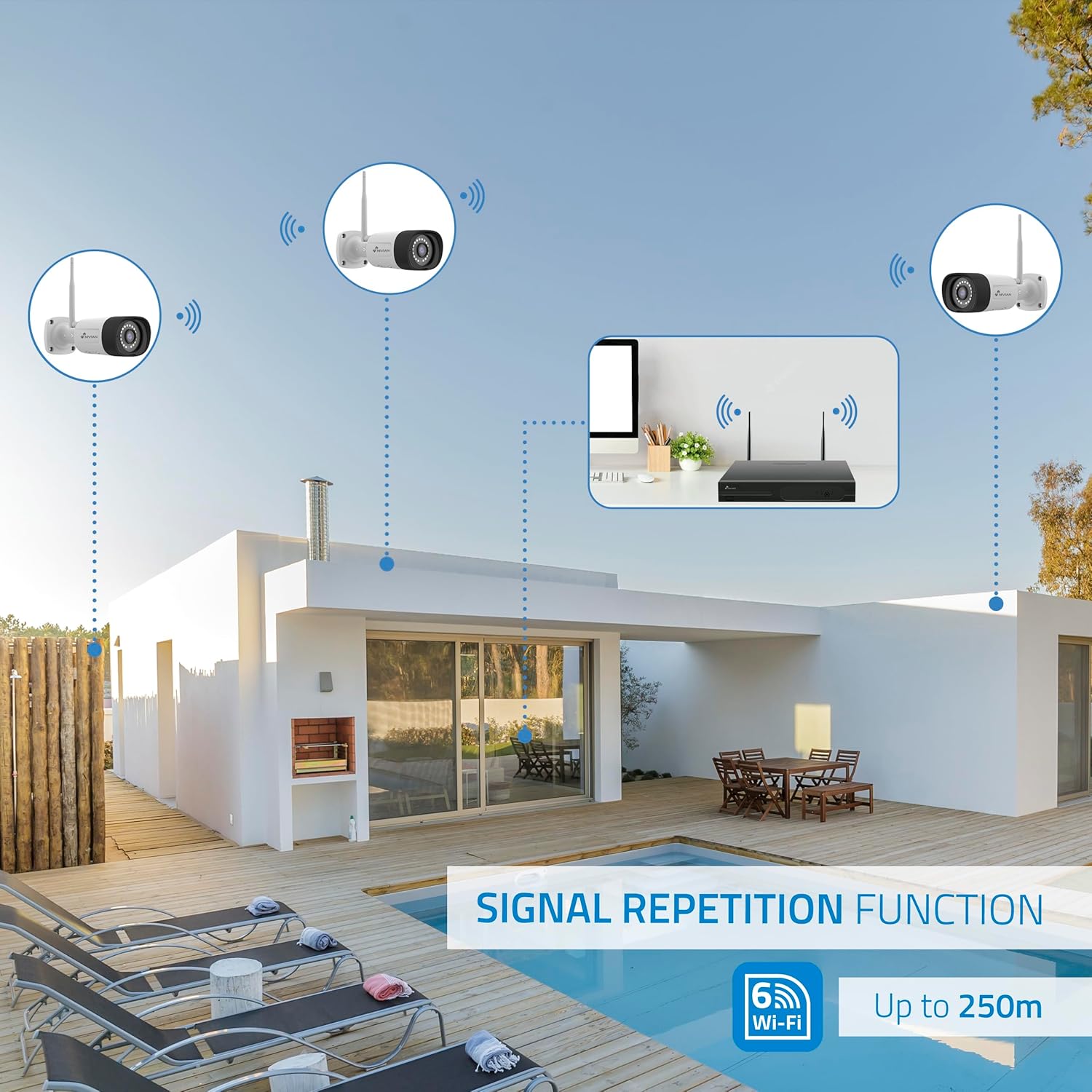
Image: Diagram showing the signal repetition function of the NIVIAN WiFi CCTV system, where cameras can extend the WiFi range up to 250 meters from the NVR.
4.3. Tatūnga Taupānga EseeCloud
- Tikiake App: Download the "EseeCloud" app from your mobile device's app store (available for iOS, Android).
- Puka Rehita: Whakatuwheratia te taupānga ka rēhita he pūkete hou, takiuru rānei mēnā kei a koe tētahi.
- Tāpiri Pūrere: Follow the in-app instructions to add your NVR system. This typically involves scanning a QR code displayed on the NVR's monitor or entering the device ID manually.
- Mamao Viewkei: Kia tāpirihia, ka taea e koe view live feeds, access recordings, and configure settings remotely.

Image: Smartphone screen displaying the EseeCloud app interface for managing the security system, showing live camera feeds and control options, with NIVIAN cameras and a laptop in the background.
5. Nga Tohutohu Whakahaere
5.1. Ora View
Access live camera feeds through the NVR connected to a monitor or via the EseeCloud mobile app. The NVR interface allows you to switch between single-camera view me te matiti kamera-maha view.
5.2. Hopu
- Te tuhi Tonu: The system is configured for continuous recording by default to the 1TB hard drive.
- Hukuhono Hukinga Huringa: Configure cameras to record only when motion is detected. This can be scheduled via the NVR settings or EseeCloud app.
- H.265+ Codec: The system uses H.265+ video compression to optimize storage space while maintaining video quality.
5.3. Purei ano
Uru rekoata footage through the NVR's playback menu or the EseeCloud app. You can search recordings by date, time, and event type (e.g., motion detection).
5.4. AI Human Detection
The cameras feature advanced AI human detection to differentiate human movement from other objects, significantly reducing false alarms. When human motion is detected, the system can trigger recordings, send notifications, and activate the white LED night vision for color footage.

Image: NIVIAN camera detecting a person at night, with the white LED light activated for color night vision, and a mobile notification indicating motion detection.
5.5. Rua-Way Ororongo
Use the EseeCloud app to utilize the two-way audio feature. This allows you to listen to audio from the camera's location and speak through the camera's built-in speaker.
5.6. Aratau Matakite Po
- Aratau Whero (IR): Provides black and white video in low-light conditions for discreet surveillance.
- Aratau rama mā: When motion is detected in low light, the camera's white LEDs activate, providing full-color video and acting as a deterrent.
6. Tiaki
- Whakapai kamera: Horoia ngā karāhe kāmera i ia wā ki te wai ngohengohe,amp he kakahu hei whakarite kia mārama te kounga o te ahua. Kaua e whakamahi i ngā matū kino.
- Whakahōu Firmware: Check for firmware updates for the NVR and cameras through the EseeCloud app or NVR settings. Keep your system updated for optimal performance and security.
- Whakahaere Puku Maama: The 1TB hard drive will automatically overwrite the oldest recordings when full. If you need to preserve specific footage, back it up to an external device.
- Tirohanga Hiko Hiko: Ensure all power adapters are securely connected and free from damage.
7. Te Raru
7.1. No Camera Feed
- Taki Hiko: Ensure the camera is powered on and its adapter is working.
- Waitohu WiFi: Verify the camera is within the NVR's WiFi range. Use the signal repetition function if necessary.
- Re-pair Camera: If issues persist, try re-pairing the camera with the NVR through the NVR's menu.
7.2. Kounga Ataahua Kino
- Arotahi Ma: Horoia te arotahi o te kāmera mō tētahi paru, mō tētahi paru rānei.
- Rama: Me whakarite kia tika te rama mo te kounga o te ahua tino pai, ina koa i te po.
- WiFi Interference: Reduce potential WiFi interference by moving the camera or NVR, or by using the signal repetition function.
7.3. Remote Access Issues (EseeCloud App)
- Hononga Ipurangi: Ensure both your NVR and mobile device have a stable internet connection.
- NVR Network Settings: Verify the NVR is correctly connected to your router and has internet access.
- Putanga Taupānga: Ensure your EseeCloud app is updated to the latest version.
7.4. Hard Drive Full / Recording Issues
- Tirohia te Rokiroki: Verify the hard drive status in the NVR settings.
- Hōtaka Hopu: Ensure recording schedules are correctly configured.
- Hauora Puku Maama: If issues persist, the hard drive may need to be checked or replaced.
8. Whakatakotoranga
| Waitohu | NIVIANA |
| Tau tauira | NV-KIT830W-8CAM |
| Rahi Hua (L x W x H) | 23 x 12 x 8 cm; 6.2 kirokaramu |
| Hangarau Hononga | Wireless (WiFi-6) |
| Whakataunga Hopu Ataata | 2K (3MP) |
| Te maha o nga hongere | 10 (NVR) |
| Te maha o nga kamera | 6 |
| Raukaha Rokiroki | 1 TB Hard Drive (included) |
| Ngā Āhuatanga Kāmera | IP Cameras SuperHD with PTZ, Night Vision, AI Human Detection, Two-Way Audio |
| Auau anga | 15 fps, 24 fps, 30 fps |
| Pūrere Hototahi | Television (via HDMI) |
| Momo Mono Hiko | Maunga Taiepa |
| Whenua Taketake | Haina |
9. Pūtāhui me te Tautoko
NIVIAN offers technical support to all customers. If you have any questions, suggestions, or encounter any issues with your WiFi surveillance camera kit, please do not hesitate to contact us.
You can reach us through Amazon messages or via any official NIVIAN brand channel. Please refer to your purchase documentation for specific warranty terms and contact details.


