Kupu Whakataki
The Motorola DLR1060 is a 6-channel digital business radio designed for reliable and private communication in various professional environments. Operating in the digital 900 MHz ISM license-free band, this radio offers enhanced clarity and security compared to analog systems. Its compact and lightweight design, combined with robust features, makes it an essential tool for efficient team coordination.
He aha kei roto
The Motorola DLR1060 package typically includes the following items:
- Motorola DLR1060 2-Way Digital Business Radio (quantity as per pack size)
- Pūhiko Lithium-Ion Rechargeable
- Charging Tray with Power Adapter
- Swivel Belt Holster
- User Guide and Safety Leaflet

Image: A typical 6-pack of Motorola DLR1060 digital business radios, showcasing the compact design of each unit.
Nga waahanga matua
- Digital 900 MHz ISM License-Free Band: Ensures private and reliable communication.
- Awhe Toroa: Covers up to 300,000 square feet or 20 floors.
- 6 nga hongere: Provides multiple communication lines for different teams or purposes.
- Tohutohu Reo: User-friendly voice prompts for channel navigation, battery status, and feature customization.
- Radio Profile ID: Unique 4-digit ID for enhanced privacy and direct communication.
- Computer Programming Software (CPS): Allows for personalized setups, including Private Groups, custom channel names, and radio settings.
- Hanga Roa: Complies with Military Standards 810 C, D, E, F, and G for resistance against shock, vibration, extreme temperatures, and dust.
- Roa te Ora o te Pūhiko: Internal rechargeable battery provides up to 14 hours of continuous operation.
- Instant Mute: Quickly silence the radio when needed.
- Customizable Top Button: Assign frequently used functions for quick access.
Tatūnga
1. Te Whakataki i te Pūhiko
- Insert the rechargeable Lithium-Ion battery into the radio, ensuring it clicks securely into place.
- Place the radio into the charging tray.
- Connect the power adapter to the charging tray and plug it into a standard electrical outlet.
- The charging indicator light on the tray will illuminate to show charging status. A full charge typically takes several hours.

Image: The Motorola DLR1060 radio securely seated in its charging cradle, ready for power connection.
2. Attaching the Belt Holster
- Align the radio with the swivel belt holster.
- Slide the radio into the holster until it locks into position.
- Attach the holster to your belt or clothing for convenient carrying.
Nga Tohutohu Whakahaere
1. Te Hiko / Whakaweto
- Kia kaha tonu, paatohia kia mau te Mana / Tahua button (usually located on the top or side) until you hear a tone or voice prompt.
- Ki te whakaweto, patohia kia mau te Mana / Tahua button again until the radio shuts down.

Whakaahua: Taha view of the DLR1060 radio, highlighting the power button and volume controls for easy access.
2. Whakaritea Rōrahi
- Whakamahia te Rōrahi Whakarunga (+) a Raro Whakararo (-) ngā pātene kei te taha o te reo irirangi hei whakarite i te oro whakarongo.
3. Te whiriwhiri i tetahi Hongere
- Hurihia te Kopae Kaitono Auwhena (typically on the top) to choose one of the 6 available channels.
- The radio will provide a voice prompt announcing the selected channel number.
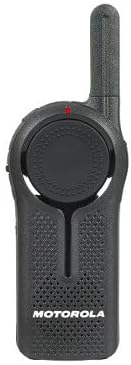
Whakaahua: Mua view of the DLR1060 radio, featuring the prominent channel selector knob and integrated speaker.
4. Te Tuku me te Whiwhi
- Hei tuku, pehia me te pupuri i te Pana-Ki-Krero (PTT) pātene i te taha o te reo irirangi. Korero marama ki te hopuoro.
- Tukua te paatene PTT hei whakarongo mo te whakautu.
- Ensure you are on the same channel as the person you wish to communicate with.
5. Private Communication (Radio Profile ID)
- The DLR1060 uses a unique 4-digit Radio Profile ID for private communication. This ID must be programmed into all radios intended for a private group.
- Refer to the Computer Programming Software (CPS) manual for detailed instructions on setting up and managing Radio Profile IDs and Private Groups.
Te tiaki
Cleaning the Radio
- Horoia a waho o te reo irirangi ki te ngohengohe, damp kakahu.
- Do not use harsh chemicals, cleaning solvents, or strong detergents, as these can damage the radio's casing me ngā wāhanga o roto.
- Ensure the radio is powered off and disconnected from any charging accessories before cleaning.
Tiaki Pūhiko
- Always use genuine Motorola batteries and charging accessories.
- A ape i te tuku i te pākahiko ki te wera nui.
- If the radio will not be used for an extended period, store the battery separately in a cool, dry place.
Raparongoā
| Raruraru | Rongoa pea |
|---|---|
| Kare te reo irirangi e kaha ana. | Me whakarite kua whakakiia te pākahiko me te whakauru tika. |
| Kaore e taea te tuku, te tango ranei. | Verify that all radios are on the same channel and have the correct Radio Profile ID. Check if the battery is low. |
| He kino te kounga ororongo, he pateko ranei. | Move closer to the other radio or to an open area. Check for obstructions. Ensure the antenna is clear. |
| He poto ake te ora o te puhiko i te waa e manakohia ana. | Ensure the battery is fully charged before use. Battery performance can degrade over time; consider replacing older batteries. |
Whakatakotoranga
| Āhuahira | Taipitopito |
|---|---|
| Roopu Auautanga | 900 MHz ISM (License-Free) |
| Nga hongere | 6 |
| Awhe | Up to 300,000 sq ft / 20 Floors |
| Ora Pūhiko | Tae atu ki te 14 hāora (whakamahinga noa) |
| Paerewa Mauroa | Military Standards 810 C, D, E, F, G |
| Rauemi Whare | Polycarbonate |
| FCC ID | AZ489FT5870 |
| Pūrere Hototahi | Speaker, Headphone, Laptop (for CPS) |
| Tae | Pango |
Pūtāhui me te Tautoko
For detailed warranty information and technical support, please refer to the documentation provided with your product or visit the official Motorola Solutions webpae. Puritia to riirii hoko hei tohu mo te hoko mo nga kereme whakamana.