1. Kupu Whakataki
Thank you for choosing the DAREU EK98pro Wireless Mechanical Keyboard. This manual provides essential information for setting up, operating, and maintaining your new keyboard. Please read it thoroughly to ensure optimal performance and longevity of your device.

Image 1.1: DAREU EK98pro Wireless Mechanical Keyboard (Mystic Violet)
2. Ihirangi mokete
Me mohio kei roto katoa nga mea kei roto i te kete:
- Keyboard Body (1)
- Connection Cable (USB-C to USB-A) (1)
- 2.4GHz Wireless Receiver (1)
- Keycap/Switch Puller (1)
- Pukapuka Kaiwhakamahi (1)

Whakaahua 2.1: Ngā Ihirangi o te Kete
3. Nga Hua o te Hua
3.1 Gasket Mount Structure
The EK98pro features a gasket-mounted design with a 6-layer padding system, including an extended integrated silicone pad and PCB single key slotting. This construction optimizes resilience and stability, providing a softer, more elastic feel and effectively reducing cavity noise for a solid typing experience.

Image 3.1: Gasket Structure Exploded View
3.2 HIFI Dream Linear Switches
Equipped with creamy pre-lubed HIFI Dream linear switches, offering a lighter and cleaner sound profile similar to linear red switches. The keyboard also features pre-lubed steel stabilizers for enhanced consistency on larger keys.
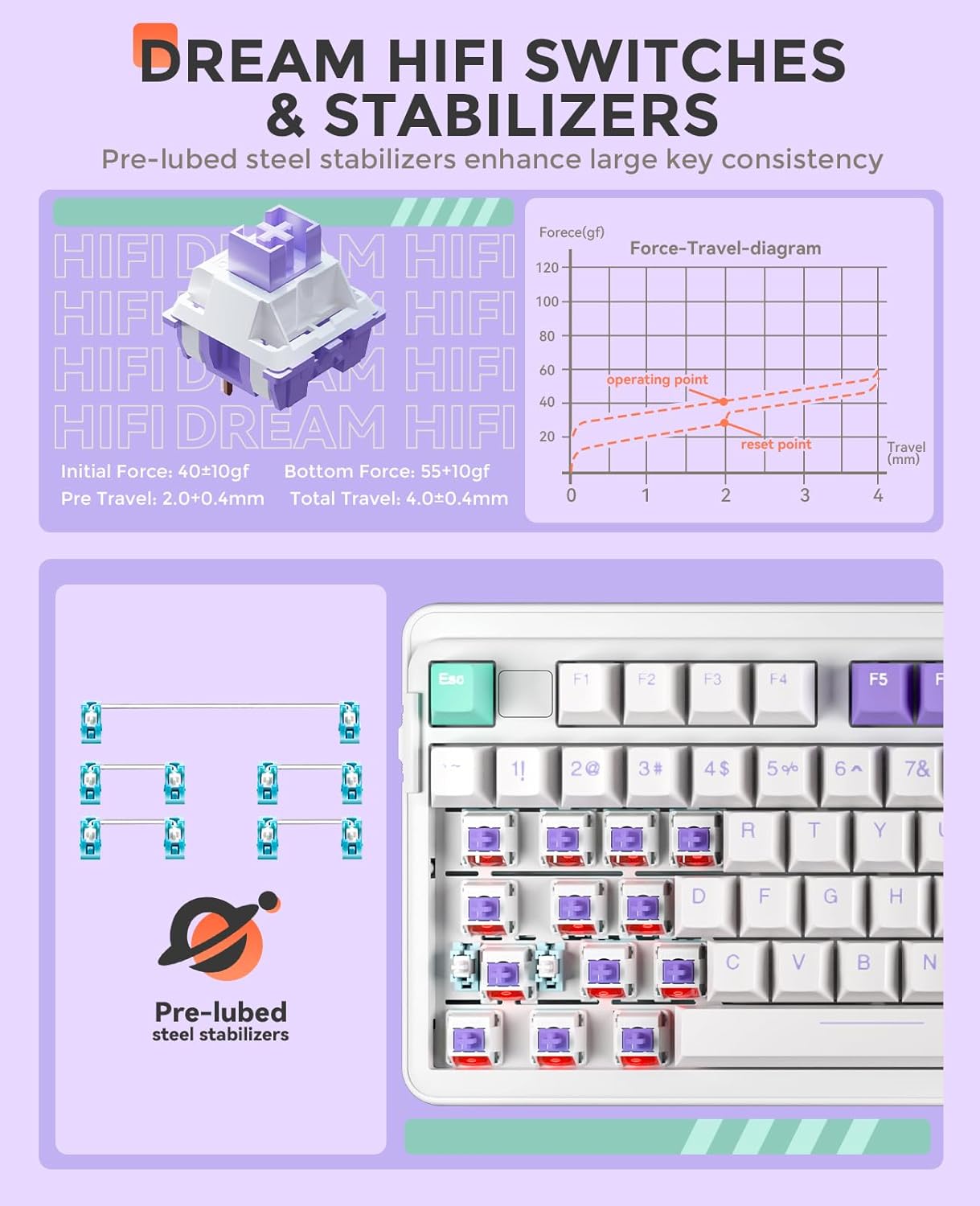
Image 3.2: HIFI Dream Switches and Stabilizers
3.3 Papaaho Whakawhiti-wera
The keyboard features a hot-swappable PCB, supporting both 3-pin and 5-pin mechanical switches. This allows for easy customization and replacement of switches without soldering.

Image 3.3: Hot-Swappable PCB Socket
3.4 PBT Keycaps
All keycaps are made of durable, non-greasy PBT material, ensuring longevity and resistance to wear without fading.
3.5 Whakaara Whakamarama RGB
The keyboard features south-facing RGB LEDs, providing optimal visibility of up to 16 RGB backlit modes and 16.8 million colors. Brightness and speed are adjustable. All RGB macros and keys can be customized via the driver software.

Image 3.4: 16.8 Million RGB Lighting
3.6 4000mAh Pohiko
A built-in 4000mAh high-capacity battery provides extended usage. Expect approximately 45 days of playtime with backlighting off, and about 7 days with backlighting on (based on continuous 4 hours of playtime/day).

Image 3.5: High-Capacity Battery
3.7 98% Layout
The compact 98% layout (97 keys) saves desktop space while retaining essential arrow keys and a number pad, suitable for both gaming and work.
3.8 Waahanga Whakarereke
The keyboard includes 2-stage adjustable feet, allowing you to set the typing angle for ergonomic comfort.

Whakaahua 3.6: 2-Stage Waewae Whakaritea
4. Tatūnga me te Hononga
The DAREU EK98pro supports three connection modes: Wired (USB-C), 2.4GHz Wireless, and Bluetooth 5.0.

Image 4.1: Tri-Mode Connection Overview
4.1 Whakawhiti Aratau
A physical switch located on the left side of the keyboard allows you to select the desired connection mode: Wireless (2.4G), Wired (A), or Bluetooth (BT).
4.2 Hononga Waea
- Set the mode switch to 'A' (Wired).
- Connect the provided USB-C cable to the keyboard's USB-C port and the other end to your computer's USB-A port.
- Ka mohio aunoa te papapātuhi ka reri mo te whakamahi.
4.3 2.4GHz Hononga Ahokore
- Set the mode switch to 'Wireless' (2.4G).
- Insert the 2.4GHz wireless receiver into an available USB-A port on your computer.
- The keyboard will automatically connect to the receiver.
4.4 Hononga Nihokikorangi
The keyboard can connect to up to three different Bluetooth devices simultaneously.
- Set the mode switch to 'BT' (Bluetooth).
- On your device (computer, tablet, smartphone), turn on Bluetooth and search for 'EK98 Pro'.
- To connect to the first Bluetooth device, press and hold Fn + 1! for 3 seconds until the indicator light flashes. Select 'EK98 Pro' on your device to pair.
- To connect to a second Bluetooth device, press and hold Fn + 2@ mo te 3 hēkona.
- To connect to a third Bluetooth device, press and hold Fn + 3# mo te 3 hēkona.
- Kia honoa, ka mutu te mura o te rama tohu.
Video 4.1: DAREU EK98pro Purple Wireless Mechanical Keyboard in action, demonstrating typing and RGB effects.
Video 4.2: DAREU EK98pro Purple Creamy Wireless Mechanical Keyboard showcasing its features and typing sound.
5. Nga Tohutohu Whakahaere
5.1 Function Keys (Fn Combinations)
- Fn+F1: Taku Rorohiko
- Fn+F2: Whārangi Kāinga
- Fn+F3: Īmēra
- Fn+F4: Te tātaitai
- Fn+F5: Kati
- Fn+F6: Tuhinga o mua
- Fn+F7: Purei/Tatari
- Fn+F8: Riro Panuku
- Fn+F9: Rōrahi Whakararo
- Fn+F10: Rōrahi Whakarunga
- Fn+F11: Wahangu
- Fn + F12 (3 seconds): Switch for Win/Mac system
- Fn + Esc (3 seconds): Tautuhi Anō
- Fn + Win (3 seconds): Win lock/unlock
5.2 Mana Whakamuri
- Fn + [ { : Switch backlight effects (16 modes)
- Fn + ] } : Hurihia nga tae rama tuara
- Fn + ↑: Te kanapa o te LED +
- Fn + ↓: Te kanapa o te LED -
- Fn + ←: Tere -
- Fn + →: Tere +
5.3 Driver Customization
Download the official DAREU driver from their website to unlock advanced customization options:
- Home page settings
- Tautuhinga mahi
- LED effect settings
- Macro edit page
- Text template edit page

Image 5.1: Driver Macro Customization Interface
6. Tiaki
6.1 Te horoi
Use a soft, dry cloth to clean the keyboard. For deeper cleaning, use the provided keycap puller to remove keycaps and clean underneath with compressed air or a small brush.
6.2 Ngā Pana Whakawhiti-Wera
Hei whakakapi i tētahi pana:
- Tangohia marietia te taupoki kī mā te whakamahi i te tōia taupoki kī.
- Use the switch puller to gently grip the switch from the top and bottom, then pull upwards to remove it.
- Align the pins of the new 3-pin or 5-pin switch with the holes on the PCB and press down firmly until it clicks into place.
- Whakauruhia ano te kaapu matua.
7. Te Raru
7.1 Papapātuhi Kaore i te Whakautu
- Ensure the keyboard is charged. Connect the USB-C cable to charge.
- Check the mode switch on the left side of the keyboard to ensure it's set to the correct connection mode (Wired, 2.4GHz, or Bluetooth).
- For 2.4GHz wireless, ensure the receiver is properly inserted into a USB port.
- For Bluetooth, ensure your device's Bluetooth is on and the keyboard is paired. Try re-pairing if necessary (Fn + 1/2/3 for 3 seconds).
- Try connecting the keyboard via USB-C cable directly to rule out wireless issues.
7.2 RGB Backlight Issues
- Me mohio kei te kaha te papapātuhi.
- Whakatikatikahia te kanapa mā te whakamahi i Fn + ↑ or Fn + ↓.
- Cycle through effects using Fn + [ { and colors using Fn + ] }.
- If issues persist, perform a factory reset by holding Fn + Esc mo te 3 hēkona.
8. Whakatakotoranga
| Āhuahira | Taipitopito |
|---|---|
| Momo Papapātuhi | Mechanical Keyboard (97 keys) |
| Hononga | Waea (USB-C), Ahokore 2.4GHz, Nihokikorangi 5.0 |
| Hipanga papanga | PBT Double Injection |
| Whakawhiti | HIFI Dream Linear (Pre-lubed, Hot-swappable 3/5 pin) |
| Whakawhitihia te Mahere Ora | 50 miriona pao |
| Whakamuri | RGB (16.8 Million Colors, 16 Modes, South-facing LED) |
| Pūhiko | 4000mAh |
| Waa Whakatau | Approx. 7.5 haora |
| Working Time (Wireless) | Backlight Off: Approx. 96 hours (45 days) Backlight Max: Approx. 32 hours (7 days) |
| Hototahi | Windows XP/7/8/10/11, MacOS |
| Hunga Hua | 15.43"L x 5.9"W x 1.57"H (392 x 150 x 40 mm) |
| Taumaha Tūemi | 2.04 pauna (925g) |
9. Pūtāhui me te Tautoko
For warranty information and technical support, please refer to the DAREU official webpaetukutuku, whakapā atu ranei ki ta raatau ratonga kaihoko. Puritia to rihiti hoko mo nga kereme whakamana.


