Kupu Whakataki
This manual provides essential information for the proper use and maintenance of your Maxcom MM835 4G VoLTE Flip Phone. Please read these instructions carefully before using your device to ensure optimal performance and longevity. This phone is designed for ease of use, featuring large displays and a simplified interface.
Ka mutu te huaview
The Maxcom MM835 is a 4G VoLTE flip phone designed for clear communication and user convenience. It features a dual-screen design, large backlit keys, and essential functions like an SOS button and HAC (Hearing Aid Compatibility).
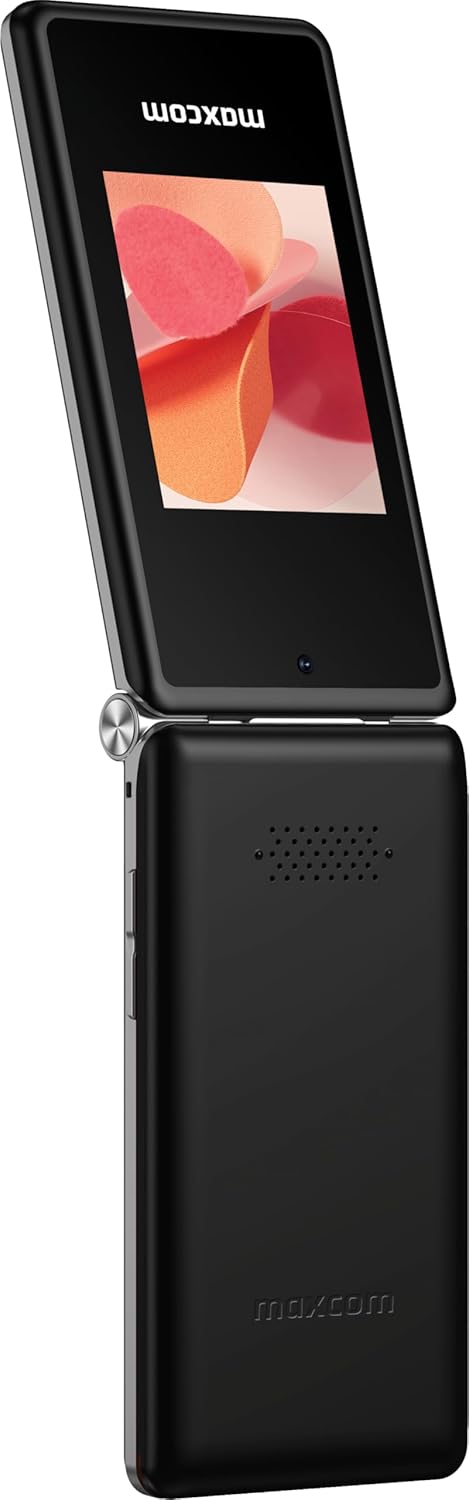
Whakaahua 1: Maxcom MM835 Flip Phone (Closed View). The external 2.4-inch screen displays time, date, battery status, and missed calls without opening the phone.
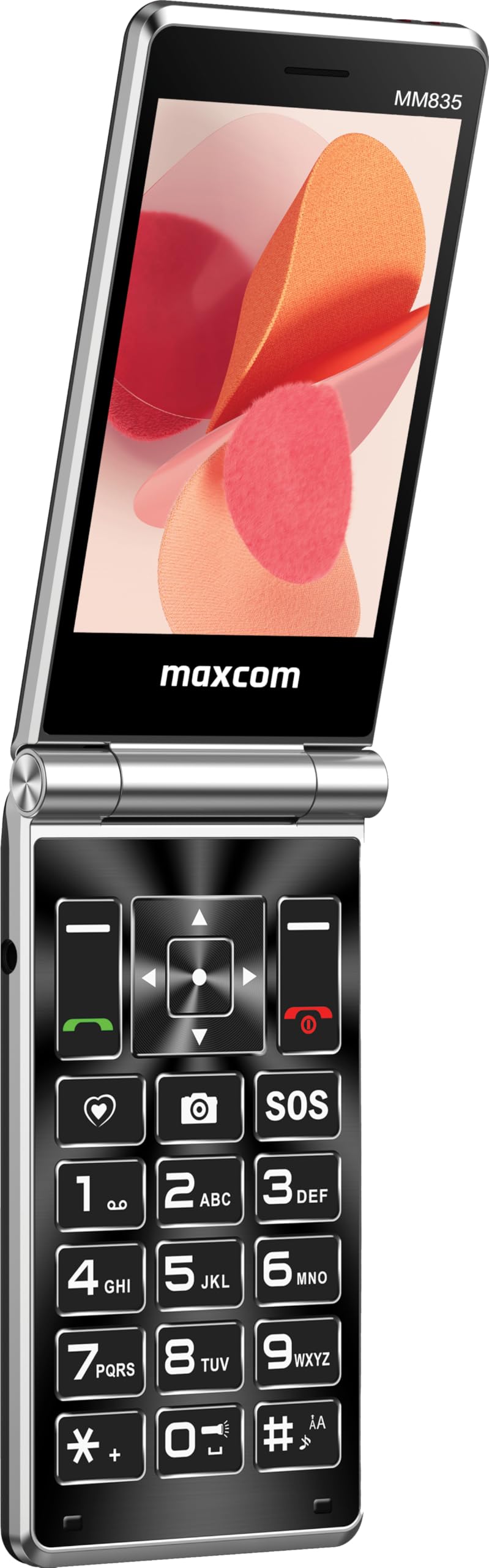
Whakaahua 2: Maxcom MM835 Flip Phone (Open View). The internal 3.5-inch screen provides a clear interface for contacts and messages, complemented by large, comfortable keys.

Whakaahua 3: Te taha view of the Maxcom MM835, illustrating the volume control buttons for easy audio adjustment.

Whakaahua 4: Raro view of the Maxcom MM835, highlighting the USB-C charging port for convenient power connection.

Whakaahua 5: Detail of the Maxcom MM835 keyboard, featuring the prominent SOS button for emergency contacts.

Whakaahua 6: The Maxcom MM835 is Hearing Aid Compatible (HAC), ensuring clear audio for users with hearing aids.
Tatūnga
1. Tāuta Pūhiko me te Whakatau
- Whakatuwheratia te uhi o muri: Tangohia mārire te uhi o muri o te waea.
- Whakauruhia te pākahiko: Place the included Lithium-ion battery into its compartment, ensuring the contacts align correctly.
- Whakakapia te uhi o muri: Kia mau te whakapiri i te uhi o muri.
- Me utu te waea: Connect the provided USB-C cable to the phone's charging port (Figure 4) and to a compatible USB power adapter (not included). Allow the phone to charge fully before first use. The external screen will indicate charging status.
2. Tāuta Kāri Sim
The Maxcom MM835 supports dual SIM cards.
- Remove the back cover and battery: Follow the steps above to access the SIM card slots.
- Whakauruhia ngā kāri SIM: Carefully slide your SIM card(s) into the designated slot(s). Ensure the gold contacts face downwards and the notched corner aligns with the slot.
- Reinstall battery and cover: Whakakapia te pākahiko me te uhi o muri.
3. Te Whakakaha/Weto
- Hei Whakahiko: Patohia me te pupuri i te paatene Mana/Whakamutunga Waea (patene whero) kia whiti te mata.
- Hei Whakaweto: Press and hold the Power/End Call button until the power-off options appear, then select "Power Off".
Nga Tohutohu Whakahaere
1. Whakaterenga Taketake
- Whakaaturanga ā-roto: The 3.5-inch internal screen is your primary interface for menus and content.
- Whakaaturanga a-Waho: The 2.4-inch external screen shows essential information like time, date, battery, and caller ID when the phone is closed.
- Kī Whakaterenga: Use the directional keys (up, down, left, right) and the central OK button to navigate through menus.
- Kī ngawari: The keys directly below the screen perform functions indicated on the display (e.g., "Menu", "Back").
- Call Keys: The green button initiates calls, and the red button ends calls or powers the phone on/off.
2. Hanga me te Whiwhi Waea
- Hei Waea:
- Whakatuwheratia te waea.
- Waeahia te nama ma te whakamahi i te papapātuhi.
- Pēhia te pātene Karanga matomato hei tīmata i te waea.
- Hei Whakautu Waea:
- Ka tangi te waea, whakatuwherahia te pire, ka pehi ranei i te paatene Waea matomato.
- Hei Whakamutu Waea: Pēhia te pātene Waea Whakamutunga whero.
3. Te Tuku me te Whiwhi Karere
- Whakatere ki te "Karere" tahua.
- Select "New Message" to compose a text.
- Whakauruhia te nama o te kaiwhiwhi, tohua ranei mai i nga hoapaki.
- Patohia to karere ma te whakamahi i te papapātuhi.
- Pēhia te "Tukuna".
4. Mahi a te Pātene SOS
The SOS button (Figure 5) is located on the main keypad and is designed for emergency situations.
- Tatūnga: Before use, configure emergency contacts in the phone's settings. Refer to the "SOS Settings" section in the phone's menu.
- Whakahohenga: In an emergency, press and hold the SOS button. The phone will automatically send pre-defined notifications to your emergency contacts and may initiate calls to them.
5. Kāmera
The phone includes a basic camera for capturing photos.
- Whakauruhia te kamera mai i te tahua matua.
- Whakatakotoria tō whakaahua mā te whakamahi i te whakaaturanga ā-roto.
- Press the central OK button to take a picture.
6. Irirangi FM
Enjoy listening to FM radio stations on your device.
- Whakatere ki te taupānga "Reo Irirangi FM" i te tahua.
- Connect headphones (not included) to act as an antenna for optimal reception.
- Whakamahia ngā kī whakatere hei matawai i ngā teihana, hei whakaoro rānei ā-ringa.
Te tiaki
- Te horoi: Use a soft, dry cloth to clean the phone's exterior. Avoid liquid cleaners or abrasive materials.
- Tiaki Pūhiko: Hei whakaroa i te ora o te pākahiko, karohia ngā pāmahana tino wera. Utuhia te waea i ia wā, engari kaua e waiho kia kore rawa e pau mō te wā roa.
- Rokiroki: Penapenahia te waea ki te wāhi hauhautanga, maroke, kia matara atu i te rā tika me te makuku ina kore e whakamahia.
- Pūmanawa: While software updates are not explicitly guaranteed, ensure your phone's settings are optimized for performance.
Raparongoā
If you encounter issues with your Maxcom MM835, refer to the following common solutions:
| Raruraru | Rongoa pea |
|---|---|
| Karekau te waea i te hiko | Ensure the battery is correctly installed and fully charged. Connect the charger and try again. |
| Kaore e taea te waea, te whiwhi waea ranei | Tirohia mēnā kua tika te whakaurunga o te kāri SIM. Manatokohia kei a koe te tohu whatunga. Whakapā atu ki tō kaiwhakarato ratonga mēnā ka mau tonu te raruraru. |
| He kino te ora o te pākahiko | Ensure the phone is fully charged. Reduce screen brightness or close unused applications. Battery performance can degrade over time. |
| "Emergency Call Only" message | This indicates a lack of network signal or an issue with your SIM card/service. Try moving to an area with better reception or reinserting your SIM card. |
| Ko nga taviri kaore e aro | Restart the phone. If the issue continues, ensure no debris is obstructing the keys. |
Whakatakotoranga
| Āhuahira | Taipitopito |
|---|---|
| Waitohu | Maxcom |
| Ingoa Tauira | MM835 |
| Momo Hua | Pore Waea |
| Tae | Pango |
| Pūnaha Mahi | Maxcom OS |
| Internal Screen Size | 3.5 Inihi |
| Rahi Mata o Waho | 2.4 Inihi |
| Hononga | 4G, VoLTE |
| Nga waahanga motuhake | Dual SIM, SOS Button, HAC (Hearing Aid Compatible), Large Keys |
| Hanganga Pūhiko | Lithium-ion |
| Pūhiko Raukaha | 1400 mah |
| Tauranga Whakatau | Momo USB C |
| Te Rokiroki Mahara | 32 GB |
| Tauira PTM | ARMv7 |
| Whakatau Mata | 640 x 360 |
| Kawe Ahokore | Kaihoko katoa (Wewete) |
Pūtāhui me te Tautoko
For warranty information and customer support, please refer to the documentation provided with your purchase or contact the seller directly. Maxcom strives to provide reliable products, and support is available for any manufacturing defects or operational queries.
- Kaihanga: Maxcom
- Kaihoko: You Get - Innovation & Technology
- Kaupapa Whakahoki: Typically 30 days for refund/replacement (check with seller for specifics).


