1. Kupu Whakataki
This manual provides detailed instructions for the installation, operation, and maintenance of your ANKEWAY XBH-8801 car radio. Please read this manual thoroughly before use to ensure proper functionality and safety.
1.1 Hua Neke atuview
The ANKEWAY XBH-8801 is an advanced car radio system designed for specific Opel models. It integrates modern features such as wireless Apple CarPlay, Android Auto, Bluetooth 5.0, FM/RDS radio, and supports a rearview camera. The system runs on an Android operating system, allowing for internet connectivity via Wi-Fi and installation of various applications.

Image 1.1: ANKEWAY XBH-8801 Car Radio and included accessories.
1.2 Hototahitanga o ngā Waka
This car radio is specifically designed for the following Opel models and years:
- Astra (2004-2009)
- Antara (2006-2011)
- Vectra (2003-2008)
- Corsa (2006-2011)
- Zafira (2005-2011)
- Meriva (2006-2011)
- Paheko (2004-2011)
- Waitohu (2003-2011)
- Tōpu Mahanga Tigra (2004-2011)
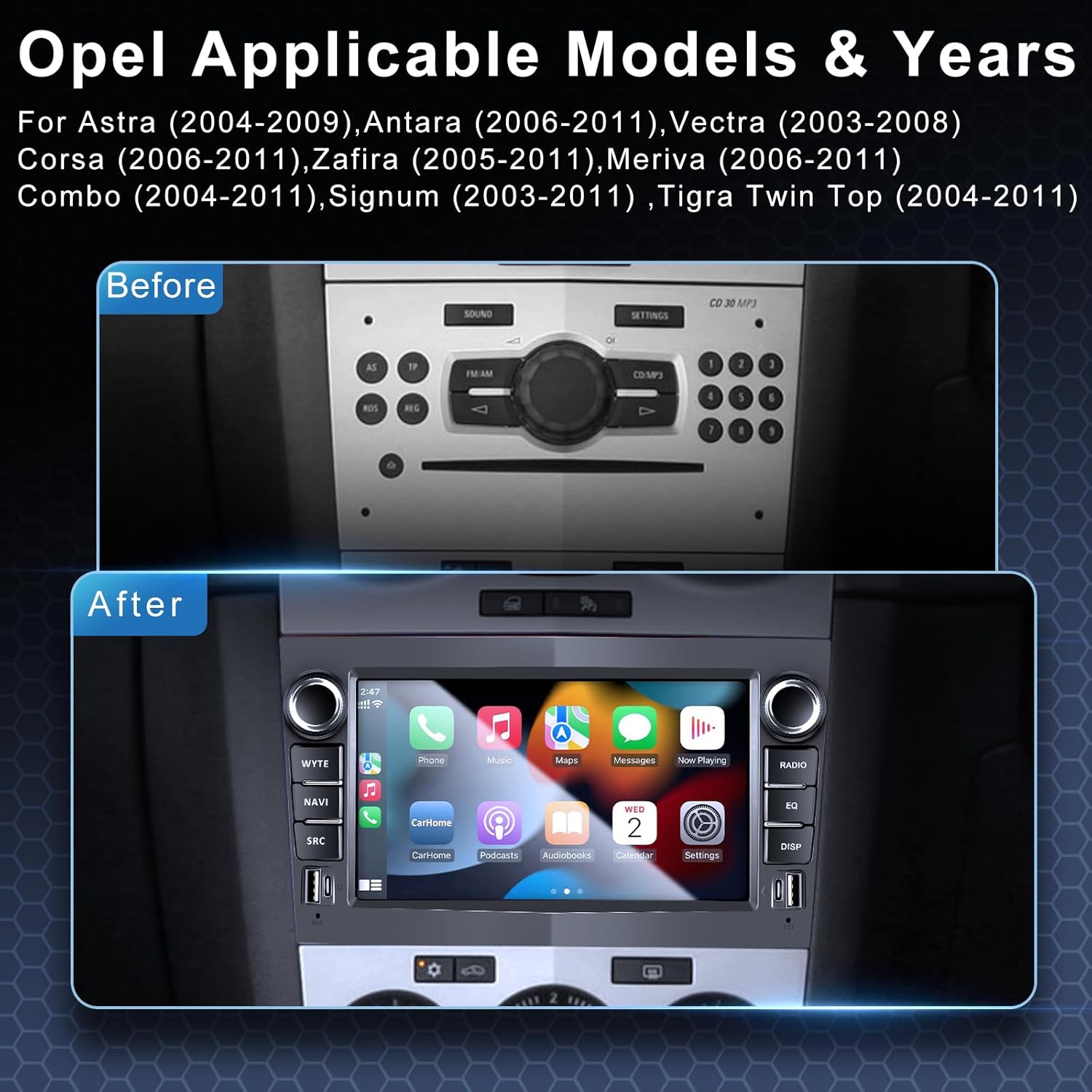
Image 1.2: Visual comparison of the original Opel dashboard and the ANKEWAY XBH-8801 installed.
2. Ihirangi mokete
Manatokohia ko nga mea katoa kei raro nei kei roto i to kete. Mena kei te ngaro, kua pakaru ranei etahi taonga, tena koa whakapiri atu ki te tautoko a nga kaihoko.
- 1x ANKEWAY XBH-8801 Car Radio Unit
- 1x Rearview Kāmera
- 1x hopuoro
- 1x Pūwhakamātautau CANBUS
- 2x Panel Removal Tools
- 2x Tauera Kamera
- 2x Tauira Hiko
- 1x Radio Antenna Adapter
- 1x AHD Camera
- 1x GPS Antenna
- 1x taura RCA
- 1x Tauera USB

Image 2.1: Product dimensions and a visual list of all included components.
3. Tāutanga
Professional installation is recommended. Ensure the vehicle's power is disconnected before beginning installation. The included CANBUS adapter ensures compatibility with original steering wheel controls.
3.1 Nga Waahi Whakataunga Whanui
- Carefully remove the original car radio using the provided panel removal tools.
- Connect the power cables, CANBUS decoder, and other necessary wiring harnesses to the vehicle's original connectors. The cables are pre-grouped for easier connection.
- Tāutahia te pūihi GPS ki tētahi wāhi mārama view o te rangi.
- Honoa te muriview camera cable and install the camera at the rear of the vehicle.
- Mount the ANKEWAY XBH-8801 unit into the dashboard opening.
- Reconnect the vehicle's power and test the unit.
3.2 Whakamuriview Tāutanga Kāmera
Ko te tuara kua whakauruaview camera supports high-definition input and night vision. Connect the camera to the designated input on the car radio. The system will automatically display the camera feed when the vehicle is in reverse gear.

Whakaahua 3.1: Whakamuriview camera connection and display functionality.
4. Tatūnga
4.1 Initial Power-On and Language Selection
Upon first power-on, the system may guide you through initial setup steps, including language selection. The system supports multiple languages, including Italian, Spanish, German, and French.
4.2 Hononga Wi-Fi
To access internet-dependent features and install applications, connect the unit to a Wi-Fi network. This can be done by tethering to your mobile phone's hotspot or connecting to an available Wi-Fi network.
- Navigate to the system settings.
- Tīpakohia 'Whatunga me te Ipurangi' 'Wi-Fi' rānei.
- Whakakāhia te Wi-Fi, kātahi ka tīpako i te whatunga e hiahiatia ana e koe.
- Whakauruhia te kupuhipa mena ka akiakihia.
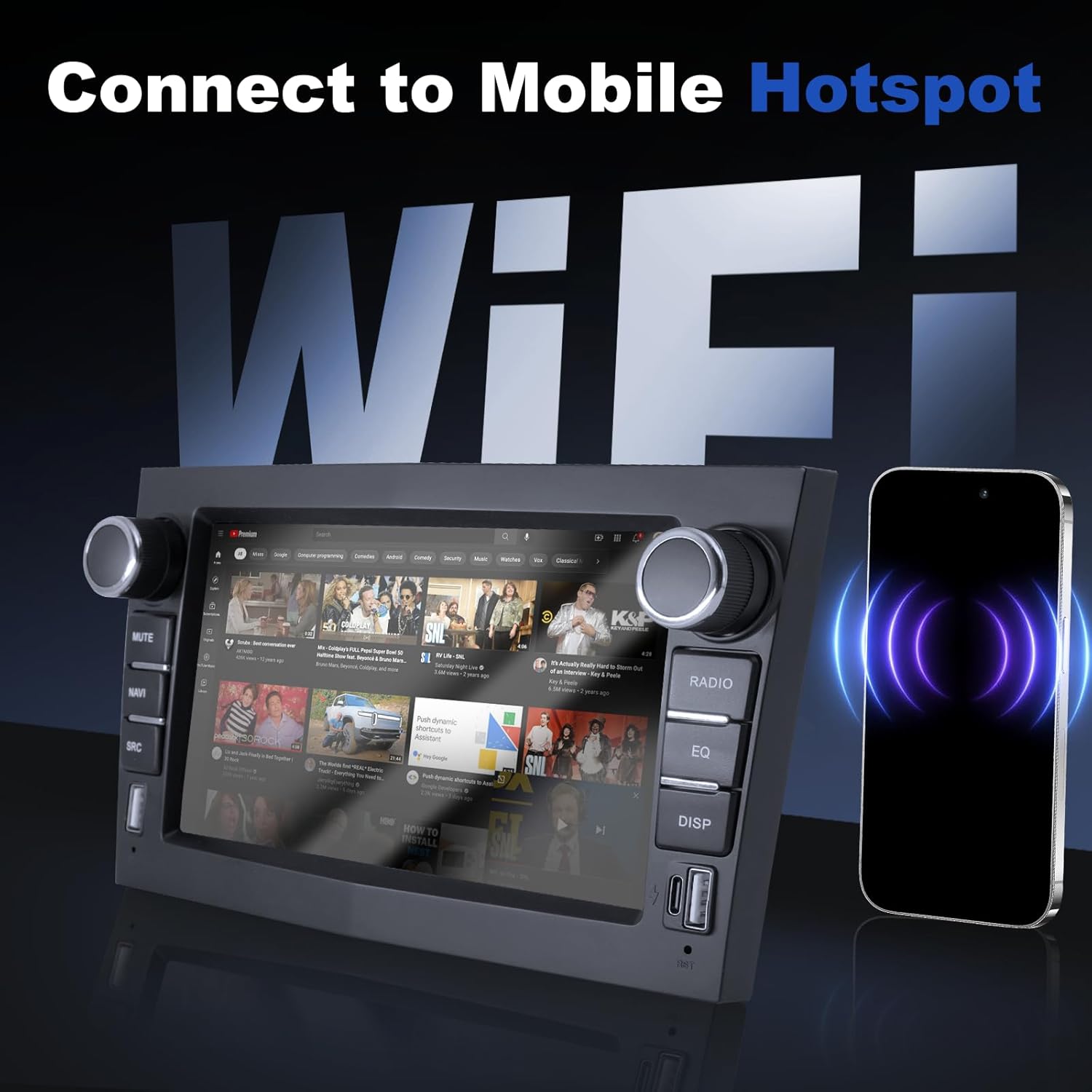
Image 4.1: Connecting the car radio to a mobile hotspot via Wi-Fi.
5. Nga Tohutohu Whakahaere
5.1 CarPlay and Android Auto
The unit supports both wireless and wired Apple CarPlay and Android Auto. This allows seamless integration with your smartphone for navigation, music, calls, and other applications.
- Me mohio kei te whakahohea te Nihokikorangi me te Wi-Fi i runga i to waea atamai.
- I te reo irirangi o te motuka, tīpakohia te taupānga CarPlay, te taupānga Android Auto rānei.
- Follow the on-screen prompts to connect your device. For wired connection, use a USB cable.

Image 5.1: Apple CarPlay interface displayed on the car radio.
5.2 Nga Mahi Nihokikorangi
Mā te Nihokikorangi 5.0 ka taea te waea kore-ringa me te roma oro.
- Go to the Bluetooth settings on the car radio.
- Whakahohehia te Nihokikorangi i runga i to waea atamai me te rapu mo nga taputapu e waatea ana.
- Select the car radio from your phone's list and pair.
- Kia takirua, ka taea e koe te waea / whiwhi waea me te tuku ororongo.
Reo Irirangi 5.3 FM/RDS
The radio supports FM with RDS (Radio Data System) for displaying station information.
- Select the 'Radio' application from the main menu.
- Use the on-screen controls or physical buttons to scan for stations.
- Adjust audio settings using the built-in DSP and equalizer.

Image 5.2: FM/RDS Radio interface and Equalizer settings.
5.4 Tauranga USB
The unit features 2 USB-A ports and 1 USB-C port for charging devices and playing media from USB storage.
- Connect USB drives to play audio or video files.
- Use the ports to charge compatible electronic devices.
5.5 System Settings and UI
The Android system allows for customization, including split-screen functionality and various user interface themes.
- Access the 'Settings' menu to configure system preferences, display, sound, and network options.
- Whakamahia te āhuatanga wehewehe mata hei whakahaere i ngā taupānga e rua i te wā kotahi.
- Explore different UI interfaces available in the system settings.

Whakaahua 5.3: Examples of various Android user interfaces.
6. Whakatakotoranga
| Āhuahira | Whakatakotoranga |
|---|---|
| Tauira | XBH-8801 |
| Pūnaha Mahi | Android |
| Pūmahara (RAM+ROM) | 2GB RAM + 32GB ROM |
| Hononga | Wi-Fi, Bluetooth 5.0, USB, USB-C |
| Whakauru Waea atamai | Wireless CarPlay, Android Auto, Mirror-Link |
| Āhuatanga Ororongo | FM/RDS Radio, DSP, Equalizer |
| Tautoko kāmera | Whakamuriview Camera (included), Front Camera (optional) |
| CANBUS Adapter | Included (for steering wheel controls) |
| Ahu (Wae) | Approximately 20.3 cm (width) x 12 cm (height) x 1 cm (depth) |
| Taumaha | 1.1 kg |
7. Te Raru
7.1 Nga take me nga otinga noa
- Kore Mana: Tirohia ngā hononga hiko me ngā fiusi katoa. Me whakarite kei te mura te mura o te waka.
- Kore Oro: Manatokohia ngā hononga o te kaikōrero. Tirohia ngā taumata oro me ngā tautuhinga putanga oro. Me whakarite kua tīpakohia te pūtake oro tika.
- CarPlay/Android Auto Kaore i te hono: Ensure Bluetooth and Wi-Fi are active on your phone and the car radio. Try restarting both devices. For wired connections, try a different USB cable.
- Kāore e Mahi ana ngā Mana o te Wira Uru: Confirm the CANBUS decoder is correctly installed and configured in the system settings.
- Te Manaaki Reo Irirangi Kino: Check the radio antenna connection. Ensure the antenna is properly installed and not obstructed.
- Whakamuriview Kāore te Kāmera e Whakaaturia ana: Tirohia ngā hononga hiko me te tohu ataata o te kāmera. Me whakarite kei te huri te waka i te taputapu whakamuri.
8. Tiaki
8.1 Te horoi
Use a soft, dry cloth to clean the screen and exterior of the unit. Avoid abrasive cleaners or solvents that may damage the surface.
8.2 Whakahōu Pūmanawa
The manufacturer regularly releases firmware updates to optimize system performance and add new features. To receive update packages, please contact customer support.
9. Pūtāhui me te Tautoko
For warranty information, please refer to the documentation provided with your purchase or contact the seller directly. For technical assistance, troubleshooting, or software updates, please reach out to ANKEWAY customer support. They are available to assist with installation and operational queries.


