1. Hua Neke Atuview
The NIVIAN 2K WiFi CCTV Surveillance Kit provides comprehensive 24/7 security with advanced features for monitoring homes, offices, shops, and warehouses. This kit includes 4 WiFi IP cameras and a professional 10-channel Network Video Recorder (NVR) with a pre-installed 1TB hard drive.
Āhuatanga matua:
- Taumira 2K Super HD: Offers clear and detailed 3MP images for effective surveillance.
- Matakitenga Ake Po: Dual modes include infrared for discreet monitoring and integrated white LEDs for full-color images in complete darkness, aiding in identification.
- AI Hunga Tangata: Utilizes artificial intelligence to differentiate human movements from other triggers (animals, objects, shadows), significantly reducing false alarms.
- Ororongo Ara-rua: Each camera features built-in two-way audio, allowing for real-time listening and speaking, useful for communication and deterring intruders.
- Continuous & Remote Recording: Supports 24/7 continuous or event-only recording, saved to the included 1TB HDD. Remote access to live views and recordings is available via the EseeCloud app.
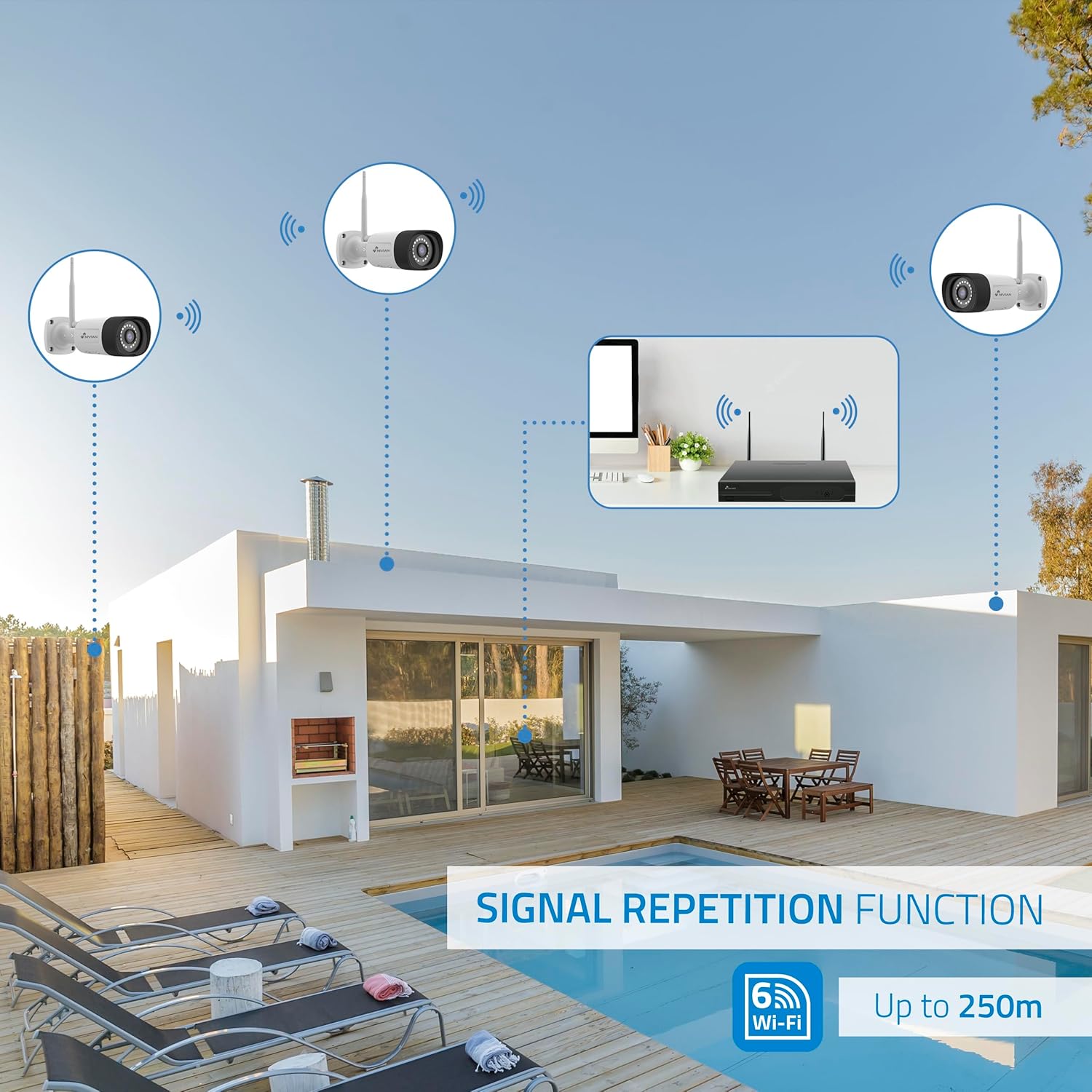
- Long-Range WiFi & Easy Installation: WiFi-6 technology ensures stable connections up to 250 meters between cameras and the NVR, with a repeater function for extended coverage. Installation is guided step-by-step via the app.
- Hoahoa Roa: IP66-rated metal-bodied cameras are designed to withstand rain, dust, and harsh outdoor conditions.
2. He aha kei roto i te Pouaka
Carefully unpack the contents and ensure all items are present and in good condition. The kit typically includes the following components:

Whakaahua: Ka mutuview of the NIVIAN 2K WiFi CCTV Surveillance Kit components.

Whakaahua: Taipitopito view of the kit contents, including the NVR and cameras.
- 1x 10-Channel NVR (Network Video Recorder)
- 4x 2K Super HD WiFi IP Cameras
- 1x 1TB Hard Disk Drive (pre-installed in NVR)
- 5x Power Adapters (one for NVR, four for cameras)
- 1x Kiore USB
- 1x Waea Itarangi
- Whakaeke Tiu me Mono mo nga Kaamera
- Waterproof Connectors for Outdoor Camera Cables
- User Manual and Software CD
3. Tatūnga me te Tāuta
3.1 NVR Installation
The NVR is the central recording unit for your surveillance system. Follow these steps to set it up:
- Connect the NVR to a monitor or TV using an HDMI cable.
- Connect the USB mouse to one of the NVR's USB ports.
- Connect the NVR to your router using the provided Ethernet cable for network access.
- Connect the NVR power adapter to the NVR and plug it into a power outlet. The NVR will power on and begin initialization.
3.2 Hard Disk Drive (HDD) Installation (Optional, if not pre-installed)
If your NVR did not come with a pre-installed HDD, follow these steps to install it:
- Unplug the NVR from power.
- Remove the screws on the NVR's cover and carefully slide it open.
- Align the HDD with the mounting holes inside the NVR chassis.
- Secure the HDD with the provided screws.
- Connect the SATA data cable and power cable from the NVR to the HDD.
- Replace the NVR cover and secure it with the screws.
3.3 Whakaaturanga Kamera
The cameras are designed for both indoor and outdoor use (IP66 rated). Plan your camera placement to maximize coverage and signal strength.
Whakaahua: Example of camera installation on an exterior wall.
- Choose a mounting location that provides the desired viewing angle and is within the NVR's WiFi range (up to 250m, extendable with repeater function).
- Use the provided mounting screws and plugs to securely attach the camera to the wall or ceiling.
- For outdoor installations, use the waterproof connectors to protect the cable connections from environmental elements.
- Connect each camera to its respective power adapter and plug it into a power outlet.
- The cameras will automatically pair with the NVR.
4. Whirihoranga Pūnaha
4.1 Tatūnga Tuatahi o te NVR
Once the NVR powers on and connects to the monitor, follow the on-screen prompts using the USB mouse:
- Tīpako Reo: Kōwhiria te reo pūnaha e pai ana ki a koe.
- Tatūnga Whatunga: Confirm a 'Healthy Network' status. If using WiFi, configure your home WiFi router settings.
- Rā me te Wā: Set the correct date, time, and time zone. Enable 'Automatically set time' if available.
- Whakahaere Rokiroki: Verify the 1TB HDD is recognized and formatted.
- Ora View: Confirm that all connected cameras are displaying live video feeds.
- Tautuhi Kupuhipa: Create a strong password (6 to 19 characters) for the NVR. This password will be required for app binding.
4.2 EseeCloud App Setup
The EseeCloud app allows remote access and control of your surveillance system.

Image: EseeCloud app interface on a smartphone.
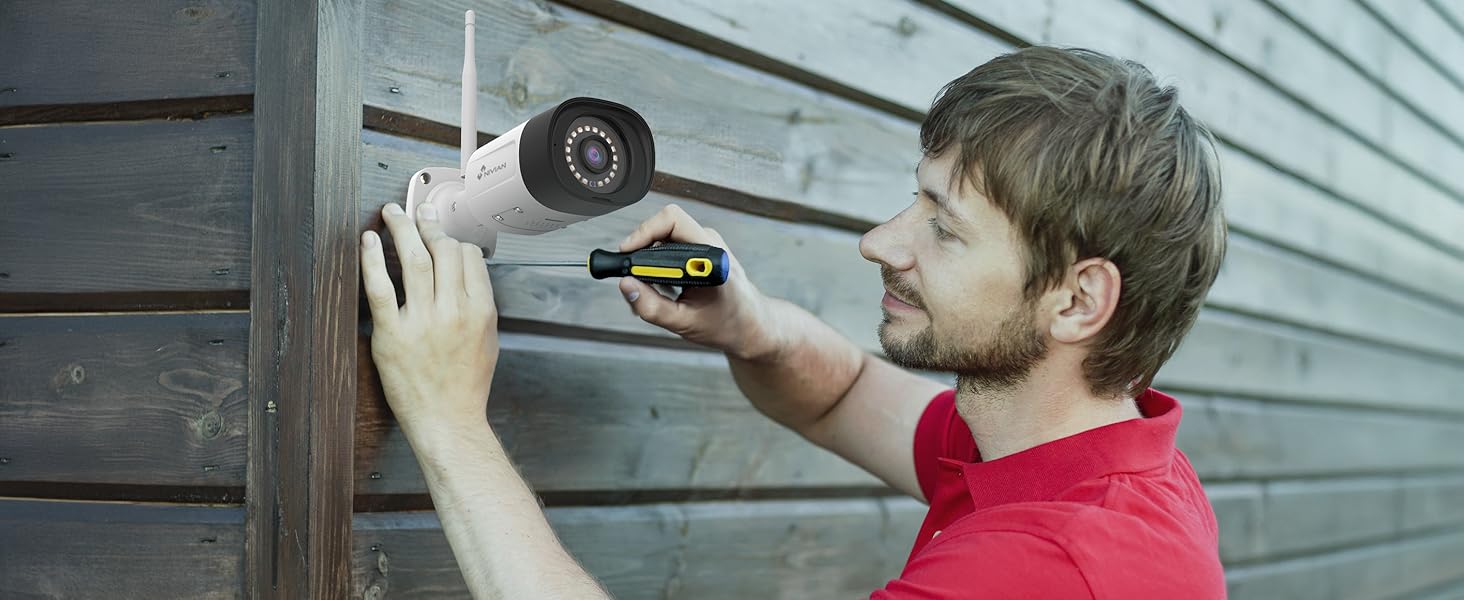
Image: EseeCloud app available on mobile and desktop platforms.
- Download the EseeCloud app from your device's app store (available for iOS, Android, and PC).
- Register for an account if you don't have one.
- Scan the QR code displayed on the NVR's monitor (or device body) to add your surveillance system to the app.
- Follow the in-app instructions to complete the device binding and configuration.
5. Nga Tohutohu Whakahaere
5.1 Ora View me te purei hoki
Whakauru atu ki ngā whāngai kāmera ora me te whakahou anōview tuhia footage through the NVR connected to a monitor or via the EseeCloud app.
- NVR Interface: Use the USB mouse to navigate the NVR menu. Select 'Split screen' to view multiple cameras simultaneously or 'Playback' to review rekoata.
- Taupānga EseeCloud: Open the app to see live feeds from all connected cameras. Use the playback function to access recorded events.
5.2 AI Human Detection
The system's AI human detection minimizes false alarms by focusing on human shapes.
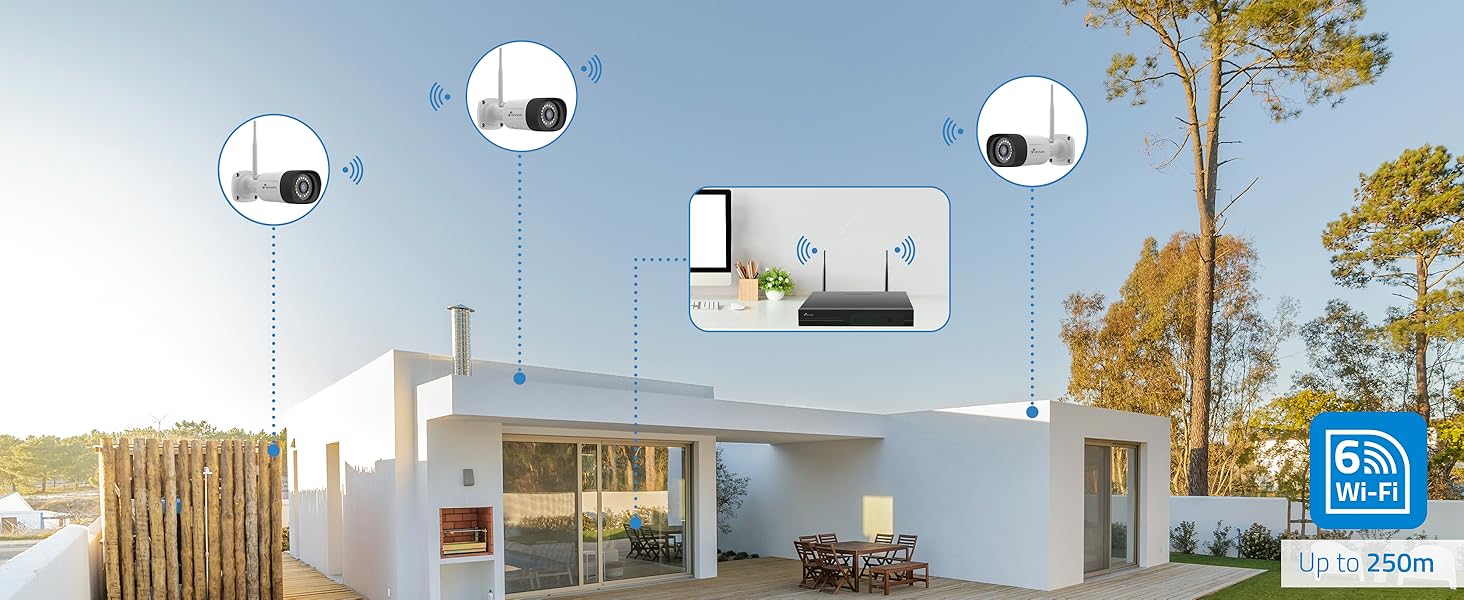
Image: AI human detection in action, highlighting a person and providing illumination.
- Configure detection zones and sensitivity settings within the NVR or app.
- Receive instant notifications on your smartphone when human motion is detected.
5.3 Aratau Matakitenga Po
Choose between infrared or full-color night vision based on your surveillance needs.
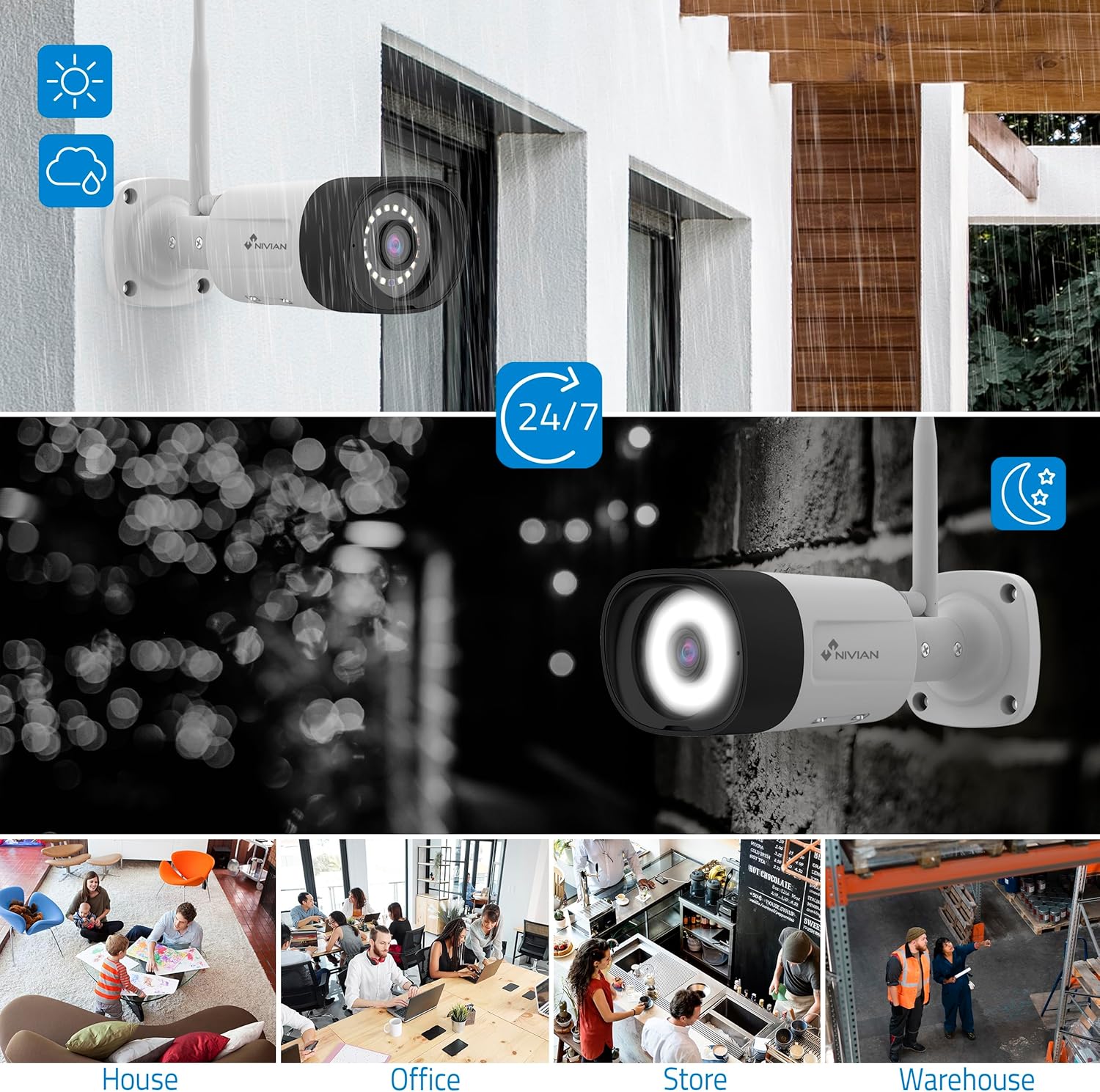
Image: Comparison of infrared (black and white) and color night vision.
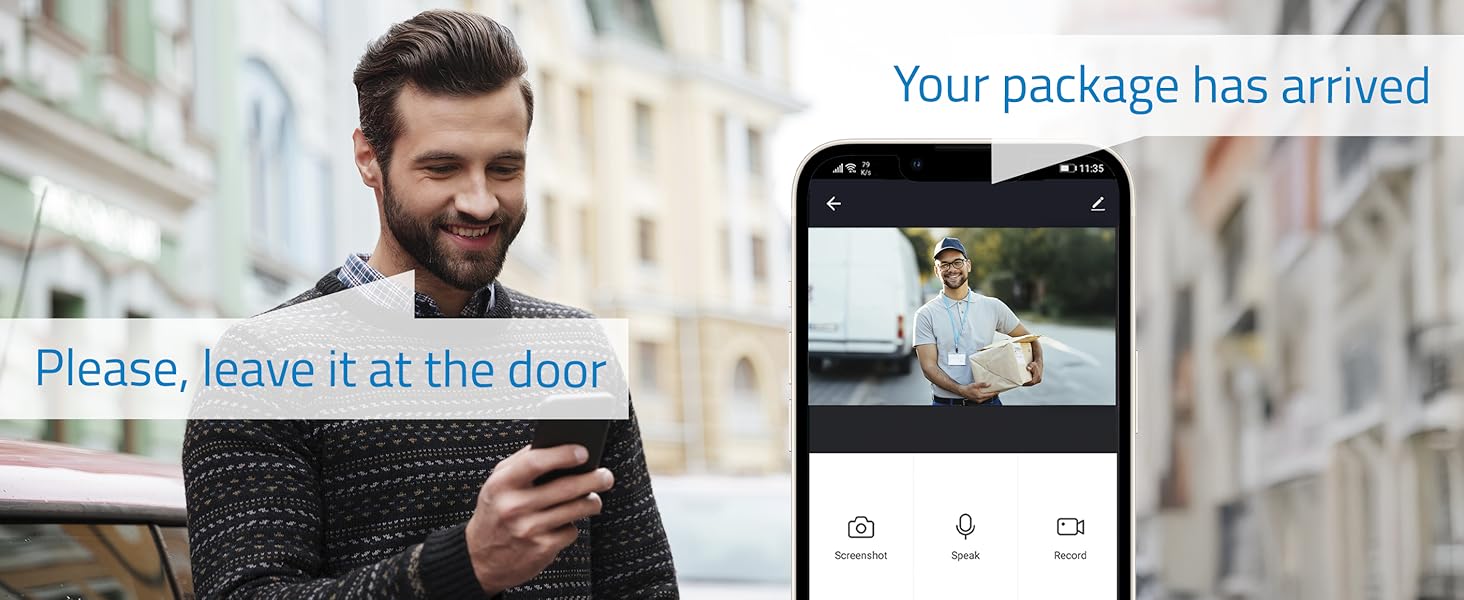
Image: Outdoor camera providing clear 24/7 surveillance, including night vision.
- Switch between modes via the NVR interface or EseeCloud app.
- Color night vision is activated by the camera's white LEDs, providing clearer details.
5.4 Ororongo Waa-rua
Communicate directly through the cameras using the built-in microphone and speaker.

Image: Two-way audio feature allowing communication with visitors.
- Use the EseeCloud app to speak through the camera and listen to audio from the camera's location.
6. Tiaki
Regular maintenance ensures optimal performance and longevity of your surveillance system:
- Arotahi Ma: Horoia ngā karāhe kāmera i ia wā ki te wai ngohengohe,amp he kakahu hei whakarite kia mārama te kounga o te ahua.
- Taki Hononga: Ensure all power and network cables are securely connected.
- Whakahōu Pūmanawa: Check for and install firmware updates for the NVR and cameras via the EseeCloud app or NVR interface to enhance security and features.
- Hauora o te HDD: Monitor the health of your hard drive through the NVR's storage management settings.
- Ngā Hopu Pūrua: Regularly back up important recordings to an external storage device if needed.
7. Te Raru
Mena ka tūtaki koe ki ngā raruraru, tirohia ēnei mahi rapurongoā noa:
- Kāore he Whāngai Kāmera:
- Check if the camera is powered on and its power adapter is working.
- Ensure the camera is within the NVR's WiFi range.
- Re-pair the camera with the NVR if necessary (refer to the NVR's user interface for pairing instructions).
- NVR Not Connecting to Network:
- Verify the Ethernet cable is properly connected to both the NVR and the router.
- Tirohia te hononga ipurangi o to pouara.
- Restart both the NVR and your router.
- Pūoho Hehe:
- Adjust the AI human detection sensitivity settings in the NVR or app.
- Refine detection zones to exclude areas with frequent non-human motion (e.g., trees swaying).
- Kounga Atahanga Kino:
- Horoia te arotahi kamera.
- Ensure sufficient lighting for optimal image capture, especially for color night vision.
- Check the camera's position for obstructions.
8. Whakatakotoranga
| Āhuahira | Taipitopito |
|---|---|
| Kaihanga | Niwiana |
| Tauira Tuemi | NV-KIT830W-8CAM |
| Hunga Hua | 18 x 12 x 6 cm |
| Taumaha Tūemi | 310 g |
| Momo Mana | Te Naianei Hiko |
| Te maha o nga mea | 1 (Kete) |
| Momo Mono Hiko | Whakapuru Taiepa |
| Nga waahanga motuhake | AI Hunga Tangata |
| Nga Waahanga kei roto | CCTV Camera Kit |
| Kei roto nga pākahiko? | Kao |
| Pikohiko e hiahiatia ana? | Kao |
| Hangarau Hononga | Wireless (WiFi-6) |
| Whakataunga Hopu Ataata | 2K (3MP) |
| Te maha o nga hongere | 10 (NVR) / 4 (Cameras in this kit) |
9. Pūtāhui me te Tautoko
For warranty information, technical support, or service inquiries, please refer to the official NIVIAN webpaetukutuku, whakapā atu ranei ki ta raatau ratonga kaihoko. Puritia to riirii hoko hei tohu mo te hoko mo nga kereme whakamana.
Online resources, FAQs, and additional support materials may be available on the manufacturer's webpae.


