1. Kupu Whakataki
This manual provides comprehensive instructions for the assembly, operation, and maintenance of your MININGEEK S400 Pro 10.8L Portable Mini-ITX Computer Case. Please read this guide thoroughly before beginning installation to ensure proper setup and optimal performance.
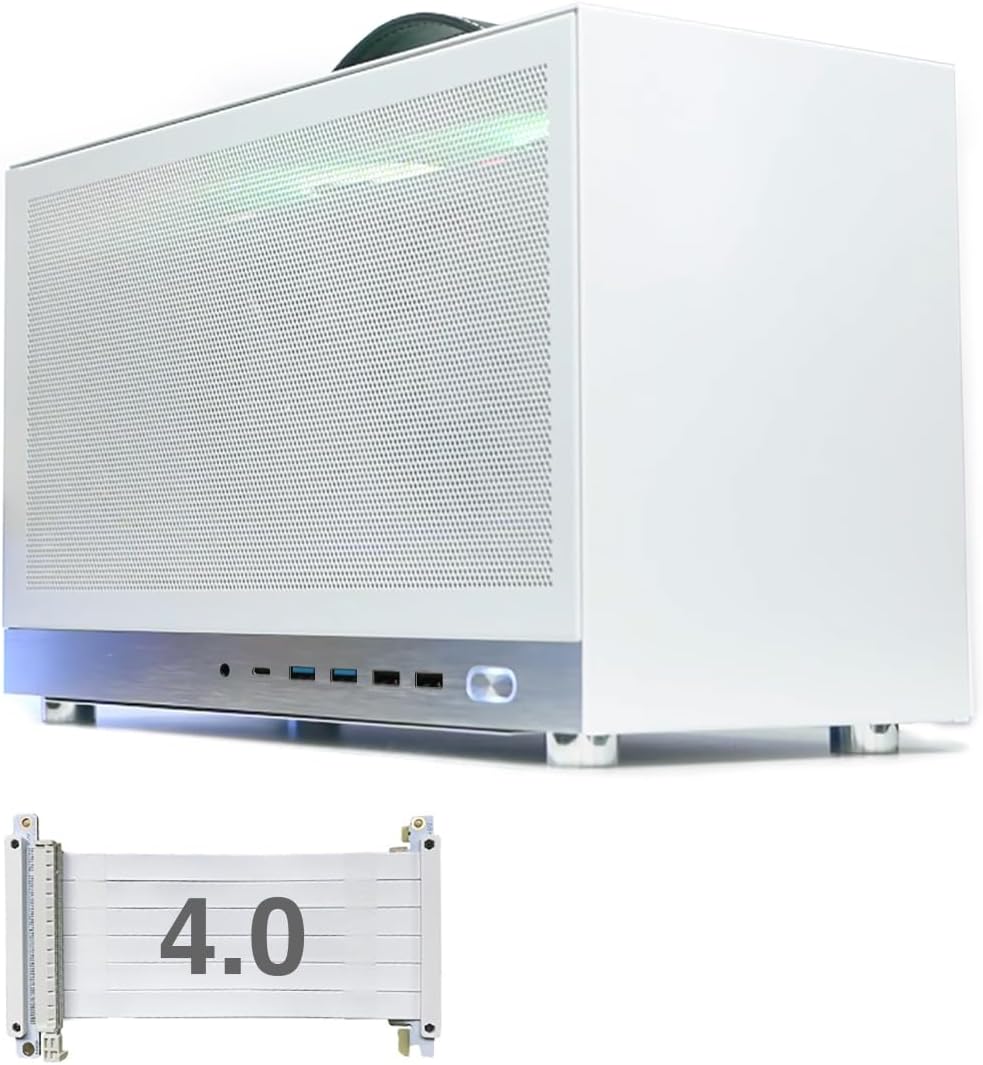
Figure 1: MININGEEK S400 Pro Mini-ITX Computer Case with included PCIe 4.0 riser cable.
2. Nga korero haumaru
Always disconnect power before performing any installation or maintenance. Handle components with care to prevent electrostatic discharge. Wear anti-static gloves if available. Refer to individual component manuals for specific safety guidelines.
3. Ihirangi mokete
- MININGEEK S400 Pro Mini-ITX Computer Case
- PCIe 4.0 Riser Cable
- Detachable Carrying Handle
- Accessory Kit (screws, zip ties, etc.)
4. Whakatakotoranga
| Āhuahira | Whakatakotoranga |
|---|---|
| Ingoa Tauira | S400 Pro |
| Ahu (LxWxH) | 340 x 155 x 205 mm (13.39 x 6.07 x 8.1 inihi) |
| Rōrahi | 10.8L |
| Papamatua Hototahi | Mini-ITX |
| Tautoko GPU | Triple slot graphics cards up to 337mm long |
| PCIe Riser Cable | PCIe 4.0 included |
| Teitei Teitei Maanao CPU | 65mm |
| Momo PSU | SFX/SFX-L (recommended) |
| Tautoko Kaiwhaiwhai | Bottom: 1x 120x25mm or 3.5" HDD; Top: 2x 120x15mm |
| Tuhinga o mua | 2x USB 3.0, 2x USB 2.0, 1x Type-C, 1x Audio Jack |
| Rauemi | Te maitai me te Aluminium |
| Taumaha Tūemi | 5.18 pauna |

Figure 2: Case dimensions (Length: 340mm, Width: 155mm, Height: 205mm).
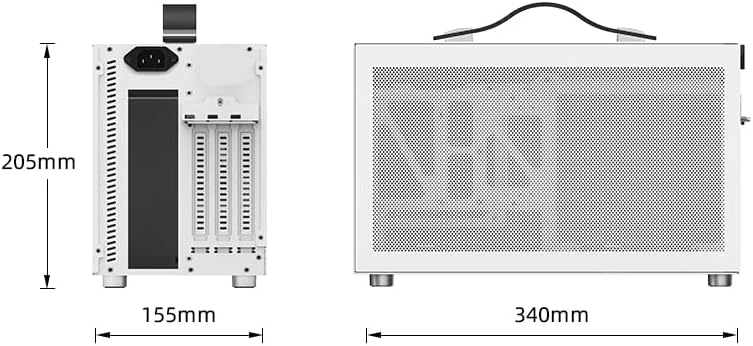
Figure 3: Internal layout showing component compatibility for SFX/SFX-L PSU, 2.5" SSD, ITX Board, CPU Cooler (max 65mm), and fan positions.
5. Tatūnga me te Tāuta
Follow these steps for proper assembly of your computer components within the S400 Pro case.
5.1. Case Disassembly
- Remove the side panels by unscrewing the retaining screws.
- Carefully detach the side panels.
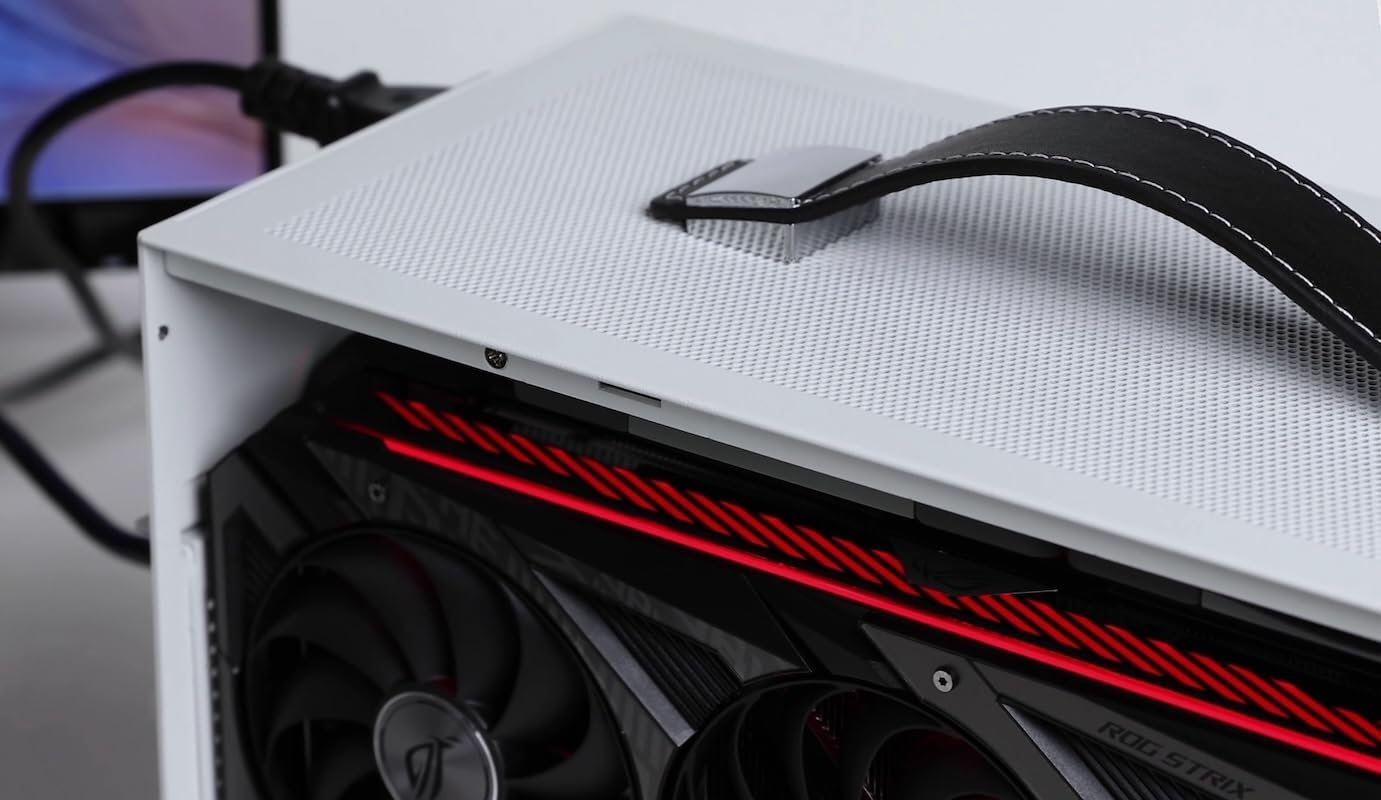
Figure 4: Removing the side panel to access the interior.
5.2. Motherboard, CPU, RAM, and SSD Installation
Install your CPU, RAM, and M.2 SSD onto the Mini-ITX motherboard before placing it into the case. Refer to your motherboard's manual for specific instructions.
Video 1: S300 - Mini-ITX Case Assembly Tutorial. This video demonstrates the assembly process for a similar Mini-ITX case, including CPU, RAM, and SSD installation on the motherboard.
5.3. PSU Tāuta
Install the SFX/SFX-L power supply into its designated bracket. Ensure the PSU fan is oriented correctly (typically facing outwards or towards an intake area) to avoid thermal issues. Connect the necessary modular cables to the PSU before securing it in the case.
5.4. GPU Tāuta
The S400 Pro supports triple-slot GPUs up to 337mm in length. Use the included PCIe 4.0 riser cable to connect your graphics card to the motherboard.
- Connect the PCIe riser cable to the motherboard's PCIe slot.
- Secure the GPU to the case's GPU bracket.
- Connect the other end of the PCIe riser cable to the GPU.
- Connect the GPU power cables from the PSU.

Whakaahua 5: Roto view showing a triple-slot GPU installed.

Whakaatu 6: Taipitopito view of GPU installation within the case.
5.5. Fan Tāuta
Install fans as per the specifications for optimal airflow. The case supports one 120x25mm fan or a 3.5" HDD at the bottom, and two 120x15mm fans at the top.

Figure 7: Installation of a 120mm fan at the bottom of the case.
5.6. Whakahaerenga Taura
Utilize zip ties and the case's internal routing options to manage cables effectively. Proper cable management improves airflow and aesthetics.
Video 2: KXRORS - Mini-ITX PC Gaming Case Assembly. This video provides a visual guide for assembling components and managing cables in a similar Mini-ITX case.
5.7. Huihuinga
Kia oti ngā wāhanga katoa te tāuta, kia tika hoki te whakahaere i ngā taura, tāpirihia anō ngā panera taha ka whakau ki ngā tīwiri.

Whakaahua 8: Taha view of the assembled MININGEEK S400 Pro case with the detachable carrying handle.

Whakaahua 9: Hoki view of the assembled MININGEEK S400 Pro case.

Figure 10: Close-up of the front I/O ports, including USB 3.0, USB 2.0, Type-C, and audio jack.
6. Nga Tohutohu Whakahaere
Connect your monitor, keyboard, mouse, and power cable to the assembled computer. Press the power button on the front panel to start your system. Refer to your operating system's documentation for further usage instructions.
7. Tiaki
To ensure longevity and optimal performance, regularly clean the dust filters and interior of the case. Use compressed air to remove dust from fans and heatsinks. Ensure all cables are securely connected.
8. Te Raru
- Kāore te pūnaha e whakakā ana: Check all power connections, including the PSU to the wall outlet, PSU to motherboard, and front panel power switch header.
- Karekau he whakaaturanga: Ensure the monitor is connected to the graphics card (not the motherboard's integrated graphics ports, unless no dedicated GPU is installed). Verify GPU power connections and PCIe riser cable connection.
- Te wera nui: Confirm CPU cooler is properly installed with thermal paste. Check fan orientations and ensure sufficient airflow. Verify PSU fan orientation.
- Hononga wetekina: If experiencing intermittent issues, re-seat RAM, GPU, and all power/data cables.
9. Pūtāhui me te Tautoko
For warranty information and technical support, please refer to the MININGEEK official webpae, whakapā atu ranei ki to kaihoko. Puritia to tohu hoko mo nga kereme whakamana.


