1. Kupu Whakataki
Thank you for choosing the Hyundai 65-Inch Frameless WebOS 4K UHD Smart LED TV, Model L65HYNDA650. This manual provides essential information for the safe and efficient operation of your new television. Please read it thoroughly before use and retain it for future reference.
2. Nga korero haumaru
Kia mau tonu ki nga whakaritenga haumaru e whai ake nei hei aukati i te ru hiko, te ahi, te whara ranei:
- Kaua e tukuna te pouaka whakaata ki te ua, ki te makuku ranei.
- Kaua e whakatuwheratia te pouaka whakaata casing; tirohia nga ratonga katoa ki nga kaimahi whai tohu.
- Me whakarite kia tika te hau huri noa i te pouaka whakaata.
- Wewetehia te pouaka whakaata i te wa e uira ana te tupuhi, i te kore e whakamahia mo te wa roa.
- Tiakina te pouaka whakaata mai i te ra tika, nga puna wera, me nga papa autō kaha.
3. Ihirangi mokete
Manatokona kei roto katoa nga mea kei roto i te kete:
- Hyundai 65-Inch Smart LED TV
- Mana Mamao Magic
- Nga waahanga pouaka whakaata
- Pukapuka Kaiwhakamahi (tenei tuhinga)
- Waea Hiko
4. Hua Neke Atuview
The Hyundai L65HYNDA650 is a 65-inch Frameless WebOS 4K UHD Smart LED TV designed for an immersive viewing experience. It features a high-resolution display, smart functionality powered by webOS 2.0, and versatile connectivity options.
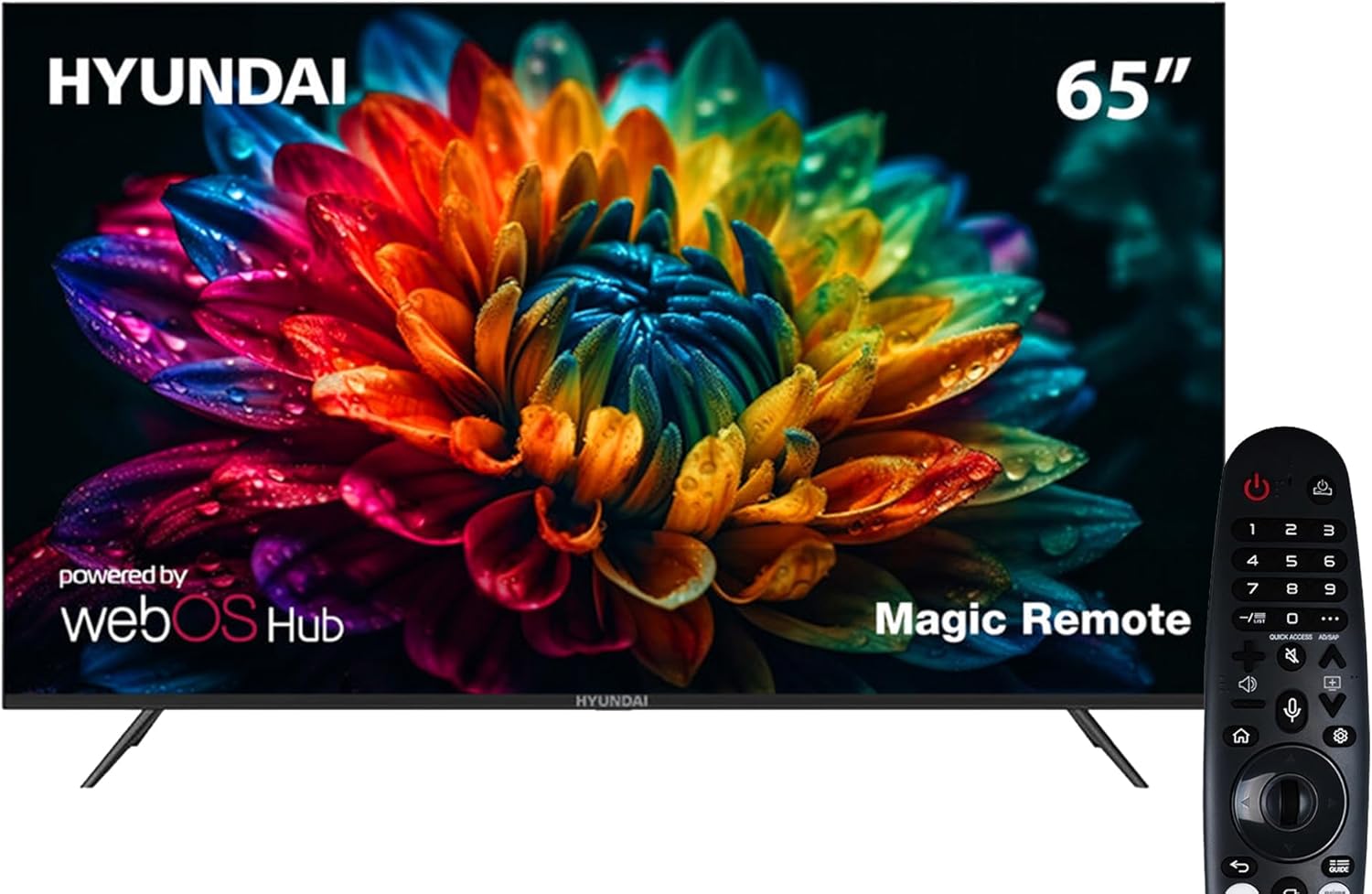
Whakaahua 1: Mua view of the Hyundai 65-Inch Smart LED TV with the included Magic Remote.
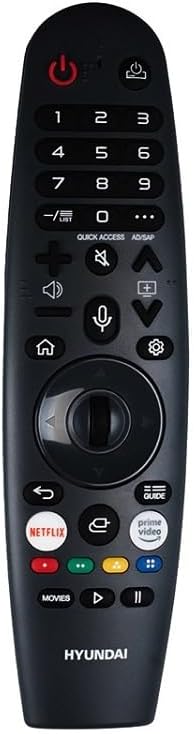
Image 2: The Hyundai Magic Remote Control, featuring dedicated buttons for smart functions and navigation.
5. Tatūnga
5.1 Te Wetewete
Carefully remove the TV from its packaging. It is recommended to have two people for this process due to the size and weight of the television.
5.2 Whakaturanga Tu
Hei whakauru i te turanga pouaka whakaata:
- Whakanohoia te mata pouaka whakaata ki runga i te mata ngawari, papatahi kia kore e pakaru.
- Tiarohia nga waahanga tu ki nga waahi kua tohua ki raro o te pouaka whakaata.
- Whakaorangia te turanga ma te whakamahi i nga wiri kua whakaratohia. Me whakarite kia mau te turanga i mua i te tuunga tika o te pouaka whakaata.
5.3 Hononga Pikitia
He maha ngā kōwhiringa hononga kei tō pouaka whakaata:
- Tauranga HDMI (x3): Honoa nga taputapu o-waho penei i nga kaitoro Blu-ray, nga papatohu petipeti, nga pouaka huinga-runga ranei.
- Tauranga USB (x2): Honoa nga taputapu rokiroki USB mo te purei pāpāho me nga whakahou rorohiko.
- Antenna/Tauru Taura: Connect your antenna or cable for the built-in T2/S2 receiver.
- Whatunga (LAN/Wi-Fi): Connect to your home network for internet access and smart features.
- Nihokikorangi: Tāruatia ki ngā taputapu oro hototahi, ki ngā taputapu tāpiri rānei.
5.4 Hiko Tuatahi
After connecting the power cable, press the power button on the TV or the Magic Remote. Follow the on-screen instructions for initial setup, including language selection (English, Arabic, French, German, Italian, Spanish, Dutch), network configuration, and channel scanning.
6. Mahi
6.1 Mana Mamao Magic
The Magic Remote allows intuitive control of your TV. Point and click, use the scroll wheel, or utilize voice commands for navigation. Specific buttons are available for quick access to popular streaming services and settings.
6.2 Nga Mahi TV Taketake
- Hiko Whakaka/Weto: Patohia te paatene hiko i te mamao.
- Mana Rōrahi: Whakamahia nga paatene Rōrahi/Whakararo.
- Tīpakonga Hongere: Whakamahia ngā pātene Hongere Runga/Raro, te papa tau rānei.
- Pūtake Tāuru: Press the 'Input' button to select between HDMI, USB, or TV tuner.
6.3 Ngā Āhuahira Ataata (webOS 2.0)
Ka rere to pouaka whakaata webOS 2.0, providing a user-friendly smart TV experience:
- Papatohu Kāinga: Access apps, connected devices, and settings from the customizable home screen.
- Toa Taupānga: Tikiake me te whakauru i etahi atu tono.
- E-share / Screen Mirroring: Wirelessly share content from compatible mobile devices to your TV.
- Hononga Nihokikorangi: Connect Bluetooth headphones, soundbars, or other accessories.
7. Tiaki
7.1 Te horoi i te pouaka whakaata
- Mata: Me ata horoia te mata ki te kakahu ngohengohe, kore-puru. Mo nga tohu pakeke, paku dampen te kakahu ki te wai ranei he horoi mata motuhake. Kaua e rehu tika te wai ki runga i te mata.
- Casing: Horoia te pouaka whakaata casing me te kakahu ngohengohe, maroke. A ape i te whakamahi i nga kai horoi me nga whakarewa.
7.2 Whakahōu Pūmanawa
Takitaki i ia wa mo nga whakahou rorohiko ma te tahua tautuhinga o te pouaka whakaata kia pai ai te mahi me te uru ki nga ahuatanga hou.
8. Te Raru
Mena ka raru koe, tirohia nga rongoa e whai ake nei:
| Raruraru | Rongoa pea |
|---|---|
| Karekau he kaha | Check if the power cable is securely connected and the power outlet is working. |
| Karekau he pikitia, engari he oro | Manatokohia kua tohua te puna whakauru tika. Tirohia nga hononga taputapu o waho. |
| Karekau he oro, engari he pikitia kei reira | Check volume level and mute settings. Ensure external audio devices are properly connected. |
| Ko te mana mamao kaore e mahi | Whakakapia ngā pākahiko. Kia kore he arai i waenganui i te mana mamao me te pouaka whakaata. Tāruatia anō te Mana Mamao Makutu mēnā e tika ana. |
| Kaore e taea te hono ki Wi-Fi | Check your router and internet connection. Re-enter Wi-Fi password. Try restarting the TV and router. |
| Smart apps not loading | Ensure a stable internet connection. Try restarting the app or the TV. Check for software updates. |
9. Whakatakotoranga
| Āhuahira | Taipitopito |
|---|---|
| Tau tauira | L65HYNDA650 |
| Rahi Mata | 65 Inihi |
| Hangarau Whakaatu | LED |
| Whakatau | 4K UHD (3840x2160) |
| Rere tāmata | 60Hz |
| Pūhara Maama | webOS 2.0 |
| RAM | 1.5GB |
| Rokiroki | 8GB |
| Hononga | 3 HDMI, 2 USB, Bluetooth, Wi-Fi, E-share |
| Kaiwhiwhi Hanga-i roto | T2/S2 |
| Putanga Ororongo | Ruarua 8W Kaikorero |
| Rahi Hua (D x W x H) | 8.4 x 147 x 84 cm |
| Taumaha Tūemi | 21 kg |
| Nga waahanga motuhake | Frameless Design, Magic Remote, UHD 4K |
| Tautoko Reo | English, Arabic, French, German, Italian, Spanish, Dutch |
10. Pūtāhui me te Tautoko
Your Hyundai TV is covered by a manufacturer's warranty. Please refer to the warranty card included with your product for specific terms and conditions. For technical support or service inquiries, please contact your retailer or the authorized Hyundai service center in your region.


