Kupu Whakataki
Transform your iPad into a versatile workstation with the Epico iPad Keyboard Case. This innovative accessory features a detachable keyboard with seven-colour backlighting, a multi-finger gesture touchpad, and comprehensive iPadOS shortcuts. Designed for both functionality and protection, it enhances your iPad experience for typing, watching, and browsing.

Image: The Epico iPad Keyboard Case with an iPad inserted, shown in a tilted typing position.
Ngā āhuatanga
- Papapātuhi Whakamuri: Seven distinct backlight colours with adjustable brightness levels for comfortable typing in any lighting condition.
- Touchpad Functionality: Multi-finger gesture touchpad provides precise control and enhanced navigation capabilities.
- Shortcut Integration: Comprehensive range of iPadOS shortcuts built into the keyboard for efficient device control and workflow optimisation.
- Hoahoa Whanui: Includes detachable keyboard and tilted backside stand for multiple viewing angles and usage modes.
- Otinga Mana: Equipped with Li-ion battery and USB-C charging capability, operating independently from iPad's power source.
Ihirangi mokete
- Epico iPad Keyboard Case
- USB-C ki te Waea Whakakona USB-C
- Pukapuka Kaiwhakamahi (tenei tuhinga)
Tatūnga
1. Te Whakataki i te Papapātuhi
Before first use, fully charge the keyboard. Connect the provided USB-C to USB-C charging cable to the keyboard's USB-C port and the other end to a compatible USB-C power adapter (not included).
Whakaahua: Taha view of the keyboard case, highlighting the USB-C charging port.
2. Te Whakauru i tō iPad
- Gently align your iPad with the case's frame.
- Press firmly but carefully to secure the iPad into the protective shell. Ensure all edges are properly seated.

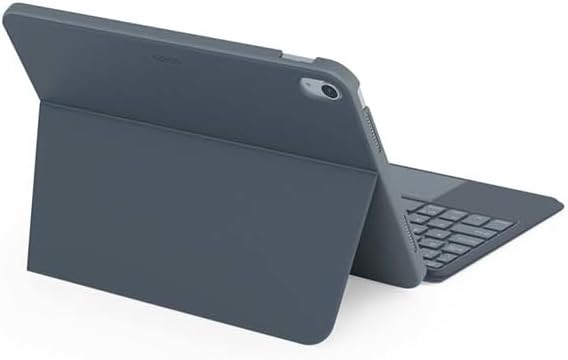
Whakaahua: Rear view of the Epico iPad Keyboard Case, demonstrating the secure fit of the iPad.
3. Te hono ki te iPad
- Turn on the keyboard by sliding the power switch (usually located on the side or back of the keyboard).
- I to iPad, haere ki Tautuhinga > Nihokikorangi.
- Enable Bluetooth. The keyboard should appear in the "Other Devices" list as "Epico Keyboard" or similar.
- Tap on the keyboard name to pair. Follow any on-screen prompts.
- Once paired, the keyboard's indicator light will change, and it will be ready for use.
Nga Tohutohu Whakahaere
Mahinga Papapātuhi
The keyboard functions like a standard QWERTY keyboard. Ensure the keyboard is paired with your iPad before typing.

Whakaahua: Mua view of the Epico iPad Keyboard Case, displaying the full keyboard layout and touchpad.
Mana Whakamuri
- Pehia te Pūrama key (often near the function keys) to cycle through backlight colours.
- Perehi Fn + Light Bulb key to adjust backlight brightness levels.
Nga Tohu Papapa
Ka tautokohia e te papa pa whakauru ngā nekehanga maha-maihao hei whakapai ake i te whakatere:
- Pao Maihao Kotahi: Pāwhiri-mauī.
- Paa Maihao Rua: Pāwhiri-matau (tahua horopaki).
- Panuku Maihao Rua: Panuku ki runga/ki raro, ki maui/matau rānei.
- Whakawiri ki te Topa: Topa roto/waho i runga i te ihirangi.
- Refer to iPadOS settings for additional gesture customization.
iPadOS Shortcuts
The keyboard includes dedicated function keys for common iPadOS shortcuts. These may vary slightly by iPadOS version, but typically include:
- Kāinga: Hoki ki te mata o te kainga.
- Rapu: Activate Spotlight search.
- Mana Tirohanga: Whakaritea te kanapa o te mata.
- Mana Media: Play/Pause, Previous/Next track.
- Mana Rōrahi: Whakaritea te rōrahi pūnaha.
- Matapihi Matapihi: Lock your iPad.
Te tiaki
Te horoi
- Use a soft, lint-free cloth to wipe the exterior of the case and keyboard.
- Mo nga tohu pakeke, paku dampen te kakahu ki te wai, ki te horoi ngawari, kore-abrasive ranei.
- Avoid getting moisture into the keyboard keys or ports.
- Kaua e whakamahi i nga matū kino, nga whakarewa, me nga mea awhiowhio.
Rokiroki
When not in use for extended periods, store the keyboard case in a cool, dry place. Ensure the keyboard is turned off to preserve battery life.
Raparongoā
- Karekau te papapātuhi e hono ana:
Ensure the keyboard is charged and turned on. Check iPad's Bluetooth settings to confirm it's enabled and the keyboard is paired. Try unpairing and re-pairing the keyboard.
- Kī kore whakautu:
Check battery level. Restart both the keyboard and your iPad. Ensure no debris is lodged under the keys.
- Ko te rama tuara e kore e mahi:
Ensure the keyboard is on and charged. Cycle through backlight settings using the dedicated key.
- Kāore te papapā e whakautu mai:
Ensure the touchpad is enabled (some keyboards have a function key to toggle it). Check iPadOS settings for touchpad functionality.
Whakatakotoranga
| Waitohu | Epic |
| Ingoa Tauira | Epico Keyboard Case |
| Pūrere Hototahi | Apple iPad |
| Hononga | Nihokikorangi |
| Whakamuri | 7-Colour, Adjustable Brightness |
| Papa paopao | Multi-finger Gesture Support |
| Tauranga Whakatau | USB-C |
| Puna Mana | Hanga-i roto i te Pūhiko Li-ion |
| Taumaha Tūemi | 15.9 hekere (tata ki te 450g) |
| Rahi Hua (LxWxH) | 9.94 x 7.24 x 0.48 inihi (tata ki te 25.25 x 18.39 x 1.22 cm) |
| Rauemi | Kirihou, Metal |
Pūtāhui me te Tautoko
This Epico product is covered by a manufacturer's warranty. Please refer to the warranty card included with your purchase or visit the official Epico webpae mo nga tikanga me nga tikanga whakamana.
For technical support, troubleshooting assistance, or inquiries about your product, please contact Epico customer service through their official webte waahi, nga korero whakapā ranei e whakaratohia ana i runga i to riiri hoko.


