Introduction to Your Google Pixel 9a
This manual provides detailed, step-by-step instructions to help you navigate your new Google Pixel 9a smartphone with ease. Designed for both first-time Pixel users and those upgrading from a previous model, this guide covers essential functions, customization options, and troubleshooting tips to ensure the best user experience.
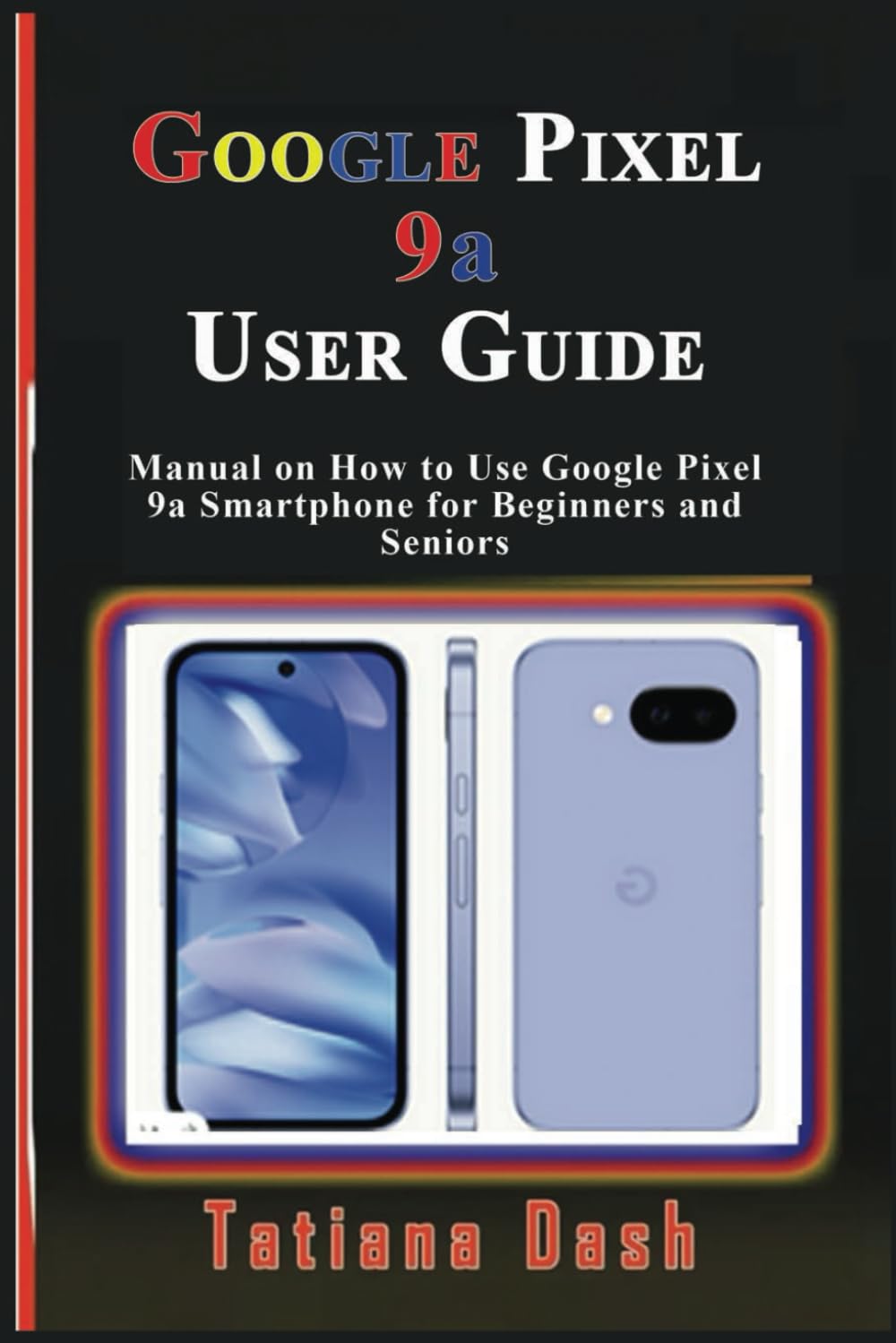
Image: Front cover of the Google Pixel 9a User Guide. This image displays the title and author of the manual.
1. Tatūnga Pūrere
Begin your Pixel 9a experience by setting up your device and configuring your network settings.
1.1 Whirihoranga Pūrere Tuatahi
- Whakahiko: Pēhia te pātene mana, me te pupuri tonu kia puta rā anō te tohu Google.
- Tīpakonga Reo: Kōwhiria tō reo pai mai i te rārangi.
- Tūhono ki Wi-Fi: Select an available Wi-Fi network and enter the password if required.
- Tārua Taupānga me te Raraunga: Follow the on-screen prompts to transfer data from an old device or set up as new.
- Waitohu Pūkete Google: Whakauruhia o tohu kaute a Google, hangahia ranei he putea hou.
1.2 eSIM or SIM Card Settings
- Physical SIM: Insert your nano-SIM card into the SIM tray using the provided SIM ejector tool.
- Whakahohe eSIM: Whakatere ki Ngā Tautuhinga > Whatunga me te Ipurangi > Ngā SIM ā, whai i ngā tohutohu hei tāpiri i tētahi eSIM profile.
2. Te whakahaere i to Pika 9a
Familiarize yourself with the core functionalities and interface of your smartphone.
2.1 Mastering the Interface
- Mata Kāinga: Learn to navigate between home screens, add widgets, and organize apps.
- Navigation Gestures: Understand swipe gestures for home, back, and recent apps.
- Tautuhinga Tere: Swipe down from the top of the screen to access essential settings like Wi-Fi, Bluetooth, and flashlight.
- Whakamōhiotanga: Manage and respond to notifications from the notification shade.
2.2 Kōwhiringa Whakaritenga
- pepapātū: Change your home and lock screen wallpapers via Settings > Wallpaper & style. Explore AI wallpapers for unique designs.
- Kaupapa: Apply different themes to alter the overall look and feel of your device.
- Ngā widget: Add widgets to your home screen for quick access to information and functions.
- Tautuhinga Whakaatu: Adjust brightness, dark theme, night light, and screen timeout in Tautuhinga > Whakaatu.
2.3 Calls, Messages, & Contacts
- Waeatanga: Whakamahia te taupānga Waea ki te waea tau, ki te kowhiri i nga hoapā.
- Tatūnga Meera-reo: Configure your voicemail service through your carrier's instructions.
- Google Messages: Send and receive text messages, including RCS chats, using the Messages app.
- Whakahaere Hoapā: Add, edit, and organize contacts in the Contacts app. Sync contacts with your Google Account for backup.
2.4 Connectivity Essentials
- Wi-Fi: Tūhono ki ngā whatunga ahokore mā Tautuhinga> Whatunga me te ipurangi> Ipurangi.
- Raraunga Pukoro: Enable or disable mobile data and manage data usage in Ngā Tautuhinga > Whatunga me te Ipurangi > Ngā SIM.
- Nihokikorangi: Pair with Bluetooth devices like headphones or speakers via Tautuhinga > Nga taputapu hono.
- Tiri Tata: Tiri files quickly with nearby Android devices.
- Wāhi Wera Whaiaro: Turn your Pixel 9a into a Wi-Fi hotspot to share your mobile data connection.
- USB & Bluetooth Tethering: Share your internet connection with other devices via USB cable or Bluetooth.
2.5 Google Camera & Photos
- Hopu Whakaahua: Open the Camera app and tap the shutter button.
- Ngā Aratau Kāmera: Explore various modes such as Portrait, Night Sight, Panorama, and Video.
- Whakaahua a Google: Automatically back up your photos and videos to Google Photos for secure storage and easy access across devices.
3. Battery & Performance Optimization
Optimize your device's battery life and overall performance.
- Tiaki Pūhiko: Whakahohehia te aratau Tiaki Pūhiko ki roto Tautuhinga > Pūhiko > Kaitiaki Pūhiko to extend battery life by limiting background activity.
- Pūhiko urutau: This feature learns your usage patterns to prioritize power for apps you use most.
- Whakahaere Rokiroki: Regularly check and free up storage space via Tautuhinga > Rokiroki kia mau tonu te mahi tino pai.
- Te Ora Mamati: Use Digital Wellbeing features to monitor and manage your screen time and app usage.
4. Privacy & Security
Protect your personal information and secure your device.
- Kimihia Taku Pūrere: Set up Find My Device to locate, lock, or erase your phone remotely if it's lost or stolen.
- Tirotiro Haumaru: Ensure Safe Browsing is enabled in your browser settings to protect against malicious webpae.
- Whakaaetanga Taupānga: Review and manage app permissions in Tautuhinga > Taupānga > Tirohia ngā taupānga katoa > [Ingoa Taupānga] > Ngā Whakaaetanga.
- Papatohu Tūmataitinga: Access the Privacy Dashboard to see which apps have accessed your location, camera, or microphone recently.
5. Troubleshooting & Updates
Solutions for common issues and information on software updates.
5.1 Ngā Take me ngā Otinga Noa
- Tukinga Taupānga: Clear app cache/data or reinstall the app.
- Raruraru Hononga: Toggle Wi-Fi/Bluetooth off and on, restart your device, or reset network settings.
- Pūrere kore aro: Perform a soft reset by holding the power button for about 30 seconds.
5.2 Tautuhi Pūrere
- Tautuhi Tautuhi ngawari: Simply restart your phone.
- Hard Reset (Factory Data Reset): Haere ki Tautuhinga> Pūnaha> Tautuhi Tautuhi kōwhiringa> Mukua nga raraunga katoa (tautuhi wheketere). Warning: This will erase all data on your device. Back up important information first.
5.3 Whakahōu Pūmanawa
Your Pixel 9a will receive regular software updates to improve performance, add new features, and enhance security. Check for updates in Tautuhinga> Pūnaha> Whakahou Pūnaha.
6. Tips, Tricks & Hidden Features
Discover advanced functionalities to enhance your Pixel 9a experience.
- Pato Tere: Assign custom actions to a double-tap on the back of your phone.
- Ngā mahinga: Automate tasks based on specific conditions (e.g., turn on Wi-Fi when you arrive home).
- Hidden Pixel 9a Features: Explore unique Pixel-exclusive features for photography, AI, and more.
- Comparison to Pixel 8a: Understand the key improvements and differences if you are upgrading from a Pixel 8a.

Image: Back cover of the Google Pixel 9a User Guide. This image shows the ISBN barcode and publishing details.
ISBN-13: 979-8315618027
7. Whakatakotoranga
Key technical specifications for the Google Pixel 9a User Guide (Paperback).
| Āhuahira | Taipitopito |
|---|---|
| ASIN | B0F2MZQW46 |
| Kaiwhakaputa | I whakaputa motuhake |
| Te ra whakaputanga | Maehe 26, 2025 |
| Reo | Ingarihi |
| Te roa o te tuhi | 60 wharangi |
| ISBN-13 | 979-8315618027 |
| Taumaha Tūemi | 5 hekere |
| Ahu | 6 x 0.14 x 9 inihi |
8. Whakaputanga me nga korero tautoko
Information regarding product warranty and customer support is not available in the provided data for this user manual. Please refer to the official Google Pixel 9a documentation or Google's support website for warranty details and assistance.


