1. Kupu Whakataki
The CENMATE 4-Bay Hard Drive Enclosure (Model 804PM6G) provides a reliable external storage solution for both 2.5-inch and 3.5-inch SATA HDDs and SSDs. This enclosure supports a maximum capacity of 80TB (20TB per drive bay) and offers high-speed data transfer via USB 3.0 and eSATA interfaces. Designed for ease of use, it features tool-less installation for 3.5-inch drives and wide compatibility with Windows, Mac OS, and Linux operating systems. Please note that this model does not support RAID configurations.

Whakaahua 1.1: Mua view of the CENMATE 4-Bay Hard Drive Enclosure, showcasing the four drive bays with blue LED indicators.
2. Ihirangi mokete
Tirohia koa ko nga mea katoa kei raro nei kei roto i to kete:
- 1 x CENMATE 4-Bay Hard Drive Enclosure
- 1 x USB 3.0 Cable (USB-A to USB-B)
- 1 x USB-C Cable (USB-C to USB-B)
- 1 x Taura eSATA
- 1 x Pūurutau Mana (DC 12V)
- 1 x Screws and Screw Driver (for 2.5-inch drives)
- 1 x Manual Kaiwhakamahi (tenei tuhinga)
3. Nga Hua o te Hua
- 4-Bay Design: Supports up to four 2.5-inch or 3.5-inch SATA I/II/III HDDs/SSDs.
- Raukaha Teitei: Total storage capacity up to 80TB (20TB per drive bay).
- Hononga Tere-Teitei: USB 3.0 (up to 5Gbps) and eSATA interfaces for fast data transfer.
- Tautoko Huri-Hoa: Allows drives to be added or removed without powering down the enclosure.
- Hototahi Whānui: Compatible with Windows 7 and above, Mac OS 9.1 and above, and Linux.
- Te whakamahana pai: Built-in fan and aluminum-alloy housing for optimal heat dissipation.
- Pupuri Hiko Mana: Includes a DC 12V power adapter for reliable operation.
- Tool-less Installation: Easy installation for 3.5-inch hard drives.

Image 3.1: Diagram illustrating the 80TB maximum capacity of the enclosure, supporting 2.5-inch and 3.5-inch SATA HDD/SSD.

Image 3.2: Visual representation of the enclosure's 5Gbps data transfer speed via USB 3.0, connected to a desktop setup.
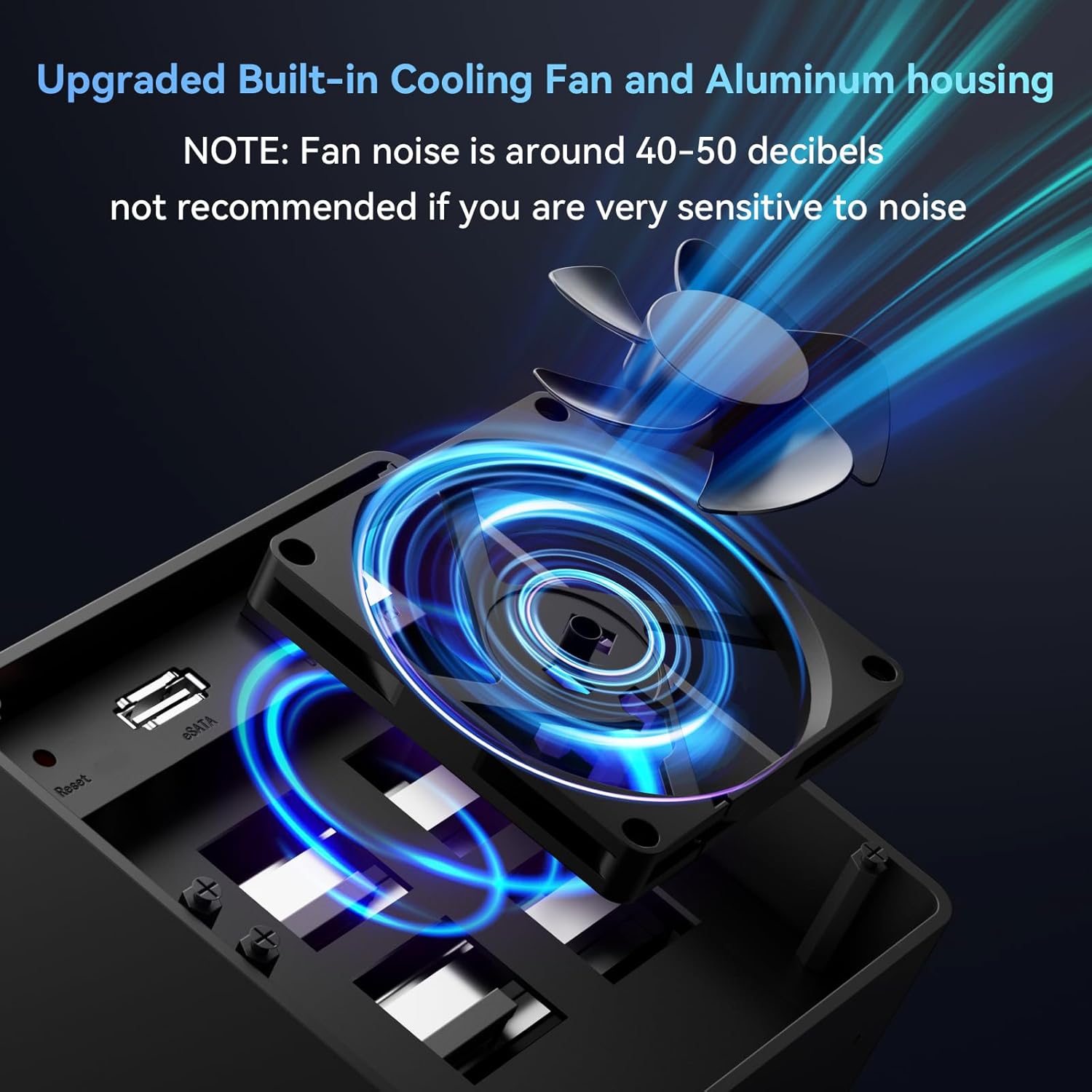
Atahanga 3.3: Whakatata view of the enclosure's built-in cooling fan and aluminum housing, designed for heat dissipation. Note: Fan noise is approximately 40-50 decibels.
4. Whakatakotoranga
| Tauira | 804PM6G |
| Rauemi | Konumohe, Kirihou |
| Atanga o waho | USB 3.0 (USB-A/C), eSATA |
| Tere Whakawhiti Max | 5Gbps (USB 3.0) |
| Pūrere Tautokona | Pūrere Puku Matapihi/SSD SATA 2.5-inihi / 3.5-inihi |
| Te Kaha Rawa | 80TB (20TB per drive) |
| Tautoko OS | Windows 7 and above, Mac OS 9.1 and above, Linux |
| Huri-Hoa | Tautokohia |
| Tuku Hiko | DC 12V Pūurutau Hiko |
| Hunga Hua | 20.2 x 13.2 x 14.6 cm |
| Taumaha Tūemi | 1.37 kg |
5. Tatūnga
5.1 Tāuta Puku Mārō
- Whakapaia te Whakapiri: Me whakarite kua whakawetohia te hiko o te pouaka, ā, kua momotu hoki mai i tō rorohiko.
- Open a Drive Bay: Gently press the release button or lever on the front of a drive bay to open it.
- Tāutahia he puku mārō 3.5-inihi: For 3.5-inch drives, slide the drive into the bay until it clicks into place. The enclosure supports tool-less installation for these drives.
- Install 2.5-inch HDD/SSD: For 2.5-inch drives, secure the drive to the provided drive tray using the included screws and screwdriver. Then, slide the tray with the drive into the bay until it clicks.
- Close the Bay: Close the drive bay door securely.
- Tukurua: Repeat the process for any additional drives you wish to install.

Image 5.1: Illustration of the screwless installation feature for 3.5-inch drives and the non-slip feet on the enclosure's base.
5.2 Connecting the Enclosure to Your Computer
- Honoa te Taura Raraunga:
- USB 3.0: Connect one end of the USB 3.0 cable (USB-A or USB-C) to the corresponding port on the enclosure and the other end to an available USB 3.0 port on your computer.
- eSATA: Alternatively, connect one end of the eSATA cable to the eSATA port on the enclosure and the other end to an available eSATA port on your computer.
- Tūhono Pūurutau Hiko: Connect the DC 12V power adapter to the power input port on the enclosure, then plug the adapter into a power outlet.

Image 5.2: The enclosure connected to a laptop, highlighting the DC 12V power supply connection for stable operation.
5.3 Te Whakakaha
Press the power button on the back of the enclosure. The LED indicators on the front panel will illuminate, indicating that the drives are powered on and ready for use. Your operating system should detect the new drives automatically.
If the drives are new or unformatted, you may need to initialize and format them through your operating system's disk management utility before they can be used.
6. Mahi
6.1 Ngā Puku Whakawhiti-wera
The CENMATE 4-Bay Enclosure supports hot-swapping. This feature allows you to remove or insert drives while the enclosure is powered on and connected to your computer, without needing to shut down the system. Ensure that no data transfer is actively occurring to or from the drive you intend to remove to prevent data loss.
6.2 Whakawhiti Raraunga
Utilize the USB 3.0 or eSATA connection for optimal data transfer speeds. USB 3.0 offers speeds up to 5Gbps, significantly faster than USB 2.0. The actual transfer speed may vary depending on your computer's hardware, operating system, and the performance of the installed hard drives.
6.3 Hototahi
The enclosure is compatible with a wide range of operating systems and devices:
- Pūnaha Whakahaere: Windows 7 me runga ake, Mac OS 9.1 me runga ake, Linux.
- Pūrere: Desktop computers, Laptops.

Image 6.1: Diagram illustrating the plug-and-play functionality and wide compatibility with laptops, PCs, and operating systems including Windows, Mac OS, and Linux.
7. Tiaki
7.1 Te horoi
To maintain optimal performance and longevity, regularly clean the exterior of the enclosure with a soft, dry cloth. Avoid using liquid cleaners or solvents, as they may damage the finish or internal components. Ensure the fan vents are free from dust accumulation to prevent overheating.
7.2 Mahi Fan
The built-in fan helps dissipate heat from the hard drives. While the fan is designed for efficient cooling, it produces a noise level of approximately 40-50 decibels. If you are sensitive to noise, consider the placement of the enclosure. Ensure the fan is not obstructed to allow for proper airflow.
8. Te Raru
- Enclosure not detected by computer:
- Me whakarite kei te hono tika te urutau hiko, ā, kei te whakakā te pouaka.
- Verify that the USB or eSATA data cable is firmly connected to both the enclosure and the computer.
- Try connecting to a different USB or eSATA port on your computer.
- Test with a different data cable if available.
- Hard drives not appearing in "My Computer" or "Finder":
- For new drives, they may need to be initialized and formatted. Access Disk Management (Windows) or Disk Utility (Mac OS) to prepare the drives.
- Me whakarite kei te tika te nohoanga o ngā puku i roto i ō rātou kokoru.
- Check the drive's health by connecting it directly to a computer if possible.
- Nga tere whakawhiti raraunga puhoi:
- Me whakarite kei te whakamahi koe i te tauranga USB 3.0 i tō rorohiko me te taura USB 3.0 kua whakaratohia.
- Verify that your computer's drivers for USB 3.0 or eSATA are up to date.
- The performance of the installed hard drives can affect transfer speeds.
- Enclosure overheating:
- Me whakarite kia whakanohoia te kete ki tētahi wāhi e pai ana te hau.
- Check that the fan vents are not obstructed by dust or other objects.
9. Pūtāhui me te Tautoko
CENMATE provides technical support for this product. If you encounter any issues or have questions regarding the CENMATE 4-Bay Hard Drive Enclosure, please do not hesitate to contact our customer support team. We aim to reply and resolve your problem within 24 hours.
For support, please refer to the contact information provided on the CENMATE official webpae, to tuhinga hoko ranei.


