1. Kupu Whakataki
This manual provides detailed instructions for the installation, configuration, and operation of the Intelbras iNVD 5232 32-Channel IP Digital Video Recorder. Please read this manual thoroughly before using the device to ensure proper functionality and to prevent damage.
The Intelbras iNVD 5232 is designed for professional surveillance applications, offering advanced features for recording, monitoring, and managing IP camera feeds.
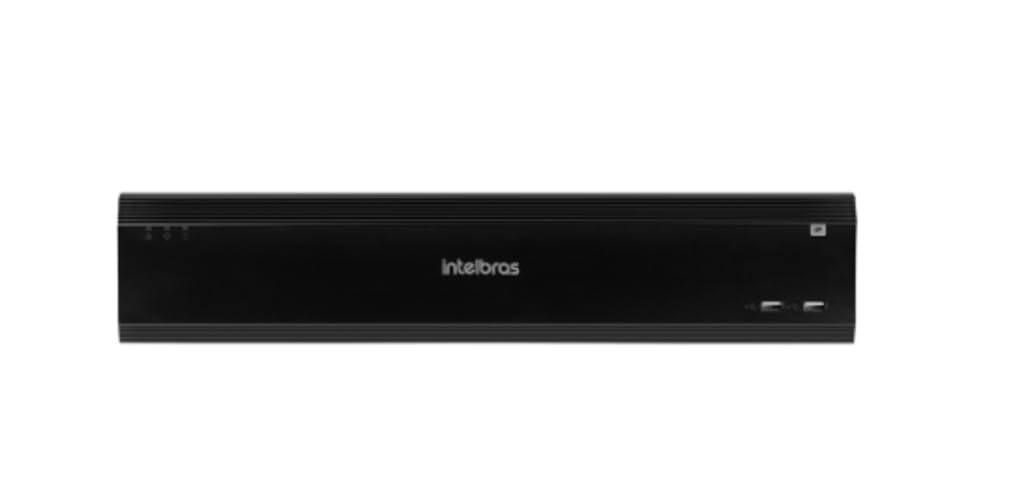
Figure 1: Intelbras iNVD 5232 Digital Video Recorder. This image shows the front panel of the iNVD 5232 unit, featuring a sleek black design with the Intelbras logo and USB ports.
2. Nga korero haumaru
Kia mau ki nga whakaritenga haumaru e whai ake nei hei aukati i te whara me te kino o te taputapu:
- Whakaritehia te voltage tutuki ana i ngā whakaritenga a te pūrere.
- Kaua e tukuna te taputapu ki te makuku, ki te ua, ki te wera nui ranei.
- A ape i te whakanoho i te taputapu ki te ra tika, ki te tata ranei ki nga puna wera.
- Kaua e whakatuwheratia te taputapu casing. Tukuna atu nga ratonga katoa ki nga kaimahi whai tohu.
- Whakamahia anake nga taputapu kua tohua e te kaihanga.
- Properly ground the device to prevent electrical shock.
3. Ihirangi mokete
Manatokona kei roto katoa nga mea kei roto i te kete:
- Intelbras iNVD 5232 Digital Video Recorder Unit
- Pūurutau Hiko
- Kiore USB
- Ngā tīwiri mō te Tāutanga HDD
- Aratohu Timata Tere
- CD-ROM (kei roto ngā pūmanawa me te pukapuka ā-ringa katoa)
4. Hua Neke Atuview
4.1 Paewhiri Mua
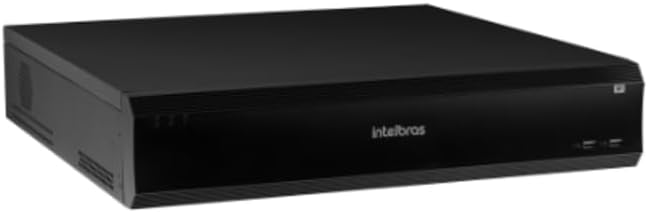
Figure 2: Front Panel of the iNVD 5232. This image displays the front of the DVR, showing LED indicators for power and status, along with two USB ports for peripheral connections.
- Arahina hiko: Ka tohu i te mana mana.
- LED Tūnga: Ka tohu i te mana whakahaere o te punaha.
- Tauranga USB: Hei hono i te kiore, te puku USB, ētahi atu taputapu rānei.
4.2 Paewhiri Whakamuri

Figure 3: Rear Panel of the iNVD 5232. This image details the rear connections, including power input, network ports, video outputs (HDMI, VGA), audio inputs/outputs, and alarm terminals.
- Whakauru Hiko: Tūhonohia te pūurutau hiko kua whakaratohia.
- Huaputa HDMI: Connect to an HDMI-compatible monitor.
- Putanga VGA: Connect to a VGA-compatible monitor.
- Hononga LAN: Connect to your network for IP camera communication and remote access.
- Ororongo ki roto/waho: Mo te hono i nga taputapu oro o waho.
- Alarm In/Out: For connecting external alarm sensors and actuators.
- Tauranga USB: Ngā tauranga USB tāpiri mō ngā taputapu taapiri.
5. Tatūnga
5.1 Tāuta Pūmārō
- Tāutahia te Puku Mārō (mēnā kāore anō kia tāutahia i mua): Whakatuwheratia te DVR casing, mount the hard drive using the provided screws, and connect the SATA power and data cables.
- Tūhono Aroturuki: Honoa he mata ki te tauranga putanga HDMI, VGA rānei.
- Honoa te Kiore: Plug the USB mouse into one of the USB ports.
- Hono Whatunga: Connect an Ethernet cable from the LAN port to your network router or switch.
- Hono Hono: Plug the power adapter into the DVR's power input and then into a power outlet. The device will power on automatically.
5.2 Whirihoranga Tuatahi
Upon first boot, the system will guide you through an initial setup wizard:
- Tīpakonga Reo: Whiriwhiria to reo pai.
- Tatūnga Kupuhipa: Create a strong administrator password.
- Tautuhinga Whatunga: Configure IP address, subnet mask, gateway, and DNS. DHCP is usually enabled by default.
- Rā me te Wā: Tautuhia te rā, te wā, me te rohe wā tika.
- Whakatīmatatanga o te HDD: Whakahōputuhia te puku mārō kua tāutahia mō te tuhi.
- IP Camera Search and Add: The system will scan for available IP cameras on the network. Select and add your cameras.
6. Mahi
6.1 Ora View
After initial setup, the system will display the live view o ngā kāmera hono. Ka taea e koe te whakawhiti i waenga i te kāmera kotahi view, multi-camera grids, and sequence views using the on-screen controls or mouse.
6.2 Whakahaere Rekoata
- Hōtaka Hopu: Configure continuous, motion-detection, or alarm-triggered recording schedules for each camera.
- Te tuhi ā-ringa: Initiate recording manually from the live view atanga.
- Purei: Uru rekoata footage by date, time, and event type. Use the playback controls to navigate through recordings.
- Pūrua: Export recorded video clips to a USB drive or network storage.
6.3 Uru Mamao
The iNVD 5232 supports remote access via a web browser or dedicated mobile application. Ensure your network is configured for remote access (e.g., port forwarding or P2P cloud service activation).
- Web Pūtirotiro: Enter the DVR's IP address into a web pūtirotiro i runga i te rorohiko e hono ana ki te whatunga kotahi.
- Taupānga Pūkoro: Download the official Intelbras surveillance app from your device's app store. Scan the QR code on the DVR (if available) or manually enter the device ID for connection.
7. Tiaki
7.1 Te horoi
Regularly clean the exterior of the DVR with a soft, dry cloth. Do not use liquid cleaners or aerosols. Ensure ventilation openings are free from dust and obstructions.
7.2 Whakahoutanga Firmware
Periodically check the Intelbras website for firmware updates. Firmware updates can provide new features, performance improvements, and security enhancements. Follow the instructions provided with the firmware update package carefully.
7.3 Whakahaere Puku Maama
Monitor the health of your hard drives through the system's HDD management menu. Replace failing drives promptly to avoid data loss. Configure automatic overwriting of old footage ki te whakarite kia mau tonu te tuhi.
8. Te Raru
| Raruraru | Take pea | Rongoā |
|---|---|---|
| Karekau he kaha | Power cable disconnected; faulty power adapter; power outlet issue. | Check power connections; test power adapter; try a different outlet. |
| Kaore he putanga ataata | Monitor off/disconnected; incorrect video output settings; faulty cable. | Ensure monitor is on and connected; check video cable; try a different output port or cable. |
| Cannot connect IP cameras | Network issue; incorrect camera IP address/credentials; camera not powered. | Verify network connectivity; ensure cameras are powered and configured correctly; check camera credentials. |
| Kaore he rekoata | HDD not initialized/full; recording schedule not set; camera disconnected. | Initialize HDD; check recording schedule; verify camera connection and status. |
9. Whakatakotoranga
| Āhuahira | Whakaahuatanga |
|---|---|
| Tauira | iNVD 5232 |
| Whakauru Ataata | 32 Waerenga IP |
| Putanga Ataata | 1 HDMI, 1 VGA |
| Ororongo Whakauru/Putanga | Specific ports (e.g., RCA) |
| Whakatau Rekoata | Up to 8MP (depending on camera) |
| Playback Capability | Multi-channel synchronous playback |
| Rokiroki | Multiple SATA HDD bays (HDDs not included) |
| Atanga Matapihi | Tauranga Ethernet Gigabit |
| Atanga USB | Tauranga USB 2.0/3.0 |
| Tuku Hiko | DC 12V (adapter included) |
| Te Waahi Mahi | 0°C ki te 50°C (32°F ki te 122°F) |
10. Pūtāhui me te Tautoko
For warranty information, please refer to the warranty card included with your product or visit the official Intelbras website. Technical support is available through Intelbras authorized service centers and online resources.
Intelbras Official Webpae: www.intelbras.com.br
Tena koa kia reri to tauira hua me to nama rangatū ina whakapā atu ki te tautoko.


