1. Kupu Whakataki
The Rapoo MT560L is a versatile wireless mouse designed for enhanced productivity across multiple devices. It features multi-mode connectivity, a high-resolution optical sensor, an ergonomic design, and a long-lasting rechargeable battery. This manual provides detailed instructions for setting up, operating, and maintaining your MT560L mouse to ensure optimal performance.
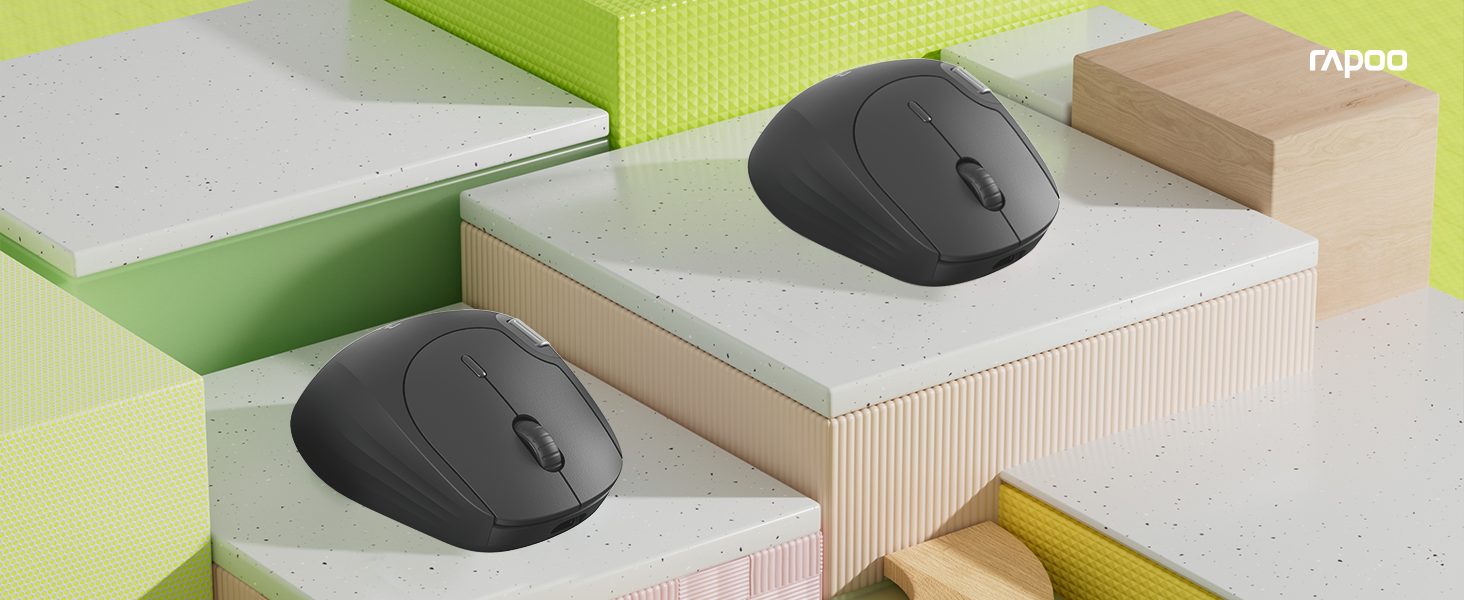
Image 1.1: The Rapoo MT560L Multi-mode Wireless Mouse, showcasing its full functionality and design.
2. Tatūnga
2.1 Te Wetewete
Inside the product packaging, you will find the following items:
- Rapoo MT560L Wireless Mouse
- Kaiwhiwhi USB
2.2 Te Whakataki i te Kiore
The MT560L mouse is equipped with an 800mAh rechargeable battery. Before initial use, it is recommended to fully charge the mouse.
- Connect the mouse to a power source (e.g., computer USB port, USB wall adapter) using a USB Type-C cable.
- Ka marama te rama tohu utu.
- A full charge typically takes approximately 3 hours and can provide up to 90 days of use, depending on usage patterns.

Image 2.1: The Rapoo MT560L mouse illustrating its Type-C fast charging capability and long battery life.
2.3 Kōwhiringa Hononga
The MT560L supports multi-mode connectivity, allowing you to connect via Bluetooth 3.0, Bluetooth 4.0, or 2.4 GHz wireless using the included USB receiver.

Image 2.2: Visual representation of the MT560L's triple-mode connectivity options: Bluetooth, 2.4GHz wireless, and wired USB (though wired is not explicitly mentioned in features, the image implies it).
2.4 Connecting via 2.4 GHz Wireless
- Locate the USB receiver included with your mouse.
- Whakauruhia te kaiwhiwhi USB ki tetahi tauranga USB e waatea ana ki to rorohiko.
- Ensure the mouse is powered on and the connection mode is set to 2.4 GHz (refer to the switch or button on the mouse for mode selection).
- Me hono aunoa te kiore ki to rorohiko.
2.5 Te hono ma te Nihokikorangi
The MT560L can connect to up to three Bluetooth devices.
- Turn on the mouse and switch its connection mode to one of the Bluetooth channels (BT1, BT2, or BT3).
- On your device (PC, Mac, smartphone, tablet), navigate to the Bluetooth settings.
- Rapua new devices and select "Rapoo MT560L" from the list of available devices to initiate pairing.
- A pee i nga tohu o runga-mata hei whakaoti i te tukanga takirua.
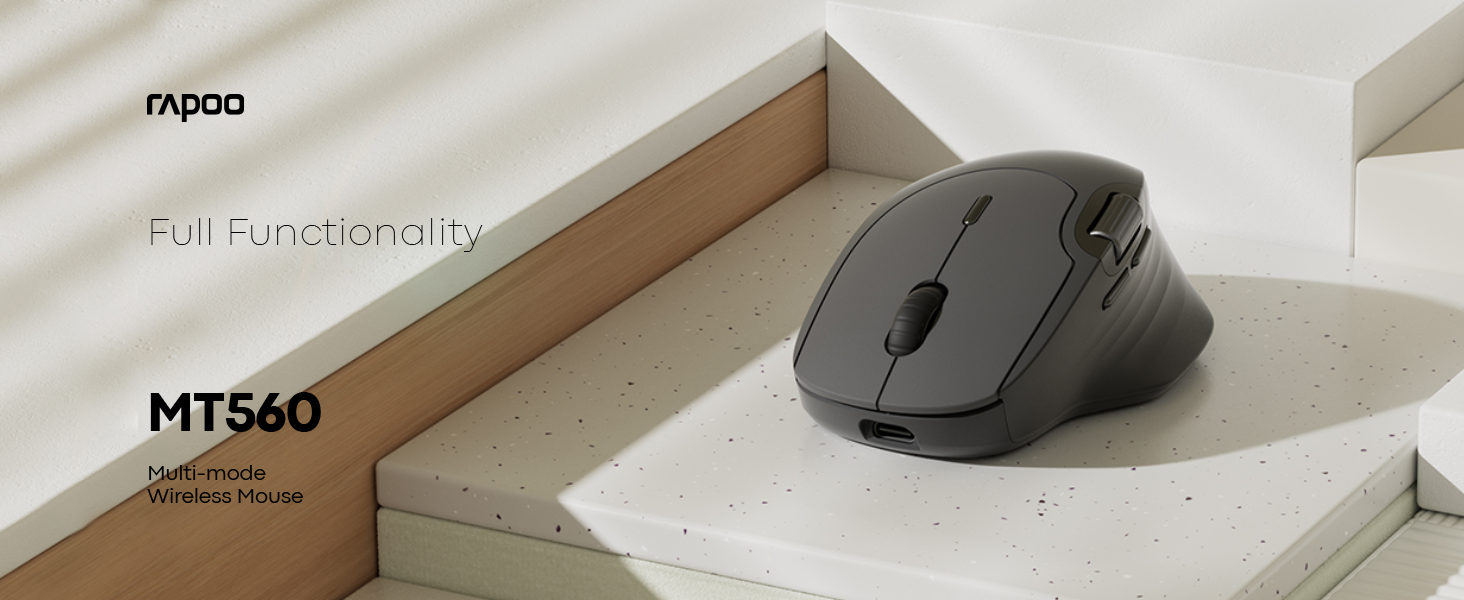
Image 2.3: The MT560L mouse demonstrating its ability to connect and switch between multiple devices seamlessly.
3. Te Mahi i te Kiore
3.1 Ngā Mahi Taketake o te Kiore
- Pāwhiri Mauī: Used for primary selection, opening items, and activating functions.
- Pāwhiri Matau: Accesses contextual menus and secondary functions.
- Panuku Wira: Panuku poutū ki roto i nga tuhinga me te web wharangi.
3.2 Whakatikatika DPI
The MT560L features a 7-level adjustable optical sensor, allowing you to change the cursor sensitivity from 800 to 4000 DPI (Dots Per Inch).
- Locate the DPI button, typically positioned near the scroll wheel.
- Press the DPI button to cycle through the available sensitivity settings.
- Select a DPI setting that suits your task, whether for precise graphic design work or fast-paced navigation.

Image 3.1: The MT560L's 7-level DPI adjustment feature, enabling precise control from 800 to 4000 DPI.
3.3 Whakawhiti Purere-maha
The MT560L allows seamless switching between up to four connected devices (one 2.4 GHz wireless and three Bluetooth devices).
- Use the dedicated device switch button (usually located on the top or bottom of the mouse) to cycle through your paired devices.
- The mouse will connect to the selected device almost instantly.
3.4 Customizable Buttons and Onboard Memory
The mouse features 10 customizable buttons. Functions can be assigned to these buttons and saved directly to the mouse's onboard memory. This allows your personalized settings to be retained and used across different computers without requiring software reinstallation.

Image 3.2: The MT560L mouse highlighting its onboard memory for saving custom button assignments across multiple devices.
3.5 Hall Magnetic Side Scroll Wheel
The MT560L includes a Hall Magnetic Side Scroll Wheel, which provides ultra-smooth and precise horizontal scrolling. This feature is particularly useful for navigating wide documents, spreadsheets, or timelines efficiently.

Whakaahua 3.3: He tata view of the Hall Magnetic Side Scroll Wheel on the Rapoo MT560L, designed for smooth horizontal scrolling.
3.6 Optical Sensor Performance
Equipped with a PAW3220 optical sensor, the MT560L delivers precise and reliable tracking on almost any surface, ensuring consistent performance in various environments.

Image 3.4: The underside of the Rapoo MT560L, highlighting its PAW3220 optical sensor for precise tracking.
3.7 Hoahoa Ergonomic
The MT560L features an ergonomic design tailored for right-handed users, with an arch-back shape and thumb support. This design promotes comfortable use during extended periods, reducing strain and fatigue.

Image 3.5: An illustration of the ergonomic design of the Rapoo MT560L, showing how it comfortably fits the hand.
4. Tiaki
4.1 Te horoi
- To clean the mouse, gently wipe its surface with a soft, slightly damp kakahu.
- A ape i te whakamahi i nga matū kino, te horoi horoi, te makuku nui ranei, na te mea ka kino te kiore.
- Periodically clean the optical sensor area on the underside of the mouse with a dry cotton swab to ensure optimal tracking performance.
4.2 Tiaki Pūhiko
- To prolong the lifespan of the integrated rechargeable battery, avoid fully discharging the mouse frequently.
- Charge the mouse when the battery indicator suggests low power.
- Penapenahia te kiore ki te wāhi hauhautanga, maroke hoki ina kore e whakamahia mō te wā roa.
5. Te Raru
5.1 Kaore te Kiore e Whakautu
- Me mohio kei te kaha te kiore.
- Check if the battery is charged. Connect the mouse to a power source to charge if needed.
- Verify that the correct connection mode (2.4 GHz or Bluetooth) is selected on the mouse.
- For 2.4 GHz wireless: Ensure the USB receiver is securely plugged into a working USB port on your computer. Try a different USB port.
- For Bluetooth: Ensure Bluetooth is enabled on your device and the mouse is correctly paired. If necessary, remove the mouse from your device's Bluetooth list and re-pair it.
5.2 Te Nekehanga o te Pehu Pēpeke
- Clean the optical sensor on the underside of the mouse to remove any dust or debris.
- Try using the mouse on a different surface. While the PAW3220 sensor is versatile, certain highly reflective or uneven surfaces may affect tracking.
- Adjust the DPI setting to a lower value if the cursor is too sensitive or jumps excessively.
5.3 Scroll Wheel Issues
- If the scroll wheel is not functioning smoothly or is jumping, ensure it is free from any debris.
- If the issue persists after cleaning, it may indicate a hardware issue.
5.4 Connectivity Drops
- Ensure the mouse is within the optimal operating range (up to 10 meters / 360° coverage) of your connected device.
- Minimize potential interference from other wireless devices operating on similar frequencies.
6. Whakatakotoranga
| Āhuahira | Taipitopito |
|---|---|
| Waitohu | Rapoo |
| Tauira | MT560L |
| Hononga | Bluetooth 3.0, Bluetooth 4.0, 2.4 GHz Wireless (USB Receiver) |
| Momo Pūoko | Whatu (PAW3220) |
| DPI | Ka taea te whakarite 800-4000 DPI (7 taumata) |
| Pūhiko | 800mAh Pūhiko Lithium Rechargeable |
| Ora Pūhiko | Tae atu ki te 90 ngā rā (mēnā ka utua katoatia) |
| Tauranga Whakatau | USB Momo-C |
| Waa Whakatau | Approx. 3 haora mo te utu katoa |
| Takotoranga-ringa | ringa-matau |
| Taumaha | 82 g |
| Nga waahanga motuhake | Ergonomic Design, Multi-Device Switching, 10 Customizable Buttons, Onboard Memory, Hall Magnetic Side Scroll Wheel |
| Pūrere Hototahi | Personal Computer, Smartphone, Tablet (Windows, Mac) |
7. Pūtāhui me te Tautoko
7.1 Nga Korero Whakaputanga
For detailed warranty terms and conditions applicable to your Rapoo MT560L Wireless Mouse, please refer to the warranty card included with your product or visit the official Rapoo webpae. Puritia to tohu hoko mo nga kereme whakamana.
7.2 Tautoko Kiritaki
Should you encounter any issues or require technical assistance beyond the scope of this manual, please contact Rapoo customer support. Contact details, including phone numbers and email addresses, can typically be found on the official Rapoo webpae, i roto ranei i to putunga hua.


