1. Kupu Whakataki
This manual provides essential information for the safe and effective operation of your Thermal Master Handheld Thermal Camera THOR 002. Please read this manual thoroughly before using the device and retain it for future reference. This thermal imager is designed for professionals in electrical, HVAC, mechanical, and building inspections, offering advanced thermal imaging capabilities for detailed diagnostics.
2. Nga korero haumaru
Always operate the device in accordance with the instructions provided. Do not attempt to disassemble or modify the camera, as this may void the warranty and cause damage. Avoid direct exposure of the lens to strong light sources. Ensure the device is charged using the provided cable and a compatible power source. Keep the device away from extreme temperatures and corrosive environments. The laser positioning feature should be used with caution; avoid direct eye exposure.
3. Ihirangi mokete
Kia wetewetehia te pouaka, me whakaū kei te wātea katoa ngā taonga kua whakarārangihia i raro nei, ā, kei roto i te āhua pai.
- Thor002 Thermal Camera ×1
- Explosion-Proof Case ×1
- 100cm USB Data Cable ×1
- 32GB Memory Card (pre-installed)

Figure 3.1: Contents of the Thermal Master THOR 002 package, showing the thermal camera, explosion-proof case, and USB data cable.
4. Hua Neke Atuview
The Thermal Master THOR 002 is a robust handheld thermal camera designed for professional use. It features an ergonomic body with an alloy base for durability.

Whakaahua 4.1: Mua me te taha view of the THOR 002, highlighting the 3.5" IPS screen, laser targeting, LED light, thermal camera, visible light camera, flash shield, noise-reducing mic, and alloy base.
Āhuatanga matua:
- Whakaatu: 3.5'' 640×480 IPS screen with 60Hz refresh rate.
- Thermal Resolution: 512×384 X³ IR Resolution (upgraded from 256×192).
- Kāmera Ataata: 2MP visible light camera.
- Awhe Pawera: -4 ° F ki te 1022 ° F (-20 ° C ki te 550 ° C).
- Tika: ±3.6°F (±2°C) or ±2% of the reading.
- Tairongo: Ultra-fine 40mK.
- Arotahi: 4.3mm lens, 4X digital zoom.
- Hononga: USB for PC, WiFi for smartphones/tablets.
- Rokiroki: 8GB RAM, 32GB internal storage.
- Pūhiko: 5000mAh lithium battery, up to 10.5 hours runtime, 18W fast charging.
- Mauroa: IP54 protection, 2-meter drop resistance.
5. Tatūnga
5.1 Whakataki Tuatahi
Before first use, fully charge the thermal camera. Connect the provided USB data cable to the camera's USB-C port and plug the other end into a compatible 18W fast charger or a PC USB port. The battery indicator on the screen will show charging status.

Figure 5.1: The THOR 002 features a 5000mAh battery for up to 10.5 hours runtime and supports 18W fast charging.
5.2 Hiko / Whakaweto
- Whakahiko: Press and hold the power button (usually located below the screen) for a few seconds until the Thermal Master logo appears.
- Weto Whakakore: Press and hold the power button until the shutdown prompt appears, then confirm.
6. Nga Tohutohu Whakahaere
6.1 Whakaterenga Taketake
Use the directional buttons and the central selection button to navigate through the camera's menu and settings on the 3.5" IPS screen.
6.2 Aratau Ine
The camera offers precise temperature measurement with multiple spot analysis options.
- Standard Points: Measure center, hottest, and coldest spots automatically.
- Custom Points: Define up to three additional measurement spots for specific areas of interest.

Figure 6.1: The camera display showing options for minimum, maximum, center, and three custom temperature points.
6.3 Aratau Whakaahua
Switch between different imaging modes to best suit your inspection needs.
- Wherowhero (IR): Ka whakaatu anake i te atahanga waiariki.
- Maama Tirohanga: Displays only the visual image from the 2MP camera.
- Aratau Whakakotahitanga: Blends the thermal and visual images for enhanced detail.
- Pikitia-i-Pikitia (PIP): Ka whakakikorua i tetahi atahanga waiariki iti ake ki runga i te atahanga marama kitea.
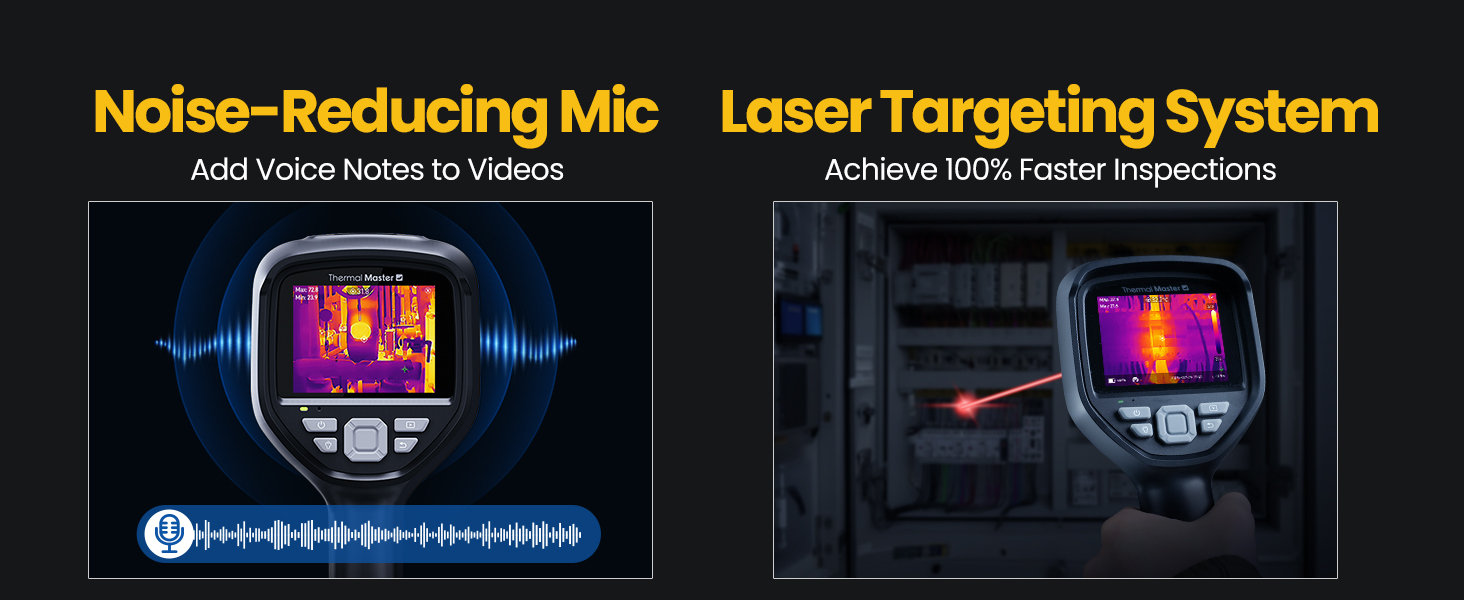
Figure 6.2: Comparison of Fusion Imaging and Picture-in-Picture modes for combining thermal and visual data.
6.4 Hononga
The THOR 002 supports both wired and wireless connectivity for data transfer and real-time analysis.
- Hononga USB: Connect to a PC via the USB cable for real-time thermal analysis and data transfer.
- WiFi Pairing: Pair with smartphones and iPads using the 'Thermal Smart' app for flexible operation and remote viewing.

Figure 6.3: The camera connected wirelessly to a smartphone and wired to a laptop for thermal reporting.
6.5 Te tuhi
Capture and store inspection data directly on the device.
- Hopu Whakaahua: Press the trigger button once to take a photo.
- Hopu Ataata: Press and hold the trigger button to start recording video. Press again to stop.
- Voice Notes: Add voice annotations to videos for detailed on-site documentation.
- QR Code Management: Use QR codes for simplified file management and reporting.

Figure 6.4: The camera features a noise-reducing microphone for voice notes and a laser targeting system for precise aiming.
6.6 Zoom & Focus
Whakaritea te view for detailed inspections.
- Topa Mamati: Utilize the 4X digital zoom (1x, 2x, and 4x magnification) for closer inspection of targets.
- Arotahi: The 4.3mm lens extends the detection range by 34.4%.
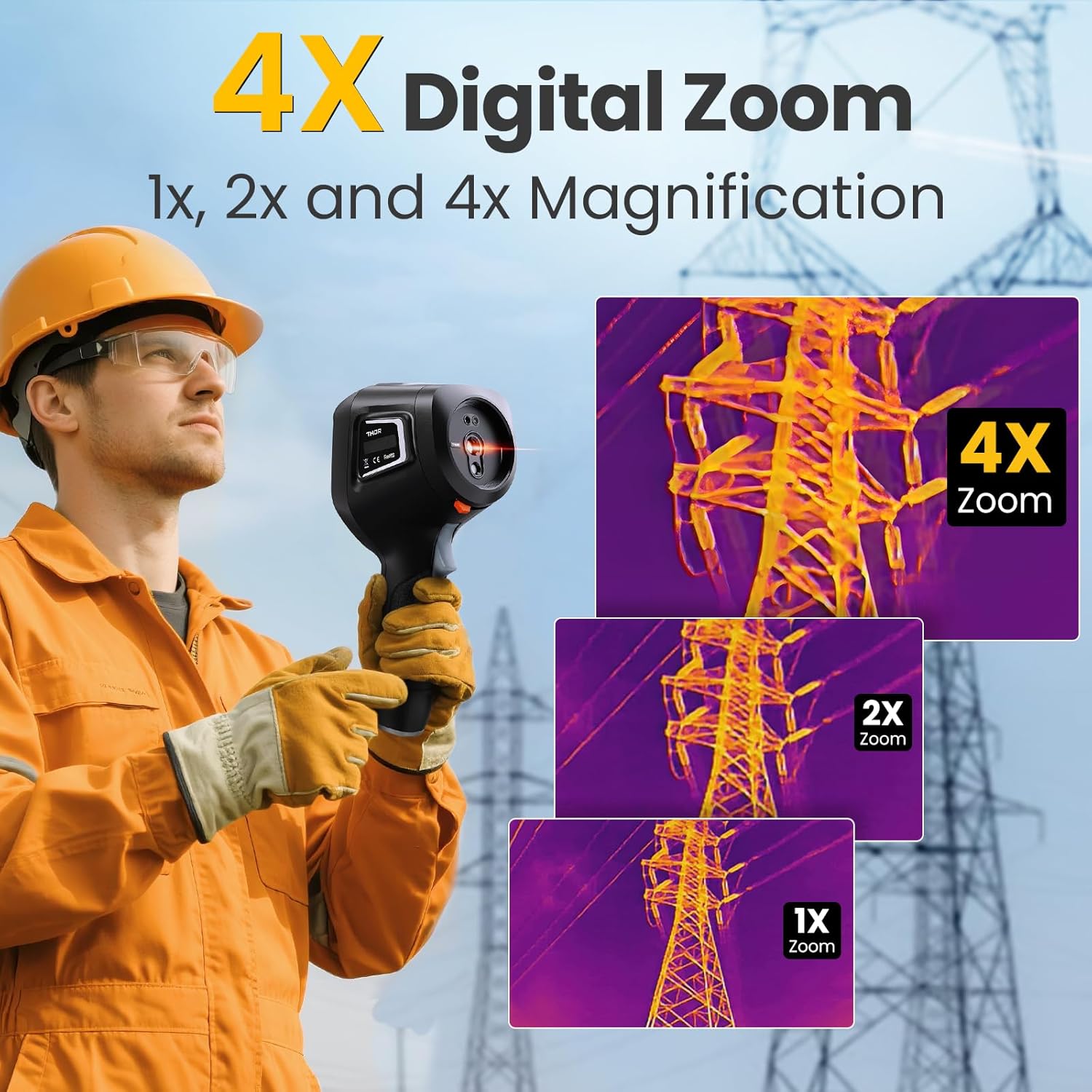
Figure 6.5: The camera's 4X digital zoom function, illustrating 1x, 2x, and 4x magnification levels.
6.7 Te Whakatikatika i te Tukunga
For accurate temperature readings, adjust the emissivity setting based on the surface material being inspected.

Figure 6.6: Emissivity settings menu, allowing adjustment for various materials like polished aluminum, light aluminum oxide, brass mirror, and brass oxide.
7. Tiaki
To ensure the longevity and optimal performance of your Thermal Master THOR 002, follow these maintenance guidelines:
- Te horoi: Use a soft, dry cloth to clean the camera body. For the lens, use a lens cleaning cloth and solution.
- Rokiroki: Store the camera in its explosion-proof case when not in use to protect it from dust, moisture, and impact.
- Tiaki Pūhiko: Avoid fully discharging the battery frequently. Charge the battery regularly, even if the camera is not in active use, to maintain battery health.
- Whakahōu Pūmanawa: Periodically check the Thermal Master official website for any available firmware or software updates for your device.
8. Te Raru
If you encounter any issues with your Thermal Master THOR 002, refer to the common problems and solutions below. If the problem persists, contact customer support.
| Raruraru | Take pea | Rongoā |
|---|---|---|
| Kāore te kāmera e whakakā | He puhiko iti, kua pau ranei | Whakakapi katoa i te puhiko. |
| He pōuri, he mārama rānei te ahua | Lens is dirty; Incorrect focus/zoom settings | Clean the lens. Adjust digital zoom. |
| Kore i tika te panui o te pāmahana | Incorrect emissivity setting; Distance to target too far | Adjust emissivity for the material. Ensure appropriate distance. |
| Cannot connect via WiFi | Incorrect WiFi password; Device not in hotspot mode | Verify password and network name. Ensure WLAN hotspot is enabled on camera. |
| PC software not working | Software not installed correctly; Compatibility issues | Download the latest software from the official website. Ensure PC meets system requirements. |
9. Whakatakotoranga
Detailed technical specifications for the Thermal Master THOR 002.
| Āhuahira | Whakatakotoranga |
|---|---|
| Hunga Hua | 10.24 x 4.33 x 4.13 inihi; 4.59 Pauna |
| Tauira Tuemi | Thor 002 |
| Pūhiko | 1 te pākahiko Lithium Ion e hiahiatia ana (kei roto) |
| Kaihanga | Rangatira Weariki |
| Whakatau Weariki | 512×384 X³IR |
| Kāmera Tirohanga | 2MP |
| Whakaatu Mata | 3.5" 640×480 IPS |
| Rere tāmata | 60Hz |
| Manawaariki (NETD) | 40mK |
| Awhe Pawera | -4°F ki te 1022°F (-20°C ki te 550°C) |
| Te Tikanga o te Pamahana | ±3.6°F (±2°C) or ±2% of the reading |
| Huringa Mamati | 4X |
| Rokiroki | 8GB RAM, 32GB te rokiroki o roto |
| Pūhiko Raukaha | 5000mAh |
| Wā Whakahaere Pūhiko | Tae atu ki te 10.5 haora |
| Te utu | 18W Tere Tere |
| Whakatauranga Tiaki | IP54 |
| Whakataka Atete | Tae atu ki te 2 mita |
10. Pūtāhui me te Tautoko
Thermal Master is committed to providing high-quality products and customer satisfaction.
- Pūtāhui: The Thermal Master THOR 002 comes with a 2-Year Warranty. Replacements are provided only under warranty conditions.
- Tautoko Hangarau: Lifetime technical support is available. For assistance, please contact Thermal Master customer service.
Figure 10.1: The camera display showing options for minimum, maximum, center, and three custom temperature points.


