1. Kupu Whakataki
Thank you for choosing a FIREBAT Mini PC. This manual provides comprehensive instructions for setting up, operating, maintaining, and troubleshooting your new A6 or AM02 series Mini PC. Designed for versatility, FIREBAT Mini PCs are suitable for a wide range of applications, including home use, business, education, and gaming.
The FIREBAT A6 model features an AMD Ryzen7 6800H CPU, while the AM02 model is equipped with an AMD Ryzen5 6600H CPU. Both models offer robust performance and compact design.

2. Product Models Overview
2.1 FIREBAT A6 Model (Ryzen7 6800H)
The A6 model is powered by an AMD Ryzen7 6800H CPU, featuring 8 Cores and 16 Threads with a base speed of 3.2 GHz and a turbo speed of 4.7 GHz. It includes AMD Radeon 680M graphics with a frequency of 2200MHz. This model supports Dual DDR5 RAM (SO-DIMM 4800MHz) and M.2 NVMe 2280 PCIe SSD storage. Connectivity options include WiFi 6 and Bluetooth 5.2, along with 2.5G RJ45 LAN and MU-MIMO technology.
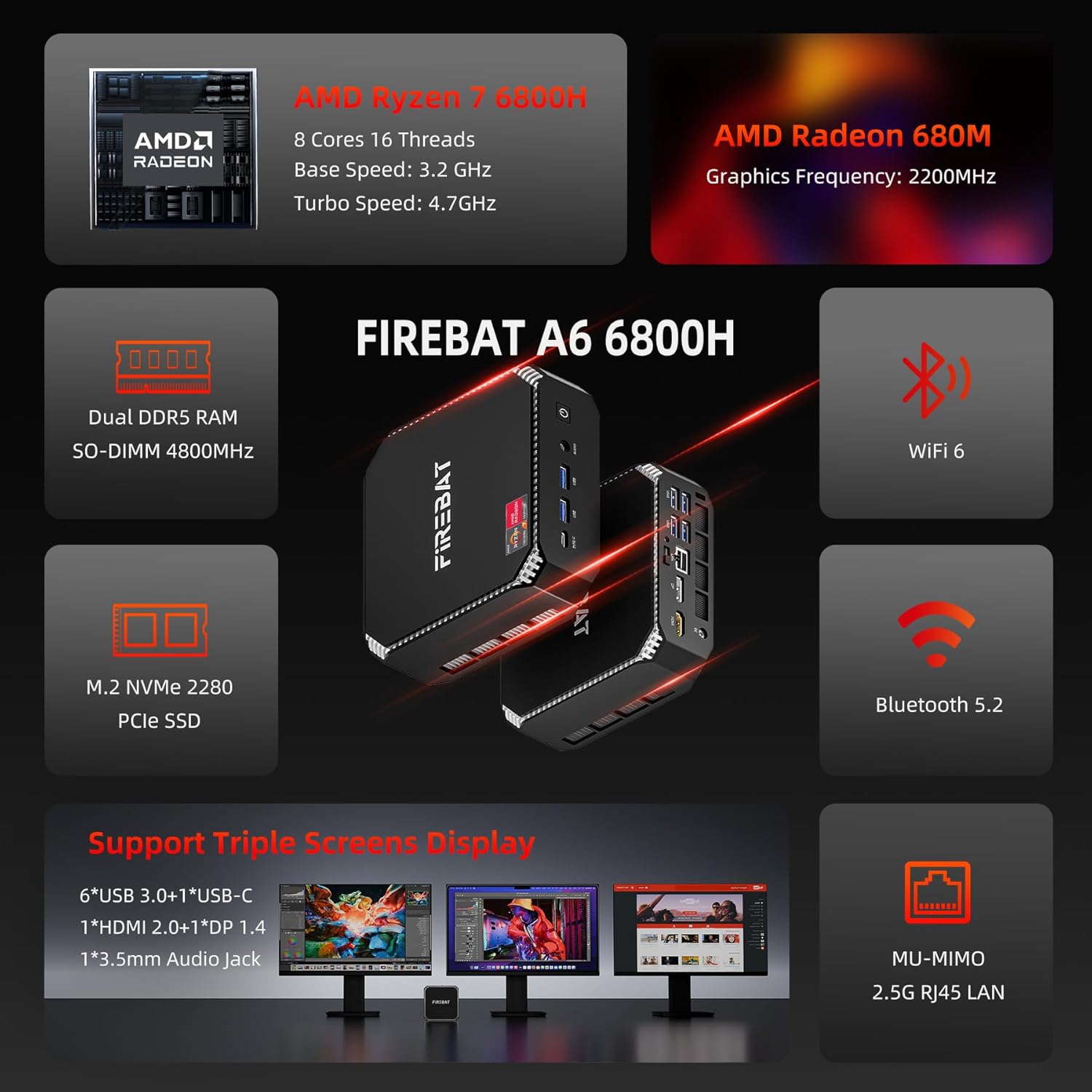
The A6 model is designed for lower power consumption while delivering stronger performance, featuring a 3 Zen+ architecture (12% higher IPC performance than Zen 3) and a 6nm modern core manufacturing process, resulting in up to 17% lower power consumption.

2.2 FIREBAT AM02 Model (Ryzen5 6600H)
The AM02 model is equipped with a 6 Cores/12 Threads AMD Ryzen5 6600H CPU, built on a 6nm FinFET process. This processor offers better power consumption control and multi-core performance, making it suitable for multi-threaded task processing.
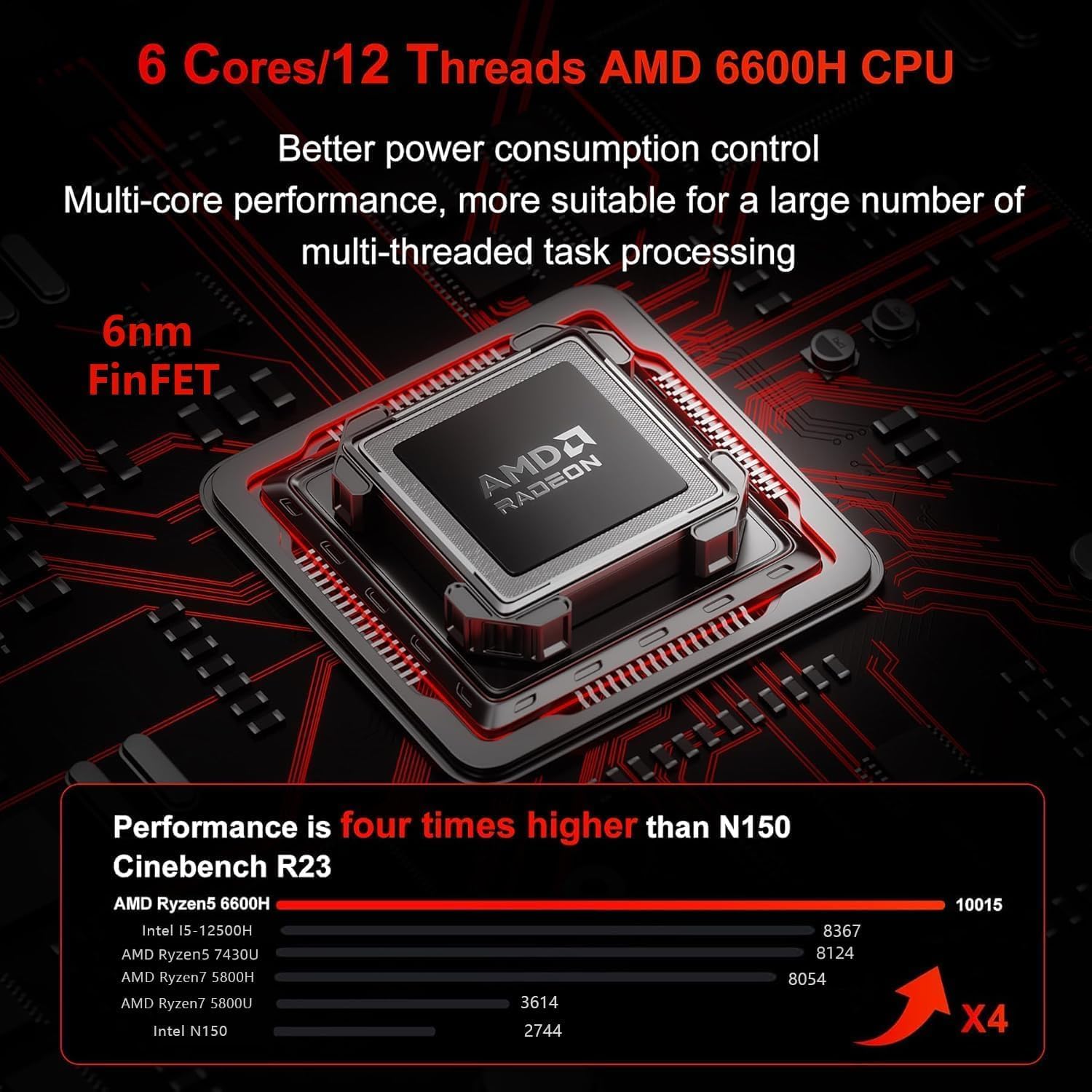
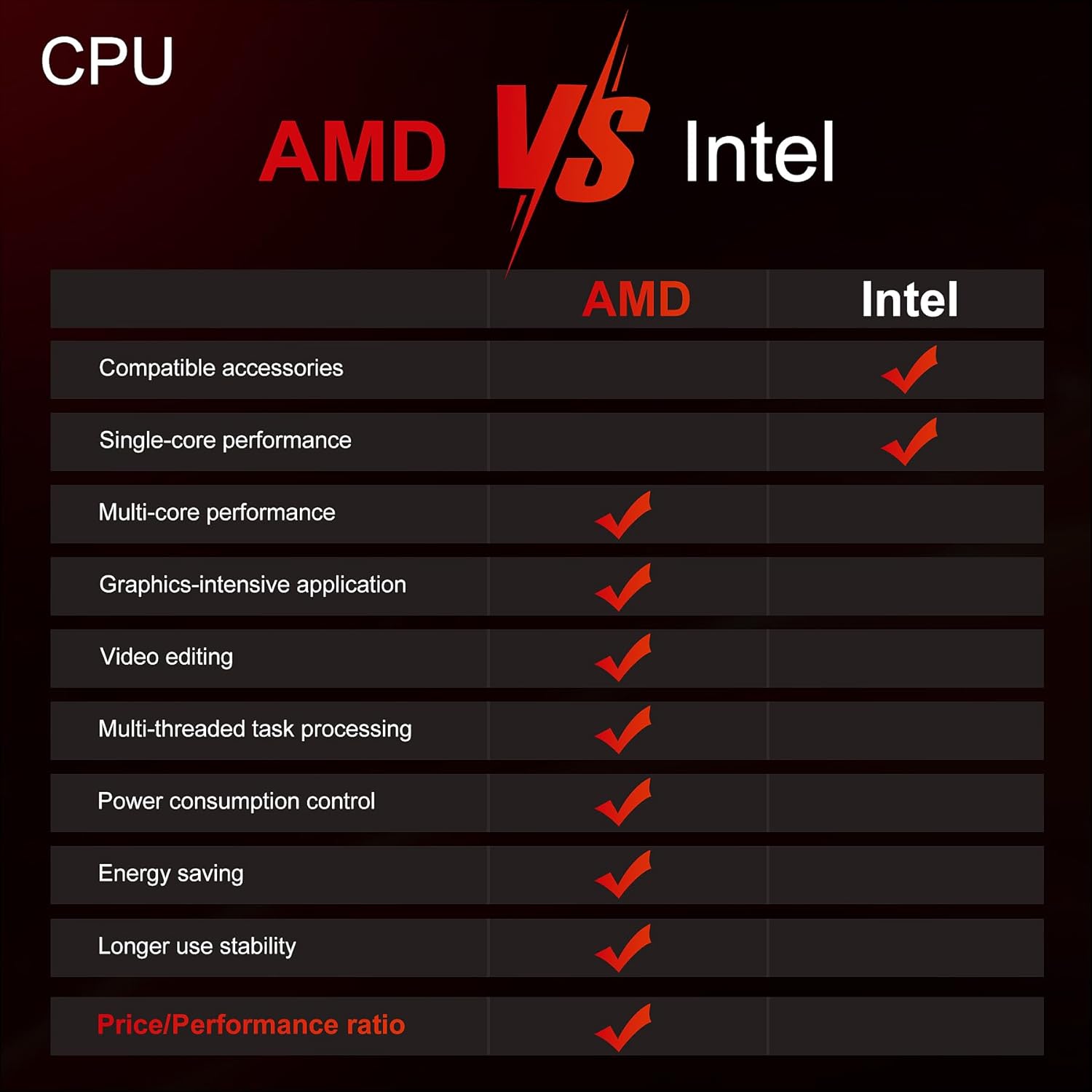
Both models leverage AMD's advanced architecture, providing a strong balance of performance and efficiency compared to other CPU architectures, particularly in areas like multi-core performance, graphics-intensive applications, video editing, and energy saving.
3. Aratohu Tatūnga
3.1 Te Wetewete
- Carefully open the packaging and remove the Mini PC and all accessories.
- Manatokohia kei reira nga waahanga katoa kua whakarārangihia ki te raarangi whakaemi.
- Pupuritia nga taonga whakangao hei kawe, hei rokiroki ranei a meake nei.
3.2 Hononga Pikitia
Connect your monitor, keyboard, mouse, and other peripherals to the appropriate ports on the Mini PC. Both models feature a variety of ports for comprehensive connectivity.
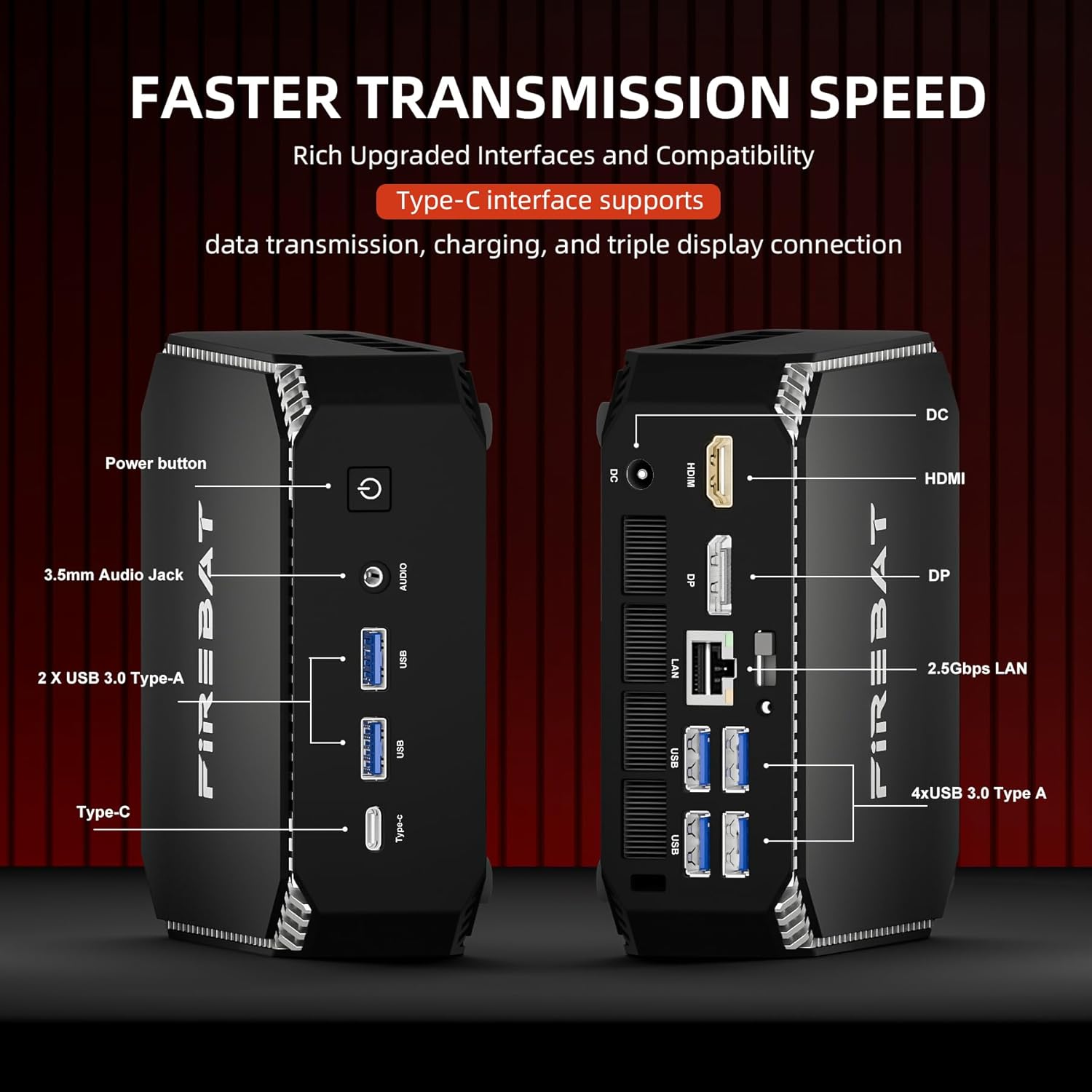
- Whakaatu: Connect your monitor(s) using the HDMI or DisplayPort (DP) outputs. Both models support triple screen display.
- Pūrere USB: Plug in your keyboard, mouse, and other USB devices into the available USB 3.0 Type-A or USB Type-C ports.
- Whatunga: Connect an Ethernet cable to the 2.5Gbps LAN port for wired network access.
- Ororongo: Honoa nga taringa, nga korero korero ranei ki te 3.5mm oro oro.
3.3 Te Whakakaha
- Connect the power adapter to the DC-in port on the Mini PC.
- Monohia te urutau hiko ki te putanga pakitara.
- Press the power button located on the front or side of the Mini PC. The power indicator light will illuminate.
- The system will boot up. Follow the on-screen instructions to complete the initial setup of your operating system.
4. Nga Tohutohu Whakahaere
4.1 Mahi Taketake
Once the operating system is set up, you can begin using your FIREBAT Mini PC like any standard desktop computer. Navigate the interface, install software, and connect to the internet.
4.2 Te Whakawhanui i te Rokiroki me te Mahara
Both A6 and AM02 models support expandable storage and memory. You can upgrade the RAM up to 64GB (32GB x 2) DDR5 4800MHz and add dual M.2 NVMe SSDs (M-Key PCIe 4.0 x 4).


For detailed instructions on how to install or upgrade RAM and SSDs, please refer to the specific upgrade guide available on the FIREBAT official webpae, whakapā atu ranei ki te tautoko a te kaihoko.
4.3 Tatūnga Whakaaturanga Maha
Your FIREBAT Mini PC supports connecting up to three displays simultaneously via the HDMI and DisplayPort (DP) outputs, along with the USB-C port (if it supports video output). This allows for an extended desktop experience, ideal for multitasking or professional setups.
- Honoa tō mata matua ki te tauranga HDMI.
- Connect a second monitor to the DisplayPort.
- If your USB-C port supports video output, connect a third monitor using a compatible USB-C to display adapter.
- Once connected, configure display settings within your operating system to extend or duplicate your desktop.
5. Tiaki
5.1 Te horoi
To ensure optimal performance and longevity, regularly clean your Mini PC. Use a soft, dry cloth to wipe down the exterior. For dust accumulation in vents, use compressed air. Ensure the device is powered off and unplugged before cleaning.
5.2 Pūnaha whakamatao
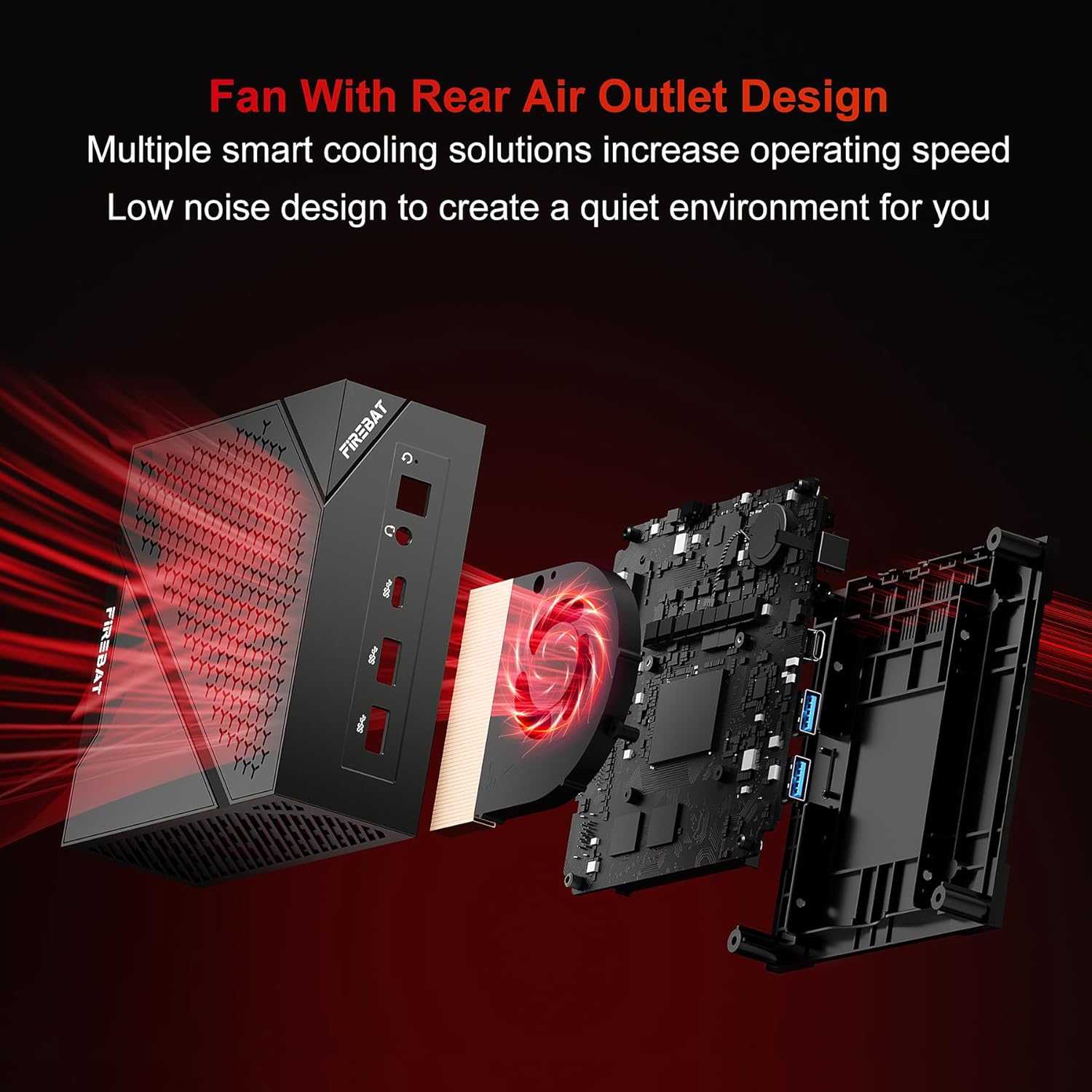
The FIREBAT Mini PC features a fan with a rear air outlet design and multiple smart cooling solutions to maintain optimal operating temperatures and low noise levels. Ensure that the air vents are not obstructed to allow for proper airflow.
6. Te Raru
If you encounter issues with your FIREBAT Mini PC, please refer to the following common troubleshooting steps:
- Kore Mana: Me whakarite kei te hono pai te urutau hiko ki te Mini PC me te putanga hiko e mahi ana. Whakamātauria tētahi atu putanga.
- Kore Whakaatu: Check that the monitor cable (HDMI/DP) is firmly connected to both the Mini PC and the monitor. Ensure the monitor is powered on and set to the correct input source.
- Kaore he Hononga Ipurangi: For wired connections, check the Ethernet cable and router. For Wi-Fi, ensure Wi-Fi is enabled in the operating system and you are connected to the correct network with the correct password.
- Pūnaha Pōturi: Close unnecessary applications. Check for background processes consuming high resources. Ensure adequate ventilation and clean dust from vents.
- Kaore i kitea te Piko: Try connecting the peripheral to a different USB port. Ensure drivers are installed if required by the peripheral.
For more complex issues or if the problem persists, please contact FIREBAT customer support.
7. Whakatakotoranga Hangarau
| Āhuahira | Whakatakotoranga |
|---|---|
| Waitohu | TE AHI |
| Model (A6) | AMD Ryzen7 6800H CPU (8 Cores, 16 Threads, 3.2GHz Base, 4.7GHz Turbo) |
| Model (AM02) | AMD Ryzen5 6600H CPU (6 Cores, 12 Threads, 4.5GHz Turbo) |
| Whakairoiro | AMD Radeon 680M (2200MHz) |
| RAM | 16GB DDR5 4800MHz (Expandable up to 64GB) |
| Rokiroki | 512GB M.2 NVMe 2280 PCIe 4.0 SSD (Dual M.2 SSD support) |
| Hononga | WiFi 6, Bluetooth 5.2, 2.5Gbps RJ45 LAN |
| Tauranga (Mua) | USB Type-C, USB 3.0 Type-A (x2), 3.5mm Audio Jack, Power Button |
| Tauranga (Muara) | DC Power, HDMI, DisplayPort (DP), 2.5Gbps LAN, USB 3.0 Type-A (x4) |
| ASIN | B0F74VT4RN |
| Te Ra Tuatahi Wātea | Haratua 1, 2025 |
8. Pūtāhui me te Tautoko
FIREBAT is committed to providing high-quality products and excellent customer service. Your Mini PC comes with a standard manufacturer's warranty. Please refer to the warranty card included in your product packaging for specific terms and conditions.
For any technical assistance, product inquiries, or support needs, please contact FIREBAT customer support:
- Īmēra: support@firebatpc.com
- Webpae: www.firebatpc.com
Our team is dedicated to ensuring your satisfaction and will assist you with any questions or concerns you may have.


