1. Kupu Whakataki
This manual provides essential instructions for setting up, operating, and maintaining your CONSUMER CELLULAR Iris Connect smartphone. The Iris Connect is designed for reliable performance, featuring a 6.5-inch display, 32GB of storage, and running on Android 13. Please read this manual thoroughly to ensure proper use and to maximize your device's capabilities.
2. He aha kei roto i te Pouaka
Upon unboxing your CONSUMER CELLULAR Iris Connect, verify that all the following items are included:
- CONSUMER CELLULAR Iris Connect Smartphone
- Tauira USB
- Aratohu Timata Tere
3. Pūrere Neke Atuview
Familiarize yourself with the physical components of your Iris Connect smartphone.

Whakaahua 3.1: Mua me muri view of the Iris Connect smartphone, highlighting its sleek design and camera placement.

Whakaahua 3.2: Mua view of the Iris Connect, showcasing the 6.5-inch display and front-facing camera.
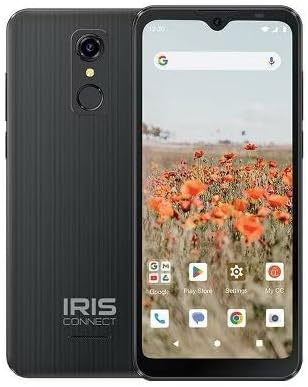
Whakaahua 3.3: Whakamuri view of the Iris Connect, showing the main camera, flash, and fingerprint sensor.
Wae matua:
- Whakaaturanga 6.5-inihi: High Definition+ screen for clear visuals.
- Kāmera o Mua (8MP): Kei te tihi o te whakaaturanga mo te whaiaro me nga waea ataata.
- Kāmera Matua (13MP): Located on the rear, for high-resolution photos and videos.
- Matawai Matikara: Integrated on the rear for secure unlocking.
- Pātene Hiko: Kei te taha matau te nuinga o te wā, hei whakakā/whakaweto i te pūrere, hei whakaara/whakamoe rānei i te mata.
- Pātene Rōrahi: Adjacent to the power button, for adjusting audio levels.
- Tauranga USB-C: Kei raro, mō te utu me te whakawhiti raraunga.
- 3.5mm Jack Ororongo: Mo te hono taringa.
4. Tatūnga
4.1. Te whakauru i te Kaari SIM me te Kaari MicroSD
- Kimihia te paepae SIM i te taha o to taputapu.
- Insert the SIM ejector tool (not included, use a thin paperclip) into the small hole next to the tray and press gently until the tray pops out.
- Place your Nano-SIM card(s) into the designated slots with the gold contacts facing down.
- If desired, insert a microSD card (up to 256GB) into its dedicated slot for expanded storage.
- Me ata whakauru ano i te paepae ki roto i te taputapu kia pao noa ki tona waahi.
4.2. Hiko Tuatahi me te Ruānuku Tatūnga
- Patohia me te pupuri i te Pātene Hiko kia mura ra ano te mata.
- Whāia ngā tohutohu kei te mata hei tīpako i tō reo, hono atu ki tētahi whatunga Wi-Fi, me te whakarite i tō pūkete Google.
- You may be prompted to transfer data from an old device or set up security features like the fingerprint scanner.
4.3. Ka tohatohahia te Pūrere
Before first use, it is recommended to fully charge your device. The Iris Connect features a 3500 mAh battery with an approximate charging time of 2.5 hours.
- Honoa te taura USB ki te tauranga USB-C kei raro o to waea.
- Connect the other end of the USB cable to a compatible power adapter (not included) and plug it into a wall outlet.
- Ka puta te tohu utu i runga i te mata.
5. Nga Tohutohu Whakahaere
5.1. Whakaterenga Taketake
- Pa: Patohia tetahi ata hei whakatuwhera i tetahi taupānga, hei kowhiri ranei i tetahi mea.
- Swipe: Toia to maihao puta noa i te mata ki te panuku, ki te whakatere ranei i waenga i nga mata.
- Tiki: Whakamahia nga maihao e rua ki te topa ki roto, ki waho ranei i nga whakaahua me te web wharangi.
- Mata Kāinga: Ko te pokapū pokapū mo o taupānga me o widget.
- Kaituhi Taupānga: Swipe ake i te mata o te kainga kia uru atu ki nga tono katoa kua whakauruhia.
5.2. Te Waea
- Tap te Waea ata kei runga i tō mata kāinga, i te pouaka taupānga rānei.
- Whakauruhia te nama waea ma te whakamahi i te waea waea, tohua ranei he hoapaki mai i to pukapuka wahitau.
- Tap te Karanga pātene ki te kōkiri i te waea.
5.3. Tuku Karere
- Whakatuwheratia te Nga Karere taupānga.
- Tap te Tīmatahia te kōrerorero or Karere hou tohu.
- Whakauruhia te nama o te kaiwhiwhi, tohua ranei mai i nga hoapaki, ka patohia to karere.
- Tap te Tukua pātene.
5.4. Te hono ki Wi-Fi
- Haere ki Tautuhinga > Whatunga me te ipurangi > Ipurangi.
- Takahuri Wi-Fi On.
- Tīpakohia te whatunga Wi-Fi e hiahiatia ana e koe mai i te rārangi, ā, whakauruhia te kupuhipa mēnā ka akiakihia.
5.5. Takirua Nihokikorangi
- Haere ki Tautuhinga > Nga taputapu hono > Nga manakohanga hononga > Nihokikorangi.
- Takahuri Nihokikorangi On.
- Tīpakohia Whakatauritea te taputapu hou and choose your desired device from the list. Follow any on-screen prompts to complete pairing.
5.6. Whakamahinga Camera
The Iris Connect features a 13MP main camera and an 8MP front-facing camera.
- Whakatuwheratia te Kāmera taupānga.
- Tap te Marumaru pātene hei tango whakaahua.
- Switch between photo and video modes, or front and rear cameras, using the on-screen icons.
5.7. Matawai Matawai
To set up the fingerprint scanner for secure unlocking:
- Haere ki Tautuhinga > Haumarutanga me te tūmataiti > Wewete taputapu > matimati.
- Whaia nga tohutohu i runga-mata hei rehita i to (ng) tapumati.
6. Tiaki
6.1. Te horoi i te Pūrere
Hei pupuri i te ma me te mahi a tō pūrere:
- Whakamahia he kakahu ngohengohe, kore-raro hei muru i te mata me te tinana.
- A ape i te whakamahi i nga matū kino, te horoi horoi, te rehu aerosol ranei.
- Me whakarite kia kore he puehu, he paru rānei i roto i ngā tauranga.
6.2. Tiaki Pūhiko
To optimize your battery life (up to 26 hours of use):
- A ape i te wera nui.
- Kaua e waiho te taputapu ki te utu mo nga wa roa i muri i te whakakii.
- Adjust screen brightness and close unused apps to conserve power.
6.3. Whakahōu Pūmanawa
Regularly check for software updates to ensure your device has the latest features and security patches:
- Haere ki Tautuhinga > Pūnaha > Whakahoutanga o te punaha.
- Whaia nga tohutohu i runga-mata ki te tango me te whakauru i nga whakahou e waatea ana.
7. Te Raru
This section addresses common issues you might encounter with your Iris Connect smartphone.
- Kaore te taputapu i te hiko: Me whakarite kua utaina te pākahiko. Honoa te rihi ka tatari mo etahi meneti i mua i te ngana ki te hiko ano.
- Karekau he tohu whatunga: Check if your SIM card is correctly inserted. Verify that Airplane Mode is off (swipe down from the top of the screen to check quick settings). Contact your service provider if the issue persists.
- Taupānga e takataka ana, e whakatio ana ranei: Try restarting the app. If the issue continues, restart the phone. You may also clear the app's cache or data via Tautuhinga > Taupānga > [Ingoa Taupānga] > Rokiroki me te keteroki.
- Mahinga puhoi: Close unused apps, clear cache, or consider uninstalling rarely used applications to free up storage.
- Unable to connect to Wi-Fi/Bluetooth: Ensure Wi-Fi/Bluetooth is enabled in settings. Try forgetting the network/device and reconnecting. Restart your phone and the router/Bluetooth device.
- Forgot screen lock password/pattern: If you have a Google account linked, you might be able to reset it. Otherwise, a factory reset may be necessary (this will erase all data).
For more complex issues, please refer to the official CONSUMER CELLULAR support resources or contact their customer service.
8. Whakatakotoranga
Detailed technical specifications for the CONSUMER CELLULAR Iris Connect smartphone (Model: SH4650).
| Āhuahira | Whakatakotoranga |
|---|---|
| Ingoa Tauira | Iris Connect |
| Tau tauira | SH4650 |
| Pūnaha Mahi | Android 13.0 |
| Rahi Whakaatu | 6.5 Inihi |
| Whakaatu Whakatau | 1440 x 810 |
| Tauira PTM | Snapdragon 710 |
| Tere PTM | 2 GHz |
| Rahi kua whakauruhia te mahara RAM | 3 GB |
| Rokiroki Roto | 32 GB |
| Rokiroki Whakawhanui | Tae atu ki te 256GB ma te microSD |
| Kāmera Matua | 13 MP |
| Kāmera Mua | 8 MP |
| Pūhiko Raukaha | 3500 Miliamp Nga haora |
| Whakatauranga Hiko Pahiko | 3600 (likely Wh or similar unit, as mAh is 3500) |
| Waa Whakatau | 2.5 haora |
| Hononga | 4G LTE, Bluetooth, Wi-Fi |
| Nga waahanga motuhake | Dual Camera, Expandable Storage, Fingerprint Scanner, Long Battery Life |
| Jack Ororongo | 3.5 Mirimita |
| Ahu | 8 x 6 x 3 inihi |
| Taumaha Tūemi | 6.5 hekere |
9. Pūtāhui me te Tautoko
For information regarding your product's warranty, please refer to the warranty card included with your purchase or visit the official CONSUMER CELLULAR website. For technical assistance, troubleshooting beyond this manual, or customer service inquiries, please contact CONSUMER CELLULAR support directly.
CONSUMER CELLULAR Official Webpae: www.consumercellular.com


