1. Kupu Whakataki
Thank you for choosing the ILEBYGO Mini Projector B0F83Q1HHT. This portable projector is designed to provide a versatile entertainment experience with its Android 13 operating system, WiFi 6, Bluetooth 5.0, 1080P Full HD resolution with 4K support, 320 ANSI lumens brightness, 270-degree rotation, auto keystone correction, and autofocus. This manual provides essential information for setting up, operating, and maintaining your projector.
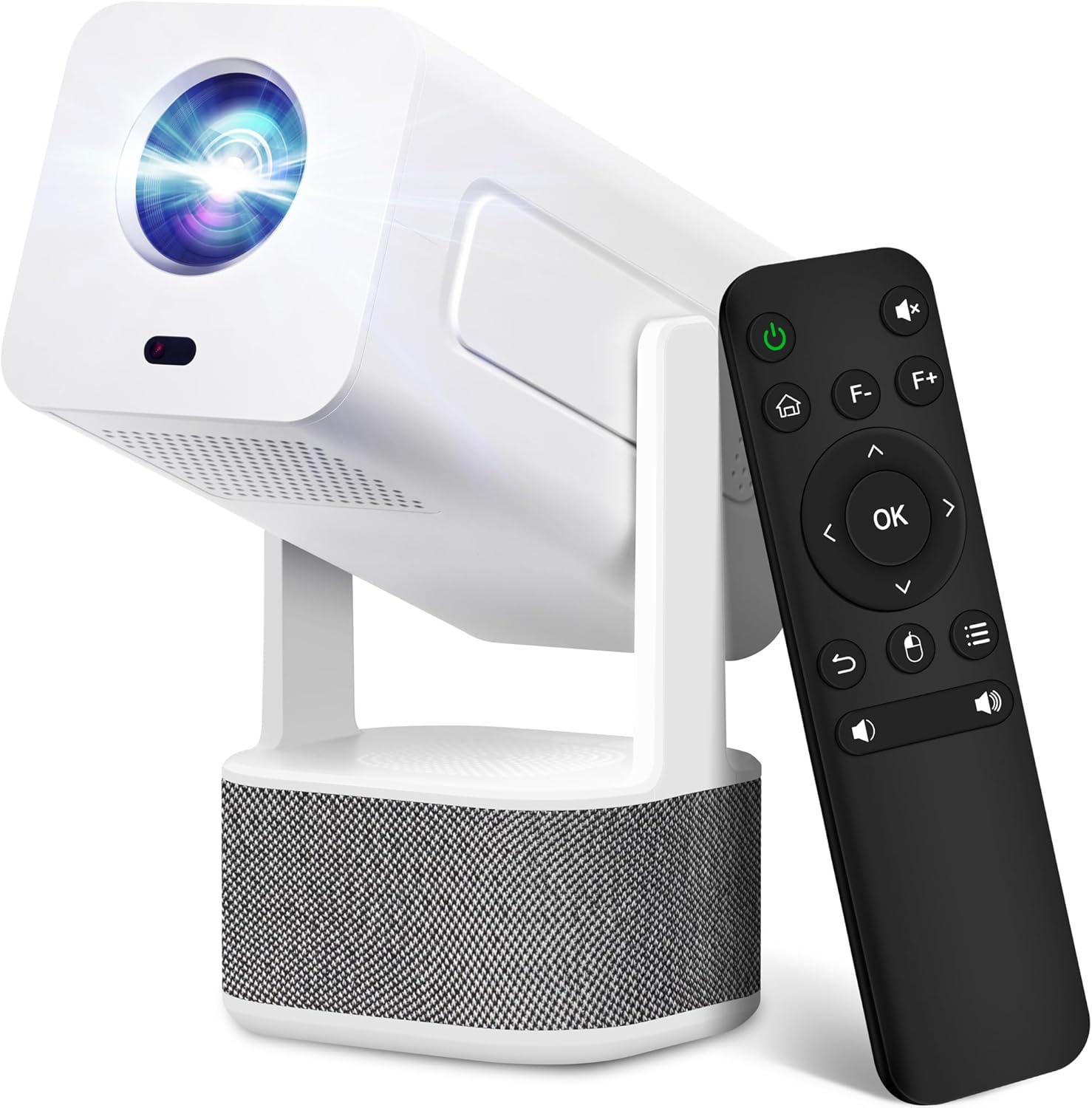
Image 1.1: ILEBYGO Mini Projector and Remote Control
The ILEBYGO Mini Projector B0F83Q1HHT offers a projection size ranging from 30 to 200 inches, making it suitable for various environments from small rooms to outdoor settings. Its dual 5W speakers deliver integrated audio, and multiple connectivity options ensure compatibility with a wide range of devices.
2. He aha kei roto i te Pouaka
Tena tirohia nga ihirangi o to kete. Mena kei te ngaro, kua pakaru ranei etahi mea, whakapaa atu ki te tautoko a nga kaihoko.
- 1x ILEBYGO Mini Projector
- 1x Manual Kaiwhakamahi
- 1x Pūurutau Hiko
- 1x Mana Mamao
3. Aratohu Tatūnga
3.1. Kei te Hiko Nei
- Tūhonohia te pūurutau hiko ki te tauranga tāuru DC i runga i te pūwhiti.
- Monohia te urutau hiko ki te putanga pakitara.
- Pēhia te pātene hiko i te pūwhiti, te mana mamao rānei hei whakakā i te taputapu.

Image 3.1: Projector Connectivity Ports (DC, HDMI, USB, Audio)
3.2. Initial Placement and Adjustment
The projector features a 270-degree rotatable design, allowing flexible placement.
- Whakanohoia te pūwhiti ki runga i te mata mau.
- Adjust the projector's angle to direct the image onto your desired projection surface (wall, screen, ceiling).
- The projector will automatically perform keystone correction and autofocus to optimize the image clarity and shape.
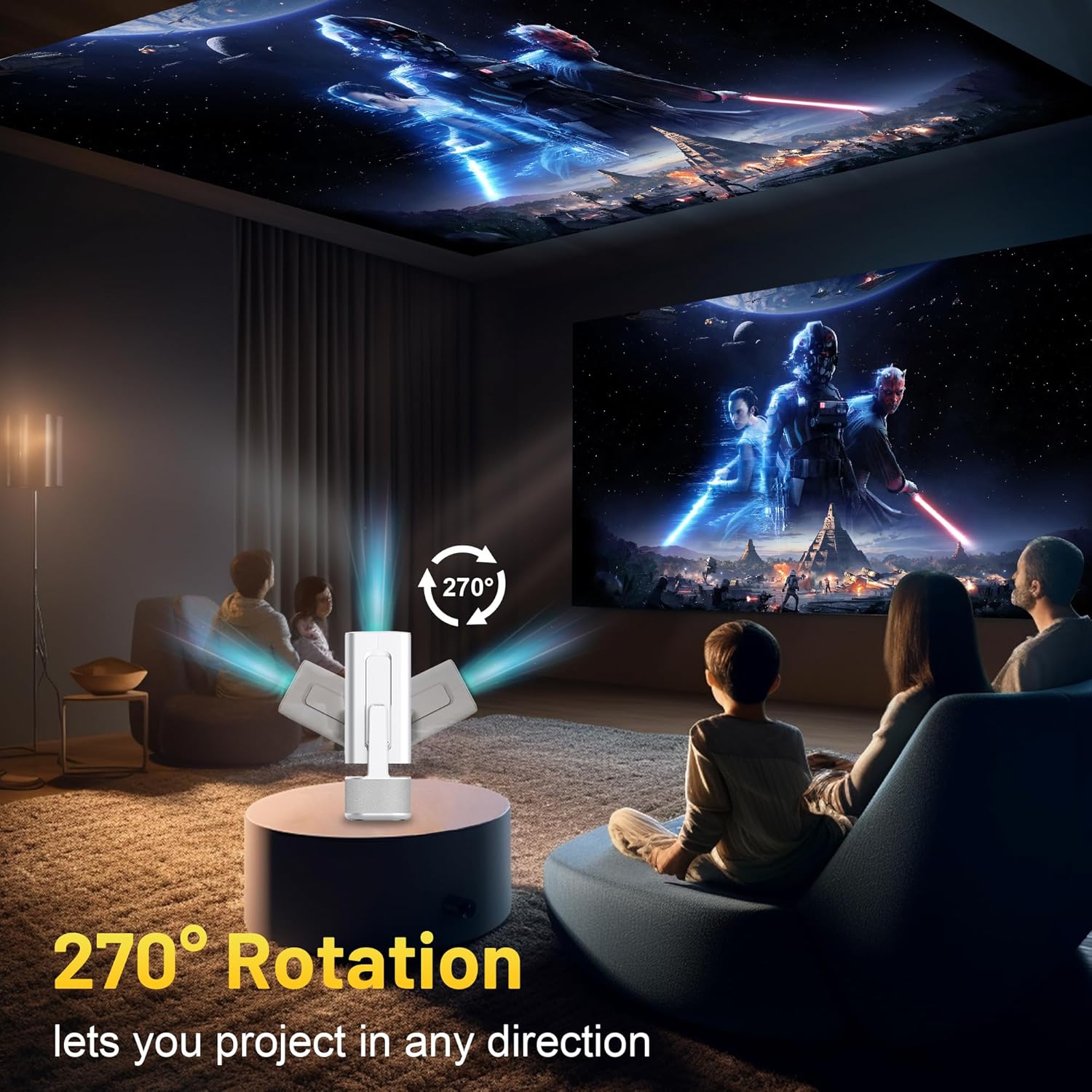
Image 3.2: 270-Degree Rotation Capability
3.3. Network Connection (WiFi)
To access online content and streaming services, connect the projector to a Wi-Fi network.
- From the home screen, navigate to 'Settings'.
- Tīpakohia 'Whatunga me te Ipurangi'.
- Whakakāhia te Wi-Fi, kātahi ka tīpako i te whatunga e hiahiatia ana e koe mai i te rārangi.
- Whakauruhia te kupuhipa Wi-Fi mena ka akiakihia ka hono atu.

Image 3.3: Dual Band WiFi 6 and Bluetooth 5.0
3.4. Takirua Nihokikorangi
Pair Bluetooth devices like external speakers or headphones for enhanced audio.
- From the home screen, navigate to 'Settings'.
- Select 'Connected Devices' or 'Bluetooth'.
- Whakakā Nihokikorangi.
- Whakauruhia to taputapu Bluetooth ki te aratau takirua.
- Select your device from the list of available devices on the projector screen to pair.
4. Nga Tohutohu Whakahaere
4.1. Whakaterenga
Use the included remote control to navigate the projector's interface. The directional buttons, 'OK' button, 'Back' button, and 'Home' button are primary controls.
4.2. App Usage (Android 13)
The projector runs on Android 13 and comes with pre-installed streaming applications.
- From the home screen, select the desired application (e.g., Netflix, YouTube, Prime Video).
- Takiuru me o tohu tohu kaute mena ka hiahiatia.
- Browse and play content as you would on any Android smart device.
- Additional apps can be downloaded from the Google Play Store.

Image 4.1: Built-in Android 13 System with Apps
4.3. Screen Mirroring/Casting
Mirror content from your smartphone, tablet, or computer wirelessly.
- Me whakarite kei te hono te pūwhakaata me tō pūrere ki te whatunga Wi-Fi kotahi.
- On the projector, select the screen mirroring/casting application (e.g., Miracast, AirPlay).
- On your mobile device, enable screen mirroring or casting and select the projector from the list of available devices.
4.4. External Device Connection (HDMI, USB)
Connect external devices such as laptops, gaming consoles, or USB drives.
- HDMI: Connect an HDMI cable from your device to the HDMI port on the projector. Select the HDMI input source from the projector's input menu.
- USB: Insert a USB drive into the USB port. The projector's file manager will typically open automatically, allowing you to browse and play media files.

Image 4.2: Multi-Device Compatibility
4.5. Whakatikatika Atahanga
The projector features automatic adjustments for convenience.
- Whakatikatika Kohatu Matua Aunoa: The projector automatically corrects vertical image distortion. If manual adjustment is needed, navigate to 'Settings' > 'Projection Settings' > 'Keystone Correction'.
- WhakatikaAunoa: The image will automatically focus when the projector is moved or powered on. Manual focus adjustment can be found in 'Settings' > 'Projection Settings' > 'Focus'.
- Topa: Adjust the projection size from 50% to 100% without moving the projector. This setting is typically found in 'Settings' > 'Projection Settings' > 'Zoom'.

Image 4.3: Auto Keystone Correction and Autofocus
5. Tiaki
5.1. Te horoi
- Arotahi: Whakamahia he kakahu ngohengohe, kore-raro i hangaia mo nga arotahi whatu. A ape i nga mea abrasive me nga matū kino.
- Waho: Horoia a waho o te pūwhiti ki te kakahu ngohengohe, maroke. Kaua e whakamahi tika i nga horoi wai ki runga i te taputapu.
- Whakahau: Me mohio kei te noho marama nga tuwhera o te hau i te puehu me nga aukati kia kore ai e wera rawa.
5.2. Rokiroki
When not in use, store the projector in a cool, dry place away from direct sunlight and extreme temperatures. Use the original packaging or a protective case to prevent dust accumulation and physical damage.
6. Te Raru
Tirohia te ripanga i raro nei mo nga take noa me o raatau otinga.
| Putanga | Take pea | Rongoā |
|---|---|---|
| Karekau he Mana | Power cable not connected; Power outlet malfunction | Me whakarite kia honoa te taura hiko. Whakamātauria he putanga hiko rerekē. |
| Kore he Whakaahua | Incorrect input source; Device not connected; Projector in standby mode | Select correct input source (HDMI, USB). Ensure external device is powered on and connected. Press power button to wake projector. |
| Atahanga Puoro | Out of focus; Keystone not corrected | Allow autofocus to adjust. Manually adjust focus in settings if needed. Check keystone correction settings. |
| Kore Oro | He iti rawa te oro; Kua wahangu; Kāore te pūrere oro o waho i honoa/tāpirihia | Increase volume. Unmute projector. Ensure Bluetooth audio device is paired and connected, or external speakers are properly connected via audio jack. |
| Nga Take Hononga Wi-Fi | Incorrect password; Network interference; Router issues | Manatokohia te kupuhipa Wi-Fi. Nekehia te pūwhakaata kia tata ki te pouara. Tīmata anō te pouara. |
| Rahunga Takirua Nihokikorangi | Device not in pairing mode; Interference; Device too far | Ensure Bluetooth device is in pairing mode. Keep devices close. Turn off other Bluetooth devices to reduce interference. |
7. Whakatakotoranga
| Āhuahira | Taipitopito |
|---|---|
| Waitohu | ILEBYGO |
| Tauira | B0F83Q1HHT |
| Whakaatu Whakatau | 1920 x 1080 (Full HD), 4K Support |
| Tirohanga | 320 ANSI Lumens |
| Hangarau Hononga | Bluetooth 5.0, HDMI, USB, Wi-Fi 6 (2.4G+5G) |
| Pūnaha Mahi | Android 13 |
| Nga waahanga motuhake | Auto Keystone Correction, Autofocus, 270° Rotation, Built-in Dual 5W Speakers |
| Rahi Kaupapa | 30''-200'' |
| Aspect Ratio | 16:9 / 4:3 |
| Taumaha Tūemi | 2.72 pauna |
| Ahu mōkihi | 13.54 x 5.39 x 5.2 inihi |
8. Pūtāhui me te Tautoko
The ILEBYGO Mini Projector B0F83Q1HHT comes with a standard manufacturer's warranty. Please refer to the warranty card included in your package for specific terms and conditions.
For technical support, troubleshooting assistance, or warranty claims, please contact ILEBYGO customer service through the retailer's platform or the contact information provided in your product documentation.