1. Kupu Whakataki
The FOXWELL FY406D is an advanced industrial endoscope designed for precise inspections in confined or hard-to-access areas. This device features dual lenses and a 2-way 220° articulating camera, providing multi-angle visibility with exceptional clarity. It is suitable for professionals in automotive, HVAC, plumbing, and general home inspection applications. This manual provides essential information for the safe and effective operation of your FY406D borescope.
2. He aha kei roto i te Pouaka
Carefully unpack your FOXWELL FY406D borescope and verify that all items listed below are present:
- 1x Articulating Borescope (Main Unit)
- 1x 2-in-1 Charging and Data Transfer Cable (USB-C)
- 1x Carrying Case Bag
- 1x User’s Manual (This Document)
- 2x Small Tips (Accessories for probe)
3. Hua Neke Atuview me nga ahuatanga
The FOXWELL FY406D is engineered for high-performance inspection. Familiarize yourself with its key components and capabilities.
3.1. Dual Lens System for Enhanced Visibility

The borescope features a dual-lens system, allowing users to switch between a front view, a side view, or a split-screen dual view for comprehensive inspection without changing probes.
3.2. 2-Way 220° Articulation Control

The probe offers 2-way 220° articulation, enabling precise navigation around corners and obstacles in tight spaces. This feature is crucial for detailed inspections of engine components or wall cavities.
3.3. Ultra-Slim 6.5mm Probe
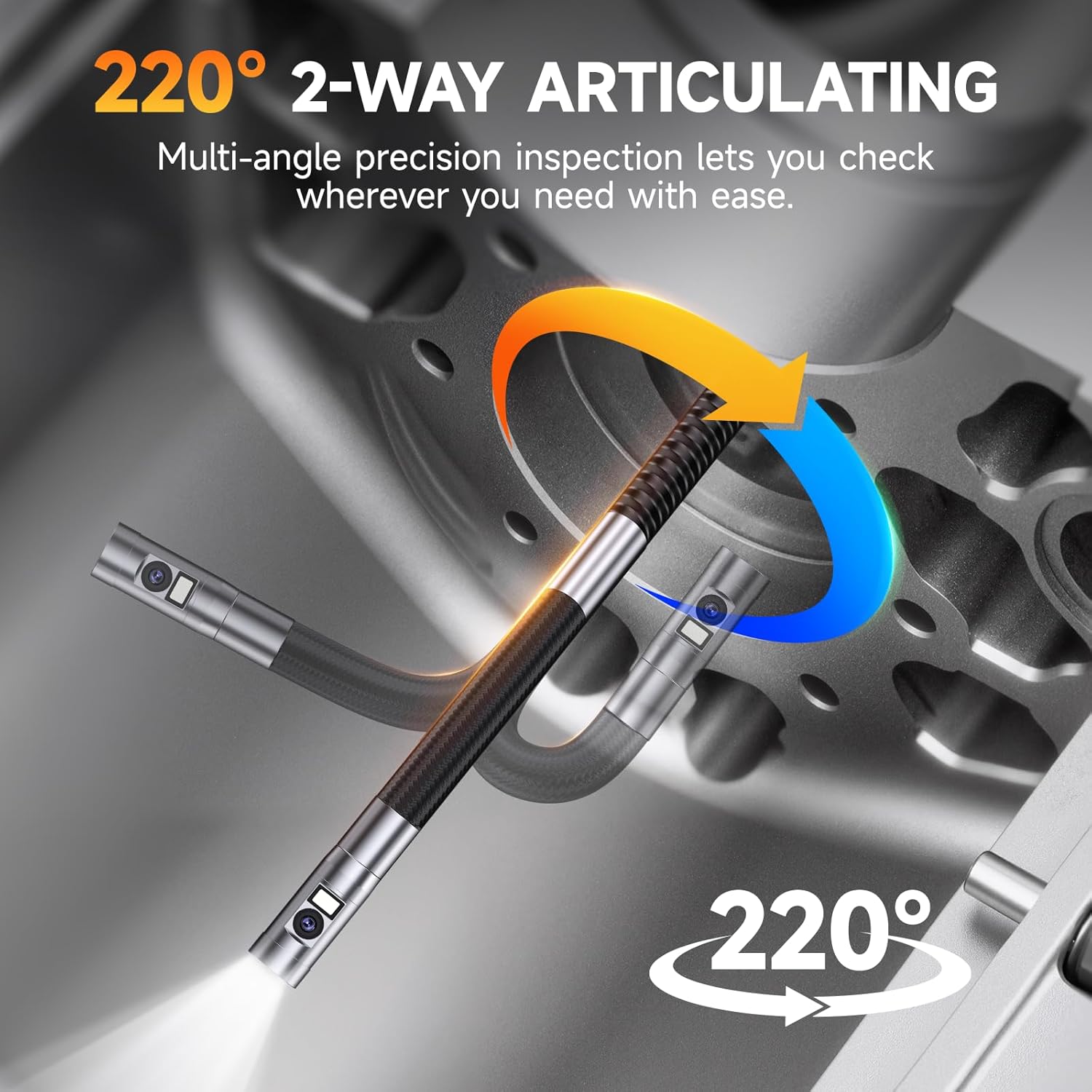
The 6.5mm (0.25 inch) diameter probe allows for easier entry into very tight spaces, such as spark plug holes or small pipe openings, compared to larger standard probes.
3.4. 4.3" IPS HD True Color Display

The device features a 4.3-inch IPS screen that provides clear, high-definition images with accurate color reproduction. It also displays real-time temperature readings.
3.5. Adjustable LED Illumination and IP67 Waterproof Probe

Equipped with 6 front LEDs (5000 lux) and 1 side LED (8000 lux), all with 3 adjustable brightness levels, the probe ensures optimal visibility in dark or damp environments. The IP67 waterproof rating protects the probe from water ingress, and overheat protection automatically shuts off the device if temperatures exceed 70°C.
3.6. Multi-Zoom Functionality

The borescope supports 2x and 4x digital zoom, allowing users to magnify details for closer examination of defects or features.
3.7. Te tuhi me te Rokiroki
The device includes 32GB of onboard memory, capable of storing over 50 videos or 10,000 photos. It supports video recording with audio and high-resolution image capture. Files can be transferred via the USB-C cable.
4. Tatūnga
4.1. Ka tohatohahia te Pūrere
- Connect the provided 2-in-1 USB-C cable to the charging port on the borescope.
- Honoa te tahi pito o te taura USB-C ki te urutau hiko USB hototahi (kaore i whakaurua) ki te tauranga USB rorohiko ranei.
- The charging indicator on the device will illuminate. A full charge typically takes approximately 4 hours, providing up to 4 hours of continuous operation.
4.2. Attaching Small Tips (Optional)
The borescope comes with two small tips (e.g., hook, magnet). These can be screwed onto the end of the probe for retrieving lost items or manipulating objects in tight spaces. Ensure the device is powered off before attaching or detaching tips.
5. Nga Tohutohu Whakahaere
5.1. Te Whakakaha/Weto
- To power on: Press and hold the power button until the screen illuminates.
- To power off: Press and hold the power button until the screen shuts down.
5.2. Te whakatere i te Atanga
The device features intuitive buttons for navigation and control:
- Pene OK: Confirms selections or takes photos/starts video recording.
- Patene Tahua: Accesses settings and playback modes.
- Pere Runga/Raro: Navigate menus, adjust zoom, or control articulation.
- Rikareka Toi: Controls the bending of the probe tip.
5.3. Te whakatikatika i te Tirohanga LED
Press the dedicated LED button to cycle through the three brightness levels (Low, Medium, High) or to turn the lights off. This helps optimize visibility and reduce glare in various inspection environments.
5.4. Switching Camera Views
Patohia te kamera view button to toggle between front camera view, side camera view, or a split-screen view displaying both simultaneously.
5.5. Te Hopu Whakaahua me nga Ataata
- Hei tango whakaahua: I roto i te ora view, press the OK button once.
- Hei tuhi ataata: I roto i te ora view, press and hold the OK button to start recording. Press and hold again to stop.
- Captured media is saved to the internal 32GB memory.
5.6. Zoom and Image Rotation
- Use the designated zoom buttons (or arrow keys in some modes) to apply 2x or 4x digital zoom.
- The device supports 360° image rotation, accessible via the menu, to adjust the orientation of the live feed or captured images.
5.7. File Whakawhiti
Connect the borescope to a computer using the provided USB-C cable. The device will appear as a removable storage device, allowing you to access and transfer photos and videos.
6. Tiaki
6.1. Cleaning the Probe and Lenses
- After each use, especially in dirty or oily environments, gently wipe the probe and camera lenses with a soft, damp kakahu.
- For stubborn grime, use a small amount of isopropyl alcohol on a cotton swab. Ensure no liquid enters the main unit.
- Kaua e whakamahi i nga kai horoi me nga whakarewa.
6.2. Tiaki Pūhiko
- Recharge the battery regularly, even if the device is not used frequently, to maintain battery health.
- A ape i te tuku katoa i te pākahiko mo nga wa roa.
- Whakaorangia te taputapu ki te waahi makariri, maroke atu i te ra tika.
6.3. Rokiroki
When not in use, store the borescope and its accessories in the provided carrying case to protect it from dust, impacts, and environmental damage.
7. Te Raru
If you encounter issues with your FOXWELL FY406D, refer to the following common problems and solutions:
| Raruraru | Take pea | Rongoā |
|---|---|---|
| Kaore te taputapu i te hiko | Low battery; Faulty power button | Me utu katoa te taputapu. Ki te haere tonu te raru, whakapā atu ki te tautoko. |
| Kounga ahua kino / Whakaahua pouri | Dirty lens; Insufficient lighting | Clean the camera lens. Increase LED brightness. |
| Probe articulation not working | Mechanical obstruction; Internal issue | Ensure no physical obstruction. Do not force articulation. Contact support if damaged. |
| Kaore e taea te whakawhiti files ki te rorohiko | Incorrect cable; Driver issue; Corrupted memory | Use the provided USB-C cable. Try a different USB port or computer. |
| Ka wera rawa te taputapu | Te whakamahi mo te wa roa ki te wera nui | The device has overheat protection and will shut down automatically. Allow it to cool before resuming use. |
8. Whakatakotoranga
| Āhuahira | Taipitopito |
|---|---|
| Tauira | FY406D |
| Taimana Pakihi | 6.5 mm (0.25 inihi) |
| Te whakahua | Ara-rua, 220° |
| Whakaatu Mata | 4.3 Inihi IPS HD |
| Whakataunga Hopu Ataata | 720p |
| Topa Optical | 4x (Mamati) |
| Whakamaramatanga LED | 6 Front LEDs (5000 lux), 1 Side LED (8000 lux), 3 adjustable levels |
| Taumata Atete Wai | IP67 (Pūtirotiro) |
| Momo Pūhiko | Lithium Ion (2600mAh) |
| Pūhiko Wawaenga Te Ora | Tae atu ki te 4 haora |
| Mahara o roto | 32GB |
| Atanga Pūmārō | Momo USB C |
| Taumaha Tūemi | 1.04 kg |
| Hunga Hua | 21.89 x 12.78 x 5.03 cm |
| Hopu Ororongo | Ae |
9. Nga korero haumaru
- This device is for industrial and home inspection use only. It is KORE intended for medical or human body use.
- Kaua e ngana ki te wetewete, ki te whakarerekē rānei i te taputapu. Ka whakakorea te pūtāhui, ā, ka pā pea he kino, he whara rānei.
- Keep the device away from extreme temperatures, open flames, and corrosive substances.
- Ensure the probe is clean and free of debris before insertion into any cavity.
- Always handle the probe and articulation mechanism gently to prevent damage.
10. Pūtāhui me te Tautoko
FOXWELL products are designed for reliability and performance. For warranty information, technical support, or service inquiries, please refer to the warranty card included with your product or visit the official FOXWELL website. Please have your product model (FY406D) and purchase details ready when contacting support.


