1. Kupu Whakataki
The NYXI Warrior Wireless Switch Controller is a versatile gaming peripheral designed for enhanced gameplay across multiple platforms. It features advanced technologies such as Hall Effect Joysticks and Triggers for precision and longevity, micro mechanical switch buttons for rapid response, HD Rumble for immersive feedback, and a 6-axis gyroscope for motion sensing. This controller is compatible with Nintendo Switch, Nintendo GameCube (NGC), Wii, and PC.

Image: NYXI Warrior controllers in various colors, highlighting the product line.
2. Ihirangi mokete
- NYXI Warrior Wireless Switch Controller
- Kaiwhiwhi Waeakore USB
- USB-C Uira Whakatau
- Pukapuka Kaiwhakamahi (tenei tuhinga)

Image: The NYXI Warrior controller and its wireless receiver.
3. Aratohu Tatūnga
3.1 Te Whakataki i te Kaiwhakahaere
Before first use, fully charge the controller. Connect the supplied USB-C charging cable to the controller's USB-C port and the other end to a USB power source (e.g., console, PC, or USB wall adapter). The indicator lights on the controller will show charging status and turn off when fully charged. A full charge typically takes approximately 2-3 hours.
3.2 Te hono ki nga taputapu
3.2.1 Hononga Nintendo Switch
- Turn on your Nintendo Switch console.
- Mai i te Tahua KĀINGA, tīpako Kaiwhakahaere, katahi Hurihia te Pumau/Whakaraupapa.
- Patohia me te pupuri i te Patene Whakahoa on the top of the NYXI Warrior controller for 3 seconds until the indicator lights begin to flash rapidly.
- Kia honoa, ka noho pūmau tonu ngā rama tohu kaitākaro e pā ana ki te kaiwhakahaere.
3.2.2 PC/NGC/Wii Connection (via USB Wireless Receiver)
- Insert the USB Wireless Receiver into an available USB port on your PC, NGC, or Wii console.
- Ensure the NYXI Warrior controller is powered on.
- The controller should automatically connect to the receiver. The indicator light on the receiver and controller will become solid once a connection is established.
- For PC, additional driver installation may be required depending on the operating system. Refer to your PC's documentation for USB device setup.

Image: The NYXI Warrior controller connected to a laptop via its USB receiver, demonstrating PC compatibility.

Image: The NYXI Warrior controller with a Nintendo Wii console, illustrating Wii compatibility.
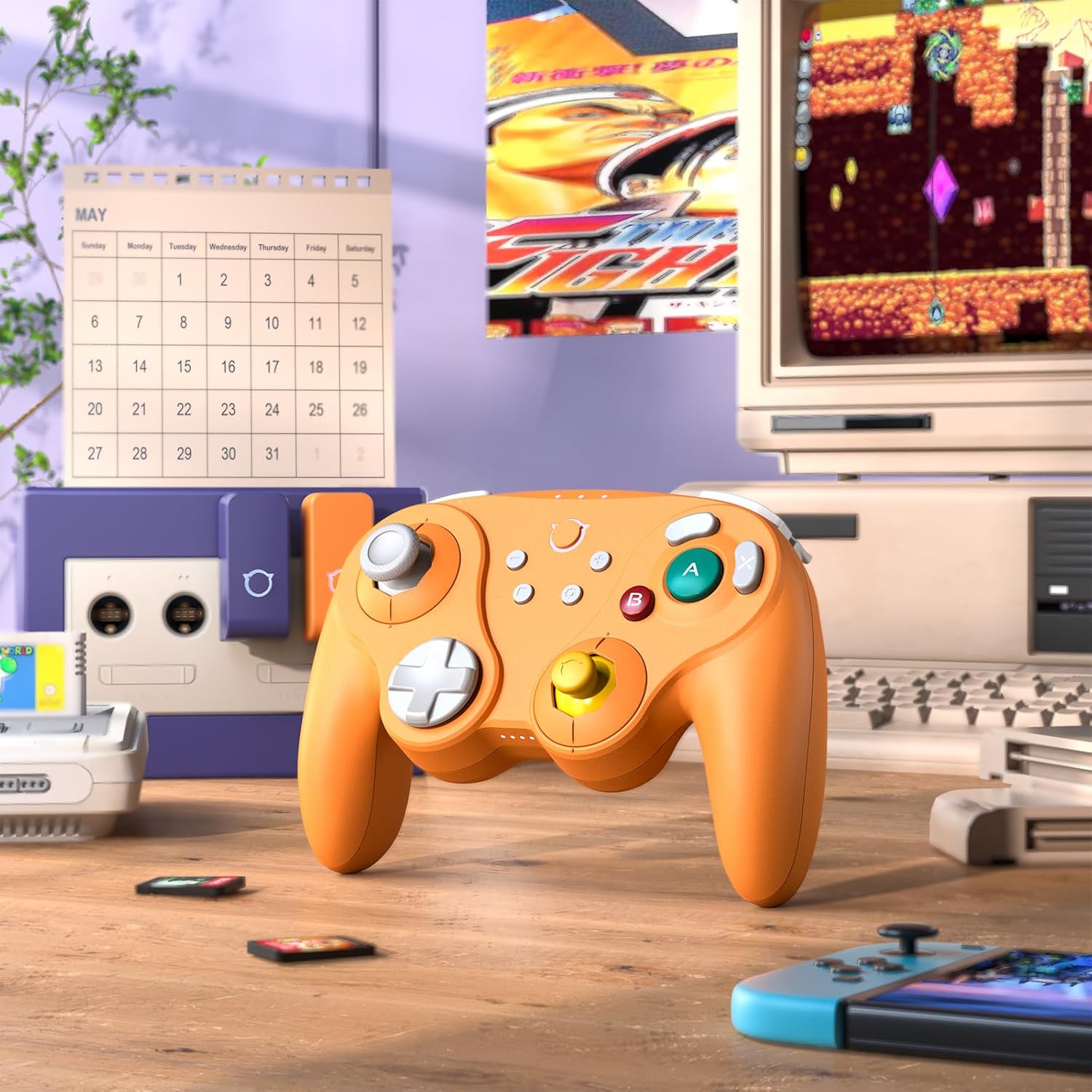
Image: The NYXI Warrior controller with a retro gaming setup, illustrating GameCube compatibility.
4. Nga Tohutohu Whakahaere
4.1 Patene Tahora me nga Mahi
The NYXI Warrior controller features a comprehensive button layout for various gaming needs:
- Rakau Analog Mauī: Mo te nekehanga me te whakahaere kamera.
- Papa-D: Tāuru aronga.
- Rakau Analog Matau: Mō te whakahaere kāmera, mō ngā mahi motuhake rānei i roto i te kēmu.
- Patene A/B/X/Y: Action buttons with micro mechanical switches for precise and rapid input.
- Ngā Pātene L/R: Pātene pakihiwi.
- ZL/ZR Triggers: Hall Effect analog triggers for precise input, adjustable for different gameplay styles.
- +/- Patene: Start/Select or Menu functions.
- Pātene Kāinga: Returns to the console's home screen.
- Patene Whakaahuamata: Ka hopu whakaahua.
- Programmable Back Paddles (M1/M2): Located on the underside, these can be assigned to various button functions.

Whakaahua: Mua view of the NYXI Warrior controller, illustrating its button layout.

Whakaahua: Hoki view of the NYXI Warrior controller, highlighting the programmable back paddles.

Whakaahua: Runga-mua view of the NYXI Warrior controller, showing triggers and charging port.

Image: Two users playing with NYXI Warrior controllers, demonstrating in-game use.
4.2 Āhuatanga Arā Atu Anō
4.2.1 Hall Effect Joysticks and Triggers
The controller utilizes Hall Effect technology for its joysticks and triggers. This magnetic sensing technology prevents stick drift and ensures precise, long-lasting input. The triggers are also adjustable, allowing users to fine-tune their activation distance based on personal preference or game requirements.

Image: Illustration of the Hall Effect Joystick technology.

Image: Adjustable Hall Sensing Triggers feature.
4.2.2 Micro Mechanical Switch Buttons
The A/B/X/Y buttons and D-pad utilize micro mechanical switches, offering a short travel distance of approximately 0.3mm and a response speed of 0.2ms. This design provides tactile feedback and minimal latency, crucial for competitive gaming.

Image: Microswitches for A/B/X/Y buttons and D-pad.
4.2.3 6-Axis Gyroscope
The integrated 6-axis gyroscope supports motion sensing, particularly useful for games on the Nintendo Switch that utilize tilt or motion controls.

Image: 6-Axis Gyroscope feature illustration.
4.2.4 HD Rumble
The controller features HD Rumble, providing enhanced vibration feedback that can convey a wider range of sensations, from subtle tremors to powerful impacts, enriching the gaming experience.

Image: HD Rumble feature illustration.
4.2.5 Programmable Back Paddles and Turbo Function
The interchangeable back paddles (M1 and M2) can be programmed to replicate other button inputs, offering additional customization and ergonomic advantages. The controller also supports a turbo function for rapid, repeated button presses. Refer to the specific programming instructions provided with the controller for detailed steps on assigning functions to the back paddles and activating turbo mode.

Image: Interchangeable Back Paddle Design.
5. Tiaki
- Te horoi: Use a soft, dry cloth to clean the controller's surface. For stubborn dirt, slightly dampen te kakahu ki te wai. A ape i te whakamahi i nga matū kino, i nga taonga abrasive ranei.
- Rokiroki: Whakaorangia te pūmana ki te wahi matao, maroke atu i te ra tika me te wera nui.
- Tiaki Pūhiko: To prolong battery life, avoid fully discharging the controller frequently. If storing for an extended period, charge the battery to approximately 50% every few months.
- Te whakahaere: A ape i te tuku i te kaiwhakahaere, te tuku ranei ki nga paanga kaha, na te mea ka pakaru nga waahanga o roto.
6. Te Raru
6.1 Kāore te Kaiwhakahaere e Hono Ana
- Me whakarite kia tika te utu o te kaiwhakahaere.
- Verify the USB Wireless Receiver is securely plugged into the console/PC.
- For Switch, ensure you are in the "Change Grip/Order" menu.
- Try re-pairing the controller by pressing the pairing button.
- Restart your console/PC and the controller.
6.2 Input Lag or Unresponsive Buttons
- Ensure there are no strong wireless interference sources nearby (e.g., Wi-Fi routers, other wireless devices).
- Move closer to the console/PC.
- Tirohia mēnā kei te iti te pākahiko o te kaiwhakahaere.
- Perform a controller reset (refer to manufacturer's specific reset procedure if available, typically a small pinhole button).
6.3 Joystick Calibration
While Hall Effect joysticks are designed to prevent drift, if you experience any unusual behavior, you may need to recalibrate them through your console's system settings (e.g., Nintendo Switch System Settings > Controllers and Sensors > Calibrate Control Sticks).
7. Whakatakotoranga
| Tau tauira | Toa |
| ASIN | B0FB9577L9 |
| Ahu mōkihi | 7.64 x 7.52 x 3.58 inihi |
| Taumaha Tūemi | 1.54 pauna |
| Pūhiko | 1 pākahiko Lithium Ion (kei roto) |
| Te Ra Tuatahi Wātea | Maehe 24, 2025 |
8. Pūtāhui me te Tautoko
For information regarding warranty coverage, technical support, or replacement parts, please refer to the official NYXI webpaetukutuku, whakapā atu rānei ki te kaihokohoko nāna te hua i hoko mai. Puritia tō taunakitanga hoko mō ngā kereme whakamana.
Official NYXI Store: NYXI Store on Amazon


