1. Kupu Whakataki
The Amazon Echo Studio (2025 Model) is a smart speaker designed to deliver immersive spatial audio and Dolby Atmos sound. It features a compact design, a built-in smart home hub, and is powered by the AZ3 Pro chip for advanced performance. This device also includes early access to Alexa+, offering a smarter and more proactive AI assistant experience.

Image 1.1: The Amazon Echo Studio (2025 Model) in Glacier White, showcasing its compact, spherical design with control buttons on top.
2. He aha kei roto i te Pouaka
Before you begin, ensure all items are present in the packaging:
- Echo Studio (2025 release)
- Pūurutau hiko (50W)
- He aratohu timata tere
3. Tatūnga
3.1 Hiko Tuatahi
- Connect the provided power adapter to the Echo Studio and then to a wall outlet.
- The light ring on your Echo Studio will turn blue, then orange, indicating it is ready for setup.
3.2 Alexa App Installation and Connection
- Download the Alexa app on your mobile device (compatible with Fire OS, Android, and iOS).
- Whakatuwheratia te taupānga Alexa ka takiuru ki tō pūkete Amazon.
- Follow the on-screen instructions to add a new device. Select "Amazon Echo" then "Echo Studio".
3.3 Tatūnga Wi-Fi
The Alexa app will guide you through connecting your Echo Studio to your Wi-Fi network. The device supports 1x1 Wi-Fi 6E (11a/b/g/n/ac/ax). Amazon Wi-Fi simple setup is available to streamline this process.
3.4 Room Adaptation
After initial setup, Echo Studio analyzes the acoustics of your room to fine-tune playback for optimal sound. This process occurs automatically.
3.5 Pairing for Enhanced Audio
- Puoro Maha-Rūma: Play music across multiple Echo devices by grouping them in the Alexa app.
- Whare Tapere: Pair your Echo Studio with compatible Fire TV devices for an immersive home theater experience. This can be done through the Fire TV settings.
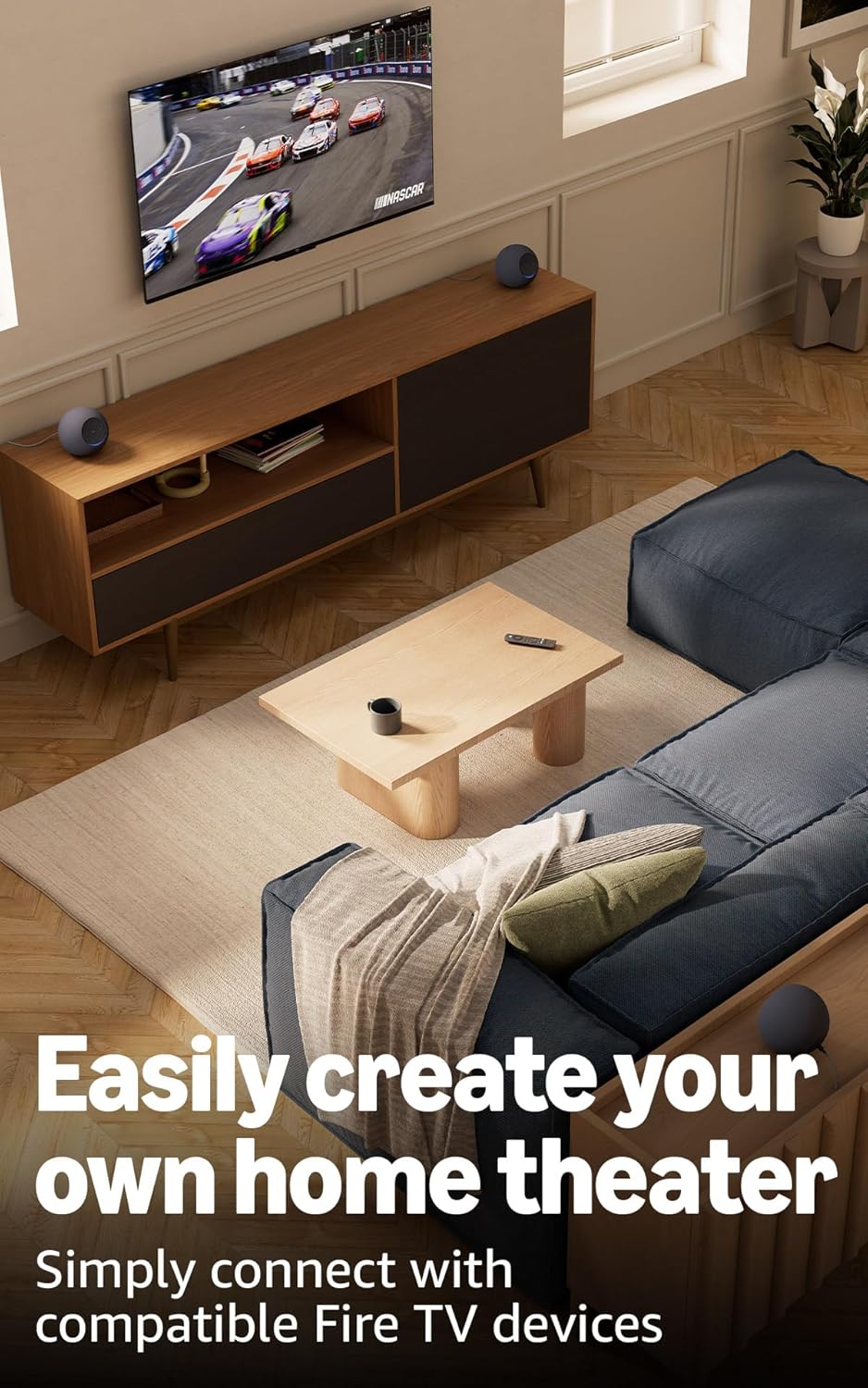
Image 3.1: Two Echo Studio devices positioned to create a home theater setup with a television, demonstrating multi-speaker audio.
4. Operating Your Echo Studio
4.1 Mana Reo me Alexa
Your Echo Studio is primarily controlled by voice commands using the wake word "Alexa". Speak clearly and directly to the device.

Image 4.1: A graphic introducing the updated Alexa+ assistant, highlighting its smarter and more proactive capabilities.
4.2 Alexa+ Early Access
This device provides early access to Alexa+. Upon setup, you can upgrade to this enhanced AI assistant for a more natural and conversational experience, capable of handling a wider range of tasks.
4.3 Mana Whakahaere Kāinga Atamai
The Echo Studio includes a built-in smart home hub supporting Zigbee, Matter, and Thread Border Router protocols. This allows you to connect and control compatible smart lights, locks, and other devices directly without a separate hub.
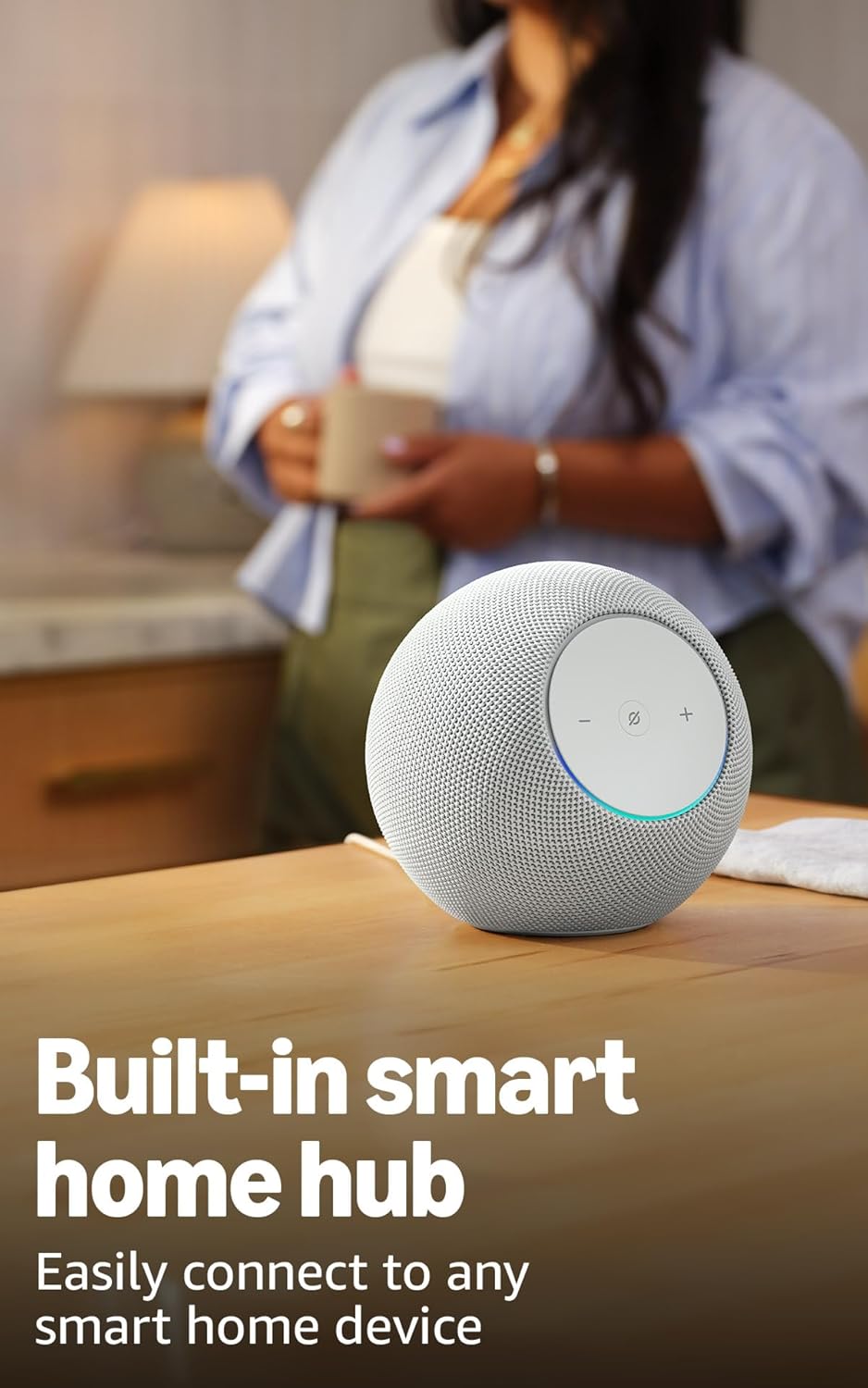
Image 4.2: The Echo Studio on a table, emphasizing its function as a built-in smart home hub for easy device connectivity.
4.4 Hononga Nihokikorangi
Echo Studio supports Bluetooth wireless technology/Bluetooth Low Energy 5.3. You can stream audio from your mobile device to Echo Studio (A2DP) or from Echo Studio to a Bluetooth speaker (A2DP). AVRCP is supported for voice control of connected mobile devices. Bluetooth speakers requiring PIN codes are not supported.
4.5 Omnisense Technology
Omnisense technology enables proactive and personalized experiences through features like presence detection, ambient temperature sensing, and accelerometer-based tap gestures. For example, you can activate routines based on temperature changes or detected presence.
4.6 eero Built-in
If you have a compatible eero router, your Echo Studio can extend Wi-Fi coverage. Link your eero and Amazon accounts and manage this feature through the eero mobile application. This feature supports up to 1,000 sq. ft. of additional coverage, speeds up to 100 Mbps, and 10 or fewer connected devices in the 5GHz band.
5. Tiaki
To ensure the longevity and optimal performance of your Echo Studio:
- Keep the device dry and away from direct sunlight or heat sources.
- Clean the exterior with a soft, dry, lint-free cloth. Do not use abrasive cleaners or solvents.
- Ensure the device is placed on a stable surface to prevent accidental falls.
6. Te Raru
If you encounter issues with your Echo Studio, consider the following steps:
- Kore Mana: Me whakarite kei te hono tika te urutau hiko ki te pūrere me te putanga pakitara e mahi ana.
- Karekau he Hononga Wi-Fi: Check your router and internet connection. Verify that your Echo Studio is within range of your Wi-Fi network. Re-attempt Wi-Fi setup through the Alexa app.
- Kare a Alexa e whakautu: Ensure the microphone is not muted (the light ring will be red if muted). Try saying the wake word more clearly or adjusting your proximity to the device.
- Nga Take Kounga Ororongo: Confirm the device is placed optimally for room adaptation. Check audio settings in the Alexa app.
- Nga Take Whanui: Try restarting your Echo Studio by unplugging it from the power outlet for a few seconds and then plugging it back in.
For further assistance, refer to the help section within the Alexa app or visit the Amazon support webpae.
7. Whakatakotoranga
| Āhuahira | Taipitopito |
|---|---|
| Rahi | 6.1”W x 5.6”D x 5.8”H (155mm W x 142.2mm D x 147.3mm H) |
| Taumaha | 57.56 oz (1632 grams) 3.6 lbs |
| Aratuku Ororongo | 30 Hz - 18 kHz (rōrahi 6) |
| Ngā Atekōkiri Pūorooro | 1x 3.75” high excursion woofer, 3x 2.25” full-range drivers |
| Whakahoki Whakahoki | 3.1.1 (left, center, right, height, subwoofer) |
| Tukatuka Ororongo | Distortion reduction, Lossless High Definition, Automatic Room Adaptation, Amazon Spatial Audio, Dolby Atmos |
| Hononga Wi-Fi | 1x1 Ipurangi Ahokore 6E 11a/b/g/n/ac/ax |
| Hononga Nihokikorangi | Bluetooth wireless technology/Bluetooth Low Energy 5.3 (A2DP, AVRCP) |
| Hub Kaa atamai | Zigbee + Matter + Miro Rohe Pouara |
| Tukatuka | AZ3 Pro me te Whakateretere AI |
| Pūoko | Te pāmahana āwhiowhio, te mārama āwhiowhio, te kimi i te aroaro, te ine tere mō ngā nekehanga pato |
| Hangarau Omnisense | Custom technology for ambient AI, enabling proactive and personalized experiences |
| eero Hanga-i roto | Extends Wi-Fi coverage with compatible eero routers (up to 1,000 sq. ft. additional coverage) |
| Reo | Ka korero a Alexa i te reo Ingarihi me te Paniora |
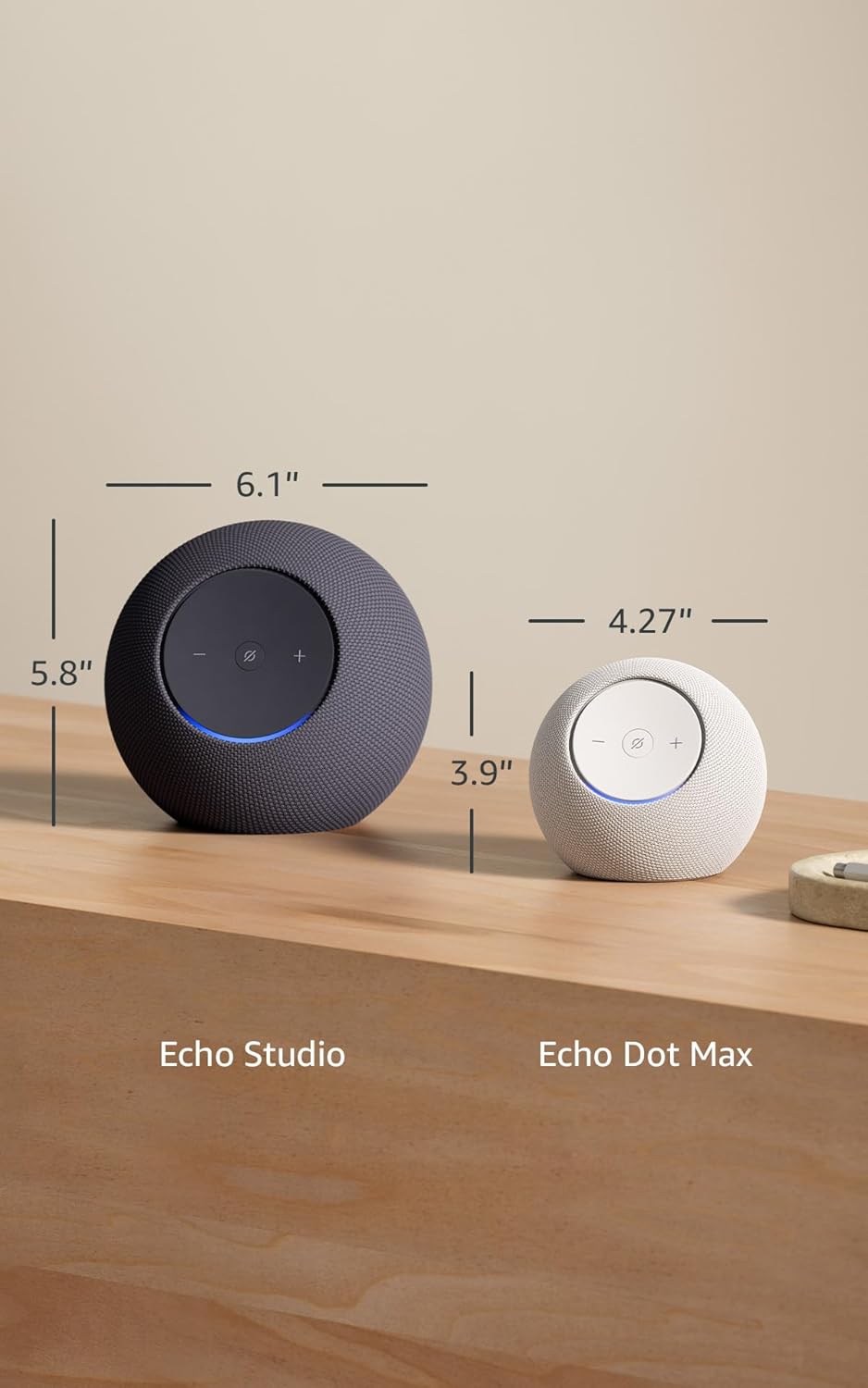
Image 7.1: A visual comparison showing the dimensions of the Echo Studio next to an Echo Dot Max.
8. Te Haumaru me te Tautukunga
8.1 Nga ahuatanga tūmataiti
The Echo Studio is designed with multiple layers of privacy controls:
- Microphones Enable/Disable Button: A physical button allows you to electronically disconnect the microphones. When disabled, the light ring will turn red.
- Hangarau Wake Word: The device only begins recording and sending audio to the cloud after detecting the wake word (e.g., "Alexa").
- Whakahaere Hopu Reo: Kei a koe te kaha ki te view me te whakakore i o rekoata reo ma te taupānga Alexa.

Whakaahua 8.1: He tata view of the Echo Studio's control panel, highlighting the microphone enable/disable button for privacy control.
8.2 Ngā Āhuatanga Wātea
Alexa offers various accessibility features to personalize your experience. These can be enabled in the Alexa App under Settings → Accessibility:
- Whakarongo Urutau: Ka nui ake te wa ki te whakaoti korero i mua i te whakautu a Alexa.
- Rereke Korero Manakohia: Control how fast or slow Alexa speaks (e.g., "Alexa, speak slower").
- Tono Oro: Plays an audible tone when you speak to Alexa.
- Kindle Panui Nui: Me pānui ā-waha e Alexa ō pukapuka Kindle.
- Whakamōhio Ina Tata: Ka whakatangihia ngā oro whakamōhiotanga ina kitea koe e tata ana ki tō pūrere Echo.
9. Pūtāhui me te Tautoko
Your Echo Studio comes with a 1-year limited warranty and service. Optional 1-year, 2-year, and 3-year extended warranties are available for U.S. customers, sold separately. For detailed warranty terms and conditions, please refer to the documentation provided with your device or visit the Amazon support webpae.
For customer support, visit the Amazon Help & Customer Service pages or contact Amazon customer service directly.


