1. Kupu Whakataki
The FIREBAT X3 Wired RGB Gaming Mouse is designed for precision and comfort, suitable for various computing tasks including gaming, office work, and general use. This manual provides detailed instructions for setting up, operating, and maintaining your mouse.

Ka mutuview of the FIREBAT X3 Wired RGB Gaming Mouse highlighting its main features.
2. Tatūnga
2.1 Te hono i te Kiore
The FIREBAT X3 Gaming Mouse features a simple plug-and-play design for easy setup.
- Locate an available USB-A port on your computer or laptop.
- Insert the USB connector of the mouse into the USB-A port.
- Your operating system will automatically detect and install the necessary drivers. No additional software installation is required for basic functionality.

The FIREBAT X3 mouse connects via a standard USB-A port for immediate use.
3. Mahi
3.1 Nga Mahi Patene
The FIREBAT X3 Gaming Mouse is equipped with 6 programmable buttons for enhanced control.
- Pātene Mauī: Taumahi pawhiri paerewa.
- Pātene Matau: Mahi pāwhiri-matau paerewa.
- Panuku Wira: Scrolls up and down. Can also be pressed for a middle-click function.
- DPI Adjustment Key: Changes the mouse sensitivity (DPI).
- Pātene Whakamua: Ka whakatere whakamua ki roto web kaitirotiro ranei file kaihōpara.
- Pātene Whakamuri: Ka whakatere whakamuri ki roto web kaitirotiro ranei file kaihōpara.

Illustration of the 6-button layout on the FIREBAT X3 Gaming Mouse.
3.2 Te Whakatikatika i te DPI (Te Tairongo)
The mouse features 4 adjustable DPI levels to suit different tasks and preferences.
- Pehia te DPI Adjustment Key (located behind the scroll wheel) to cycle through the preset DPI settings.
- The default DPI levels are 1200, 1800, 2400, and 3600.
- Each press will switch to the next DPI level, allowing you to find the optimal sensitivity for your current activity.

The DPI adjustment key allows for quick changes in mouse sensitivity.
3.3 nga momo rama rama RGB
The FIREBAT X3 mouse features 7 dynamic RGB backlit modes to enhance your setup.
- The RGB lighting automatically cycles through its 7 distinct modes.
- There is no manual button to change the RGB mode; the mouse will continuously display various lighting effects.
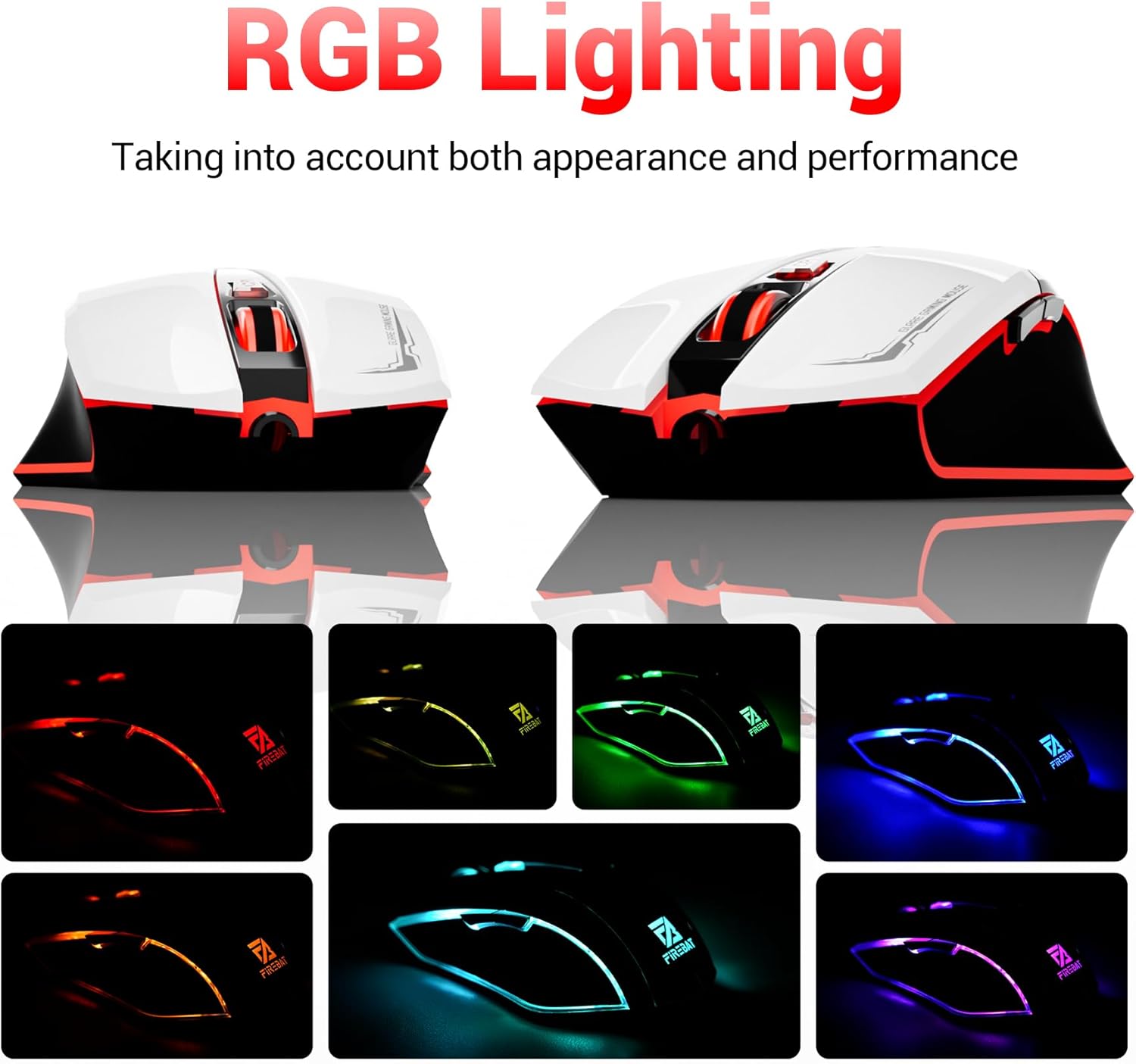
The mouse features vibrant RGB lighting with multiple dynamic modes.
3.4 Hoahoa Ergonomic me te whakamarie
The mouse is designed with an ergonomic shape to provide a comfortable grip and reduce hand fatigue during extended use, suitable for both right and left-hand users.

The ergonomic design ensures comfort during prolonged use.
3.5 Quiet Click Feature
The mouse incorporates a 'Heavy Bass Design' for its key sounds, ensuring soft clicks without excessive noise, which is beneficial in quiet environments.

The mouse features quiet clicks, minimizing noise during use.
4. Tiaki
4.1 Te horoi
To ensure optimal performance and longevity, keep your mouse clean.
- Momotuhia te kiore mai i to rorohiko i mua i te horoi.
- Kia ngawari te whakamahi i te kakahu ngohengohe, karekau he ngongo dampka whakakiia ki te wai, ki te otinga horoi ngawari ranei hei muru i te mata o te kiore.
- A ape i te whakamahi i nga matū kino, te horoi horoi, te makuku nui ranei, na te mea ka kino te kiore.
- For the optical sensor, use a cotton swab to gently remove any dust or debris.
4.2 Rokiroki
Ki te kore e whakamahia, rongoatia te kiore ki tētahi wāhi ma, maroke, kia matara atu i ngā pāmahana tino kino me te rā tika.
5. Te Raru
5.1 Kaore te Kiore e Whakautu
- Tirohia te Hononga USB: Me whakarite kia mau te mono o te taura USB ki tētahi tauranga USB e mahi ana i tō rorohiko. Whakamātauria tētahi atu tauranga USB.
- Tīmata anō Rorohiko: I ētahi wā, mā te tīmata anō noa ka ea ngā raruraru hononga.
- Whakamātautau ki tētahi atu Rorohiko: If possible, test the mouse on another computer to determine if the issue is with the mouse or your computer's setup.
5.2 He Pohehe, He Hukarere ranei te Nekehanga Pehu
- Pūoko Optical Clean: Dust or debris on the optical sensor can cause erratic movement. Refer to the cleaning instructions in the Maintenance section.
- Use a Mouse Pad: Ensure you are using the mouse on a suitable surface. Reflective, transparent, or uneven surfaces can interfere with the optical sensor.
5.3 Kāore e Mahi ana te Rama RGB
- Tirohia te Mana USB: Ensure the mouse is receiving sufficient power through the USB connection.
- No Manual Control: Remember that the RGB lighting cycles automatically and does not have a manual control button. If the mouse is functioning otherwise, the lighting should be active.
6. Whakatakotoranga
| Āhuahira | Taipitopito |
|---|---|
| Tau tauira | X3 Gaming Mouse |
| Waitohu | TE AHI |
| Hangarau Hononga | Waea USB |
| Huringa Huringa | Optical |
| Nga taumata DPI | 1200 / 1800 / 2400 / 3600 |
| Te maha o nga Patene | 6 (Ka taea te whakarite) |
| Whakamuri | 7 Aratau RGB |
| Hunga Hua | 5 x 3 x 0.1 inihi (12.7 x 7.6 x 0.25 cm) |
| Taumaha Tūemi | 5.1 hekere (144.6 karamu) |
| Ergonomics | Right or Left Hand Use |
| Kaihanga | TE AHI |
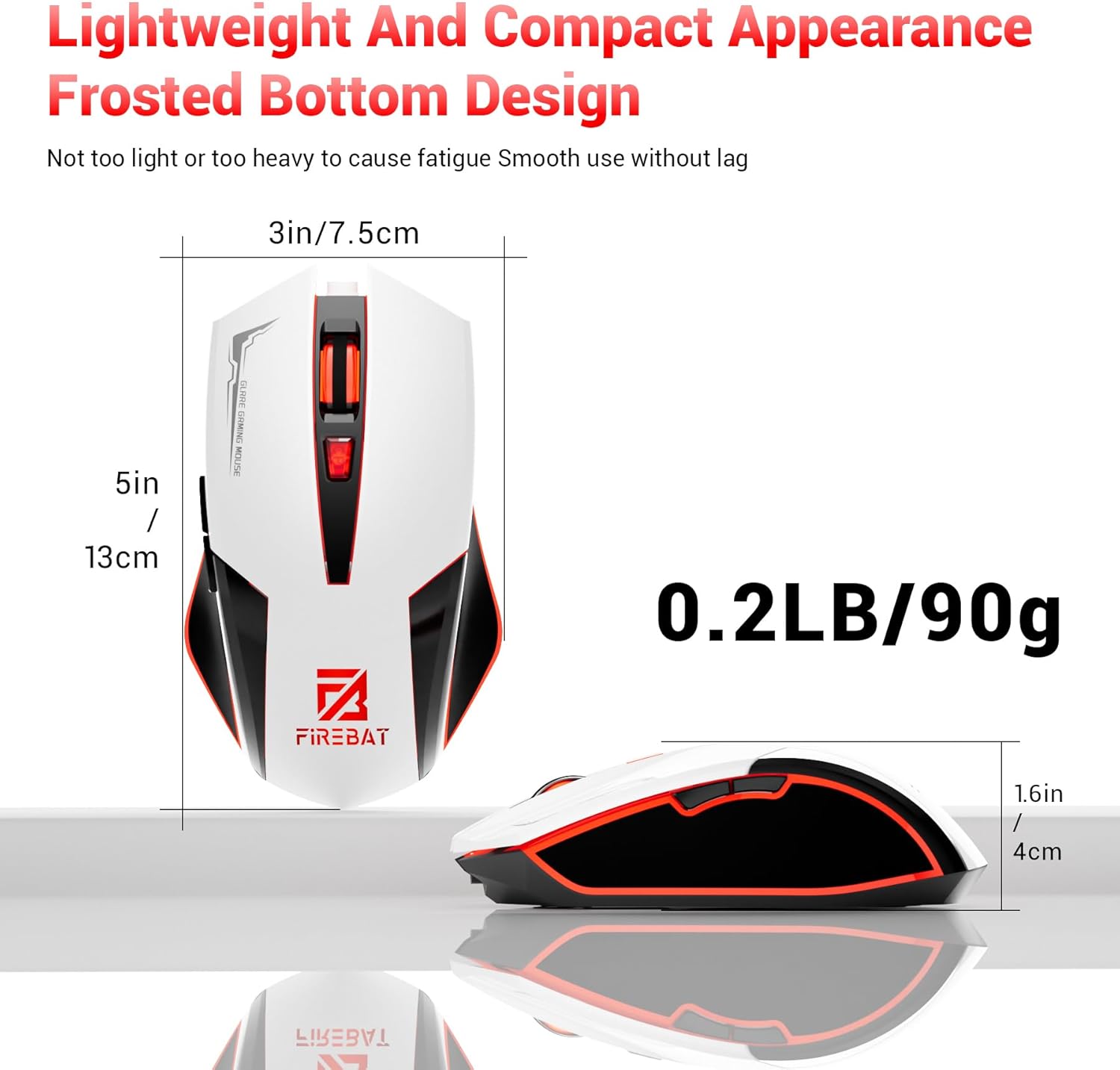
Physical dimensions and weight of the FIREBAT X3 Gaming Mouse.
7. Pūtāhui me te Tautoko
7.1 Nga Korero Whakaputanga
FIREBAT products are manufactured to high-quality standards. For specific warranty details, please refer to the warranty card included with your product or visit the official FIREBAT website. Typically, products come with a limited warranty covering manufacturing defects.
7.2 Tautoko Kiritaki
If you encounter any issues or have questions regarding your FIREBAT X3 Gaming Mouse, please contact our customer support team:
- Īmēra: support@firebatpc.com
- Webpae: www.firebatpc.com
Please provide your product model number (X3 Gaming Mouse) and a detailed description of your issue when contacting support for faster assistance.


