Kupu Whakataki
This manual provides detailed instructions for the setup, operation, maintenance, and troubleshooting of your EvoFox Elite X2 Pro Gaming Controller. Please read this manual thoroughly before using the product to ensure proper functionality and to maximize your gaming experience.
Ihirangi mokete
- EvoFox Elite X2 Pro Gaming Controller
- USB-C Uea / Uera Raraunga
- 2.4 GHz Wireless Dongle
- Additional Replaceable Joysticks (2 heights)
- Pukapuka Kaiwhakamahi (tenei tuhinga)
Tahora Kaiwhakahaere
Familiarize yourself with the buttons and features of your EvoFox Elite X2 Pro Gaming Controller.

Whakaahua: Mua view of the EvoFox Elite X2 Pro Gaming Controller, showing the joysticks, D-pad, action buttons (A, B, X, Y), Home, Back, Start buttons, and 2.4G/BT mode buttons. The controller features dynamic RGB lighting around the joysticks and along the grips.
- Rakau Analog Mauī: Mo te nekehanga me te whakahaere kamera.
- Rakau Analog Matau: Mō te whakahaere kāmera me te whai i te arotahi.
- Papa-D: Tāuru aronga.
- Patene Hohenga (A, B, X, Y): Primary game actions.
- Pātene Kāinga: Access system menus.
- Back/Select Button: Ngā mahi motuhake ki te kēmu.
- Pātene Tīmata: Pause or start games.
- 2.4G/BT Buttons: Mode selection for wireless connectivity.
- Shoulder Buttons (L1, R1): Ngā pātene e mau ana i runga.
- Trigger Buttons (L2, R2): Analog triggers for precise input.
- Pātene M1/M2: Ngā hoe tuara ka taea te whakarite.
- Tauranga USB-C: Mo te hononga waea me te utu.
- Tauranga Hononga Ororongo: For wired mode only.
Tatūnga
Te utu i te Kaiwhakahaere
Before first use, fully charge the controller. Connect the supplied USB-C cable to the controller's USB-C port and the other end to a USB power source (e.g., PC, wall adapter).
- The LED indicators will show charging status.
- He 2-3 haora pea te utu katoa.
- The 800 mAh battery provides up to 16 hours of gameplay.
Te hono i te Kaiwhakahaere
The EvoFox Elite X2 Pro supports three connection modes: 2.4 GHz Wireless, Bluetooth 5.0, and Wired USB-C.
2.4 GHz Wireless Mode (PC, Nintendo Switch via adapter)
- Insert the 2.4 GHz wireless dongle into an available USB port on your PC or Nintendo Switch dock.
- Press the "2.4G" button on the controller. The controller will automatically connect to the dongle.
- The LED indicators will stabilize once connected.
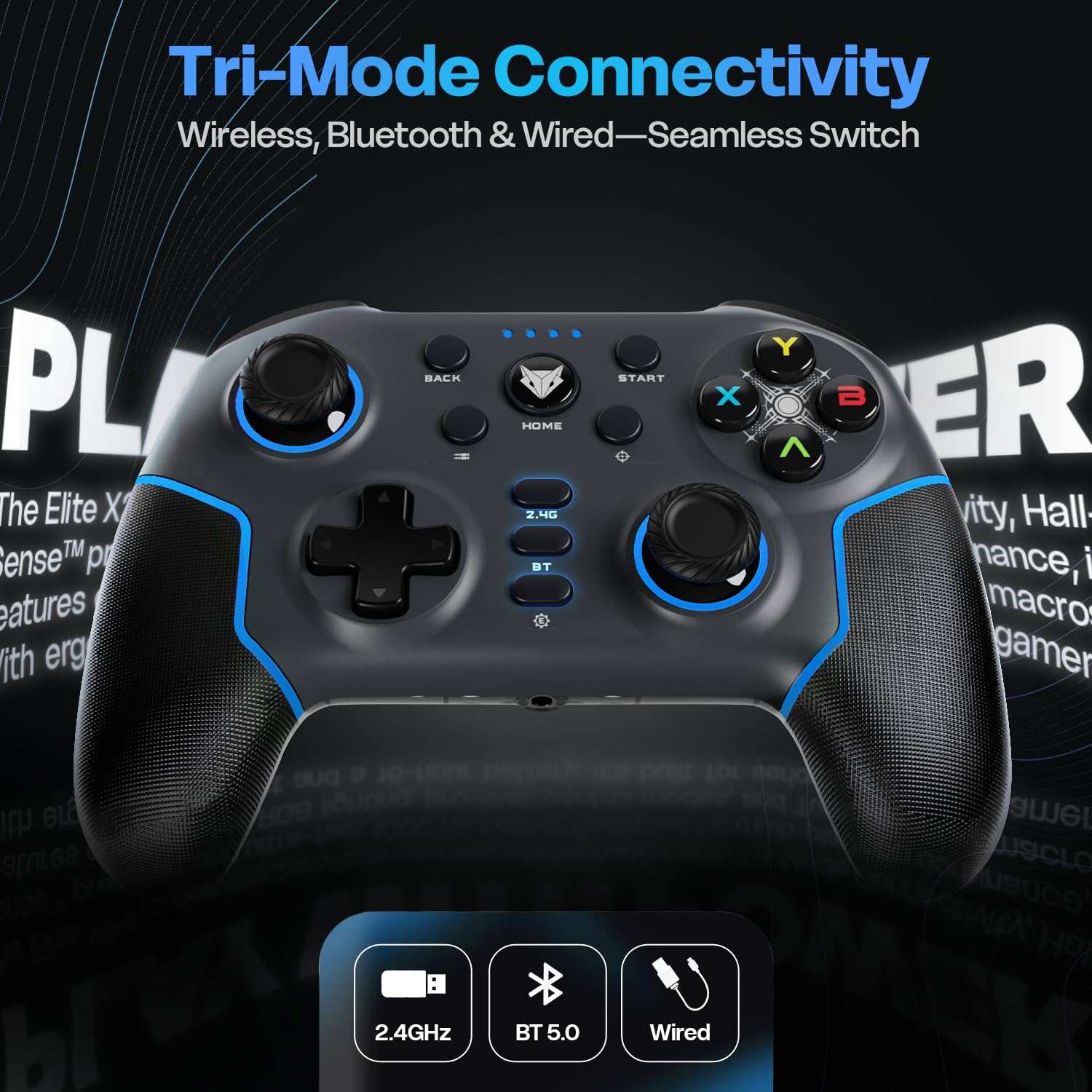
Image: Diagram illustrating the three connectivity modes: 2.4GHz wireless, Bluetooth 5.0, and wired USB-C, highlighting the seamless switching capability of the controller.
Bluetooth 5.0 Mode (PC, Android, iOS, Nintendo Switch)
- Press and hold the "BT" button on the controller until the LED indicators start flashing rapidly, indicating pairing mode.
- On your device (PC, Android, iOS, Nintendo Switch), go to Bluetooth settings and search for new devices.
- Select "EvoFox Elite X2 Pro" from the list of available devices to pair.
- The LED indicators will stabilize once successfully paired.
Wired USB-C Mode (PC)
- Honoa te taura USB-C ki te pūmana, me te pito kē atu ki te tauranga USB i tō rorohiko.
- Ka kitea aunoatia te pūmana e tō rorohiko.
- In wired mode, the audio jack port on the controller becomes active.
Te whakahaere i te Kaiwhakahaere
HallSense Magnetic Triggers & 3D Joysticks
The controller features magnetic HallSense triggers and 3D joysticks for drift-free precision and instantaneous input feedback.

Whakaahua: Kati-ake view of the transparent back of the EvoFox Elite X2 Pro controller, highlighting the internal magnetic HallSense triggers and 3D joysticks, emphasizing their drift-free precision.
1000 Hz Tatauranga Porotiti
Experience ultra-fast response times with the 1000 Hz polling rate, ensuring minimal latency for competitive gaming.

Image: The EvoFox Elite X2 Pro controller with an overlay indicating a 1000 Hz polling rate, signifying lightning-quick response and zero latency during gameplay.
Precision & Accuracy Modes
The controller offers specialized modes for enhanced control:
- Aratau Tika: Halves joystick sensitivity (0.5x) for pinpoint targeting and micro-adjustments. Activate via a dedicated button (refer to controller layout).
- Accuracy Mode: Activates square movements on the X and Y axes to eliminate diagonal drift, providing clean, linear inputs. Activate via a dedicated button (refer to controller layout).
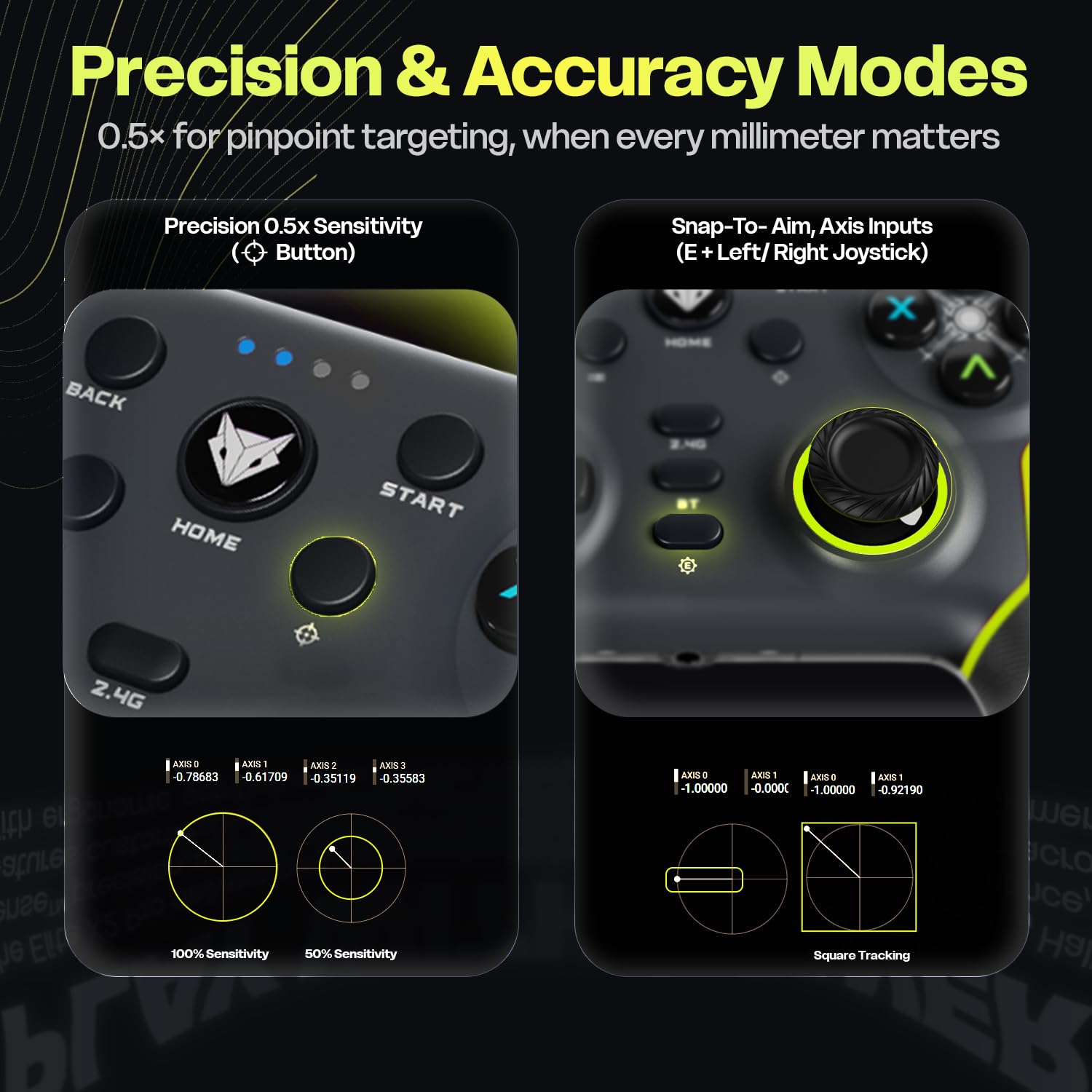
Image: Two panels demonstrating the Precision Mode (0.5x sensitivity) and Accuracy Mode (Snap-to-Aim, Axis Inputs) of the EvoFox Elite X2 Pro controller, showing how these modes affect joystick input for enhanced control.
Customizable Controls & Turbo Mode
Program macros and utilize the Turbo function for optimized gameplay.
- 16-Button Macros: Program complex button combinations to the M1/M2 back paddles. Refer to the controller's software (if applicable) or specific button combinations for programming instructions.
- Aratau Turbo: Activate rapid-fire for selected buttons. Press the Turbo button and the desired action button simultaneously to enable/disable.
- Analog-to-Digital Switch: Flip between analog and digital inputs for different game genres (FPS, racing, fighting).

Whakaahua: Taipitopito views of the EvoFox Elite X2 Pro controller, showcasing the Analog-to-Digital switch, the M1/M2 programmable back paddles for 16-button macros, and the Turbo button for rapid-fire functionality.
Rarama RGB Hihiko
Customize the vibrant RGB lighting to match your setup or mood. Lighting can be adjusted on-the-fly using dedicated controls (refer to controller layout or quick start guide for specific button combinations).
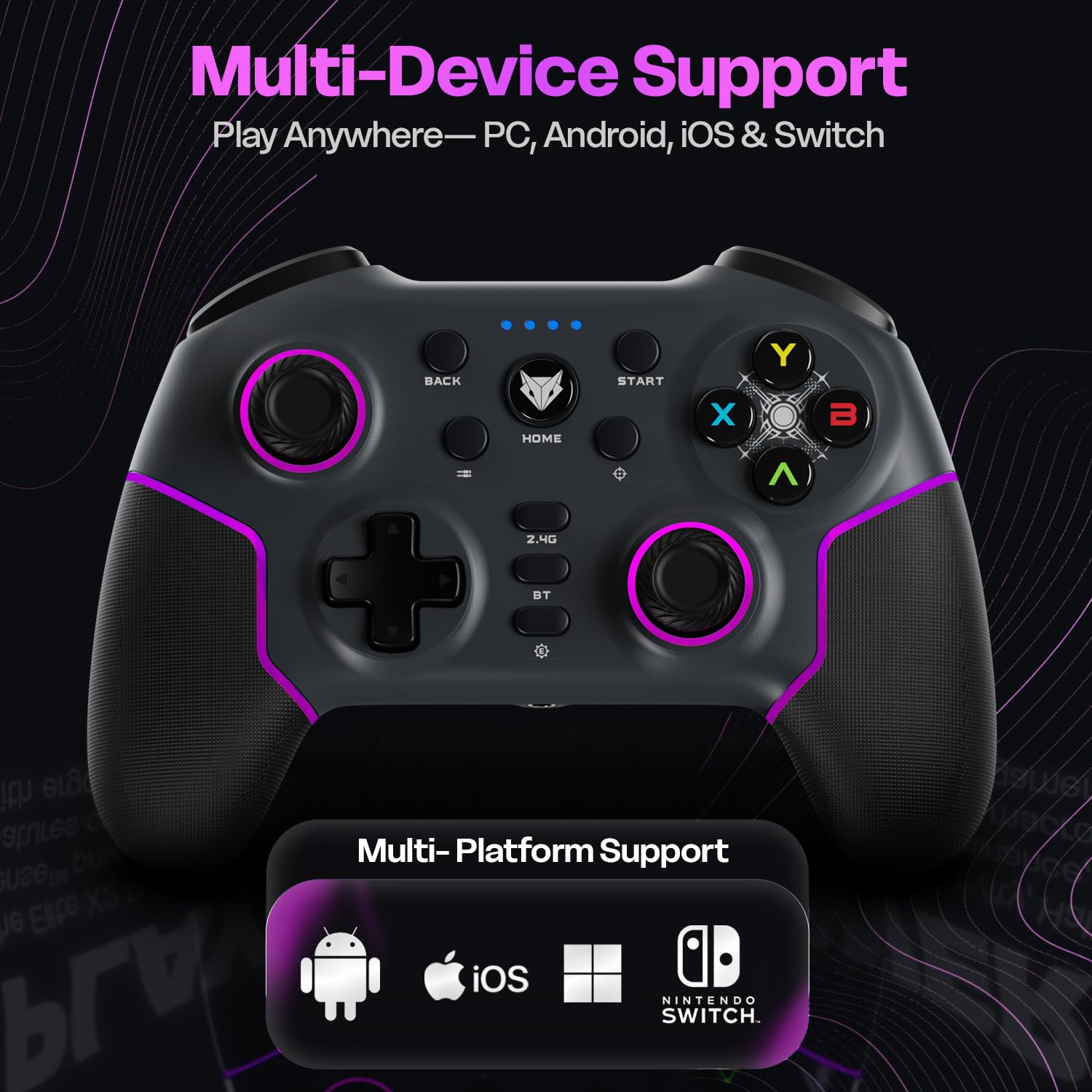
Image: The EvoFox Elite X2 Pro controller displaying its dynamic RGB lighting, with customizable strips and joystick glow, enhancing the aesthetic appeal.
Nga Ririhiko Whakakapi
The controller comes with replaceable, textured joysticks of two different heights, allowing for personalized grip profiles.
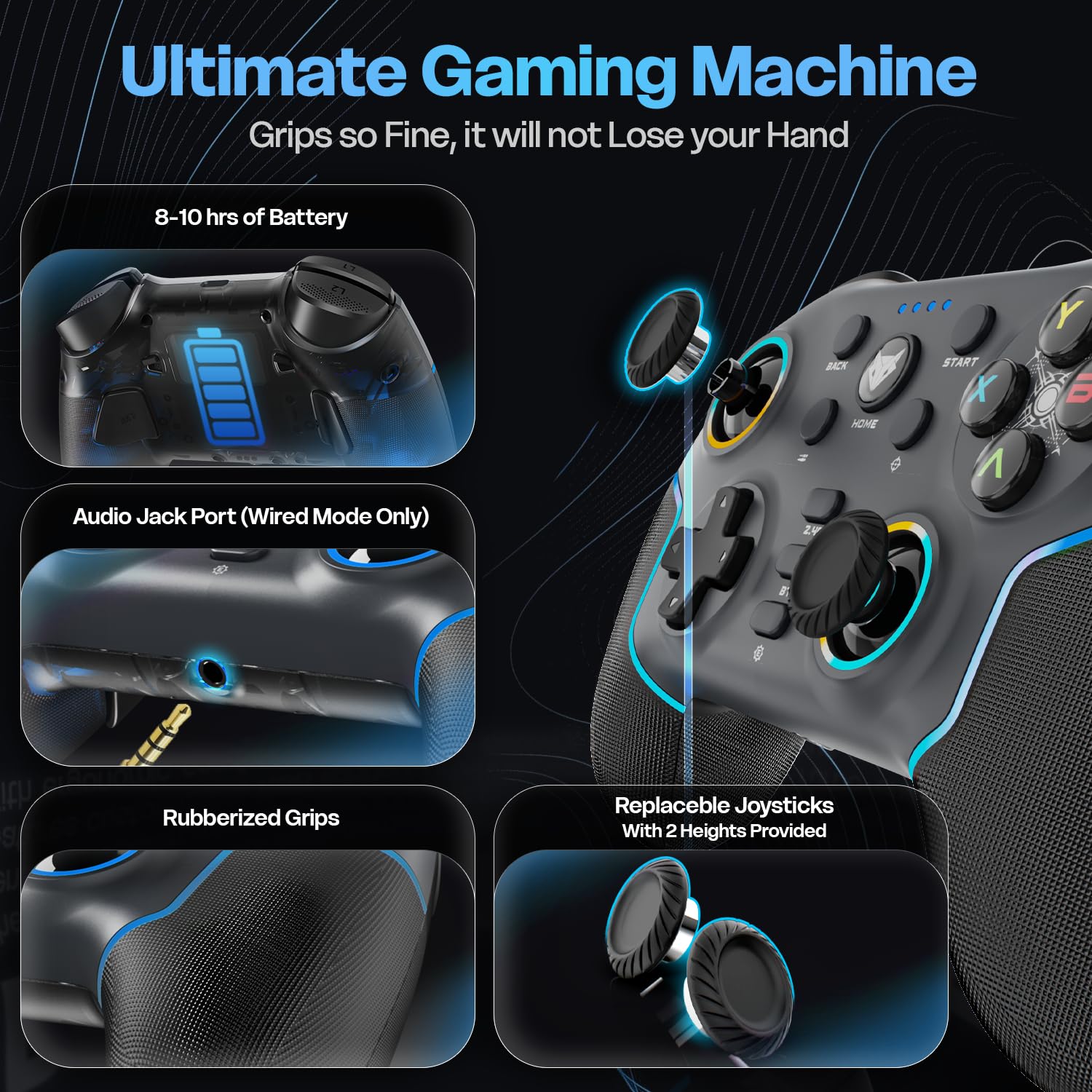
Whakaahua: He taipitopito view of the EvoFox Elite X2 Pro controller, highlighting the replaceable joysticks and showing the two different heights provided for customization.
Te tiaki
- Te horoi: Whakamahia he kakahu ngohengohe, maroke hei horoi i te pūmana. Kaua e whakamahi i ngā kaihoroi whakakoi, i ngā whakarewa rānei.
- Rokiroki: Whakaorangia te pūmana ki te wahi matao, maroke atu i te ra tika me te wera nui.
- Tiaki Pūhiko: Hei whakaroa i te ora o te pākahiko, kaua e tukua kia pau katoa te pūmana. Utuhia i ia wā, ahakoa kāore e whakamahia ana mō te wā roa.
- Joystick Replacement: To replace joysticks, gently pull the existing joystick straight up to remove it. Align the new joystick with the base and push down firmly until it clicks into place.
Raparongoā
| Raruraru | Take pea | Rongoā |
|---|---|---|
| Karekau te Kaiwhakahaere e ka ana. | He iti te pākahiko. | Charge the controller fully using the supplied USB-C cable. |
| Kāore te kaiwhakahaere e hono ahokore. | Incorrect mode selected; out of range; pairing issue. | Ensure correct mode (2.4G/BT) is selected. Move closer to the receiver. Re-initiate pairing process. Check if dongle is properly inserted for 2.4G. |
| Te whakaroa o te tāuru, te kore rānei o ngā pātene/rākau hari e aro mai. | Interference; low battery; driver issue. | Ensure no strong wireless interference. Charge the controller. Update controller drivers on PC if necessary. Try wired connection. |
| Vibration not working or too strong/weak. | Vibration level setting. | Adjust the four-level vibration intensity using the dedicated button or software (if available). |
| Controller not recognized by PC in wired mode. | Faulty cable; USB port issue; driver issue. | Try a different USB-C cable. Use a different USB port on your PC. Update PC USB drivers. |
If you encounter issues not listed here, please refer to the official EvoFox support webpae, whakapā atu ranei ki te ratonga kiritaki.
Whakatakotoranga
- Tau tauira: 387
- Hononga: Ahokore 2.4 GHz, Nihokikorangi 5.0, Waea USB-C
- Hototahi: PC, Android, iOS, Nintendo Switch (Xbox not supported)
- Reeti Pooti: 1000 Hz
- Triggers & Joysticks: Magnetic HallSense
- Pūhiko: 800 mAh Lithium-ion
- Ora Pūhiko: Tae atu ki te 16 haora
- Tauranga Whakatau: USB-C
- Ahu: 15.5 x 11 x 5.7 cm
- Taumaha: 222 g
- Whenua Taketake: Haina
Pūtāhui me te Tautoko
EvoFox products are designed for durability and performance. For warranty information and technical support, please visit the official EvoFox webpaetukutuku, whakapā atu ranei ki ta raatau ratonga kaihoko. Puritia to rihiti hoko mo nga kereme whakamana.
Kaihanga: Allied Electronics & Magnetics Private Limited C-64/4, Okhla Phase - 2, New Delhi - 110020, Allied Electronics & Magnetics Pvt. Ltd.
Kai kawemai: Allied Electronics & Magnetics Private Limited C-64/4, Okhla Phase - 2, New Delhi - 110020
Mo etahi atu awhina, ka toro atu koe ki te EvoFox Store on Amazon.
Nga Korero Haumaru Nui
- Kaua e whakaatuhia te kaiwhakahaere ki ngā pāmahana tino nui, ki te haumākū, ki te rā tika rānei.
- Do not disassemble or attempt to repair the controller yourself. This will void the warranty.
- Kaua e taea e nga tamariki iti.
- Dispose of the battery and controller according to local regulations.


