Kupu Whakataki
This manual provides detailed instructions for the setup, operation, maintenance, and troubleshooting of your Akko TAC75 Rapid Trigger Gaming Keyboard. Please read this manual thoroughly to ensure optimal performance and longevity of your device.

Image: The Akko TAC75 Rapid Trigger Gaming Keyboard, showcasing its white design and vibrant RGB backlighting.
Aratohu Tatūnga
1. Te Wetewete Mekemeke me nga Ihirangi
Tangohia marietia ngā wāhanga katoa mai i te takai. Me whai i roto i te takai:
- Akko TAC75 Rapid Trigger Gaming Keyboard
- USB-A ki USB-C Cable
- Keycap Puller / Switch Puller (may vary)
2. Te hono i te Papapātuhi
- Locate the USB-C port on the Akko TAC75 keyboard.
- Honoa tetahi pito o te taura USB-A ki te USB-C kua whakaratohia ki te tauranga USB-C o te papapātuhi.
- Connect the other end (USB-A) to an available USB port on your computer.
- The keyboard is plug-and-play and should be automatically recognized by your operating system (e.g., Windows 11).
3. Operating System Compatibility Switch
The Akko TAC75 features a physical switch on the back of the keyboard to toggle between Windows and Mac operating system modes. Ensure the switch is set to the appropriate position for your system to ensure full functionality.
4. Software Installation (Akko Driver)
For advanced customization, including key remapping, actuation point adjustment, and lighting effects, download and install the Akko Driver software from the official Akko website. The software provides a user-friendly interface for fine-tuning your keyboard settings.
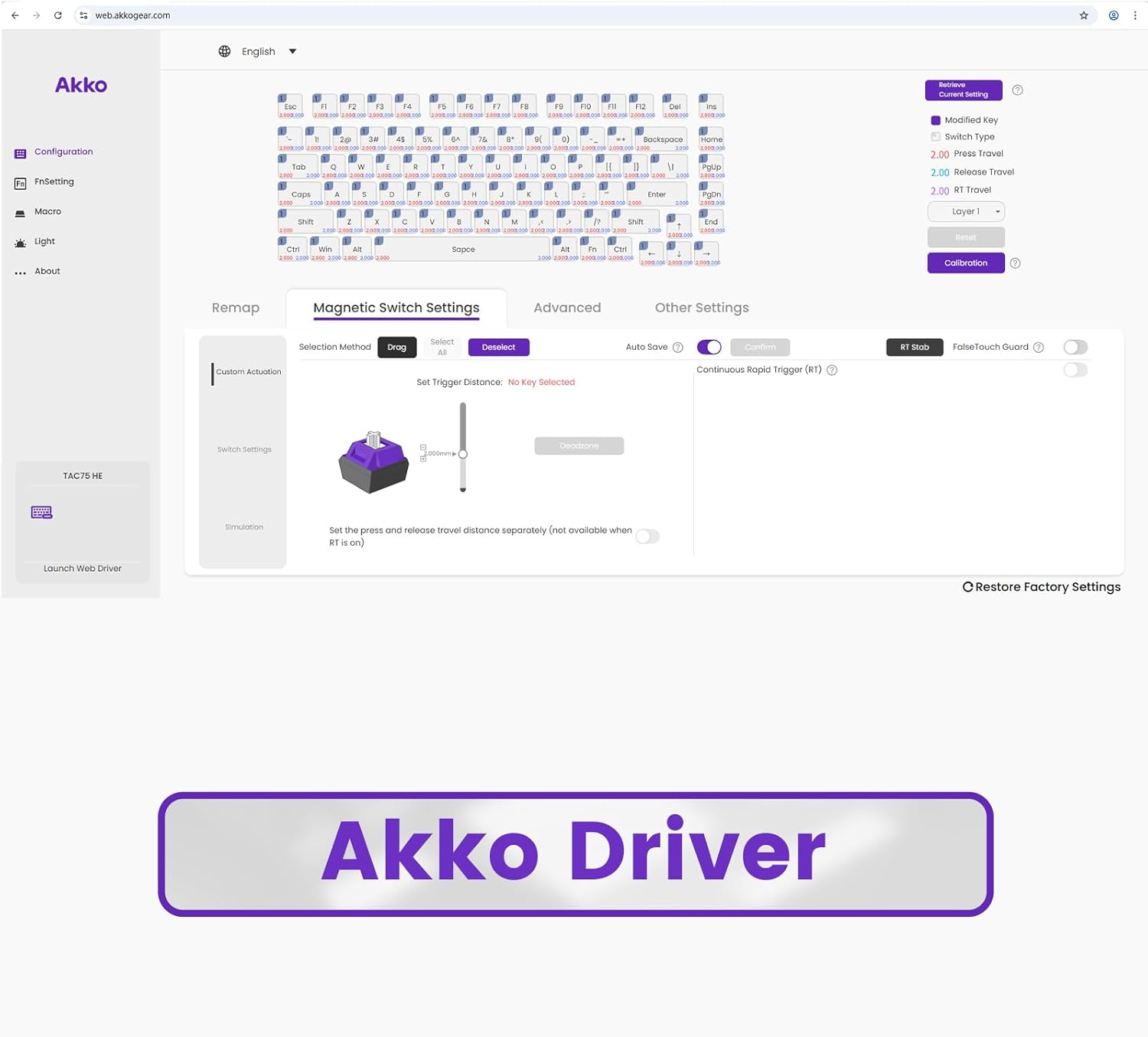
Image: A screenshot of the Akko Driver software, showing options for configuration, remapping, and lighting adjustments.
Nga Tohutohu Whakahaere
Nga waahanga matua kua mutuview
- 8K Polling Rate & 16K Scan Rate: The keyboard communicates with your computer at an 8K polling rate, sending data 8 times faster than standard 1K keyboards. The 16K scan rate ensures instant detection of key changes, significantly enhancing responsiveness.

Image: A graphic highlighting the 8K Polling Rate and 16K Universal Scan capabilities of the keyboard.
- Te Keu Tere Tino-Piti: The TAC75 HE keyboard offers an ultra-accurate 0.005mm Rapid Trigger feature with adjustable actuation distance in 0.005mm increments. This allows for precise control over key activation and deactivation, crucial for competitive gaming.

Image: A close-up of the keyboard keys with a diagram illustrating the 0.005mm Rapid Trigger actuation precision.

Image: A comparative graph demonstrating the faster response times and precision of magnetic keyboard rapid trigger functionality versus traditional mechanical keyboards.
- ARGB Rama: The TAC75 series features ARGB (Addressable RGB) lighting with south-facing LEDs, providing smooth, flicker-free illumination. This allows for rich dynamic effects and can be customized to reduce visual fatigue, enhancing both gaming and aesthetic appeal.

Image: The Akko TAC75 keyboard displaying its customizable ARGB lighting across the keys.
- Snap Key (SOCD): Akko's implementation of SOCD (Simultaneous Opposite Cardinal Directions) prioritizes the most recent keypress for rapid directional changes without requiring the release of previous inputs. This feature is particularly beneficial in FPS games for fluid and responsive movement control.

Image: A diagram illustrating how Akko Snap Key functionality processes simultaneous directional inputs, prioritizing the latest press.
Basic Keyboard Functions and Hotkeys
The keyboard supports various functions accessible via the Function (Fn) key combinations. Some common hotkeys include:
- Fn + Kāinga: Change ARGB lighting pattern.
- Fn + | (vertical bar key above Enter): Change ARGB lighting color.
- Other multimedia and function keys may be accessible via Fn combinations, typically indicated by secondary legends on the keycaps.
For a complete list of hotkeys and their functions, refer to the Akko Driver software or the official Akko webpae.
Te tiaki
Te horoi i te papapātuhi
Hei pupuri i te ahua me te mahi o to papapātuhi:
- Momotuhia te papapātuhi mai i to rorohiko i mua i te horoi.
- Whakamahia he kakahu ngohengohe, karekau he ngongo paku dampka whakakiia ki te wai, ki te otinga horoi ngawari ranei hei muru i nga kapene me te tahuhu.
- Āta karohia te whakamahi i ngā matū kaha, i ngā mea whakakoi, i te makuku nui rānei, nā te mea ka kino pea te papapātuhi i ēnei.
- For cleaning between keycaps, use compressed air to remove dust and debris. A keycap puller can be used to remove keycaps for deeper cleaning, if necessary.
Whakawhiti Hototahi
The Akko TAC75 uses magnetic (Hall Effect) switches, specifically AstroAim Switches. This keyboard is compatible with most downward-facing N-pole magnet switches. However, it is important to note that using non-AstroAim magnetic switches may affect actuation precision. This keyboard is kore hototahi with traditional mechanical switches.

Whakaahua: He taipitopito view of an AstroAim magnetic switch, highlighting its unique design.
Raparongoā
Nga take me nga otinga noa
- Papapātuhi Kaore i te whakautu:
- Me mohio kei te hono pai te taura USB ki te papapātuhi me te rorohiko.
- Ngana ki te hono i te papapātuhi ki tetahi tauranga USB rereke i runga i to rorohiko.
- Tīmataria anō tō rorohiko.
- Verify the OS compatibility switch on the back of the keyboard is set correctly (Windows/Mac).
- Kāore e Mahi ana, e Hē rānei te Rama RGB:
- Check the lighting settings within the Akko Driver software.
- Use the Fn + Home and Fn + | hotkeys to cycle through lighting patterns and colors.
- Ensure the Akko Driver software is up to date.
- System Stuttering or Performance Issues (with 8K Polling Rate):
- The 8K polling rate is CPU-intensive. If you experience system stuttering, especially during gameplay, consider lowering the polling rate through the Akko Driver software.
- Ensure your computer meets the recommended specifications for high polling rate peripherals.
- Keys Not Actuating Correctly (Rapid Trigger):
- Open the Akko Driver software and check the Rapid Trigger and actuation point settings. Ensure they are configured to your preference.
- Perform a calibration within the Akko Driver software if available.
- Ensure no foreign objects are lodged under the keycaps or switches.
If you encounter issues not covered here, please visit the official Akko support webpae, whakapā atu ranei ki te ratonga kiritaki mo etahi atu awhina.
Whakatakotoranga
| Āhuahira | Taipitopito |
|---|---|
| Tau tauira | AKKO01-00015-WH |
| Waitohu | Akko |
| Momo Papapātuhi | Rapid Trigger Gaming Keyboard (Hall Effect) |
| Momo Whakawhiti | AstroAim Switch |
| Hononga | Waea (USB-C) |
| Reiti Pooti | 8KHz |
| Reiti Matawai | 16KHz |
| Rapid Trigger Actuation | Ultra-precise 0.005mm adjustable |
| Whakamarama | ARGB (South-facing LED) |
| Nga waahanga motuhake | Snap Key (SOCD), Akko Driver Software Support |
| Pūrere Hototahi | PC, Pona, Papatohu petipeti |
| Tae | Tiaho-ma SP White |
| Taumaha Tūemi | 1.85 pauna |
| Ahu mōkihi | 13.82 x 8.11 x 2.01 inihi |
Pūtāhui me te Tautoko
Akko products are manufactured to high-quality standards. For information regarding warranty coverage, terms, and conditions, please refer to the warranty card included with your product or visit the official Akko webpae.
For technical support, troubleshooting assistance, or general inquiries, please contact Akko customer service through their official webpae: Akko Official Store.


