1. Hua Neke Atuview
The Cudy BE11000 AP11000 is a high-performance Tri-Band Wi-Fi 7 Wireless Access Point designed for robust and high-density network environments. It supports the latest Wi-Fi 7 standard, offering advanced features for enhanced speed, capacity, and coverage.
Āhuatanga matua:
- Tri-Band Wi-Fi 7: Delivers combined speeds of up to 11000 Mbps (5760 Mbps on 6 GHz, 4320 Mbps on 5 GHz, and 574 Mbps on 2.4 GHz).
- Ngā Tauranga Maha-Gigabit: Equipped with one 10 Gigabit SFP+ port and one 2.5 Gigabit Ethernet port with PoE-in support.
- Kōwhiringa Hiko Hangarau: Supports 802.3at standard PoE, passive PoE, and 12V DC power input.
- Cudy APP Control: Offers convenient cloud and local management through the Cudy application.
- Mesh Technology: Enables seamless roaming and expanded coverage when integrated with other Cudy Mesh-compatible devices.
- Multi-VPN Support: Includes WireGuard, OpenVPN, IPsec, Zerotier, PPTP, and L2TP for secure network transmissions.
- Raukaha Teitei: Designed to connect a large number of devices simultaneously.
Ihirangi mōkī:
- Cudy BE11000 AP11000 Wireless Access Point
- Pūurutau Hiko
- Mutu Kit
- Tauira Itarangi
- Aratohu Tāuta
2. Whakaahuatanga Tinana
Paewhiri Mua:
The front panel features the Cudy logo and an LED indicator. The LED provides status information about the device's operation.

Whakaahua: Mua view of the Cudy BE11000 AP11000 Wireless Access Point, showing the Cudy logo and a blue LED indicator.
Rear Panel and Ports:
The rear panel contains all necessary ports for connectivity and power. These include a 10G SFP+ port, a 2.5 Gbps Ethernet port (PoE IN), a reset button, and a DC power input.
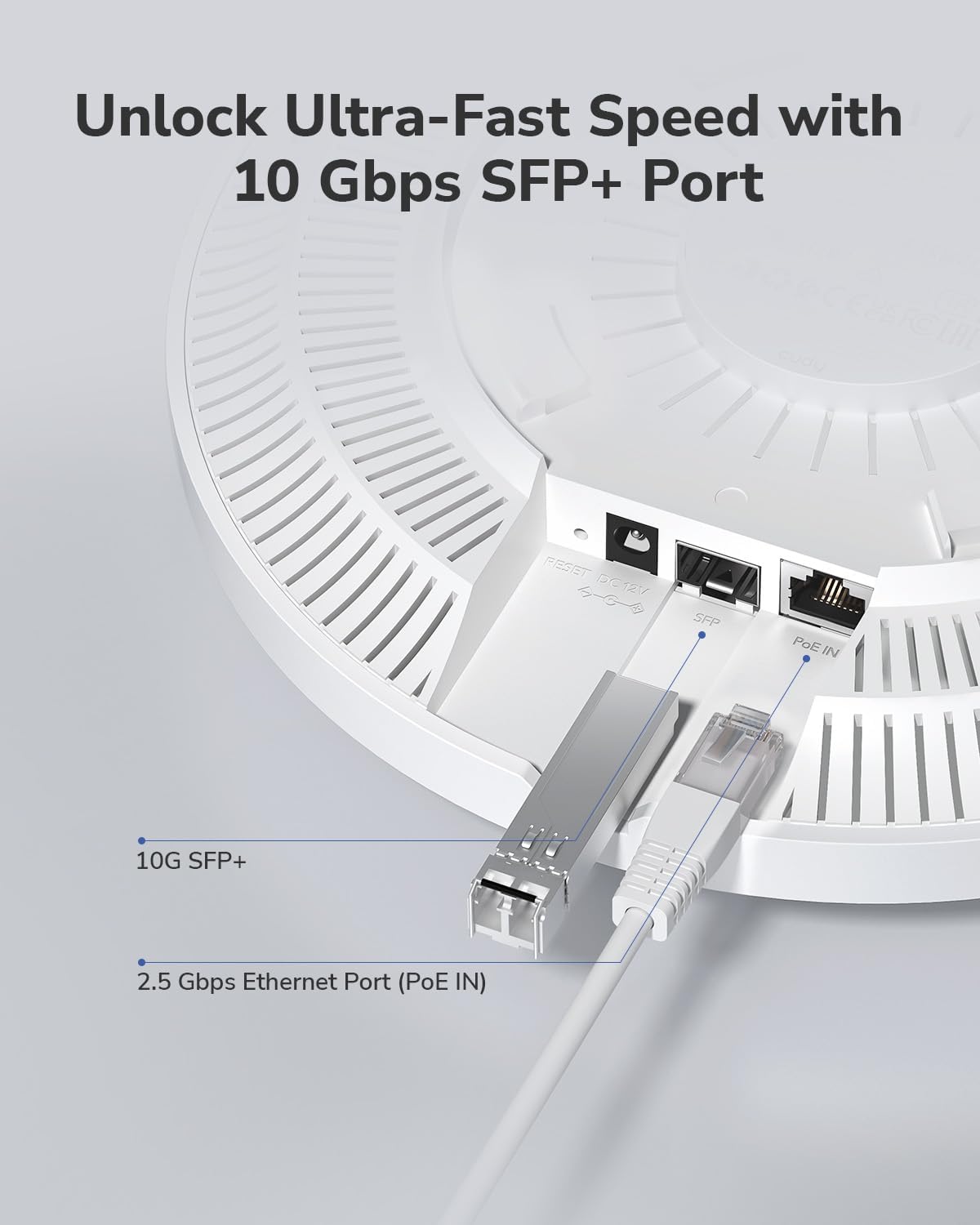
Whakaahua: Kati-ake view of the Cudy BE11000 AP11000's rear ports, highlighting the 10G SFP+ port and the 2.5 Gbps Ethernet port (PoE IN) with cables connected.

Image: Rear and side perspective of the Cudy BE11000 AP11000, showing the DC power input and the 2.5 Gbps Ethernet port with connected cables.
3. Tāutanga
Kōwhiringa Whakapuru:
The AP11000 supports both ceiling and wall mounting for flexible deployment. Use the included mounting kit and follow the instructions provided in the separate installation guide for secure attachment.

Image: Diagrams illustrating the process for both ceiling mounting and wall mounting the Cudy BE11000 AP11000 Wireless Access Point.
Whakakaha ana i te Pūrere:
The AP11000 can be powered using one of the following methods:
- Te mana ki runga Itarangi (PoE): Connect an Ethernet cable from a PoE-enabled switch or injector to the 2.5 Gbps Ethernet port (PoE IN). This method provides both data and power over a single cable.
- Pūurutau Hiko DC: Connect the included power adapter to the DC power input port and plug it into a standard electrical outlet.
4. Tatūnga
Whirihoranga Tuatahi:
Upon first power-up, the AP11000 will broadcast default Wi-Fi networks. You can connect to these networks to begin the configuration process. It is recommended to change default settings, including Wi-Fi names (SSIDs) and passwords, immediately after initial access.
Using the Cudy App:
Download the Cudy app from your mobile device's app store. The app provides a user-friendly interface for managing your AP11000, including initial setup, network monitoring, and feature configuration. The app supports both cloud and local management.
Web Urunga Atanga:
For advanced configuration, access the AP11000's web atanga mā a web browser. Connect your computer to the AP11000 directly or through your network. Open a web browser and enter the default IP address (refer to the installation guide or product documentation for the specific IP address). Log in with the default credentials, which should be changed for security purposes.
5. Mahi
Tautuhinga Wi-Fi:
Configure your wireless networks (SSIDs) for the 2.4 GHz, 5 GHz, and 6 GHz bands. You can set unique SSIDs and passwords for each band or use a unified SSID for seamless band steering.
Multi-SSID for Enhanced Security:
The AP11000 supports creating multiple SSIDs, allowing you to segment your network for different user groups or device types (e.g., Guest, Staff, IoT). This enhances security and network management.

Image: A cafe environment demonstrating the use of multiple SSIDs (IoT, Staff, Guest) to segment network access for different purposes.
Mesh Technology and Fast Roaming:
When deployed with other Cudy Mesh-compatible devices, the AP11000 can form a mesh network, providing extended coverage and fast roaming for connected devices. This ensures a consistent Wi-Fi experience as users move across different areas.

Image: A multi-floor building diagram showing how Mesh Technology enables fast roaming and seamless Wi-Fi coverage across different levels.
VPN Whirihoranga:
The AP11000 supports various VPN protocols, including WireGuard, OpenVPN, IPsec, Zerotier, PPTP, and L2TP. Configure VPN settings through the web interface to establish secure and stable connections for remote access or network privacy.
6. Āhuatanga Arā
Whakahaerenga Pokapū:
For larger deployments, the AP11000 can be managed centrally using Cudy's management solutions, such as the Cudy C200P or Cudy PoE Switches. This allows for efficient configuration and monitoring of multiple access points from a single interface.

Image: A hotel complex illustrating how various Cudy Access Points (Wall-Plate, Outdoor, Ceiling-Mount) are centrally managed via Cudy C200P and PoE Switches.
Portal mauhere:
Implement a captive portal for guest networks, requiring users to authenticate or agree to terms of service before gaining internet access. This is particularly useful in public or business environments.

Image: A mobile phone screen displaying a hotel login page, representing a captive portal for guest access.
Band Steering and Channel Optimization:
The AP11000 can intelligently steer devices to the optimal Wi-Fi band (2.4 GHz, 5 GHz, or 6 GHz) and optimize channel usage to minimize interference and maximize performance.

Image: A diagram showing how band steering directs devices to either the 5 GHz or 2.4 GHz band based on network conditions.

Image: A diagram comparing Wi-Fi channel usage before and after optimization, showing how channels are adjusted to reduce overlap and interference.
7. Tiaki
Whakahōu Firmware:
Regularly check for and install firmware updates to ensure optimal performance, security, and access to new features. Firmware updates can be performed via the Cudy app or the web atanga.
Tautuhi Anō i te Pūrere:
To restore the AP11000 to its factory default settings, locate the reset button on the rear panel. With the device powered on, press and hold the reset button for approximately 10 seconds until the LED indicator changes, then release. The device will reboot with factory defaults.
8. Te Raru
Kore Mana:
- Ensure the power adapter is securely connected to the AP11000 and a working power outlet.
- If using PoE, verify that the Ethernet cable is connected to a PoE-enabled port on your switch/injector and that the PoE source is active.
Kaore he Urunga Ipurangi:
- Check the Ethernet connection from the AP11000 to your router or network.
- Manatokohia he hononga ipurangi kaha to pouara matua.
- Ensure the AP11000 is configured correctly (e.g., in Access Point mode, not Router mode if you already have a router).
Tohu Wi-Fi ngoikore, tere rānei:
- Relocate the AP11000 to a more central location, away from obstructions and sources of interference (e.g., microwaves, cordless phones).
- Ensure your client devices support Wi-Fi 7 or at least Wi-Fi 6E to utilize the 6 GHz band.
- Tirohia mo nga whakahou firmware.
- Consider adding more Cudy access points to create a mesh network for broader coverage.
Kaore e taea te uru Web Atanga:
- Verify your computer is connected to the same network as the AP11000.
- Ensure you are using the correct IP address for the AP11000. If the IP address was changed, use the new one.
- Whakamātauria te whakawātea i te keteroki o tō pūtirotiro me te whakamahi i tētahi atu pūtirotiro.
- If all else fails, perform a factory reset (see Section 7) and try accessing with default credentials.
9. Whakatakotoranga
| Āhuahira | Whakatakotoranga |
|---|---|
| Tauira | AP11000 |
| Paerewa Wi-Fi | Wi-Fi 7 (802.11be) |
| Paihere Auautanga | Takitoru (2.4 GHz, 5 GHz, 6 GHz) |
| Nga Tere Wi-Fi | 5760 Mbps (6 GHz) + 4320 Mbps (5 GHz) + 574 Mbps (2.4 GHz) |
| Tauranga Itarangi | 1 x 10G SFP+ Port, 1 x 2.5G PoE-in Ethernet Port |
| Whakauru Mana | 802.3at PoE, Passive PoE, 12V DC |
| Ahu (L x W x H) | 9.13 x 9.13 x 2.24 inihi |
| Taumaha Tūemi | 1.28 pauna |
| Tae | Mā |
| Aratau Mahi | Aratau Pūwāhi Uru, Uru Mamao |
| Pūrere Hototahi | PC, Smart Phone, Smart TV, Laptop, Tablet |
10. Tautoko
For further assistance, technical support, or warranty information, please visit the official Cudy website or contact Cudy customer support through the channels provided in your product packaging or on their webpae.
Rauemi ipurangi:
- Cudy Whaimana Webpae: www.cudy.com
- Product Support Page: Refer to the Cudy website for specific support pages related to the AP11000 model.


