1. Kupu Whakataki
Thank you for choosing the Dierya DK68 65% Wireless Mechanical Gaming Keyboard. This manual provides detailed instructions on how to set up, operate, and maintain your keyboard, ensuring optimal performance and longevity. The DK68 features a compact 65% layout, tri-mode connectivity (Bluetooth 5.0, 2.4G wireless, and USB-C wired), customizable RGB backlighting, and durable mechanical switches.
2. Ihirangi mokete
Tena koa tirohia te kete mo nga mea e whai ake nei:
- Dierya DK68 Wireless Mechanical Gaming Keyboard
- USB-C taura
- Paetukutuku Puller
- Pukapuka Kaiwhakamahi (tenei tuhinga)
3. Hua Neke Atuview
The Dierya DK68 is a compact 68-key mechanical keyboard designed for both gaming and productivity. It offers a minimalist design while retaining essential functionality through FN key combinations. The keyboard supports multiple connection types and features vibrant RGB lighting.

Image: The Dierya DK68 Wireless Mechanical Gaming Keyboard in white, showcasintōna tahora kiato me te rama whakamārama RGB.

Whakaahua: Kua mutuview of the Dierya DK68's key features, including BT5.0/2.4G/Wired connectivity, 60% compact layout, RGB Backlit, 3000mAh battery, Mechanical Switches, Double-Shot Keycaps, Full N-Key Rollover (NKRO), and Detachable Cable.

Image: Illustration of the keyboard's tri-mode connection options: Type-C wired, Bluetooth 5.0, and 2.4GHz wireless, compatible with Windows, Mac, iOS, Android, Xbox, PC, Laptop, and Tablet devices.
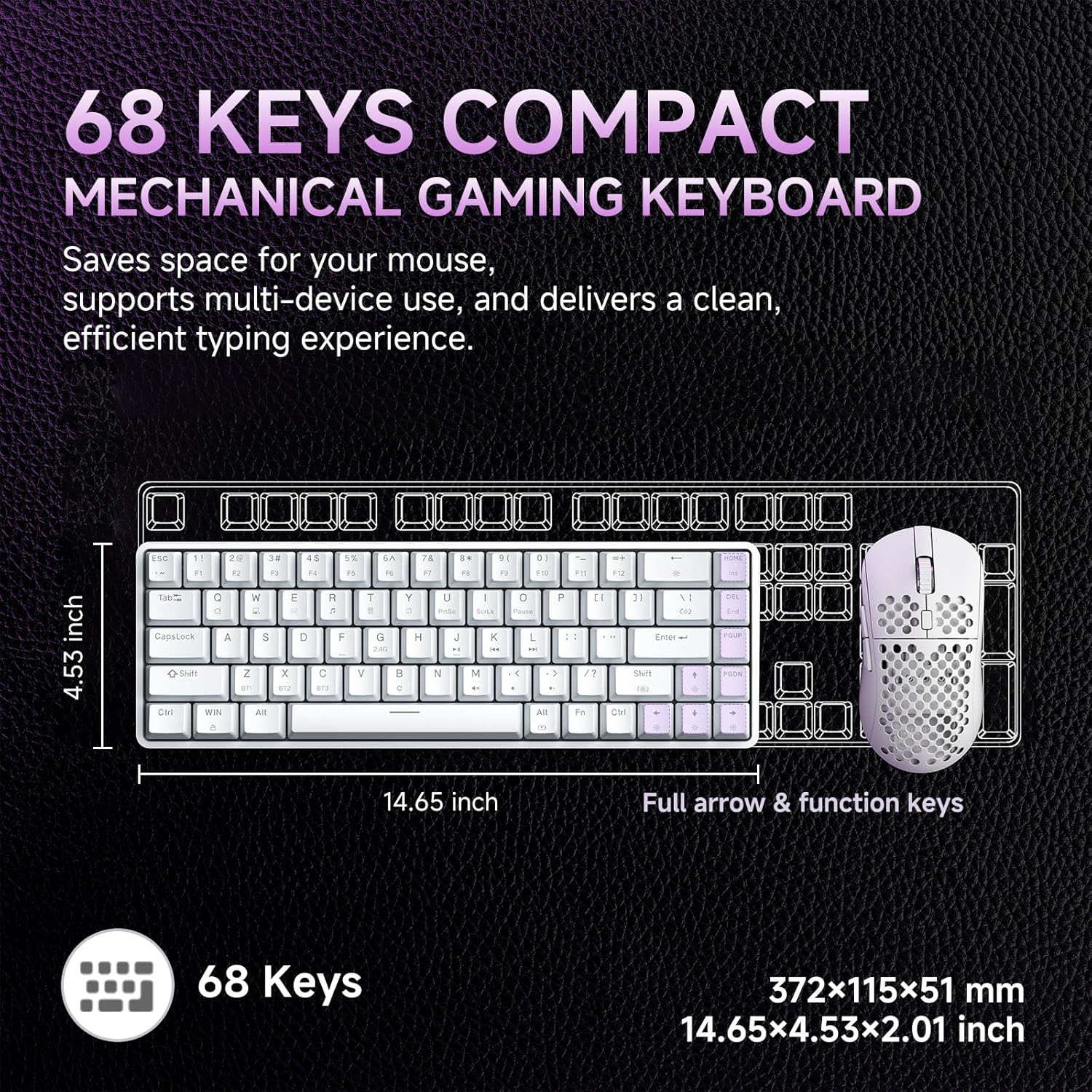
Image: Diagram showing the compact 68-key layout of the Dierya DK68, highlighting its dimensions (14.65 inches length, 4.53 inches width) and its space-saving design.

Whakaahua: Kati-ake view of the mechanical blue switches, detailing their clicky feel, tactile feedback, 60gf actuation force, 2.3mm travel, and 50 million keystroke lifespan. The image also indicates pre-lubed switches.

Image: Visual representation of the keyboard's 3000 mAh high-capacity lithium battery, showing usage times: 12 hours with light on, 333 hours with light off, 3 minutes auto stop, and Type-C charging.

Image: Diagram illustrating the FN key combinations for controlling the vibrant RGB backlighting, including turning the light on/off (Fn + Backspace), switching light colors (Fn + Shift), switching light modes (Fn + |), and adjusting brightness/speed (Fn + Arrow keys).

Image: Details of the keyboard's design, including OEM double-shot keycaps for durability, two-stage feet for dual tilt options, and anti-slip pads for secure positioning.

Image: A detailed diagram showing the exact dimensions of the Dierya DK68 keyboard: 372 x 115 x 51 mm (14.65 x 4.53 x 2.01 inches) and a weight of 820g.
4. Tatūnga
4.1 Hononga Waea
- Honoa te taura USB-C kua whakaratohia ki te tauranga USB-C o te papapātuhi.
- Hono atu te pito o te taura USB-C ki tetahi tauranga USB e waatea ana i runga i to rorohiko.
- The keyboard will automatically be recognized by your system and is ready for use.
4.2 Hononga Ahokore 2.4G
- Kimihia te kaiwhiwhi USB 2.4G (kei roto i tētahi wāhanga o te papapātuhi e rongoatia ana i te nuinga o te wā).
- Monohia te kaiwhiwhi USB 2.4G ki tētahi tauranga USB e wātea ana i tō rorohiko.
- Turn on the keyboard. The keyboard should automatically connect to the receiver.
4.3 Hononga Nihokikorangi
The keyboard supports Bluetooth 5.0 and can connect to up to three devices.
- Whakakāhia te papapātuhi.
- Pēhi me te pupuri FN + Z, FN + X, ranei FN + C for 3-5 seconds to enter Bluetooth pairing mode for BT1, BT2, or BT3 respectively. The corresponding key's backlight will flash rapidly.
- On your device (PC, Mac, tablet, smartphone), enable Bluetooth and search for new devices.
- Select "Dierya DK68" from the list of available devices to pair.
- Once paired, the key's backlight will stop flashing and remain steadily lit for a few seconds.
- Hei whakawhiti i waenga i ngā taputapu Nihokikorangi kua takirua, pēhi FN + Z, FN + X, ranei FN + C poto.
4.4 Te Whakataki i te Papapātuhi
Connect the USB-C cable to the keyboard and a power source (e.g., computer USB port, USB wall adapter). The keyboard has a 3000 mAh battery. A low battery indicator may flash, and the backlight may dim when charging is required. The backlight will indicate charging status and turn off or change color when fully charged.
5. Nga Tohutohu Whakahaere
5.1 FN Key Combinations
The DK68 utilizes FN key combinations to access various functions due to its compact layout:
- FN + Mokowāmuri: Turn RGB backlight on/off.
- FN + |: Switch between different RGB lighting modes (21 effects available).
- FN + Shift: Adjust RGB lighting colors.
- FN + ↑: Whakanuia te kanapa o te rama tuara.
- FN + ↓: Whakaitihia te kanapa o te rama tuara.
- FN + ←: Whakahekea te tere rama tuara.
- FN + →: Whakanuia te tere rama tuara.
- FN + Z/X/C: Switch between Bluetooth devices BT1/BT2/BT3.
- FN + Q/W/E/R/T/Y: (Specific media or function keys, refer to keycaps for exact labels if present).
5.2 Whakaritenga Rama RGB
The keyboard offers 16.8 million colors and 21 lighting effects. Use the FN key combinations described above to cycle through modes, adjust colors, and control brightness and speed. For advanced customization, including macro programming and custom shortcut keys, download the official Dierya software from the manufacturer's webpae.
6. Tiaki
To ensure the longevity and performance of your Dierya DK68 keyboard, follow these maintenance guidelines:
- Te horoi: Use a soft, dry cloth to wipe the keyboard surface. For deeper cleaning, use a can of compressed air to remove dust and debris from between the keycaps.
- Tango Kapumatua: Use the provided keycap puller to carefully remove keycaps for cleaning or replacement. Gently pull straight up to avoid damaging the switch.
- Whakawhiti Maintenance: The mechanical switches are designed for durability. Avoid spilling liquids on the keyboard. If a switch feels inconsistent, it may require cleaning or replacement.
- Rokiroki: When not in use for extended periods, store the keyboard in a cool, dry place away from direct sunlight and extreme temperatures.
7. Te Raru
If you encounter issues with your Dierya DK68 keyboard, refer to the following common solutions:
- Keyboard Not Responding (Wired): Ensure the USB-C cable is securely connected to both the keyboard and the computer. Try a different USB port or cable.
- 2.4G Wireless Connection Issues: Ensure the 2.4G receiver is properly plugged in and the keyboard is turned on. Try plugging the receiver into a different USB port. Ensure there are no strong interferences nearby.
- Rahunga Takirua Nihokikorangi: Make sure the keyboard is in pairing mode (key flashing). Ensure Bluetooth is enabled on your device and it's within range. Try unpairing and re-pairing the device.
- Kī Kāore i te Rēhita: Check for physical obstructions under the keycap. If using wireless, ensure the battery is charged. Try connecting via USB-C to rule out wireless issues.
- RGB Backlight Not Working: Ensure the backlight is turned on (FN + Backspace). Adjust brightness (FN + ↑/↓). If issues persist, try resetting the keyboard (if a reset function is available, consult the manufacturer's webpae).
- Ka tere te whakaheke i te pākahiko: Reduce backlight brightness or turn off RGB when not needed. Ensure the keyboard is fully charged.
For further assistance, please contact Dierya customer support.
8. Whakatakotoranga
| Āhuahira | Taipitopito |
|---|---|
| Waitohu | Dierya |
| Tau tauira | DK68 |
| Tae | Mā |
| Whakaahuatanga Papapātuhi | Papapātuhi Gaming Ahokore |
| Hangarau Hononga | Bluetooth/2.4G/Type-C |
| Pūrere Hototahi | Pona, PC, Papa |
| Ahu (L x W x H) | 31.3 x 10.4 x 4.4 cm (14.65 x 4.53 x 2.01 inihi) |
| Taumaha | 820 g |
| Pūhiko Raukaha | 3000 mah |
| Battery Life (Light Off) | Tae atu ki te 90 haora |
| Battery Life (RGB On) | Tae atu ki te 8 haora |
| Wā tūtatari | 360 haora |
| Whakamuri | RGB (21 ngā pānga, 16.8 miriona tae) |
| Momo Whakawhiti | Mechanical (Blue/Red options) |
| Whakawhitihia te Mahere Ora | 60 miriona nga patuhi |
| Rauemi | Kirihou |
| Nga Waahanga kei roto | USB Cable, Keycap Puller |
9. Pūtāhui me te Tautoko
The Dierya DK68 keyboard typically comes with a manufacturer's warranty. Please refer to the warranty card included with your purchase or visit the official Dierya webpae mo nga tikanga me nga tikanga whakamana.
For technical support, troubleshooting assistance, or any product-related inquiries, please contact Dierya customer service through their official webte pae, te korero whakapā ranei kei roto i to kete hua.


