Kupu Whakataki
The GoveeLife Smart Air Quality Monitor (Model H5140) is designed to provide real-time monitoring of indoor air quality. It accurately measures Carbon Dioxide (CO2) levels, temperature, and humidity, offering valuable insights into your environment. This device helps you maintain a healthy and comfortable living or working space by alerting you to changes in air quality.
He aha kei roto i te Pouaka
Kia ata wetewetehia nga ihirangi me te whakarite kei reira nga taonga katoa:
- Smart CO2 Monitor x 1
- Power Cord (2m/6.5ft) x 1
- Pūurutau Hiko x 1
- Pukapuka Kaiwhakamahi x 1

Image: Contents of the GoveeLife Smart Air Quality Monitor package.
Tatūnga
- Hononga Hiko: Connect the provided Type-C cable to the monitor and plug the power adapter into a standard wall outlet. The device will power on automatically.
- Tikiake Taupānga: Download the Govee Home app from your smartphone's app store (available for iOS and Android).
- Takirua Pūrere: Open the Govee Home app, create an account or log in, and follow the on-screen instructions to add your Smart Air Quality Monitor. Ensure your Wi-Fi network is 2.4GHz, as the device only supports this frequency.
- Turanga: Place the monitor in a central location within the room you wish to monitor, away from direct airflow, windows, or heat sources for accurate readings.
Nga Tohutohu Whakahaere
Whakaatu Wā-tūturu
The monitor features a clear LED digital tube display that shows four essential metrics simultaneously:
- CO2 Value: Displays the current Carbon Dioxide concentration in Parts Per Million (PPM).
- Te pāmahana: Shows the ambient temperature in degrees Fahrenheit (°F) or Celsius (°C).
- Haumākū: Indicates the relative humidity (%RH).
- Karaka Taima-Tuturu: Displays the current time (requires connection to the Govee Home app for synchronization).
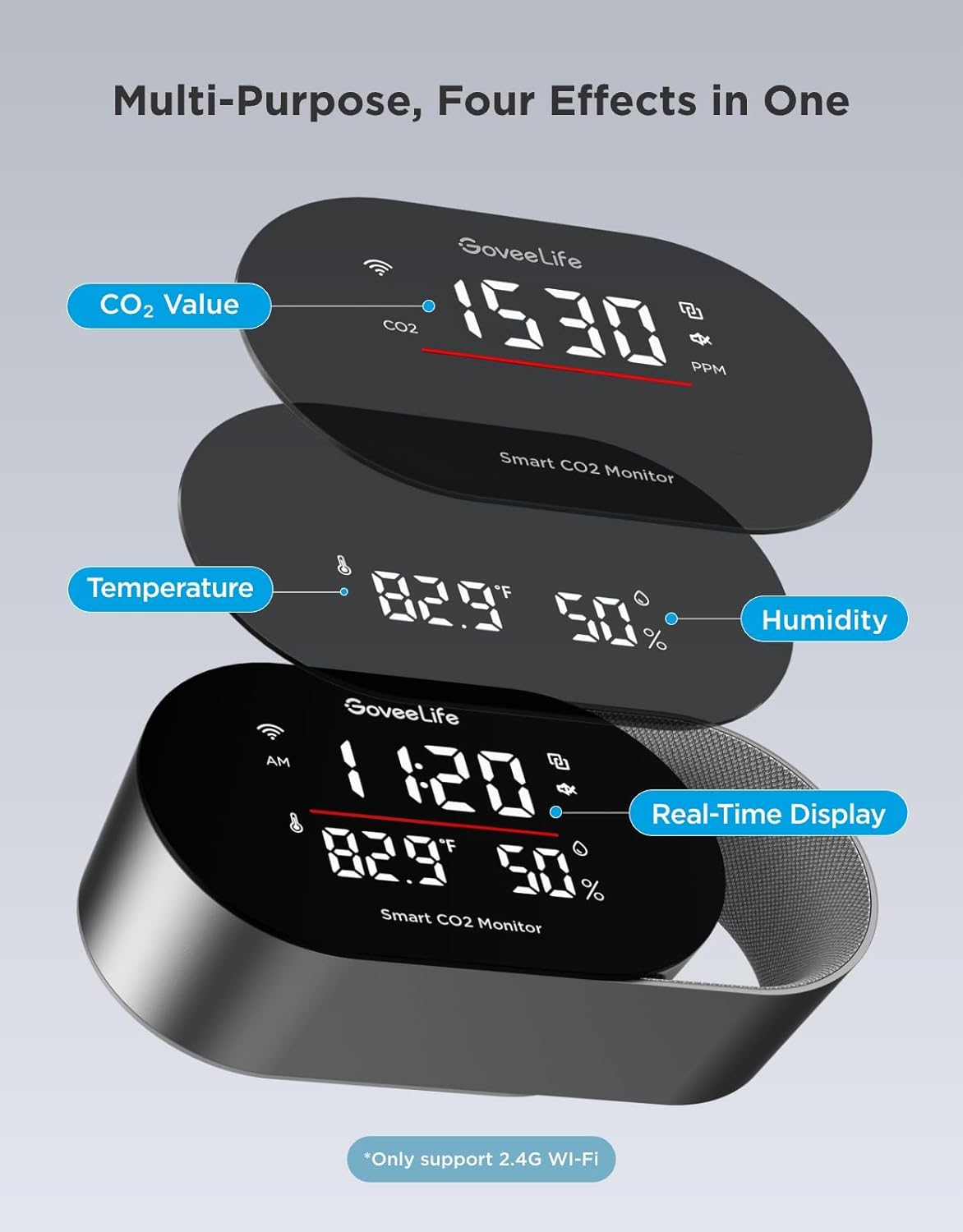
Image: Multi-purpose display showing CO2, temperature, humidity, and time.
Understanding CO2 Levels
The monitor provides an intuitive display of CO2 levels, often accompanied by a color-coded light bar for quick assessment:
- Good (Green): 400-1000 PPM. Indicates healthy air quality.
- Moderate (Yellow): 1000-1400 PPM. Suggests ventilation may be beneficial.
- Poor (Red): >1400 PPM. Indicates high CO2 levels, requiring immediate ventilation.
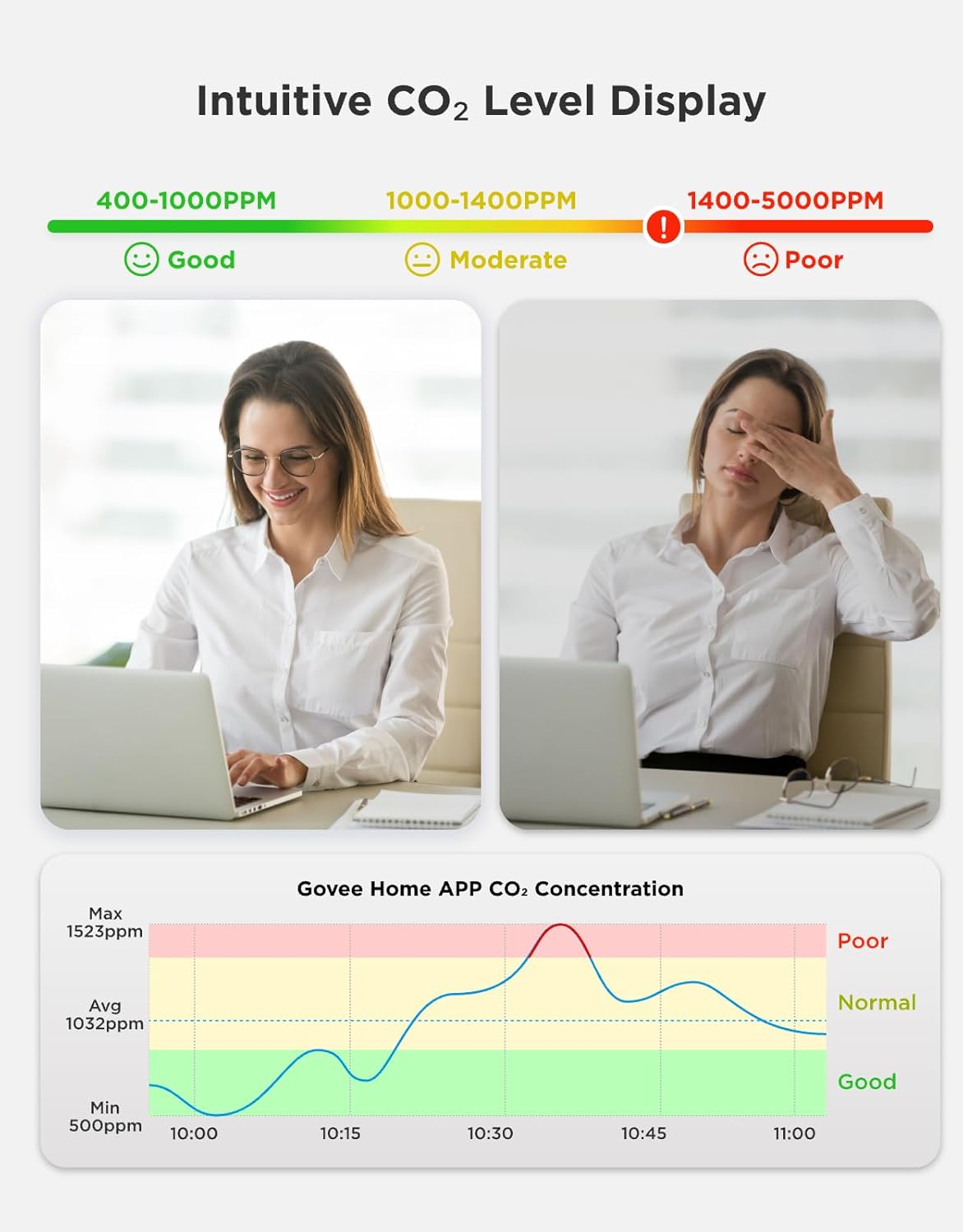
Image: Intuitive CO2 level display with good, moderate, and poor ranges.

Image: 3-Color Indicator Bar for CO2 levels.
Triple Alert System
The monitor provides comprehensive alerts when CO2 levels, temperature, or humidity exceed user-defined thresholds:
- Buzzer Alert: The device emits an audible alarm, and the screen flashes.
- Whakamōhiotanga Taupānga: Instant alerts are sent to your smartphone via the Govee Home app.
- Email Reports: Detailed reports can be sent to your email address.

Image: Three types of alarms for different scenarios.
Whakaaturanga LED Whakaritea
Adjust the display settings to suit your preferences and environment:
- Programmable Screen: Customize what information is displayed on the screen via the Govee Home app.
- Whakaritenga Tirohanga: Set custom day/night schedules for automatic brightness adjustment, ensuring clear visibility during the day and preventing light disturbance at night.

Image: LED digital tube display with customizable settings.
Data Tracking & Export
Monitor historical air quality data and export reports for analysis:
- Raraunga Hono: Track up to 20 days of data within the Govee Home app and access up to two years of cloud historical data.
- CSV Export: Export professional CSV reports for detailed analysis, useful for health consultations or optimizing energy efficiency.
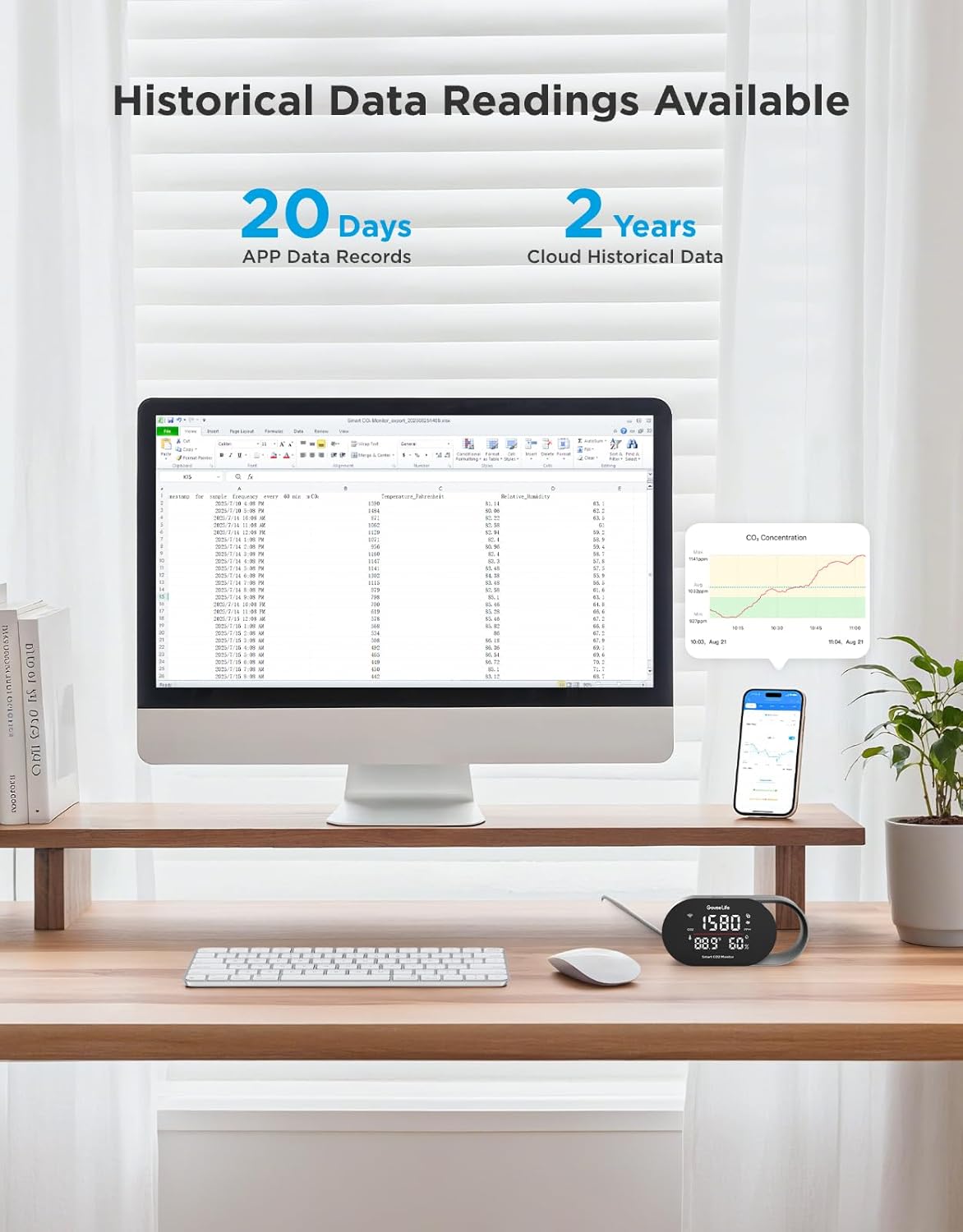
Image: Historical data readings available in app and for export.
Te Whakakotahitanga Whare Ataata
Integrate your monitor with smart home ecosystems for enhanced control:
- Mana Reo: Query CO2 concentration using voice commands through Amazon Alexa or Google Assistant.
- Ecological Linkage: Connect with compatible smart humidifiers and tower fans to enable automatic adjustments based on air quality readings, transforming passive monitoring into active environmental management.
Whakatakotoranga
Key technical specifications for the GoveeLife Smart Air Quality Monitor:
| Āhuahira | Whakatakotoranga |
|---|---|
| Tau tauira | H5140 |
| CO2 Reading Accuracy | ±(40ppm + 5%) |
| CO2 Refresh Rate | 5 hēkona |
| Te Tikanga o te Pamahana | ±0.54°F |
| Te tika o te haumākū | ±3% |
| Rahi Whakaatu | 4.82 Inihi |
| Hononga | 2.4GHz Wi-Fi |
| Rauemi | PC+ABS |
| Tae | Pango |
| Hunga Hua | 14.2 x 6.81 x 7.59 cm |
| Taumaha Tūemi | 150 g |
| Pūrere Hototahi | Humidifier, Tower fan (via smart home integration) |

Image: Accuracy and high-speed performance specifications.
Te tiaki
To ensure optimal performance and longevity of your GoveeLife Smart Air Quality Monitor, follow these maintenance guidelines:
- Te horoi: Gently wipe the device with a soft, dry cloth. Do not use liquid cleaners or abrasive materials, as they may damage the sensors or display.
- Turanga: Avoid placing the monitor in areas with extreme temperatures, high humidity, or direct sunlight. Keep it away from sources of strong vibrations or electromagnetic interference.
- Whakahau: Ensure the sensor vents are not obstructed to allow for accurate air sampling
Raparongoā
If you encounter issues with your GoveeLife Smart Air Quality Monitor, refer to the following common solutions:
- Kaore te Pūrere i te hiko: Ensure the power cable is securely connected to both the monitor and a working power outlet. Try a different outlet or power adapter if available.
- Nga Panui Heke: Verify the monitor is placed in an appropriate location, away from direct airflow, vents, or heat sources. Allow the device to stabilize for at least 10-15 minutes after initial power-on or relocation.
- Nga Take Hononga Taupānga: Ensure your smartphone's Bluetooth is enabled and the monitor is within range. Confirm your Wi-Fi network is 2.4GHz. Restart both the monitor and your smartphone, then try pairing again through the Govee Home app.
- Karekau he matohi: Check the alert settings within the Govee Home app to ensure thresholds are correctly set and notifications are enabled.
- Whakaatu Kaore i te Mahi: If the display is blank or unresponsive, try restarting the device by unplugging and re-plugging the power cable. If the issue persists, contact customer support.
Pūtāhui me te Tautoko
GoveeLife products are designed for reliability and performance. For warranty information, technical support, or any questions not covered in this manual, please visit the official GoveeLife webpaetukutuku, whakapā atu rānei ki tā rātou tīma tautoko kiritaki. Puritia tō rīhiti hoko mō ngā kereme pūtāhui.
GoveeLife Official Webpae: www.govee.com


