1. Kupu Whakataki
This manual provides comprehensive instructions for the installation, operation, and maintenance of your REOLINK RP-WCB8MZ 4K Wi-Fi 6 Outdoor Security Camera. Please read this manual thoroughly before using the product to ensure proper setup and functionality. Keep this manual for future reference.
2. Hua Neke Atuview
The REOLINK RP-WCB8MZ is a high-performance 4K outdoor security camera featuring Wi-Fi 6 connectivity, 5X optical zoom, and advanced AI detection capabilities. It is designed for reliable outdoor surveillance with IP67 waterproofing.
2.1 Waenga Kaimera
Familiarize yourself with the various parts of your security camera:

Whakaahuatanga Whakaahua: A detailed diagram illustrating the REOLINK RP-WCB8MZ camera and its various components. Labels point to the CDS Sensor, Infrared LED, Spotlight, Lens, Aperture Hood, Microphone, Speaker, Antenna, Mounting Bracket, microSD Card Cover, Alarm Input/Output, Power Port, Reset Button, and Network Port.
- CDS Sensor: Detects ambient light levels for automatic day/night mode switching.
- LED pōkākā: Provides illumination for black and white night vision.
- Maama: Activates for color night vision and deterrence.
- Arotahi: Ka hopu ataata footage.
- Aperture Hood: Protects the lens and reduces glare.
- hopuoro: Hopukia te oro mō te whakawhitiwhiti kōrero me te tuhi oro.
- Kaikōrero: Enables two-way audio and plays custom voice alerts.
- Antenna: Mō te hononga Wi-Fi.
- Taiapa Whakapiki: Used for secure installation on walls or ceilings.
- microSD Card Cover: Protects the microSD card slot.
- Alarm Input/Output: Hei hono i ngā taputapu whakaoho o waho.
- Tauranga Hiko: Ka hono ki te urutau hiko.
- Patene Tautuhi Anō: Whakamahia hei whakahoki i ngā tautuhinga wheketere.
- Tauranga Whatunga: Mō te hononga whatunga waea (whiringa kore).
3. Nga waahanga matua
- 4K/8MP Resolution with 5X Optical Zoom: The camera delivers 4K (8-megapixel) video resolution, providing clear and detailed images. The 5X optical zoom allows for magnification of distant objects without loss of clarity.
- Tirohanga Po Tae: Equipped with spotlights, the camera can capture full-color video even in low-light conditions, enhancing visibility and detail at night.
- AI Smart Detection: The camera can intelligently distinguish between humans, vehicles, and animals, reducing false alarms caused by irrelevant movements. It also supports package detection and detection of non-motorized objects.
- Parenga Paenga: Configure specific detection zones such as line crossing, zone intrusion, and zone loitering to monitor critical areas. Note: Perimeter settings are currently managed via the Reolink App.
- Local AI Video Search: Utilize descriptive keywords to quickly find specific event-based footage stored locally.
- Waea-rua Wi-Fi 6: Supports both 2.4GHz and 5GHz Wi-Fi bands, offering stable and fast wireless connectivity. 5GHz provides higher speeds in open areas, while 2.4GHz offers better penetration through walls.
- Kōwhiringa Rekoata Hangawari: Supports recording to a microSD card (up to 512GB), a Reolink NVR (Network Video Recorder), or an FTP server for continuous 24/7 recording without subscription fees.
- Ororongo Ara-rua: Mā te hopuoro me te kaikorero kua whakauruhia ka taea te whakawhitiwhiti kōrero i te wā tūturu mā te kāmera.
- IP67 parewai: Designed to withstand outdoor weather conditions, ensuring durability and reliable operation.

Whakaahuatanga Whakaahua: A split image demonstrating the clarity of 4K/8MP resolution and the detail captured with 5X optical zoom. The top panel shows a wide street view in 4K, while the bottom panel shows a zoomed-in section of a storefront with 5X optical zoom, highlighting fine details.

Whakaahuatanga Whakaahua: A screenshot from the Reolink app showing a vivid color night vision view of an outdoor scene with people near a building. The image demonstrates the camera's ability to capture colors in dark environments.
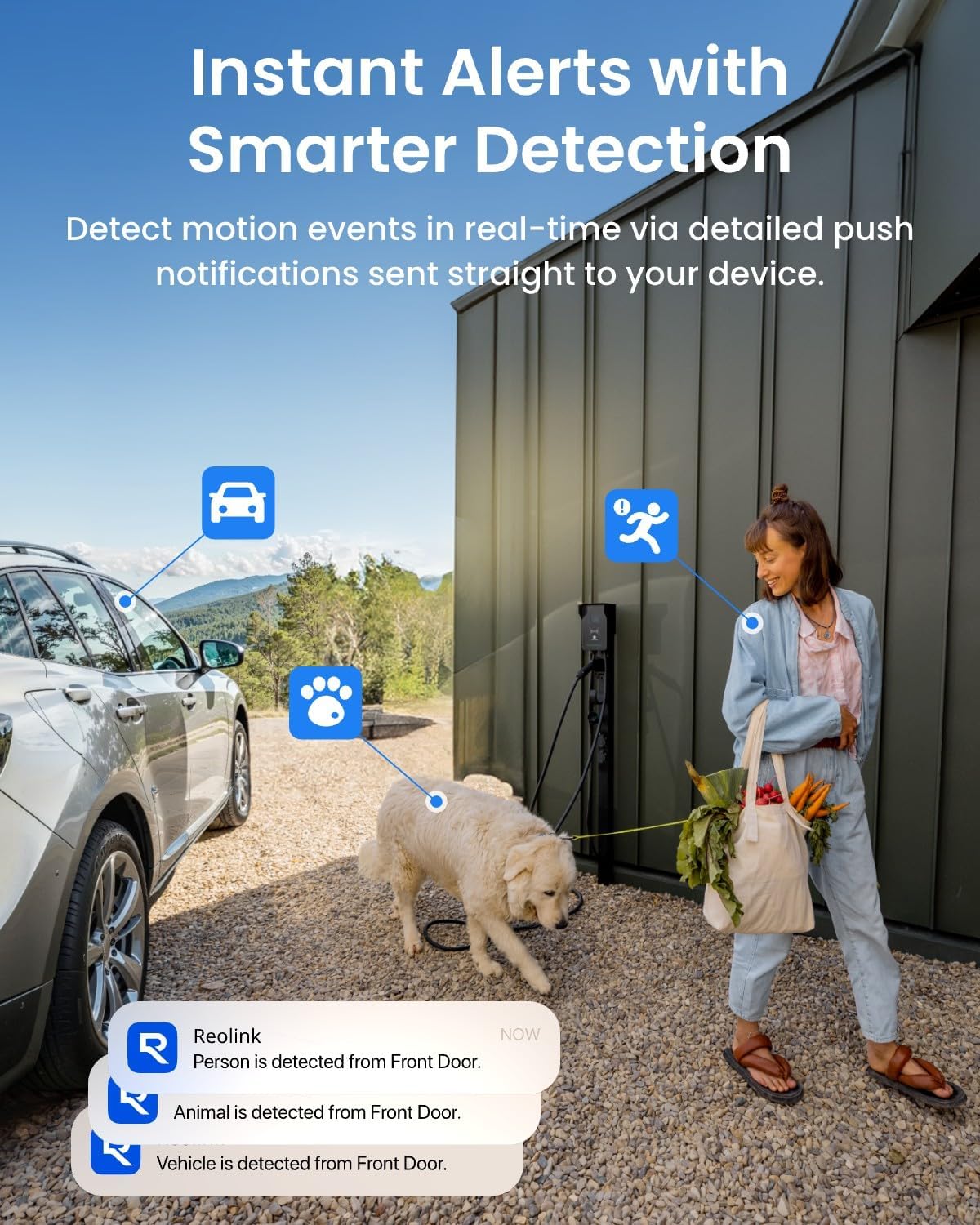
Whakaahuatanga Whakaahua: An illustration showing the camera detecting a person, a vehicle, and an animal (dog) in an outdoor setting. Notification bubbles indicate instant alerts for each detected category, demonstrating the AI smart detection feature.

Whakaahuatanga Whakaahua: A multi-panel image displaying different perimeter protection alerts within the Reolink app interface. It shows visual representations of Line-Crossing Alert, Zone Intrusion Alert, and Zone Loitering Alert, along with detection of forgotten objects and absence of objects.

Whakaahuatanga Whakaahua: A depiction of the Reolink app's AI Video Search feature, where a user types 'Delivery man' to search for relevant footage. Multiple small video thumbnails are shown, illustrating the search results for various events involving people and packages.

Whakaahuatanga Whakaahua: A graphic illustrating the benefits of Wi-Fi 6 for the security camera, emphasizing Superfast Transfer, Low Latency, and Higher Stability. The image shows the camera with prominent Wi-Fi antennas and text explaining the advantages of 5GHz and 2.4GHz bands.

Whakaahuatanga Whakaahua: A visual representation of the camera's flexible recording options. It shows a microSD card slot supporting up to 512GB, an icon for 24/7 recording with a Reolink NVR, and an FTP folder icon, indicating various storage methods.
4. Tohutohu Tatūnga
4.1 He aha kei roto i te Pouaka
Before starting the installation, ensure all components are present:
- REOLINK RP-WCB8MZ Camera Body
- Tauira Whakauru
- Nga Tiu Whakapiri me nga Punga Taiepa
- Pūurutau Hiko
- Network Cable (for initial setup or wired connection, if applicable)
- Aratohu Timata Tere
4.2 Tatūnga Tuatahi
- Whakahiko: Connect the camera to the power adapter and plug it into an electrical outlet. The camera will power on and initiate its startup sequence.
- Tikiake Reolink App: Download and install the official Reolink App from your smartphone's app store (iOS or Android).
- Tāpiri Kāmera: Open the Reolink App, tap the '+' icon to add a new device. Scan the QR code located on the camera body or packaging. Follow the on-screen instructions to connect the camera to your Wi-Fi network.
- Waihanga Kupuhipa: Set a strong password for your camera for security purposes.
- Ora View: Once connected, you should be able to view the live feed from your camera within the app.
4.3 Tāutanga Tinana
The camera is designed for wall or ceiling mounting. Choose a location that provides the desired viewte koki o te tirohanga, ā, he pumau te tohu Wi-Fi.
- Tīpako Tauwāhi: Identify a suitable outdoor location, ensuring it is within Wi-Fi range and has access to a power source.
- Whakapiki: Use the provided mounting template to mark screw holes. Drill pilot holes, insert wall anchors if necessary, and secure the mounting bracket with screws.
- Āpiti Kāmera: Attach the camera body to the mounting bracket and adjust the angle for optimal coverage.
- Whakaha Uepu: Route the power cable and any other cables securely to protect them from weather and tamppaenga.

Whakaahuatanga Whakaahua: A small image showing the REOLINK RP-WCB8MZ camera securely mounted on the exterior brick wall of a building, demonstrating a typical installation scenario.
5. Nga Tohutohu Whakahaere
5.1 Mamao Viewing
Access your camera's live feed and recorded footage from anywhere using the Reolink App or client software on your computer.
- Open the Reolink App and select your camera from the device list.
- Te ora view will display automatically.
- Use the controls on the screen to zoom in/out (digital zoom), access playback, or adjust settings.
5.2 Ororongo Waa-rua
Whakauru atu ki ngā kōrerorero wā-tūturu mā te kāmera.
- I te wa e ora ana view, tap the microphone icon to speak.
- Patohia te ata korero hei whakarongo ki te ororongo mai i te waahi o te kamera.
5.3 Smart Detection & Alerts
Configure the camera to send notifications for specific events.
- Navigate to the camera settings in the Reolink App.
- Go to 'Detection Alarm' or 'Smart Detection' settings.
- Enable detection types (Human, Vehicle, Animal, Package, Non-motorized Object).
- Set up push notifications, email alerts, or siren/spotlight activation upon detection.
- For perimeter protection (line crossing, zone intrusion, zone loitering), configure these options within the Reolink App's detection settings.
5.4 Kōwhiringa Hopu
Manage how your camera records footage.
- Kāri MicroSD: Insert a microSD card (up to 512GB) into the designated slot. The camera will automatically begin recording based on your settings (continuous or motion-triggered).
- Reolink NVR: Connect the camera to a compatible Reolink NVR for centralized recording and management.
- FTP: Configure FTP settings in the camera's web interface or app to upload recordings to an FTP server.
- Uru rekoata footage via the 'Playback' function in the Reolink App or client software.
6. Tiaki
Mā te tiaki auau ka tino pai te mahi me te roa o te ora o tō kāmera haumaru.
- Horoia te Arotahi: Periodically wipe the camera lens with a soft, damp cloth to remove dust, dirt, or water spots that may affect image quality.
- Taki Hononga: Me whakarite kia hono pai ngā taura katoa (te hiko, te whatunga), ā, kia kore he pakaru.
- Whakahōu Firmware: Regularly check for and install firmware updates via the Reolink App or website to benefit from new features and security enhancements.
- Tirotiro Whakapiki: Verify that the camera is still securely mounted and has not become loose due to weather or other factors.
- Parenga huarere: While IP67 rated, extreme weather conditions (e.g., heavy snow, ice) may temporarily affect performance. Ensure no obstructions block the camera's view.

Whakaahuatanga Whakaahua: A small image depicting the REOLINK camera mounted outdoors during rainfall, illustrating its IP67 waterproof rating and ability to function in various weather conditions. A temperature bar indicates its operational range from -30°C to 55°C.
7. Te Raru
This section addresses common issues you might encounter with your REOLINK RP-WCB8MZ camera.
| Putanga | Take pea | Rongoā |
|---|---|---|
| Kaamera tuimotu | No power; Wi-Fi signal loss; Network issue | Check power connection; Verify Wi-Fi signal strength; Restart router and camera; Ensure correct Wi-Fi password. |
| Te kounga whakaahua kounga | Dirty lens; Insufficient lighting; Network bandwidth issues | Clean the lens; Ensure adequate lighting or enable spotlights/IR; Check network speed. |
| Karekau he matohi kitenga nekehanga | Detection settings disabled; Sensitivity too low; Schedule not set correctly | Enable smart detection types; Adjust detection sensitivity; Verify detection schedule in the app. |
| Kāore te kāri MicroSD e tuhi | Card full; Card faulty; Recording schedule incorrect | Format or replace microSD card; Check recording settings and schedule in the app. |
| Ko te ororongo rua-ara kaore e mahi | Microphone/speaker disabled; Volume too low; Network latency | Enable microphone/speaker in app; Adjust volume; Check network connection. |
8. Whakatakotoranga
Detailed technical specifications for the REOLINK RP-WCB8MZ camera:
| Āhuahira | Taipitopito |
|---|---|
| Ingoa Tauira | RP-WCB8MZ |
| Whakataunga Hopu Ataata | 4K (8MP) |
| Topa Optical | 5x |
| Hangarau Hononga | Wi-Fi 6 (Dual-Band 2.4GHz/5GHz) |
| Mahinga o roto/waho | Waho |
| Whakatauranga parewai | IP67 |
| Puna Mana | Hiko Hiko |
| Momo Whakaeke | Maunga Taiepa/Tuapapa |
| Kōwhiringa Rokiroki | MicroSD card (up to 512GB), Reolink NVR, FTP |
| Nga waahanga motuhake | Color Night Vision, AI Smart Detection (Human/Vehicle/Animal/Package), Perimeter Protection, Two-Way Audio |
| Pūrere Hototahi | Reolink PoE NVR, Reolink WiFi NVR, Reolink Home Hub Pro, Reolink Home Hub, Google Assistant |
| Hunga Hua | 2.99 x 2.91 x 8.66 inihi |
| Taumaha Tūemi | 2.09 pauna |
9. Pūtāhui me te Tautoko
For warranty information, technical support, or further assistance, please visit the official REOLINK website or contact REOLINK customer service. Details can typically be found on the product packaging or the REOLINK support portal.
Online resources often include FAQs, video tutorials, and community forums to help you get the most out of your REOLINK product.


