1. Kupu Whakataki
The Arducam GMSL2 12MP IMX477 Raspberry Pi Camera Extension Kit (Model B0550) provides a robust solution for long-distance camera applications with Raspberry Pi. This kit enables high-quality imaging at distances up to 15 meters without signal degradation, leveraging advanced GMSL2 technology for stable and high-speed data transmission.
Āhuatanga matua:
- Long-distance transmission up to 15 meters.
- Utilizes GMSL2 technology for robust bandwidth and low latency.
- Equipped with a 12MP IMX477 sensor for exceptional image clarity.
- Simplified installation with a single-cable system.
- Backward compatible with GMSL1 serializers.
- Versatile for various industrial and embedded applications.

This image displays the Arducam GMSL2 12MP IMX477 camera module connected to the GMSL2 deserializer board using a coaxial cable, illustrating the primary components of the extension kit.
2. He aha kei roto i te Pouaka
Tena koa tirohia ko nga waahanga katoa kei raro nei kei roto i to kete:
- 1 x Arducam GMSL2 Rx board
- 1 x Arducam GMSL2 camera Tx board
- 1 x 1m Fakra Z Female to Female RF Coaxial Cable
- 1 x Arducam IMX477 Camera Module
- 1 x 40mm 22-22pin FPC Cable
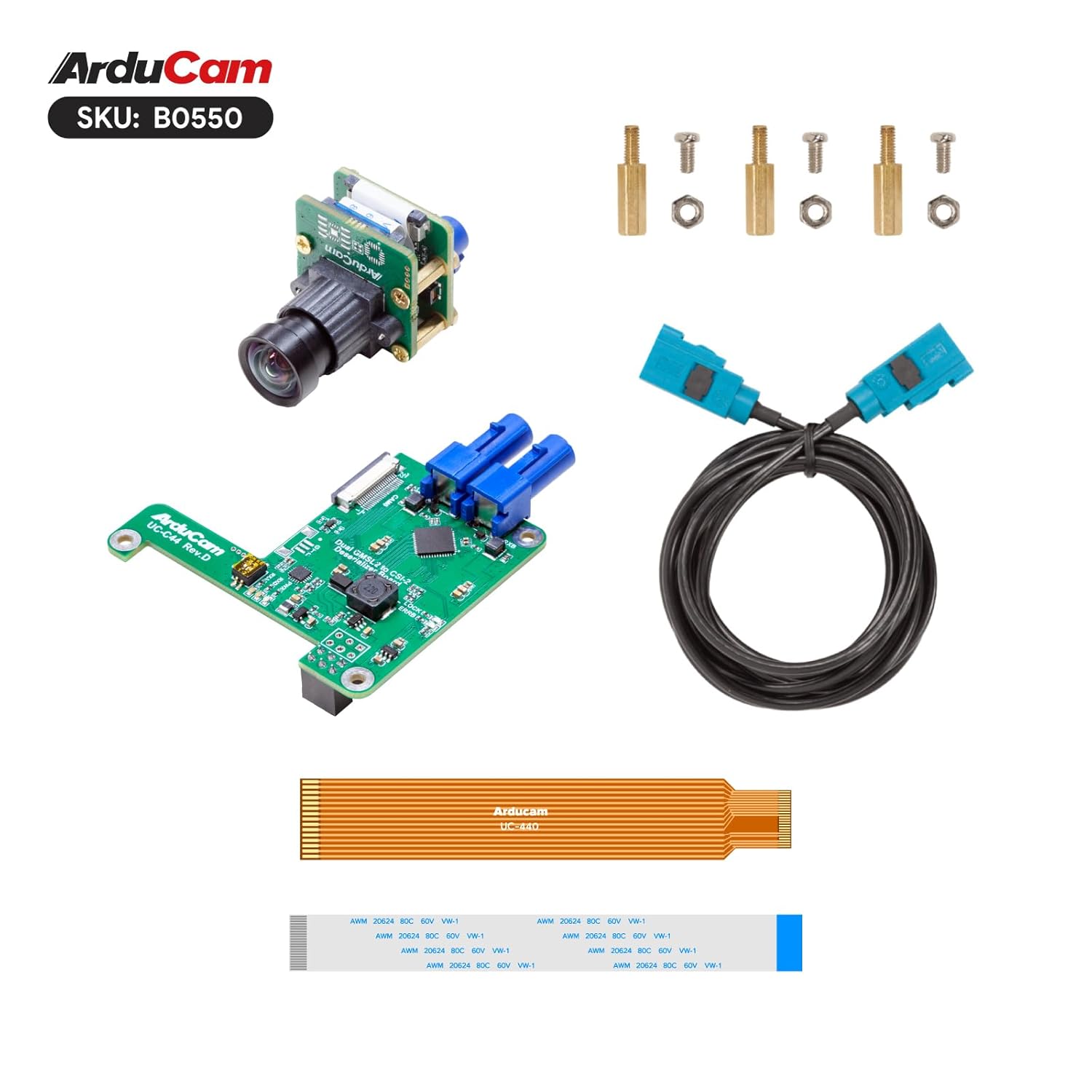
This image shows all items included in the kit: the Arducam IMX477 camera module, the GMSL2 deserializer board, a Fakra Z coaxial cable, an FPC cable, and mounting hardware (standoffs, screws, nuts).
3. Tohutohu Tatūnga
This section details the steps required to assemble and connect your Arducam GMSL2 Camera Extension Kit with a Raspberry Pi.
- Connect the Camera Module: Carefully connect the Arducam IMX477 Camera Module to the Arducam GMSL2 camera Tx board. Ensure the connector is properly aligned and secured.
- Connect Tx to Rx Board: Use the provided 1m Fakra Z Female to Female RF Coaxial Cable to connect the GMSL2 camera Tx board to the GMSL2 Rx board. Ensure the Fakra connectors click into place.
- Connect Rx Board to Raspberry Pi: Attach the GMSL2 Rx board to your Raspberry Pi's CSI port using the 40mm 22-22pin FPC Cable. Gently lift the connector's locking tab, insert the FPC cable with the blue strip facing away from the board, and then push the tab down to secure it.
- Secure the Rx Board: Use the provided mounting hardware (standoffs, screws, nuts) to securely attach the GMSL2 Rx board to your Raspberry Pi board. This provides stability and proper alignment.
- Manatoko Hononga: Double-check all cable connections to ensure they are firm and correctly oriented before powering on your Raspberry Pi.

A complete assembly view showing the Arducam IMX477 camera module connected to the GMSL2 deserializer board via a coaxial cable, and the deserializer board connected to a Raspberry Pi via an FPC cable. This demonstrates the full setup.

This image illustrates the Arducam GMSL2 deserializer board mounted onto a Raspberry Pi board, showing the FPC cable connection to the Raspberry Pi's CSI port and the coaxial cable connected to the deserializer board.
4. Nga Tohutohu Whakahaere
To operate the Arducam GMSL2 Camera Extension Kit, ensure your Raspberry Pi is running a compatible operating system (e.g., Raspberry Pi OS) and that the necessary camera drivers are installed. Arducam typically provides detailed software setup guides on their official webpae.
Once the hardware is connected and software configured, you can use standard Raspberry Pi camera commands or libraries (e.g., libcamera or picamera2) to capture images and video. Refer to Arducam's online documentation for specific software configuration and exampnga tuhinga.
5. Tiaki
Proper maintenance ensures the longevity and optimal performance of your Arducam GMSL2 Camera Extension Kit:
- Te horoi: Keep the camera module and circuit boards clean and free from dust. Use a soft, dry, lint-free cloth for cleaning. Avoid using liquid cleaners directly on electronic components.
- Rokiroki: Store the kit in a dry, cool environment when not in use, away from direct sunlight, high humidity, and extreme temperatures.
- Whakahaere Taura: Handle the FPC and coaxial cables with care to prevent bending, crimping, or other damage that could affect signal integrity.
6. Te Raru
If you encounter issues with your Arducam GMSL2 Camera Extension Kit, refer to the following troubleshooting tips:
- No Image/Video Output:
- Verify all cable connections (FPC, coaxial) are secure and correctly seated.
- Ensure the camera module is properly connected to the Tx board.
- Check that the GMSL2 Rx board is correctly connected to the Raspberry Pi's CSI port.
- Confirm that the Raspberry Pi camera interface is enabled in the
raspi-configtautuhinga. - Ensure the correct camera drivers and software libraries are installed and configured.
- Kounga Atahanga Kino:
- Check the camera lens for smudges, dust, or obstructions.
- Ensure adequate and consistent lighting in the environment.
- Verify camera settings (resolution, frame rate, exposure) in your software application.
- Nga take pumau o te hononga:
- Ensure the coaxial cable is not bent sharply, kinked, or otherwise damaged.
- Verify the length of the coaxial cable is within the recommended 15-meter limit for optimal performance.
7. Whakatakotoranga
Detailed specifications for the Arducam GMSL2 12MP IMX477 Raspberry Pi Camera Extension Kit:
| Āhuahira | Whakaahuatanga |
|---|---|
| Tau tauira | B0550 |
| Waitohu | Arducam |
| Kaihanga | Arducam |
| Pūoko | 12MP IMX477 |
| Hangarau | GMSL2 (Gigabit Multimedia Serial Link 2) |
| Te Tawhiti Toronga Mōrahi | Tae atu ki te 15 mita |
| Momo Tuhono | MIPI CSI-2 (Rx board to Pi), Fakra Z (Tx to Rx board) |
| Momo Tauera | Coaxial |
| Pūrere Hototahi | Raspberry Pi (including HQ Camera compatible models) |
| Āhuahira Motuhake | Long distance extension, low latency, high-speed data transmission |
8. Pūtāhui me te Tautoko
For detailed warranty information, technical support, and additional product documentation, please visit the official Arducam website or contact Arducam customer service directly. You can find more resources and support at the Toa Arducam.


