Kupu Whakataki
This manual provides essential information for setting up, operating, maintaining, and troubleshooting your Microsoft Surface Pro 7+ Tablet PC. Please read this guide thoroughly to ensure optimal performance and longevity of your device.
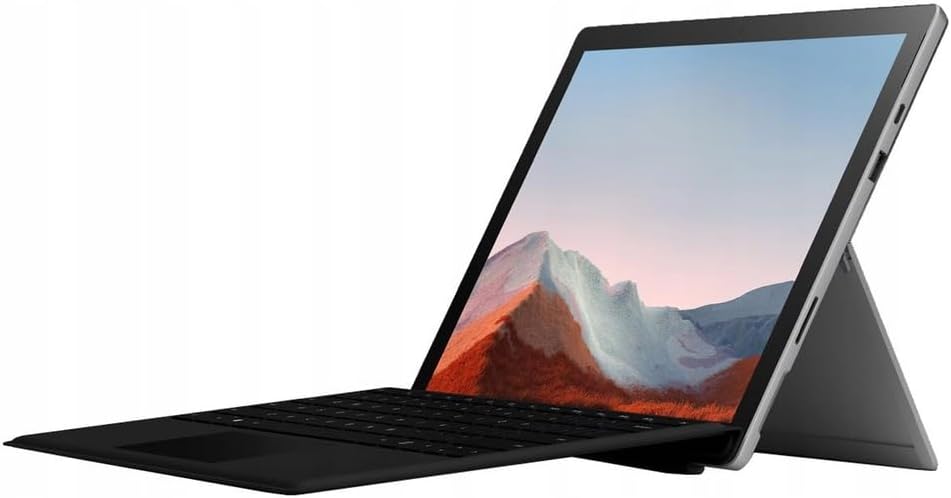
Image: The Microsoft Surface Pro 7+ in tablet mode with an attached keyboard, showcasing its versatile design.
The Microsoft Surface Pro 7+ is a versatile 2-in-1 device, functioning as both a powerful tablet and a laptop. It features a 12.3-inch PixelSense touchscreen display with a resolution of 2736 x 1824 pixels, powered by an Intel Core i7-1165G7 processor. This model comes with 16GB RAM and a 512GB Solid State Drive, running on Windows 11 Pro.
Tatūnga
1. Te Wetewete me te Tirotiro Tuatahi
Kia ata tangohia nga waahanga katoa mai i te kete. Manatokohia kei reira nga mea e whai ake nei:
- Microsoft Surface Pro 7+ Tablet PC
- Pūurutau/Taura Hiko
Tirotirohia te taputapu mo nga kino ka kitea i mua i te haere.

Image: The Microsoft Surface Pro 7+ tablet shown alongside its detachable keyboard, illustrating the two main components.
2. Te hono ki te Mana
Connect the power adapter to the Surface Connect port on your device and then plug the adapter into a wall outlet. The battery indicator will illuminate to show that the device is charging.
3. Te Whakaara Tuatahi me te Tatūnga Matapihi
Press the power button located on the top edge of the device to turn it on. Follow the on-screen prompts to complete the Windows 11 Pro setup, including language selection, network connection, and user account creation.
4. Attaching the Type Cover (Keyboard)
Align the magnetic connector of the Surface Type Cover with the bottom edge of the Surface Pro 7+. The magnets will snap the keyboard into place. You can adjust the angle of the keyboard for comfortable typing.

Image: The Microsoft Surface Pro 7+ with its keyboard attached, set up on a wooden surface, demonstrating its portability and usability in various environments.
Te whakahaere
1. Whakaterenga Taketake
- Mata pa: Use gestures for navigation, zooming, and scrolling.
- Type Cover: Utilize the keyboard for typing and the integrated trackpad for cursor control.
- Surface Pen (Optional): If you have a Surface Pen, it can be used for writing, drawing, and precise interaction with the screen.
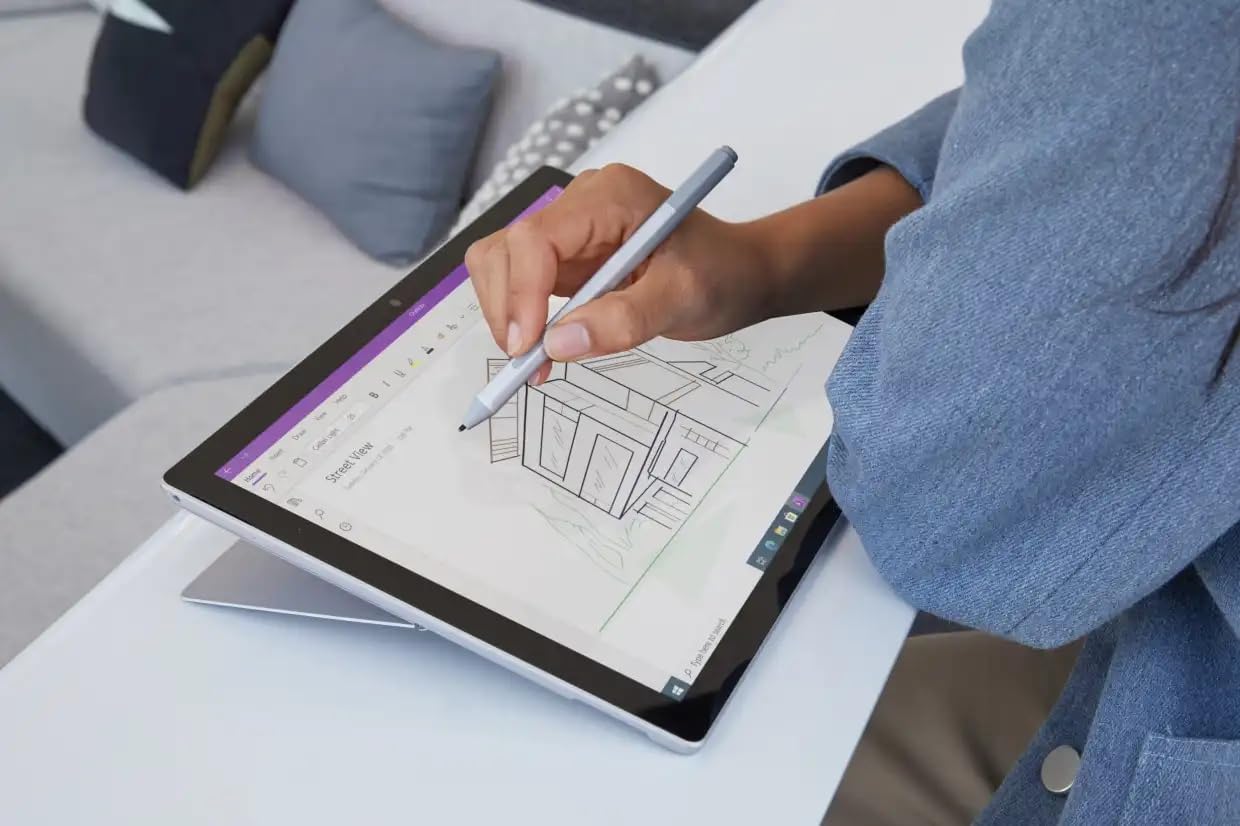
Image: A user interacting with the Microsoft Surface Pro 7+ using a Surface Pen, highlighting its capabilities for creative and precise tasks.
2. Tauranga me te Hononga
Your Surface Pro 7+ includes various ports for connecting peripherals:
- Tauranga USB-C: For data transfer, video output, and charging compatible devices.
- Tauranga USB-A: For connecting standard USB devices like flash drives or mice.
- Tūhono Paneoro 3.5 mm: Mo te putanga ororongo ki nga taringa, ki nga kaikorero o waho ranei.
- Tauranga Tūhono Mata: For power and connecting Surface Dock accessories.
- Micro SDXC Card Reader: Mo te whakawhānui i te rokiroki, te whakawhiti ranei files mai i nga kaari mahara.

Whakaahua: He taha profile view of the Microsoft Surface Pro 7+, clearly showing the various input/output ports available for connectivity.
Hononga Ahokore: The device supports Wi-Fi 6 (802.11ax) for high-speed internet access and Bluetooth 5.0 for connecting wireless accessories.
3. Ngā Āhuatanga o te Windows 11 Pro
Leverage the advanced features of Windows 11 Pro, including enhanced security, powerful management tools, and improved productivity with features like Snap Layouts and virtual desktops. Regular updates will ensure your system remains secure and up-to-date.
Te tiaki
1. Te horoi i to Pūrere
- Mata: Whakamahia he kakahu ngohengohe, karekau he ngongo paku damphoroia ki te wai, ki te kaihoroi mata rānei. Āta karohia ngā matū kino.
- Tinana: Horoia te waho ki te kakahu ngohengohe, maroke.
- Tauranga: Puritia ngā putanga kia kore e puta he puehu, he paru rānei. Whakamahia te hau kōpeke mēnā e tika ana, engari me mahi mārire.
2. Whakahōu Pūmanawa
Ensure your Surface Pro 7+ is always up-to-date by regularly checking for Windows updates. Go to Tautuhinga > Windows Update to check for and install available updates. This helps maintain security and performance.
3. Tiaki Pūhiko
Hei whakanui i te roanga o te pākahiko:
- A ape i te wera nui.
- Do not consistently drain the battery to 0% or keep it at 100% for extended periods.
- Use the provided official power adapter.
Raparongoā
Nga take me nga otinga noa
- Kaore te Pūrere i te hiko:
Ensure the device is charged. Connect the power adapter and wait a few minutes before attempting to power on again. If unresponsive, perform a force restart by holding the power button for 30 seconds.
- Whakaatu Take:
If the screen is blank or flickering, try restarting the device. Check display settings in Windows. Ensure drivers are updated.
- Ngā raruraru hononga Wi-Fi/Nihokikorangi:
Toggle Wi-Fi/Bluetooth off and on. Restart your router. Check device drivers in Device Manager.
- Mahinga Puturi:
Katia ngā tono kāore e hiahiatia. Tirohia mēnā he tukanga papamuri. Me whakarite kia nui te wāhi rokiroki wātea. Whakahaerehia he horoi kōpae.
For more detailed troubleshooting, refer to the official Microsoft Surface support webpae.
Whakatakotoranga
| Āhuahira | Taipitopito |
|---|---|
| Waitohu | Microsoft |
| Tauira | Mata Pro 7+ |
| PTM | Intel Core i7-1165G7 Processor (3.4GHz up to 4.6GHz) |
| Pūmahara (RAM) | 16GB |
| Rokiroki | Puku Āhua Totoka 512GB (SSD) |
| Whakairoiro | Whakairoiro Intel Iris Plus |
| Pūnaha Mahi | Windows 11 Pro 64 Bit |
| Whakaatu | 12.3-inch Full HD (2736 x 1824) 2K PixelSense Touchscreen |
| Wi-Fi | 802.11ax (Wi-Fi 6) |
| Nihokikorangi | BT5.0 |
| Tauranga | 1 x USB-C, 1 x USB-A, 1 x Surface Connect port, 1 x 3.5 mm headphone jack, 1 x Micro SDXC card reader |
| Ahu | 20.1 x 29.2 x 0.85 cm (7.9 x 11.5 x 0.33 inihi) |
| Taumaha | 0.77 kg (1.7 lbs) |
Pūtāhui me te Tautoko
This Microsoft Surface Pro 7+ comes with a 90-day warranty. For warranty claims or technical support, please contact the vendor or refer to the official Microsoft support resources.
For additional assistance, visit the official Microsoft Surface support webpae: support.microsoft.com/surface


